From the URL shorteners reports homepage, you will find a visual summary and list view for all URL shorteners within a selected time frame. The default time frame is the current month to date.
To choose a time frame, click the calendar drop down menu and select a set time frame or a custom range and click Apply.
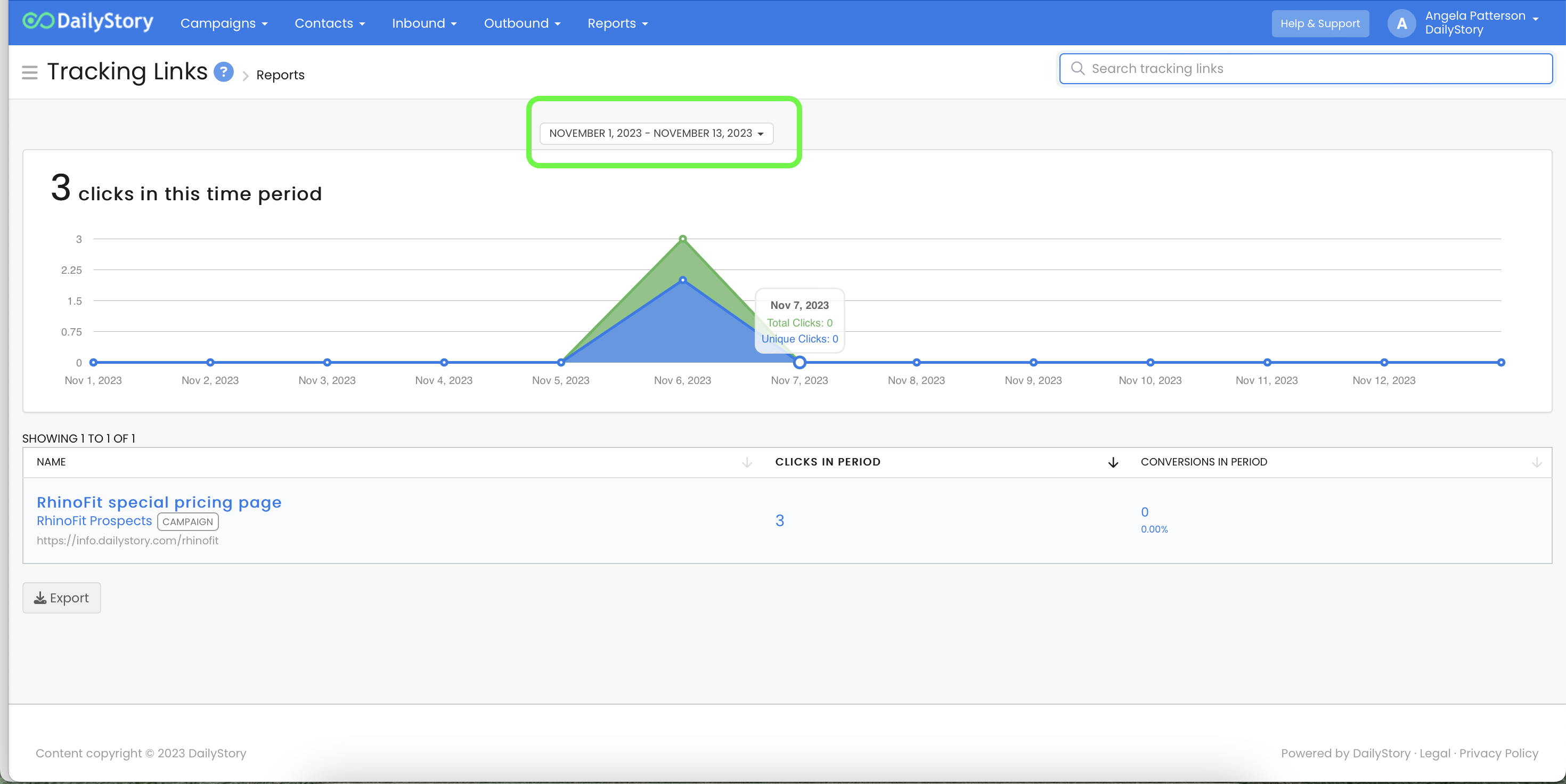
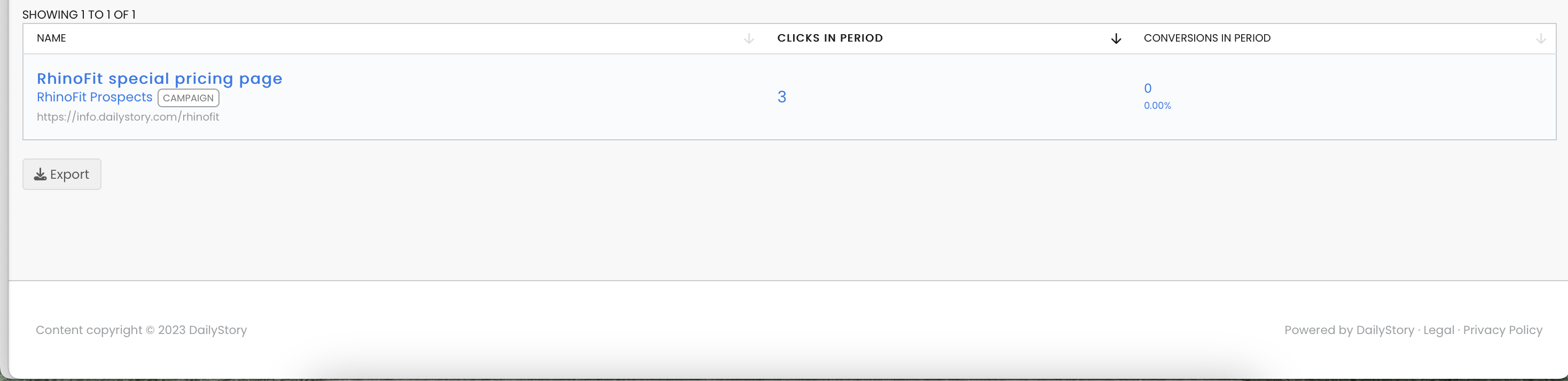
Beneath the graph, you will see the list of URL Shorteners for the time frame selected in the previous step and the following report information for each:
 Recommended
To see more detail, click on any of the blue fields and you will be taken to the relevant metrics for that individual URL shorteners. You can also click on the sub-heading link to navigate to the campaign for the URL shortener.
Once you open the report for an individual URL shortener, you will see a dashboard of key metrics, charts for clicks and conversions over time, and the list of contacts that converted during the selected time frame.
The dashboard at the top summarizes performance for the selected time frame:
Below the dashboard, two charts track performance over time. The clicks chart plots total and unique clicks per day. The conversions chart plots daily conversions and shows the attributed revenue for each day when you hover over it; it appears when the link has recorded conversions in the selected period.
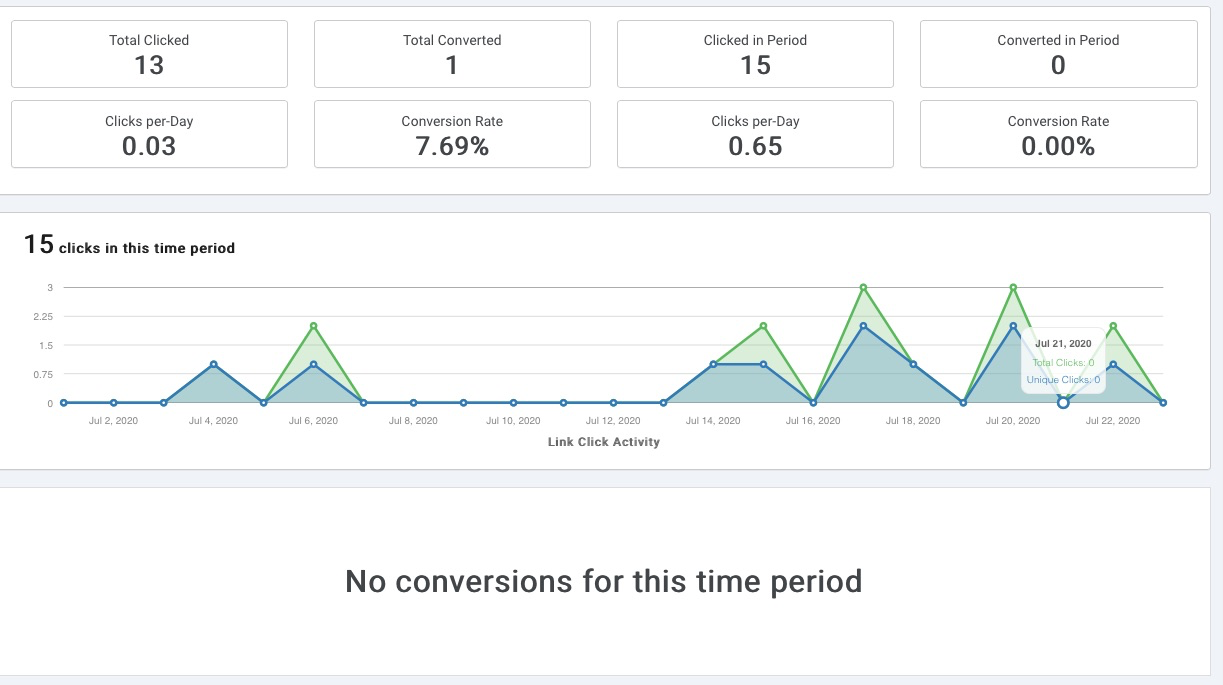
The conversions list shows each contact that converted during the period, including their Region, the Conversion Value, and the Date Converted. Click Export to download the full list as a CSV.
The CSV export includes a unique Conversion UUID for each row (useful for de-duplication), the Link ID, the contact's DSID, first and last name, the campaign, region, conversion value, and date converted, plus any funnel-specific fields captured with the conversion.
RecommendedTo see more detail for the specific contact record, click on the contact's name.