There several different ways to access segments:
Contact > All Segments.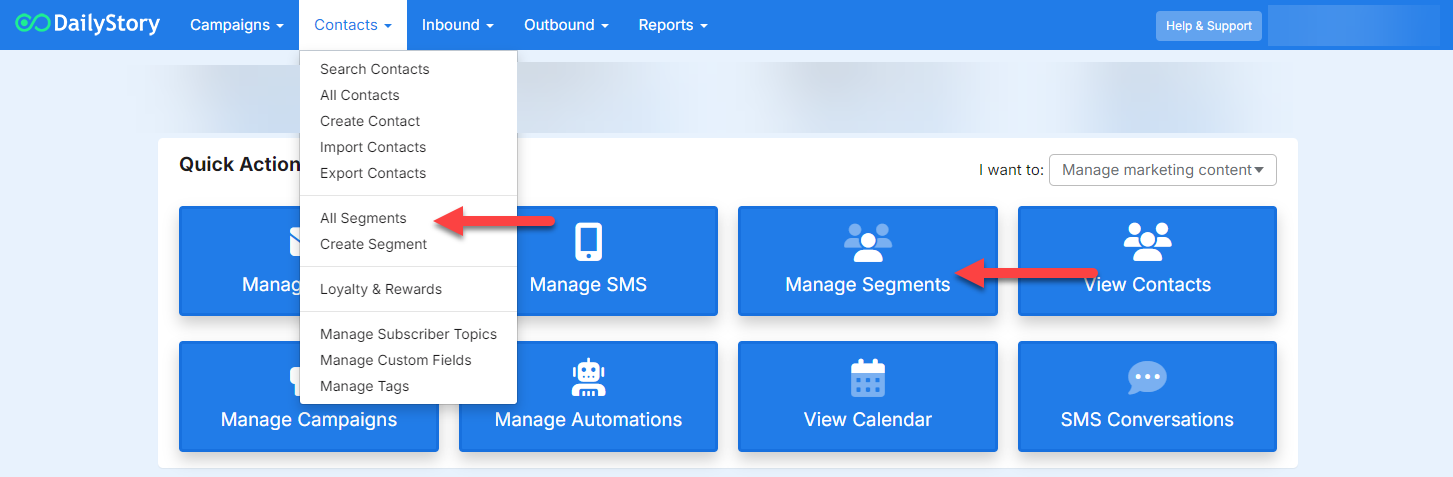
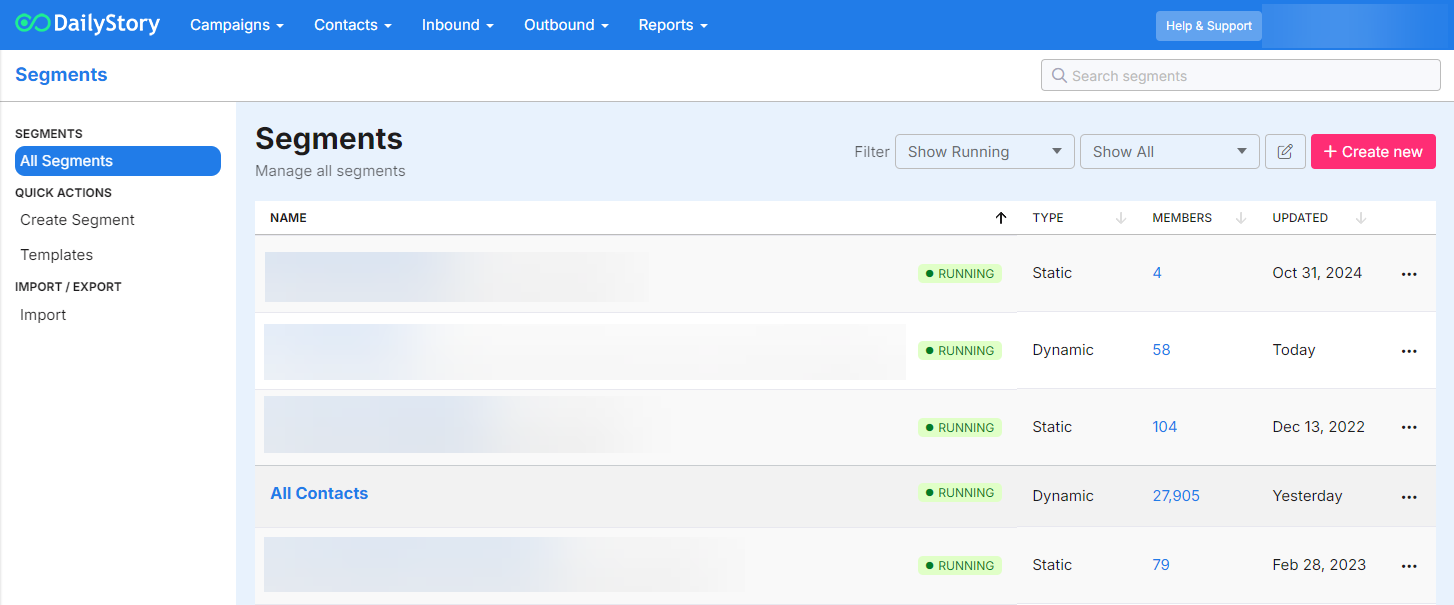
From here you will find a list of all the available segments and you can click on an individual segment to view additional details:
When you click on a segment you'll access a dashboard with additional detials:
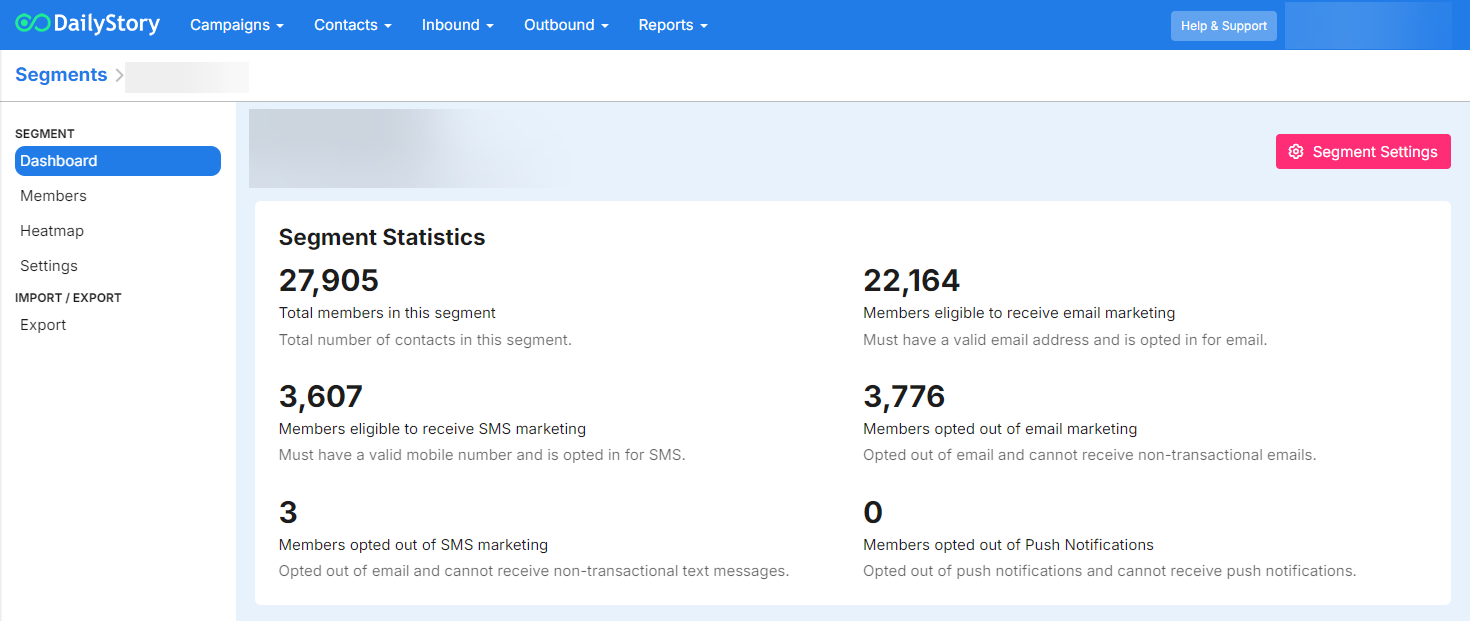
From the segment dashboard you'll find:
You may also wonder why the number eligible for email plus the number opted out only adds up to 6,967. In this case there are 1,333 contacts in the segment that either have an invalid email or don't have an email specified. The same is true for other forms of communication such as text messaging.
From this view you can additionally access the following sections:
You can click on individual members to view them as well as use the export buttons to export members of the segment.
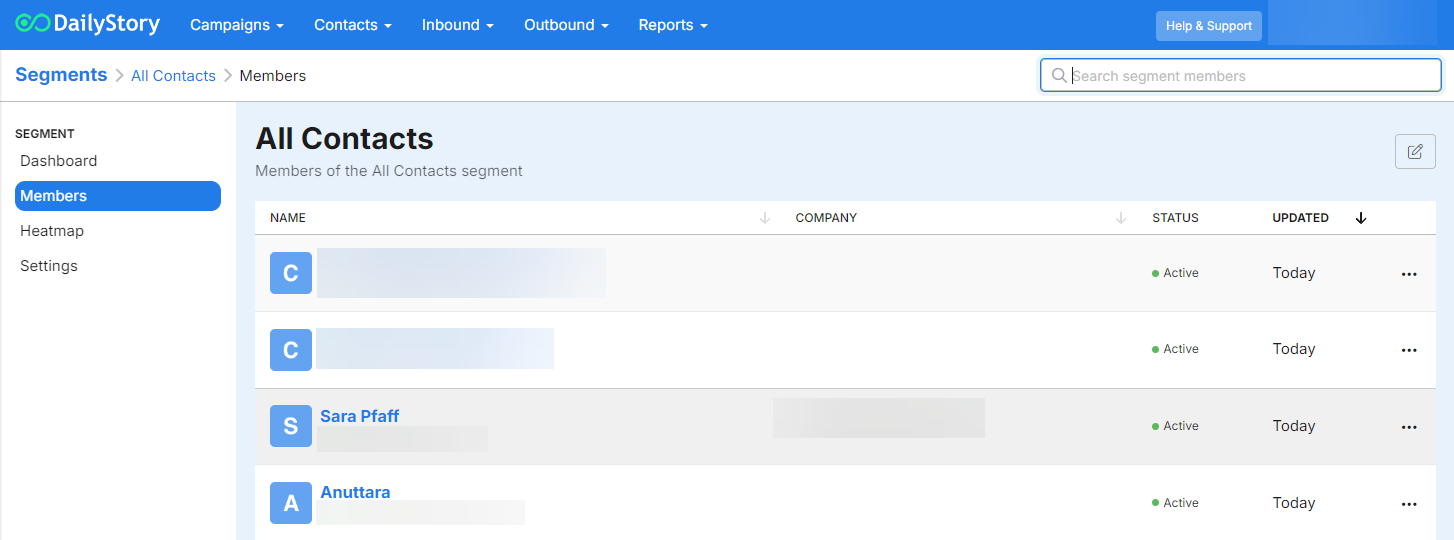
From this screen you can also use the bulk edit options to add/remove members from the segment.
ImportantIf your segment is dynamic you cannot add or remove contacts from your segment. Instead, you will need to modify the search criteria of the dynamic segment
The heatmap is a useful tool to visualize where your segment's members are geographically.
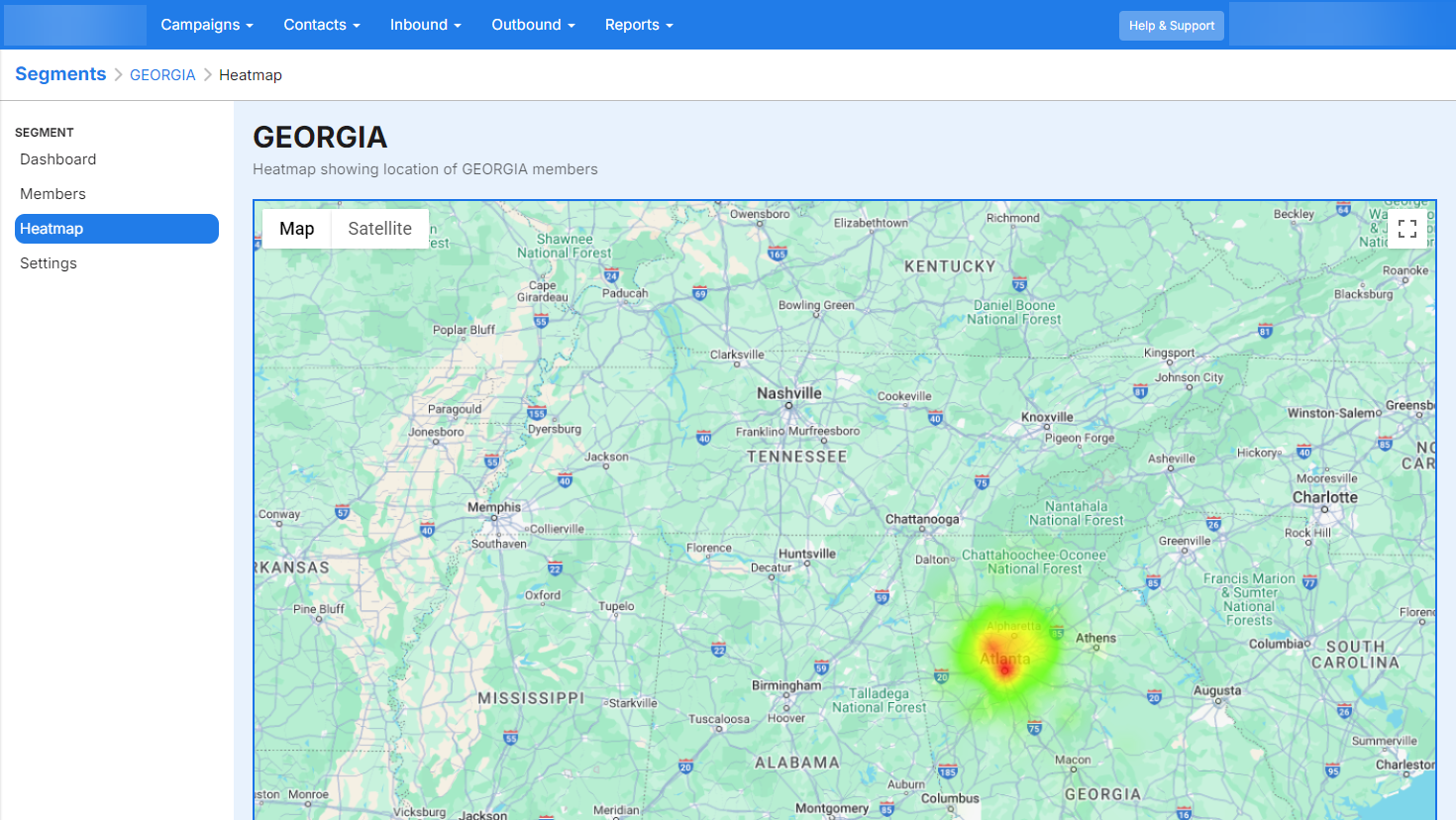
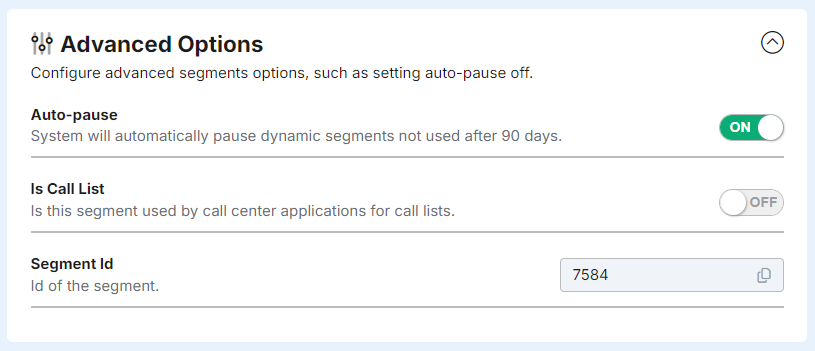
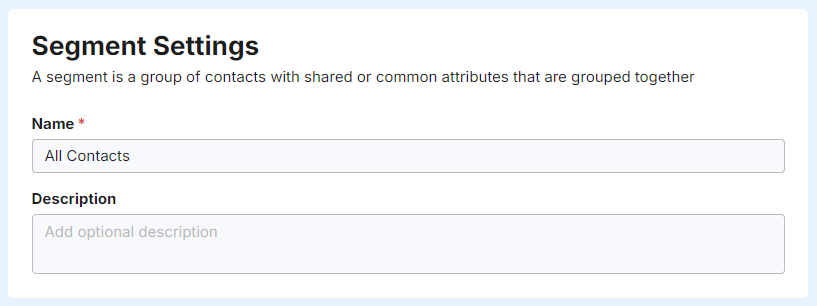
The Setting option opens the Segment Settings screen:
The name of the segment is required. The description is optional.
Configuring the type of segment is an advanced option. We only recommend editing these options if you are fully familiar with DailyStory's segmentation system.
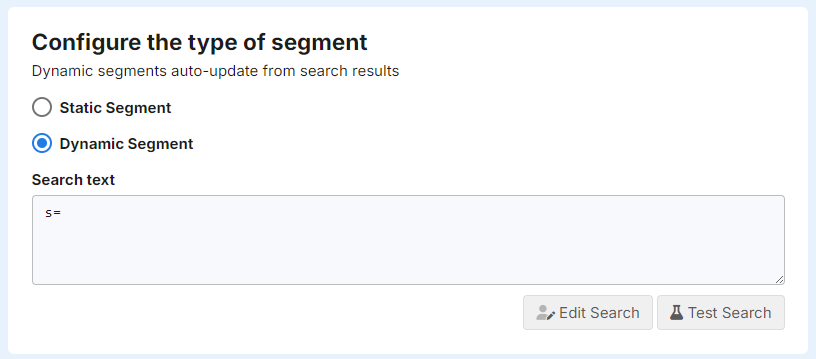
The advanced options provide additional settings available for the segment: