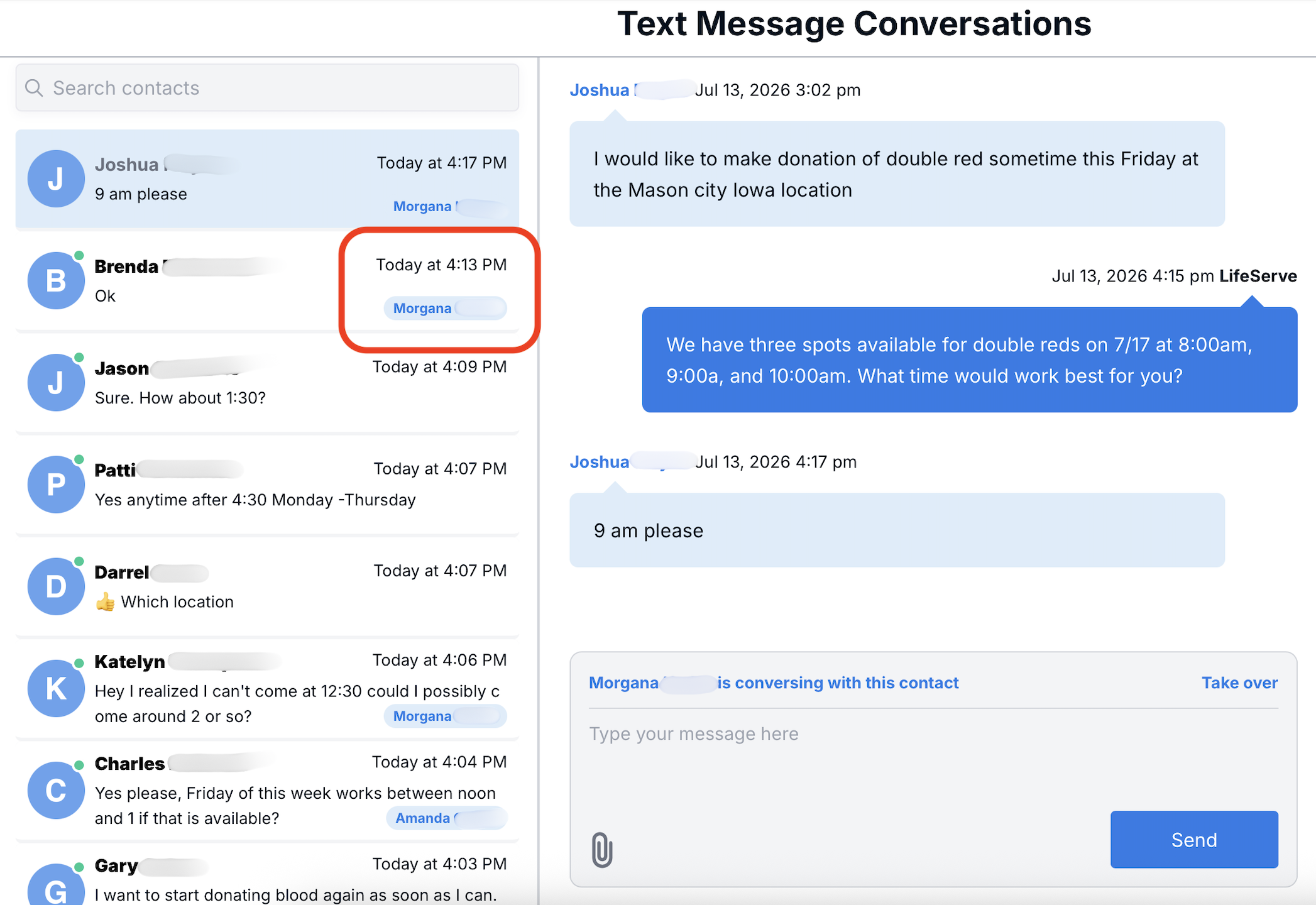
Text Message Conversations is a powerful tool to help you manage multiple conversation with contacts in a single view. The Text Message Conversation user experience updates as new messages arrive and plays a "ding" sound to indicate a new message.
Some customers choose to leave the Text Message Conversation open on their store computer. Staff can routinely listen for or check for new conversations from customers.
RecommendedTo use conversation view, the recipient must have a mobile number.
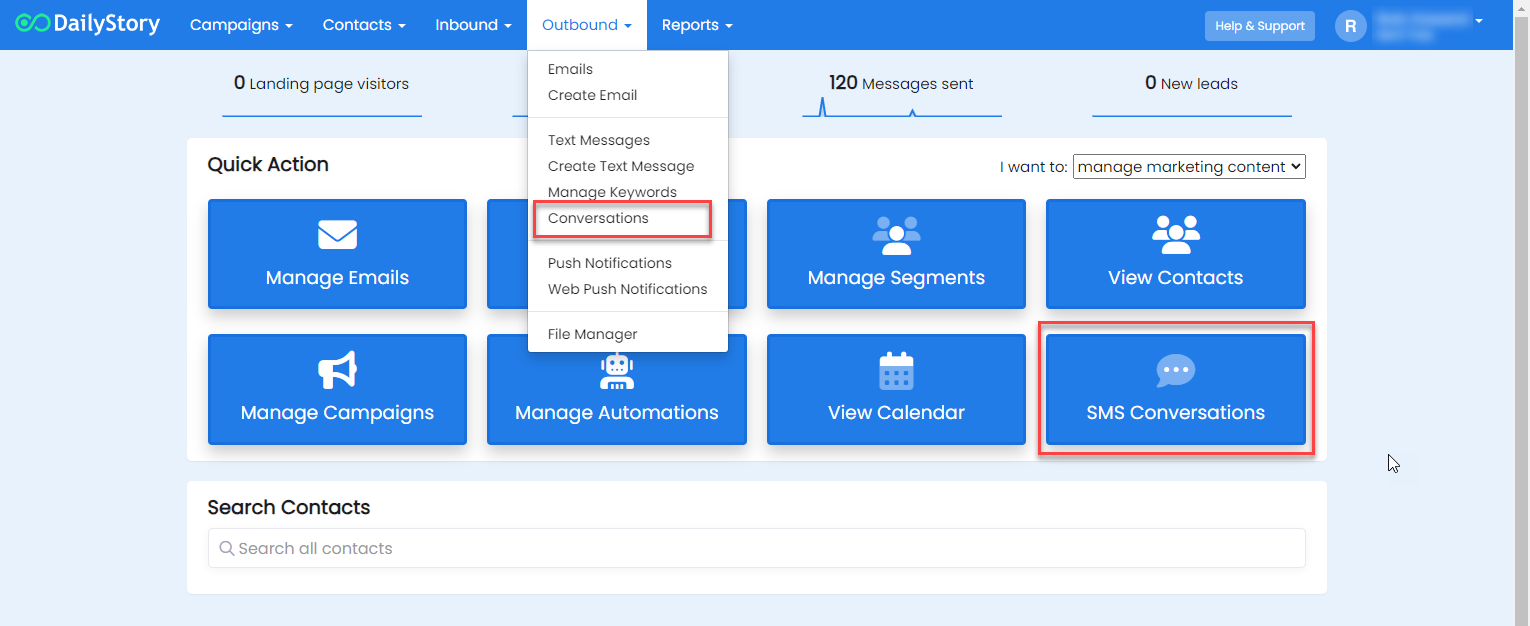
This opens the Text Message Conversations:
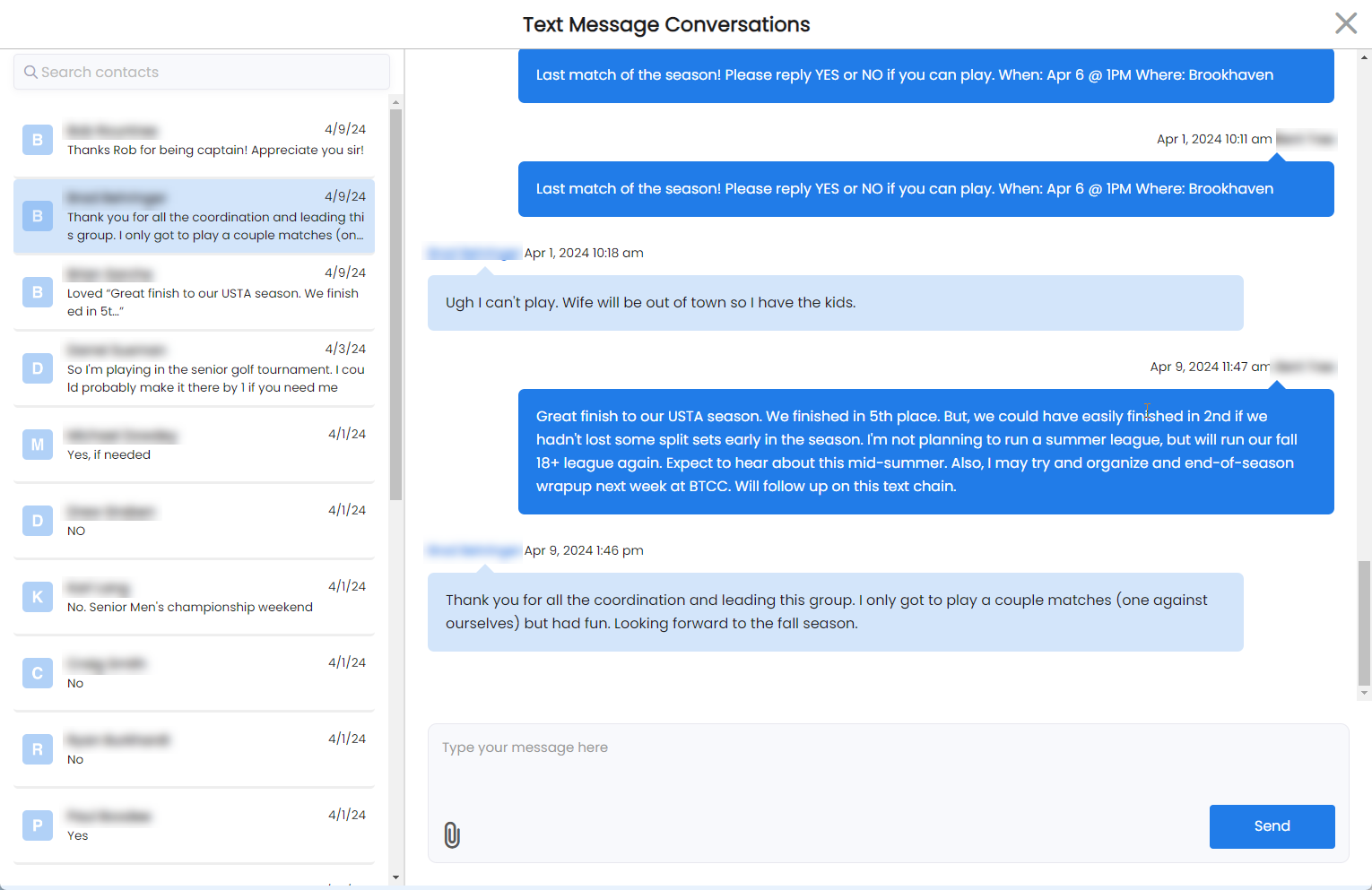
On the left-hand side you will find a list of recent conversations ordered from newest to oldest. Using the search tools you can search for any contact with a mobile number. Selecting a contact pulls up their recent conversations in the right-hand side.
Messages in dark blue are message sent from DailyStory. Messages in light blue are messages received by DailyStory.
To send a message to a recipeient or reply to a message, just type your reply in the text area below the threaded messages:

You can reply with text, with an attachment (such as an image or video) or both.
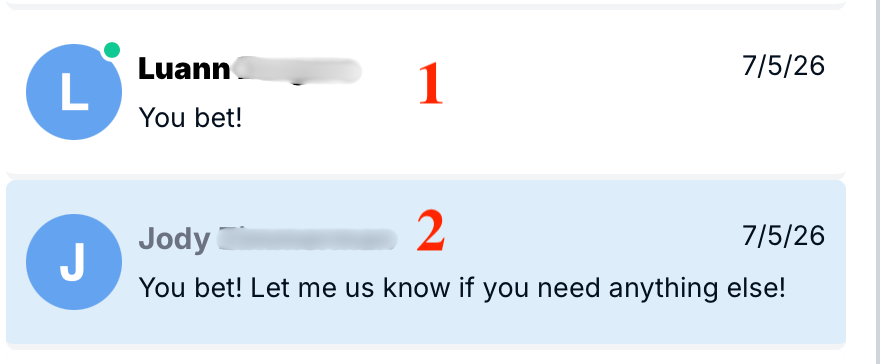
Unread conversations are marked with a green dot next to them in the conversation list. Once you open a conversation, the green dot disappears, indicating it's been read. This makes it easy to scan the list and quickly spot which contacts are waiting on a response.
1. Messages that are currently Unread (look for the green dot)
2. Messages that are Read (no green dot)
You can assign a specific team member to handle a conversation. Right-click on a conversation in the list to open the context menu, then select the user you'd like to assign. This is useful for routing conversations to the right person on your team and keeping ownership clear when multiple staff members are monitoring Conversations.
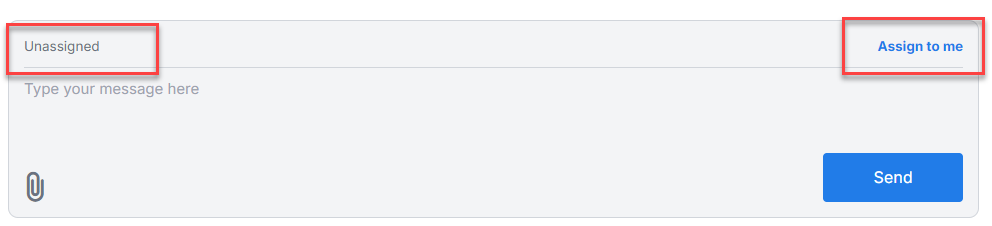
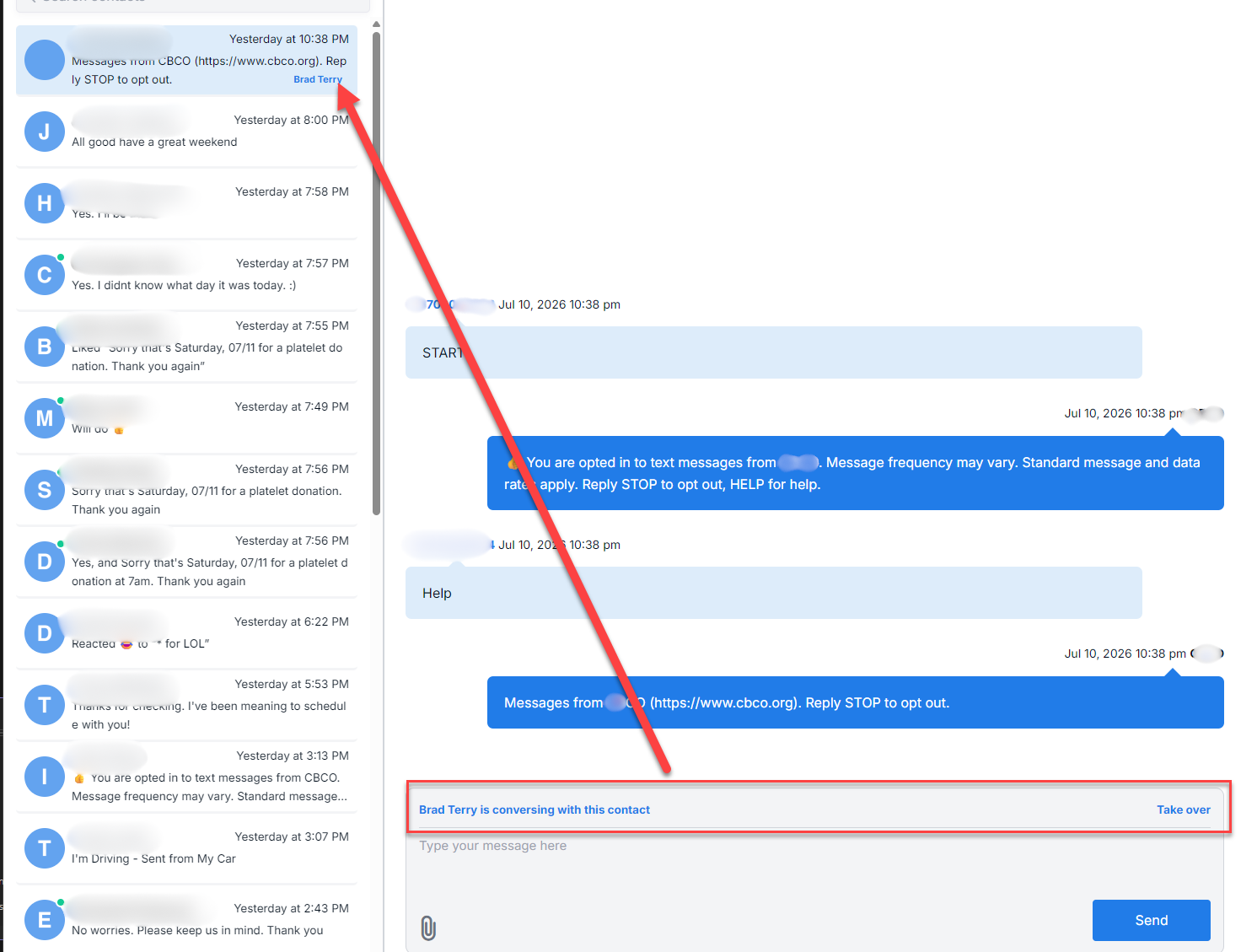
You can also track Assigned Conversations on the left hand side.