This article details how to use Zapier integration with DailyStory to write text message replies to a Google Sheet. Specifically, when a customer texts your SMS number a row is written to a specific Google Sheet.
RecommendedNote: this requires DailyStory Zapier app version 1.10.0 or later.
Below are the steps:
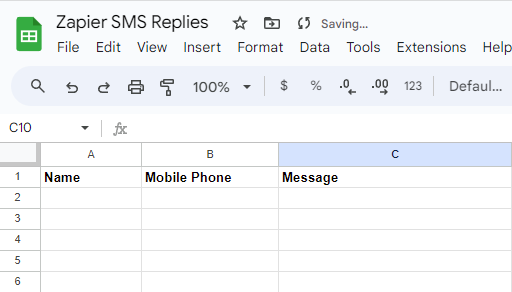
In this example a Sheet called Zapier SMS Replies was created with the columns: Name, Mobile Phone, and Message.
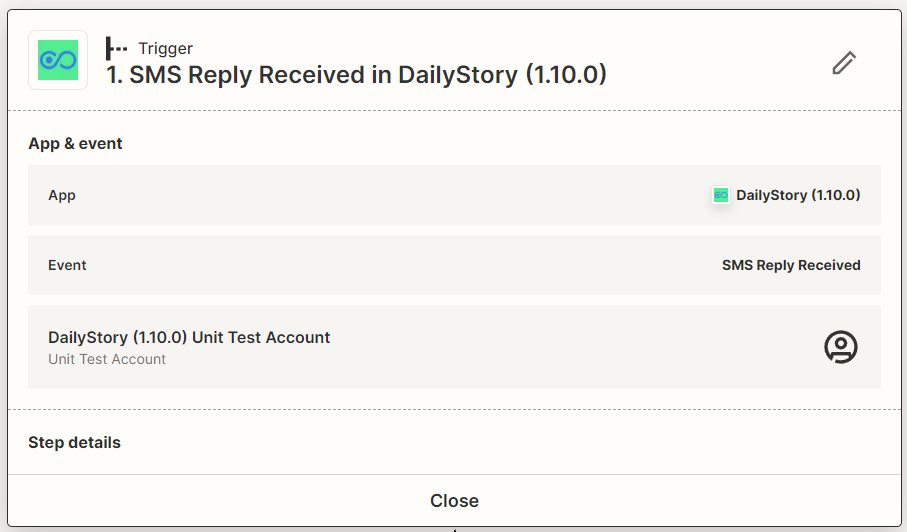
Add the DailyStory Trigger: SMS Reply Received:
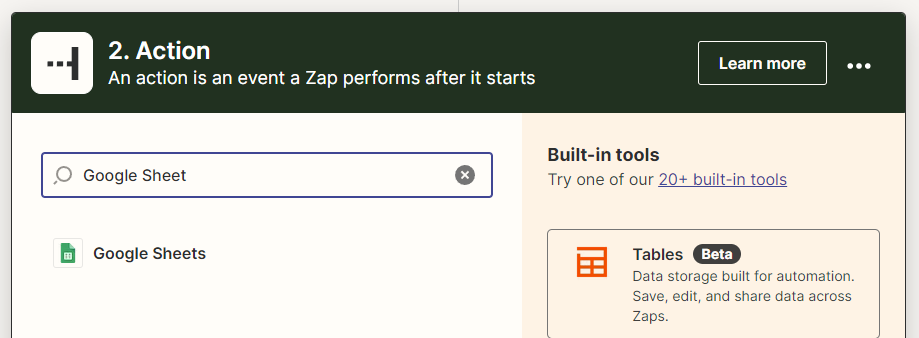
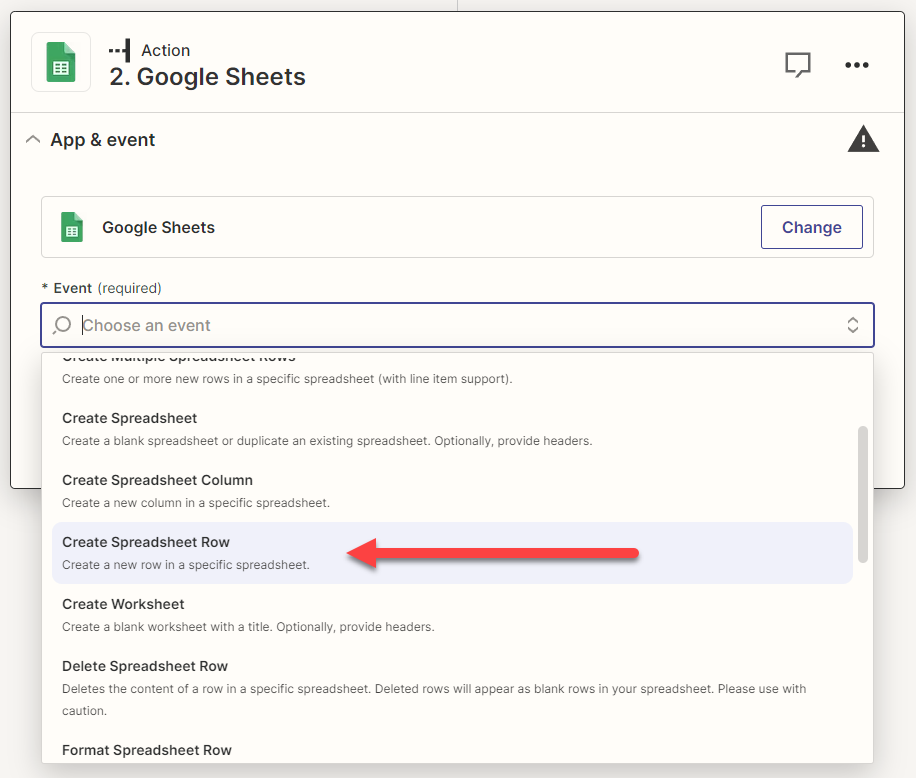
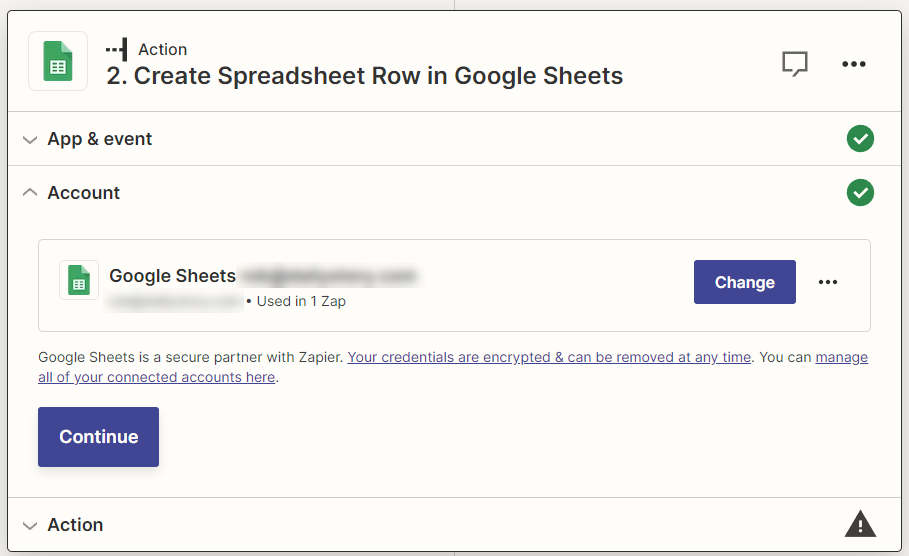
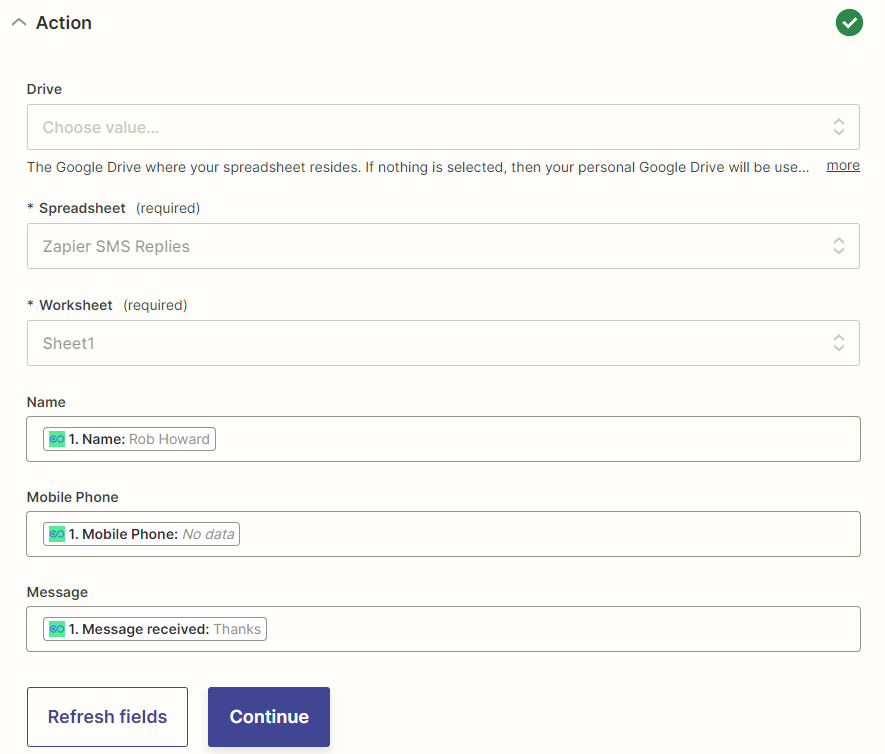
Select the Google Drive, Spreadsheet and Worksheet. For example, the Spreadsheet created above is "Zapier SMS Replies".
Next, use the values from the DailyStory App Trigger to populate the row columns of Name, Mobile Phone, and Message.
That's it. When an incoming SMS reply or message is sent to your DailyStory mobile number, that message will be written to the spreadsheet.