To create or edit a Web Form navigate to Inbound > Web Forms.
Here you will find a list of all the Web Forms.
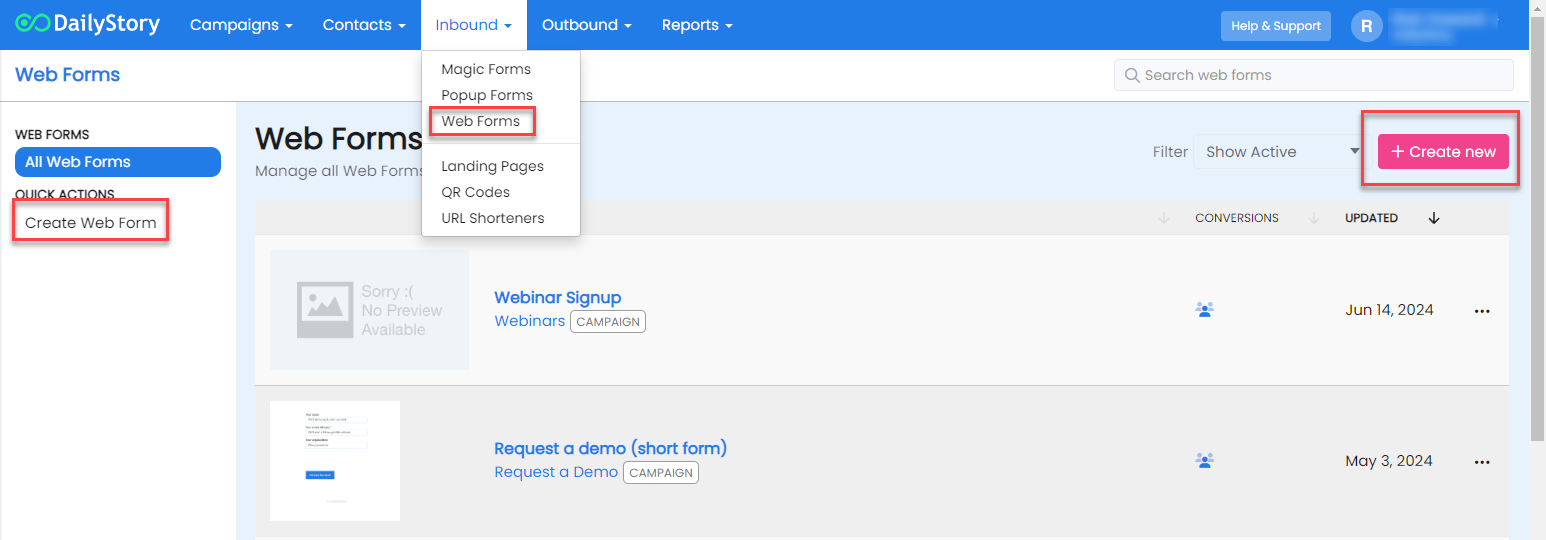
To edit a Web Form, click it. To create a new Web Form, click the Create Web Form button on the left menu or the + Create new button. To see the responses to a form, open the ⋯ menu next to it and select Submissions (see View and export submissions).
The Create Web Form screen enables you to set some basic information about the form:
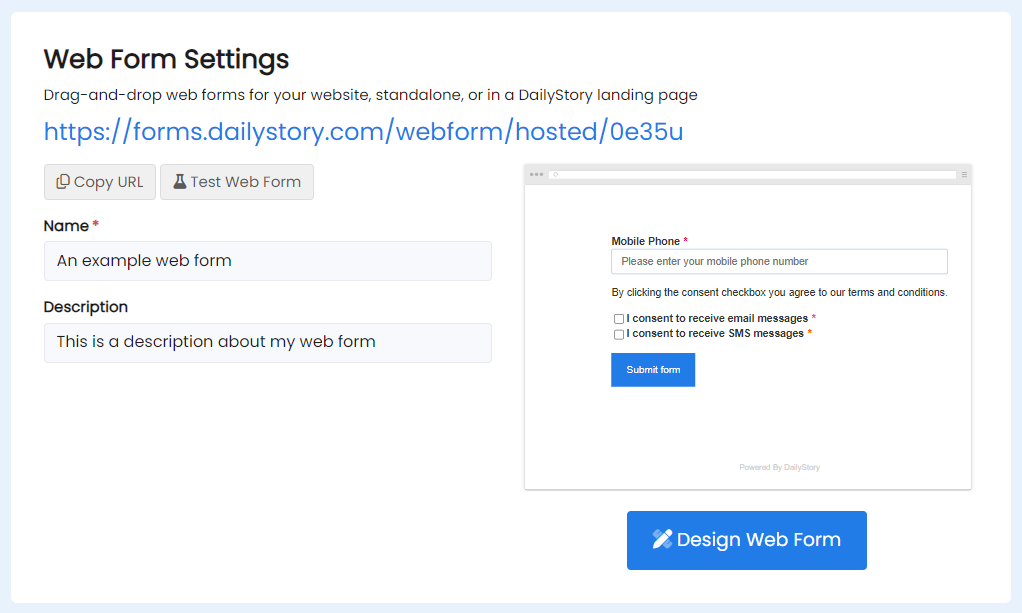
A web form is used is multiple ways: a self-hosted form that visitors can fill out, a form embedded in your website, a form embedded in a DailyStory landing page, or a form used on a shared device at an event.
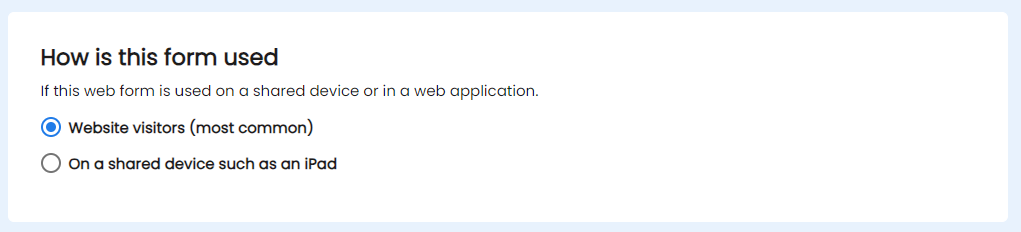
By default a web form is configured for website visitors. This is the most common configuration of the web form and allows the web form to collect data about each unique visitor. It associated the submission of the form with a special identifier. Each submission of the form appends or updates data associated with the identifier linked to a contact.
This enables the form to progressively profile a visitor: as more information is submitted the contact record is appended each time with the new data.
However, if the web form is used on a shared device where multiple people may submit the same form, such as an iPad or computer at an event, it's important to configure the form to be used on a shared device.
When configured to be used on a shared device, each form submission is unique. DailyStory will only attempt to merge records if the submitting email address or mobile phone is linked to another contact.
RecommendedImportant: Change the form type to "On a shared device" if multiple people will use the same device to enter information into the form, such as an iPad at a trade show.
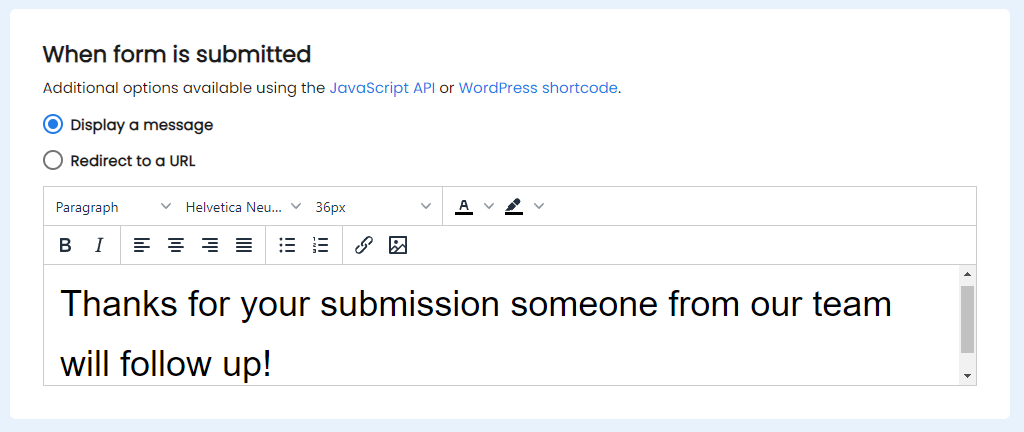
When a web form is submitted there are several options for what the web form does next.
The web form can hide the form and display a message, it can be redirected to another URL - such as a thank you page, or using the JavaScript API you can perform custom actions.
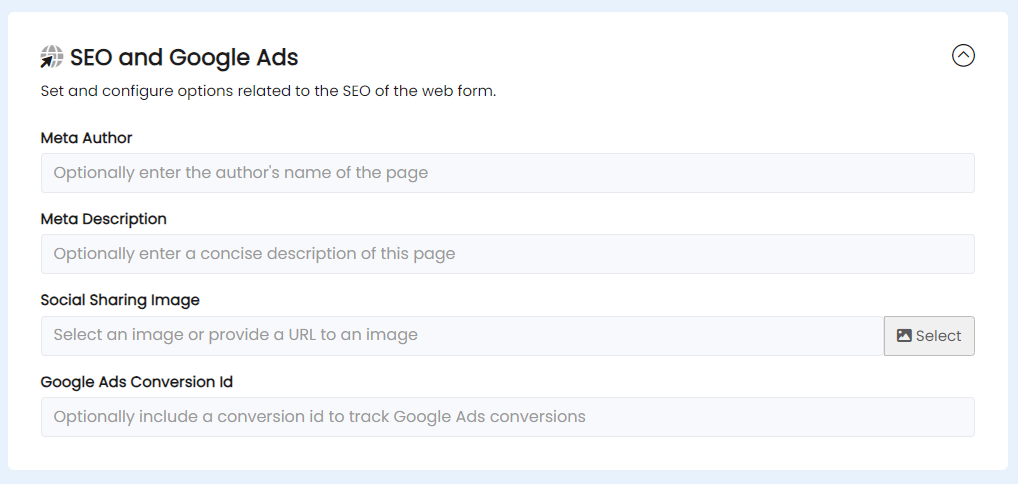
Expanding the SEO and Google Ads section enables you to set some SEO options as well as enter a Google Ads Conversion Id. The Google Ads conversion id is submitted after the form is submitted to enable any Google Ads conversions to be credited with the conversion.
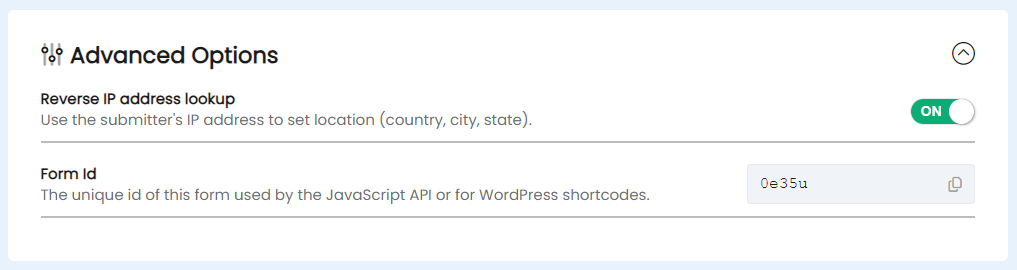
Expanding the Advanced Options of the web form enables you to configure if reverse IP address lookup is enabled and access the unique form id.
Reverse IP address lookup is enabled by default. When a web form is submitted the IP address associated with the submission will be used to perform a reverse lookup to determine the location of the submitter. This is useful for scoring leads by country, excluding certain countries, building geo-location targeted segments, or running geo-location automations.
RecommendedImportant: If the web form is configured to be used on a shared device, reverse IP address lookup is disabled automatically.
Every web form has a Submissions page that lists each response to the form and lets you download them as a CSV. Use it to review what visitors entered, follow up with the contacts behind each response, or move form data into reporting, your CRM or other business systems.
There are two ways to open it:
Inbound > Web Forms, open the ⋯ menu next to the form and select Submissions.You need permission to view or manage contacts to see the Submissions page.
The table has one row per submission, newest first. Each row includes:
Use the date picker at the top right to choose the date range. It defaults to the last 30 days. Use the search box to filter the rows.
Click Export to download a CSV of the submissions in the selected date range. The file has the same columns as the table, plus a column saying whether the values are As submitted or Contact's current values, and a link to each contact. To export contact records rather than form responses, see Exporting contacts.
Each submission keeps the answers exactly as they were entered. If someone submits twice, both sets of answers show, even if they changed something the second time. This holds even for forms configured for website visitors, where each submission also updates the same contact record.
Submissions made before this change are listed too, tagged Current values. A note above the table explains that their answers are what's on the contact now, so they may differ from what was entered. The exception is fields that aren't mapped to a contact field: those were always kept as entered.
If a field is removed from the form, its answers in submissions made after this change still show, in a column tagged removed.