Welcome to DailyStory! Take a video tour of our platform or keep scrolling for step-by-step instructions:
The navigation bar is the primary way you can navigate through various DailyStory menus:

There are four primary elements to the navigation bar:
On the far left is the DailyStory logo. Clicking this takes you to back the home screen dashboard.
Clicking on a drop down menu, such as Campaign, will give you additional related options:
Clicking search or pressing Control-k (PC) or ⌘k (Mac) opens global search.
Global search is a tool to help you quickly find any assets (email, SMS, segment and so on), contact, or help documentation while working within DailyStory.
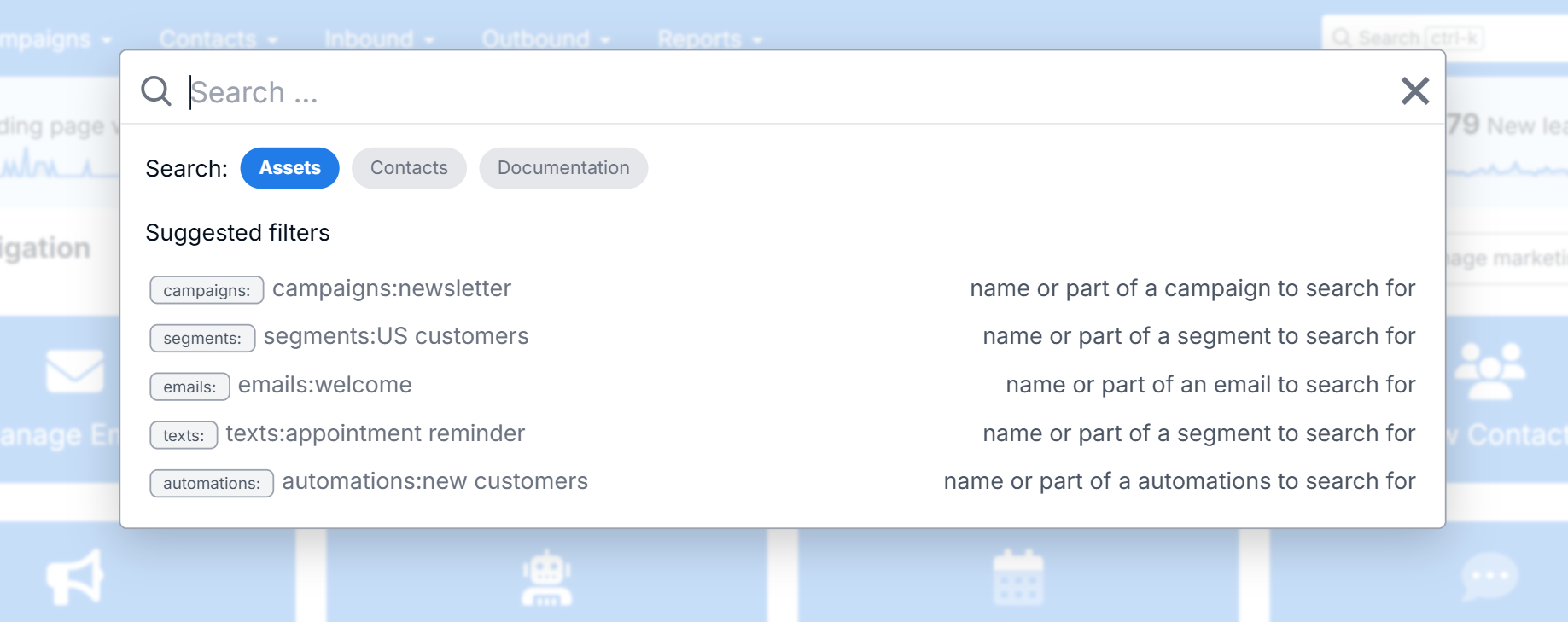
Simply type what you are looking for or use the suggested filters to narrow search to specific topics. You can also explore all the filters and search options for global search.
Finally, on the far right is the user profile menu. The user profile menu is a drop down that gives you access to a number of different user specific options and settings - as well as the main Account Settings for managing your account.
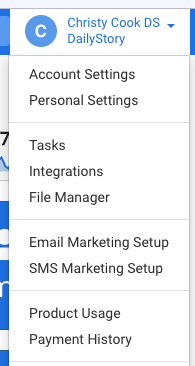
For more information on account settings, see our articles in the Your DailyStory section of our Help Docs menu.
Your homepage dashboard consists of visual summaries of marketing activity, buttons for quick access to our most commonly used features, a quick access contact search bar, and list view for new leads added to the system from your active campaigns.
RecommendedAnytime you want to get back to the Homepage, just click on the DailyStory logo in the navigation bar.
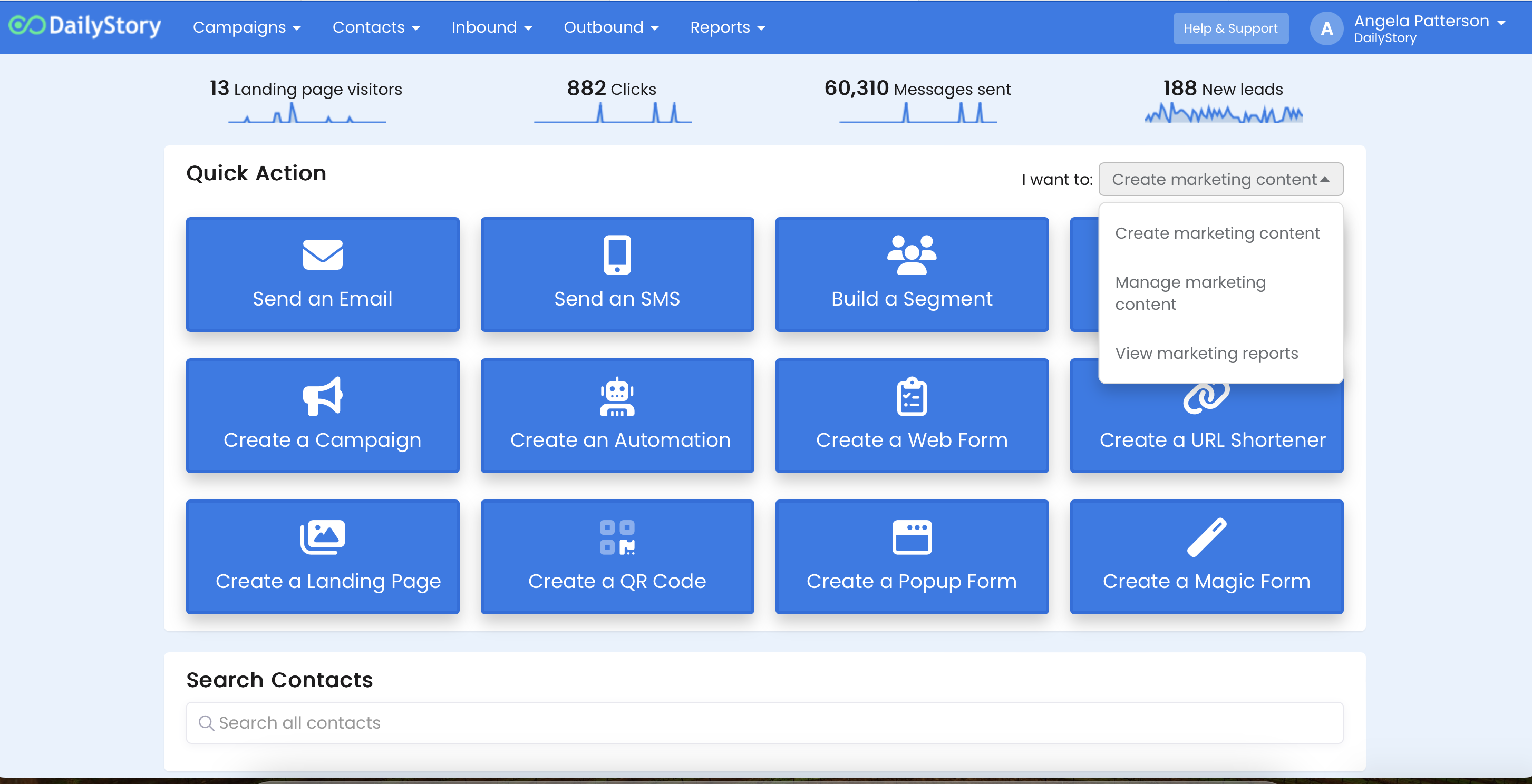
The charts above the home dashboard represent a rolling sixty-day glance of the following:
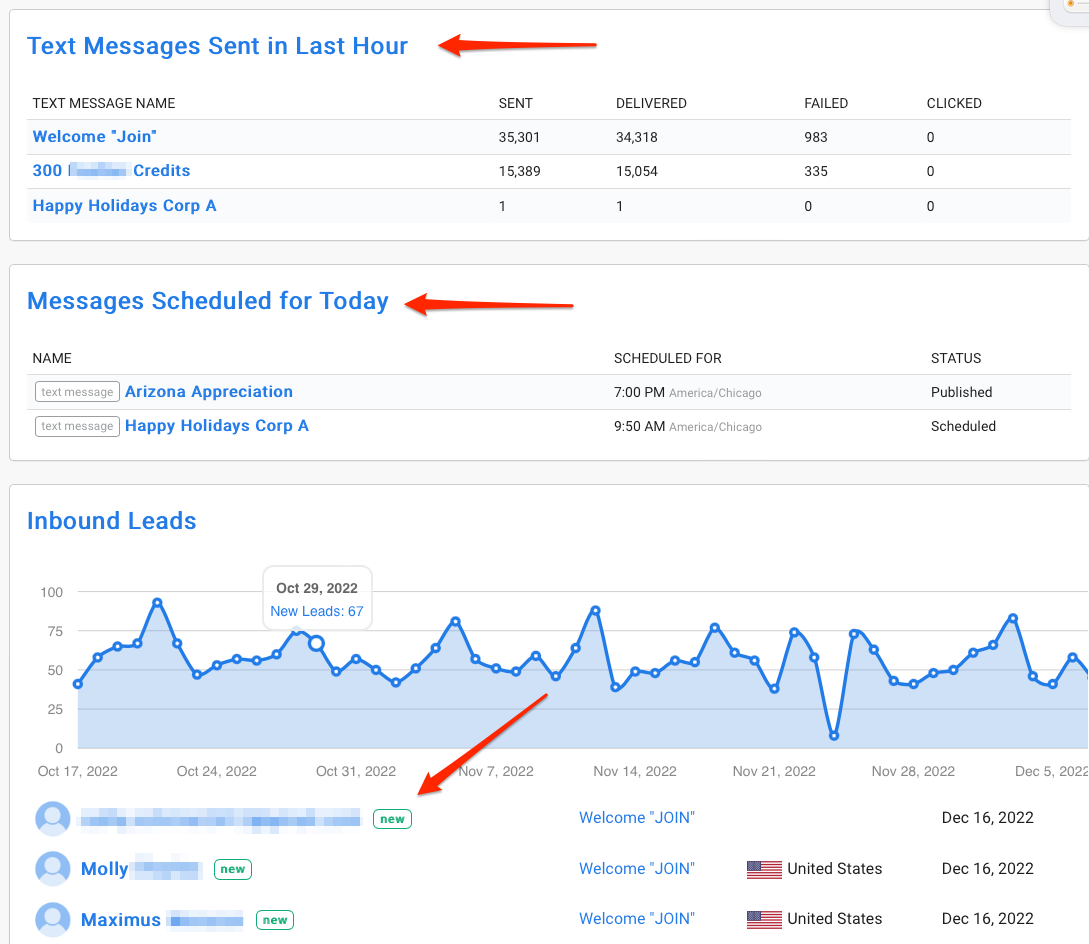
Underneath the dashboard buttons is a list of messages sent and scheduled for the day and a list of leads from various campaigns running.