Web Push Notification Guide
Web push notifications are clickable messages sent by a website to a user's device via the browser. Unlike email, they appear directly on the desktop or mobile lock screen, even if the user isn't currently browsing that specific site.
Unlike an app push notification, a web push notification is a feature connected to the user's web browser (such as Chrome).
What are Web Push Notifications used for?
Web push is primarily used to drive retention and immediate action.
- Transactional Alerts: For example, notifying a user that their loyalty reward has shipped or that a "Point History" entry was added.
- Time-Sensitive Reminders: Alerting a user when a task completed, such as uploading a new list of contacts.
- Re-engagement (Abandoned Cart): Sending a nudge if a user left an item in their cart without redeeming it.
DailyStory makes use of web push notifications internally.
Create a Web Push Notification
To create a Web Push Notification, navigate to Outbound > Web Push Notifications. Next, click the + Create new button. This will open the Web Push Notification editor.
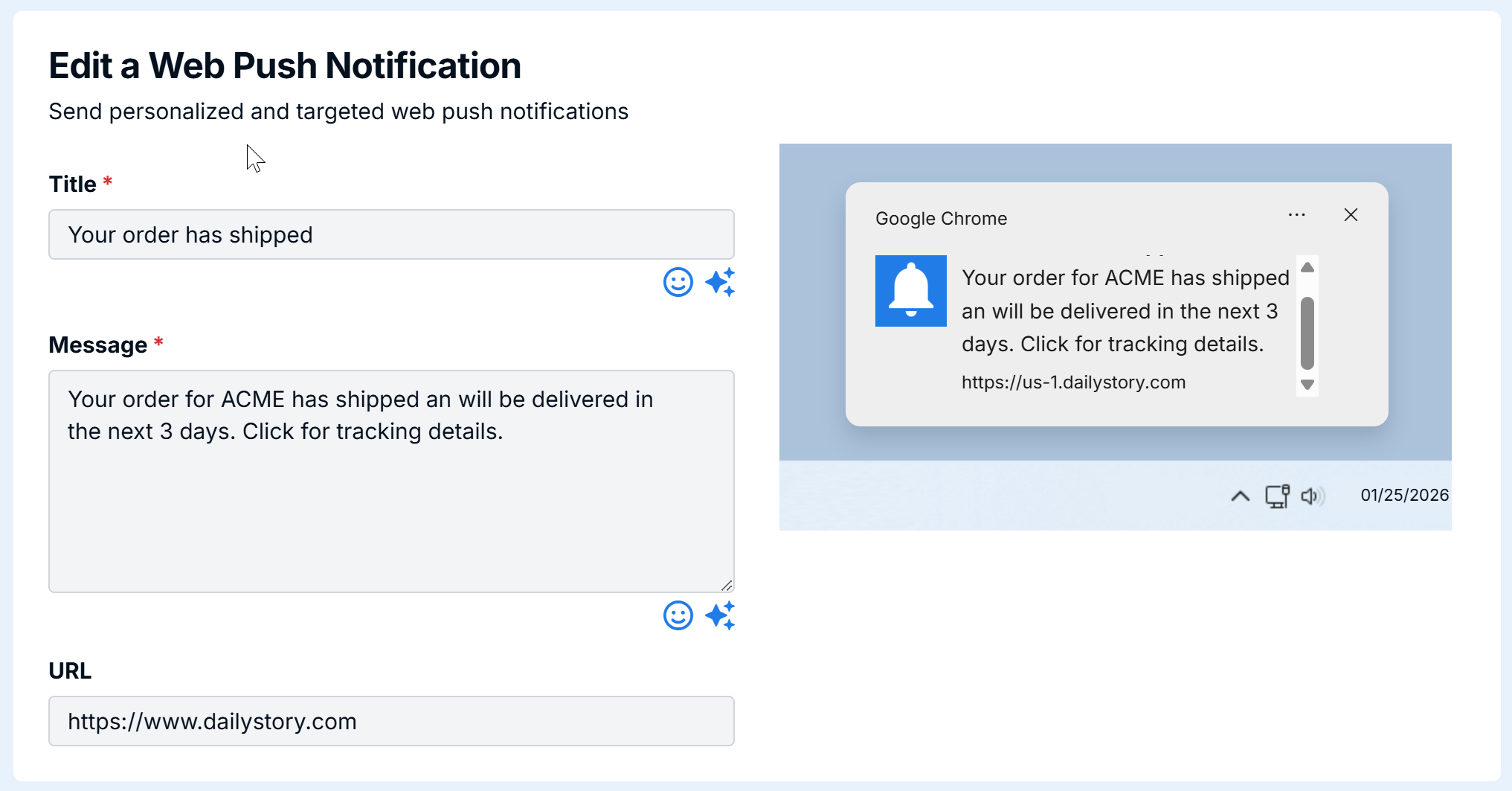
Edit a Web Push Notification
To edit a Web Push Notification navigate to Outbound > Web Push Notifications and select the Push Notification to edit.
This will open the Edit Web Push Notification screen.
Testing a Web Push Notification
To test a web push notification, click the Send Test button. See the web push optin popup.
ImportantWhen sending a test web push notification you may be required to opt in to web push notifications in the browser.
Sending a Web Push Notification
Once configured web push notifications can be scheduled or send using an automation.