Global search is a tool to help you quickly find any assets (email, SMS, segment and so on), contact, or help documentation while working within DailyStory. It becomes especially helpful once you grow beyond a few campaigns.
To access global search click Search in the main navigation bar or pressing Control-k (PC) or ⌘k (Mac) opens Global Search:

This opens the global search popup:
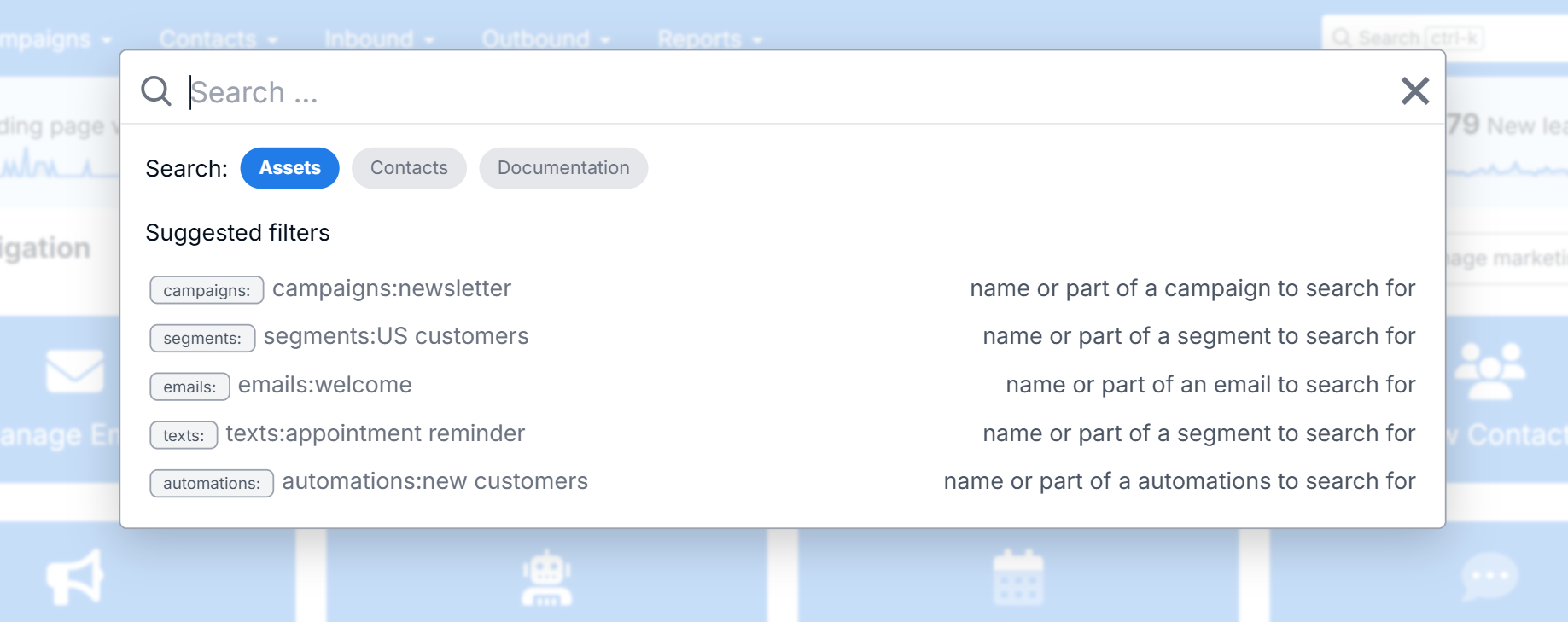
Next, simply type what you are looking for or use the suggested filters to narrow search to specific topics. You'll be presented with a list of the 10 most recent and best matching results.
Global search is organized around intent: I want to find things I've created (assets), I want to find a contact (contacts), I need help with a topic (documentation). Each of these intents represent distinct searches and to change your search intent, just click the corresponding option. By default assets is selected.
While searching you can type the text of what you want to search for or you can optionally use a filter to narrow your search to particular topics. For example, if searching for an email asset using the emails: filter will ensure that only assets that are emails are shown.
When shown the list of suggested filters you can click on an item and it will automatically add it to your search.
While using global search you will also encounter navigation links at the top of the search results. For example, when the keyword email is used up to 3 quick navigation hints may be shown. This can include options for creating, viewing reports and more.
An asset in DailyStory is anything that you create. Examples include: emails, text messages, segments, automations and more.
While using DailyStory it's normal to create multiple campaigns each with their own dedicated assets and automations. Global search provides a way to quickly navigate to any active asset without using the navigation. Just type the name, or part of the name, of what you are looking for.
The best way to learn how to use global search is by using it. You'll quickly find its an integral part for how DailyStory is used.
WarningOnce an asset is deleted, even though it is not yet permanently deleted, it is removed from global search.
Assets support filters for every time of asset created in DailyStory. Although only a handful are shown in the suggested filters list. The table below lists all the available filters.
| Filter | Description |
| automations: | Search automations/flows. |
| campaigns: | Search campaigns. |
| emails: | Search emails. |
| events: | Search events. |
| magicforms: | Search magic forms. |
| pages: | Search landing pages. |
| polls: | Search polls. |
| popups: | Search popups. |
| qrcodes: | Search qrcodes. |
| segments: | Search segments. |
| shorteners: | Search URL shorteners. |
| texts: | Search text messages. |
| webforms: | Search web forms. |
The ability to search for contacts in global search is not a replacement for the main contact search tools, but as a way to quickly navigate to a contact.
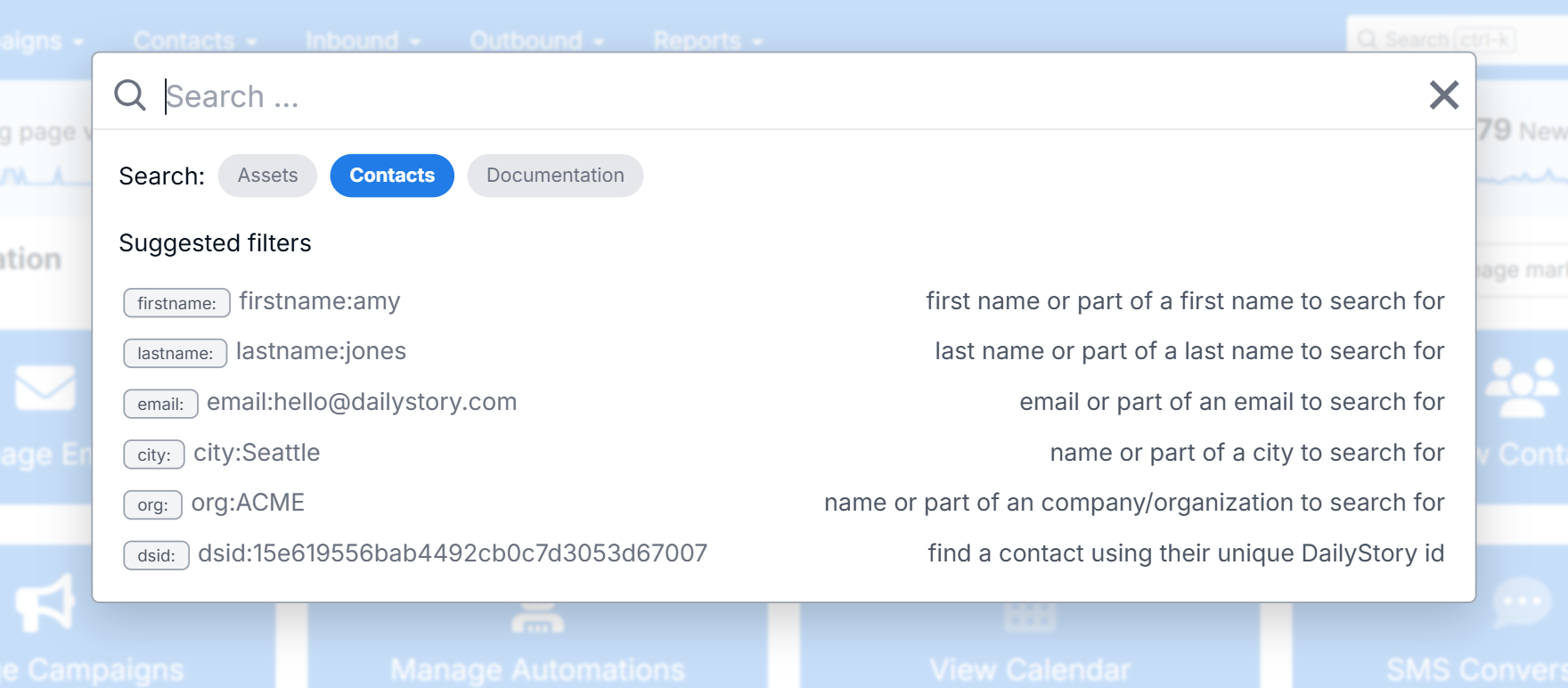
Similar to searching for assets, there are number of filters that make it easy to narrow your search results. Such as searching only by first name or email address. Using filters is critical for customers with a large number of contacts to quickly narrow down and find the person you are looking for.
Unlike asset filters which are exclusive to the asset type, the number of contact filters is enormous and includes custom fields too.
| Filter | Description |
| city: | Search for contacts by city. |
| dsid: | Find a contact using their unique DailyStory id. |
| email: | Search for contacts by email. |
| firstname: | Search for contacts by first name. |
| lastname: | Search for contacts by last name. |
| org: | Search for contacts by the organization or company name. |
We've provided these filters as examples, but any search field is available as a filter. But what is more powerful is the support for search using custom fields.
While a more advanced option, this is a power-user tool for many DailyStory customers. It enables searching for contact's using custom fields included with integrations or fields you've created. These fields are documented along with their corresponding integrations.
Let's look at a few examples:
| Integration | Filter | Example |
| Mindbody | mindbody_id: | Find a contact by Mindbody id: mindbody_id:487364 |
| Forcyte | donor_number: | Find a contact by Donor number: donor_number:123683 |
| Stripe | stripe_customer_id: | Find a contact by Stripe customer id: stripe_customer_id:cust_28374 |
While we've only shown a few examples, all of DailyStory's 50+ native integrations support this power-user feature.
All of DailyStory's user documentation is also available from global search. Just type what you are looking for and the best 10 results are shown. Clicking one of the search results will bring you the the right page and section in the page related to what you are looking for.