Exporting contacts
With just a few clicks, you can easily export your contacts data from DailyStory into a CSV file.
- Navigate to
Contacts > All Contacts. - Select the
Export link located in the top right above the column headings.
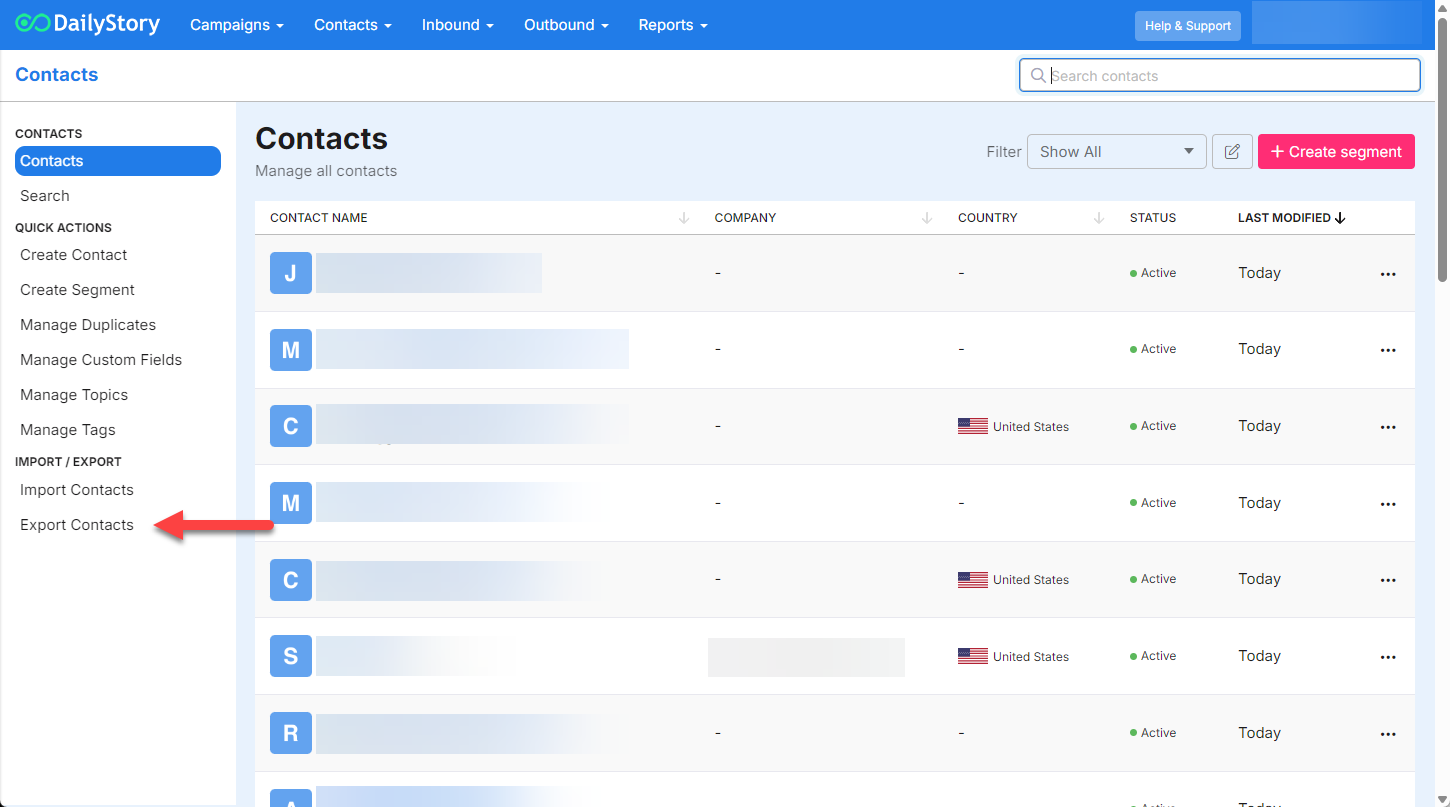
- You will see a "Hooray" confirmation window that will confirm the number of contacts in the export and a notification that you will receive an email shortly with the file.
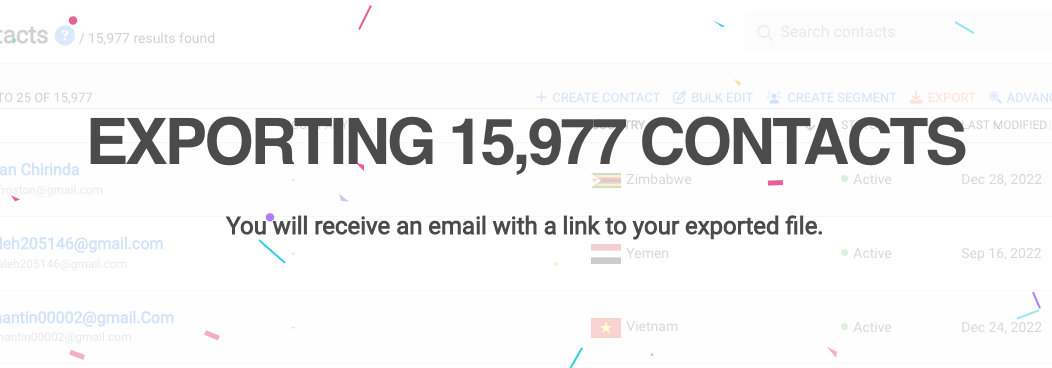
- Shortly following, you will receive an email with a button to download your file.
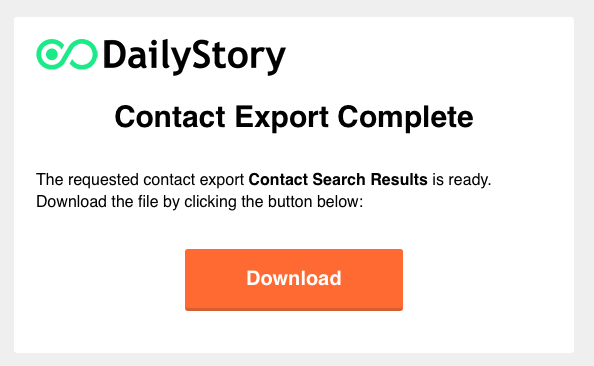
- Click the
Download button and the .csv file will be downloaded to your computer.
WarningIf you attempt to export a list of contacts that is greater than what you are licensed for, you will not be able to export the file without the help of customer support. Furthermore, It may be necessary for you to upgrade your subscription.
RecommendedYou may also export any segment list, filtered list, report result list, etc by following the same steps above. On those screens, however, you will find the export link at the bottom of the page.
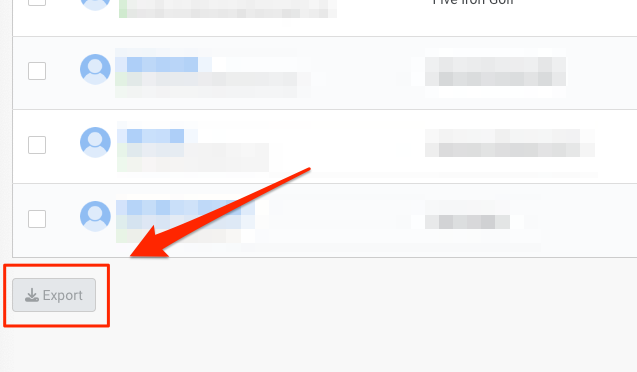
Exporting contacts by segment is also supported both on the individual segment or by using the Advanced Contact Export: Contacts > Export Contacts.
Using the Advanced Contact Export tool you can select:
- One or more segments to including the contacts you wish to export
- One of more segments you wish to exclude from the export
- Individual contact properties you want included in the export
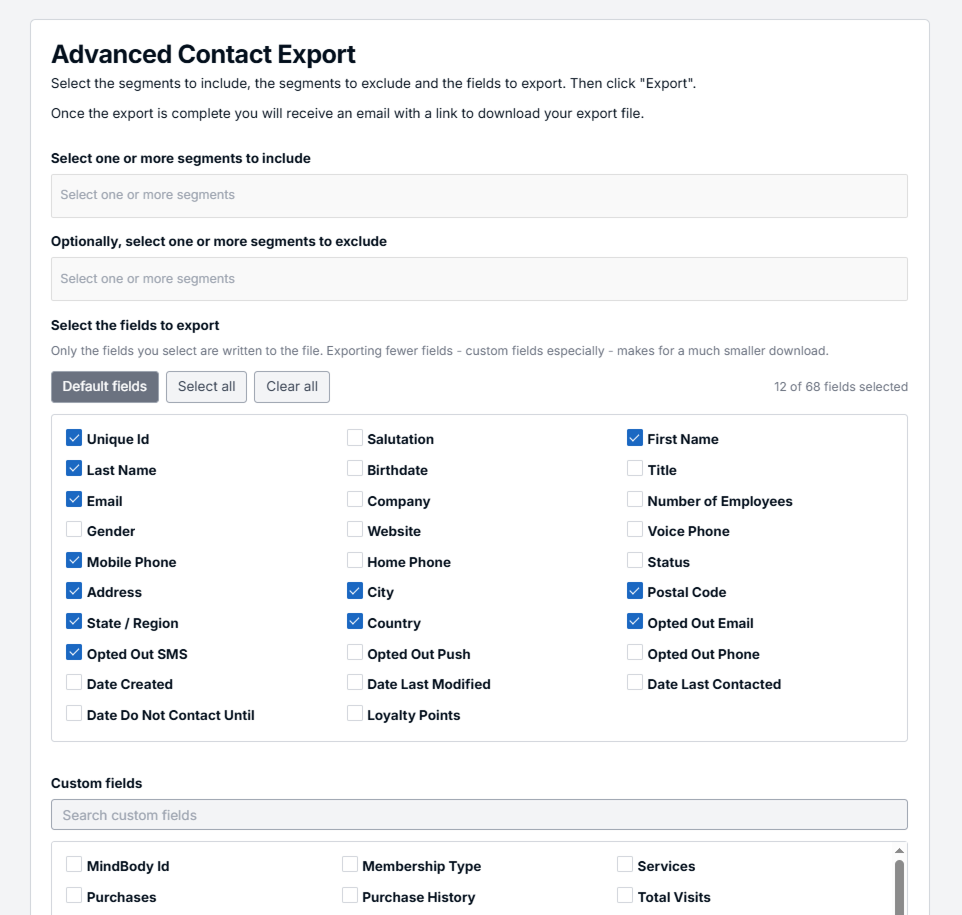
The ability to select on the properties you want in the export file is designed to help manage the size of the file. For example, a customer with 1 million contacts and several integrations enabled might have an export file that is 300-400mb. If all they needed was First Name, Last Name and Email this file might be 10-15mb (or less).
Frequently Asked Questions
Below are some frequently asked questions about exporting contacts.
Can I export the file for Excel?
DailyStory doesn't support a direct Excel format, but we do support CSV (Comma Separated Value). This is a standard format that spreadsheet tools such as: Microsoft Excel, Google Sheets, Apple Numbers, Zoho Sheets can open.
DailyStory does not support exporting directly to Excel (.xlsx), but you can export data in CSV (Comma-Separated Values) format. CSV files are compatible with most spreadsheet tools, including Microsoft Excel, Google Sheets, Apple Numbers, and Zoho Sheet.
To open a CSV file in Excel:
- Open Excel
- Use File > Open and select your
.csv file
Why does a contact's export show Opt Out Email, Opt Out Text, Opt Out Push, and Opt Out Call as true when they haven't opted out?
This is expected behavior. The export checks each contact's Do Not Contact Until date. If that date is later than today, the export sets Opt Out Email, Opt Out Text, Opt Out Push, and Opt Out Call to true for that contact, indicating they should not be contacted through any channel until that date.
This does not change the contact's individual channel preferences — it only reflects the temporary suppression in the exported file. See Do Not Contact Until for more on how this date works.