Preview a Text Message
Prior to sending a text message it's recommended that you both preview and send a test message.
Preview from the Edit a Text Message page
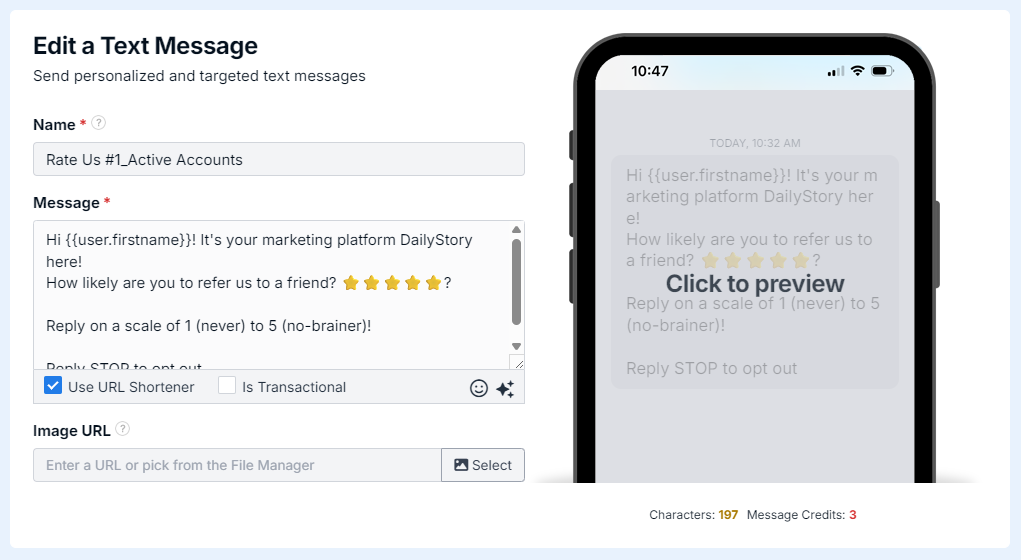
When editing a text message, move your mouse over the preview and click. This will open a dedicated, clickable preview of the text message.
Preview from the list of Text Messages
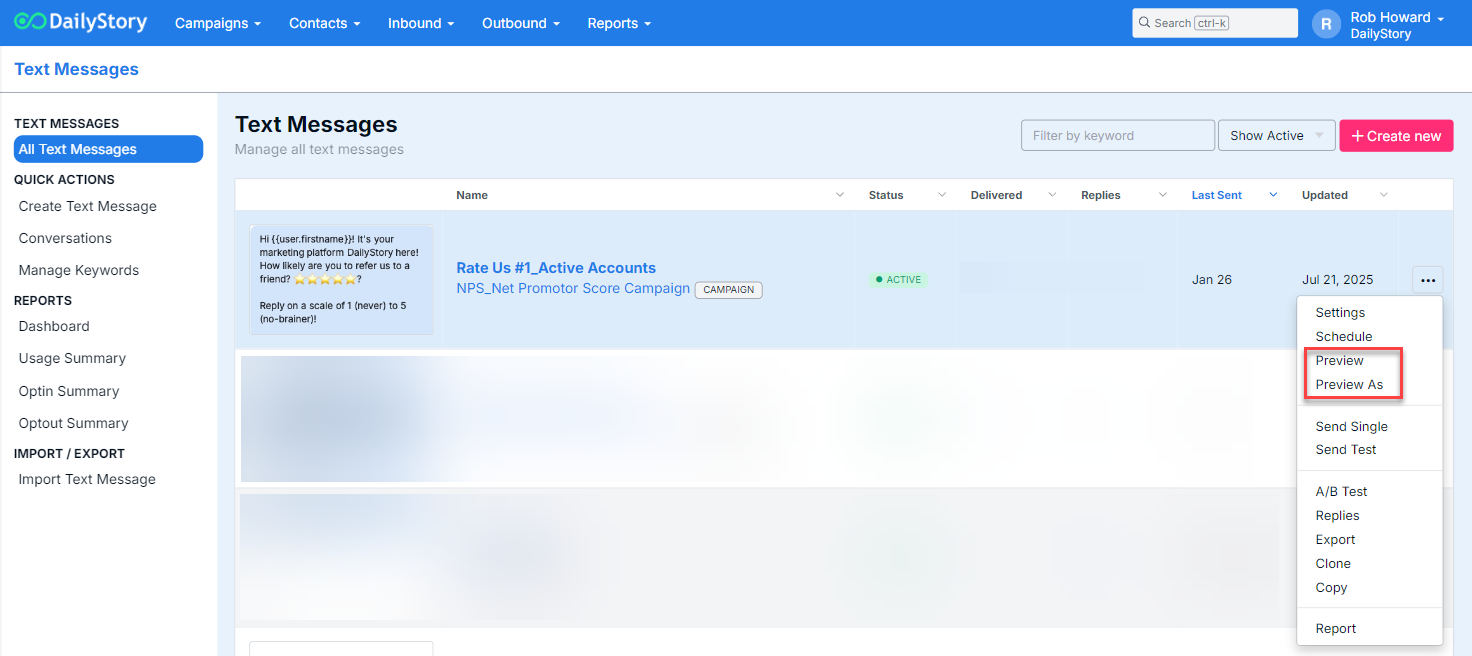
When viewing the list of text messages click the 3 dot on the right side of the grid and select Preview or Preview As. The Preview As functionality enables you to preview as an existing contact. This is useful for testing personalization.
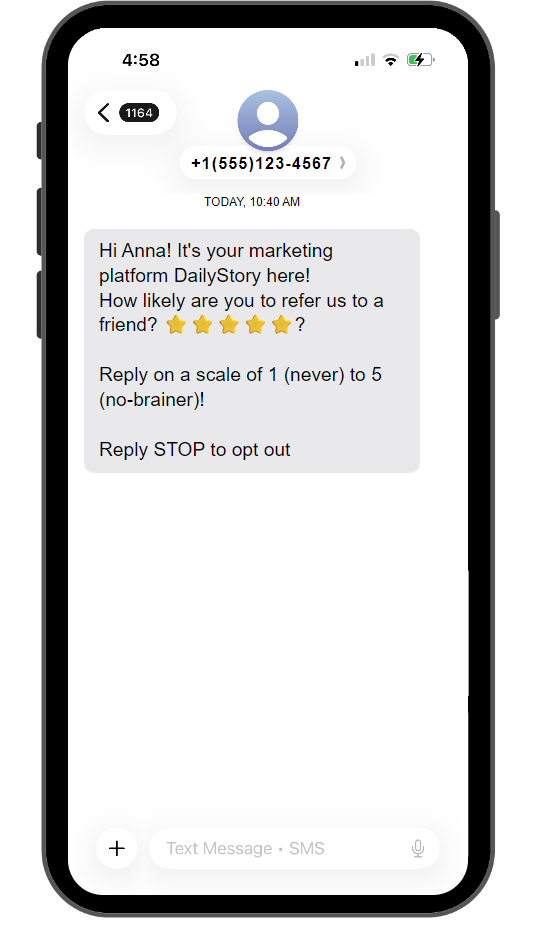
Whether you select Preview or Preview As, you'll be redirected to a dedicated text message preview screen.
Preview for Regulated Industries
If you are a DailyStory customer in a regulated industry, such as CBD, there are restrictions regarding the types of text messages you can send. Specifically, you are limited to sending transactional notification messages and any messages are sent in the following format:
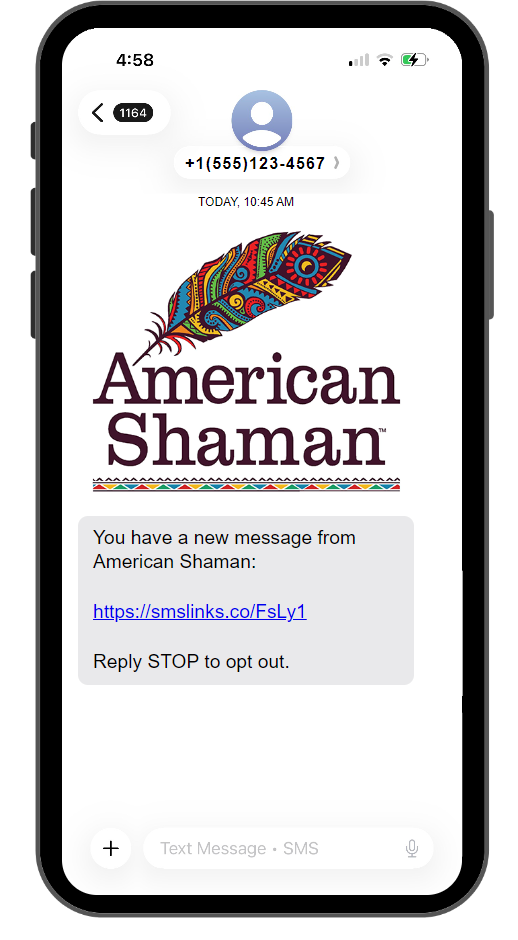
Clicking the link in the preview will open the full message intended for the recipient.