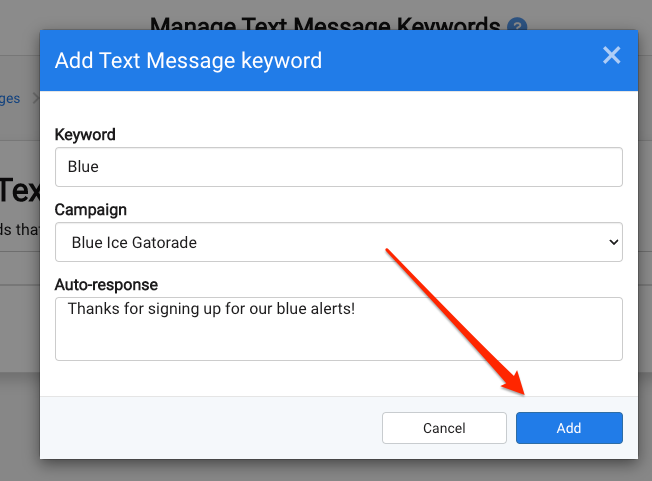
Add to add the new keyword.Using a keyword gives your prospects and customers an easy way to opt-in to your marketing. Setting up keywords for text messages is a great way to automatically add senders to a campaign and send back a reply.
For example, texting in "JOIN", to add customers to a promotions campaign with an automated response back (example):
"👍 Welcome! We'll send you coupons and offers on upcoming specials. Reply STOP if you ever want to opt out."
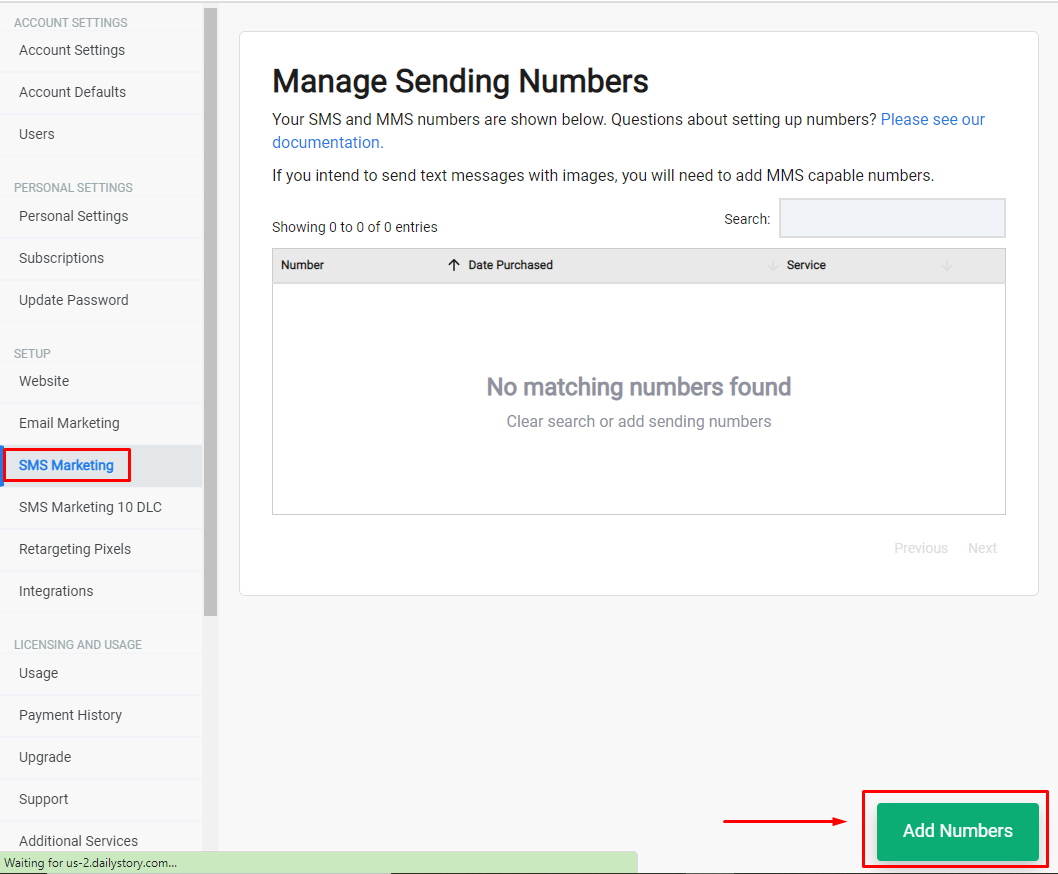
RecommendedTo determine which number(s) to use for your keyword campaign, go to Account Settings>SMS Marketing and select any number you've purchased to use.
We'll walk you through creating a keyword campaign with an automated reply and follow-up options.
Campaigns > Create Campaign.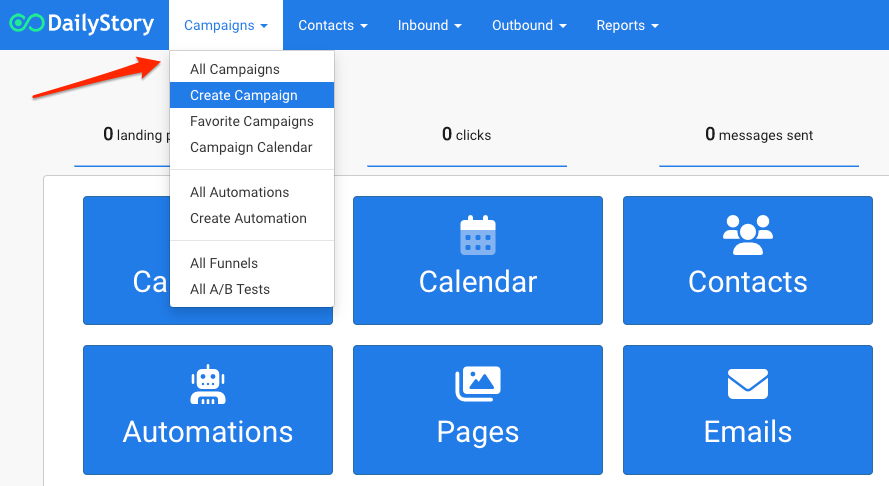
Campaign Settings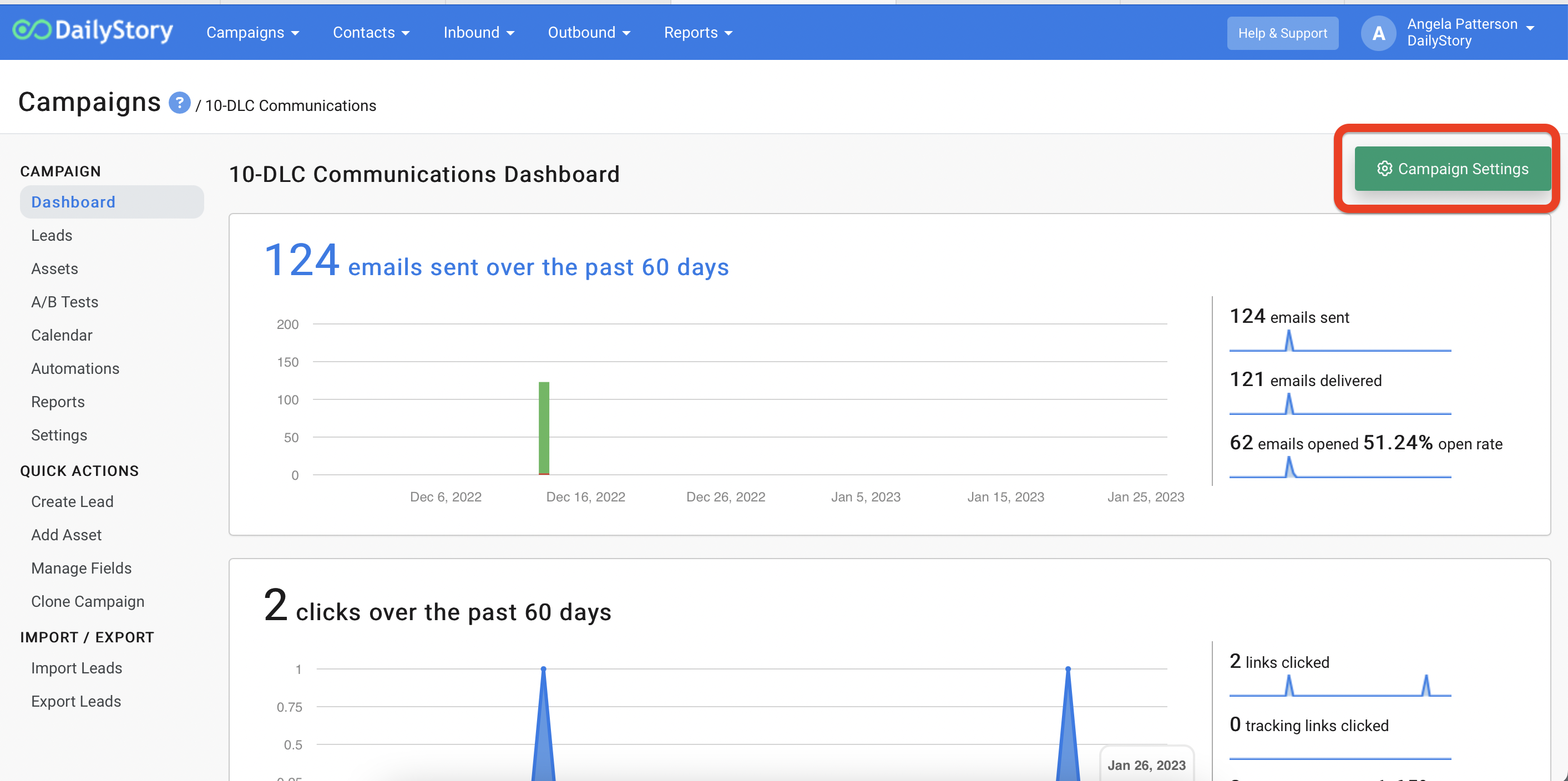
Inbound leads acquired from SMS keywords, popups... as the Target Audience followed by Create Campaign.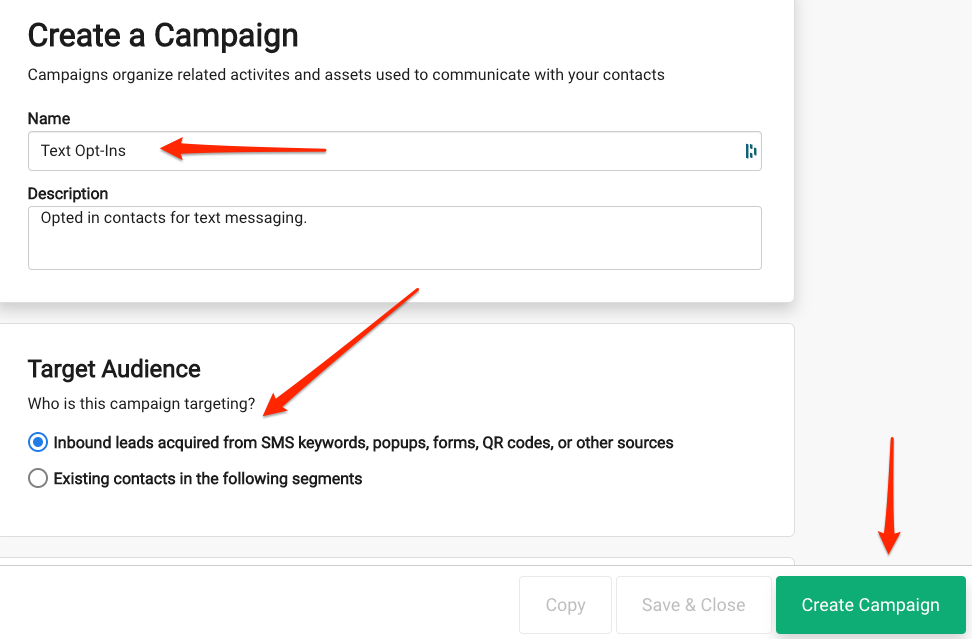
Click here for more help with creating and working with Campaigns.
Outbound > Manage Keywords.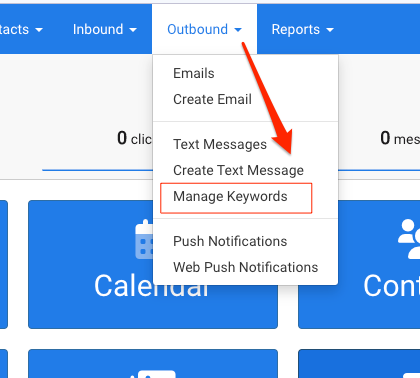
Add keyword.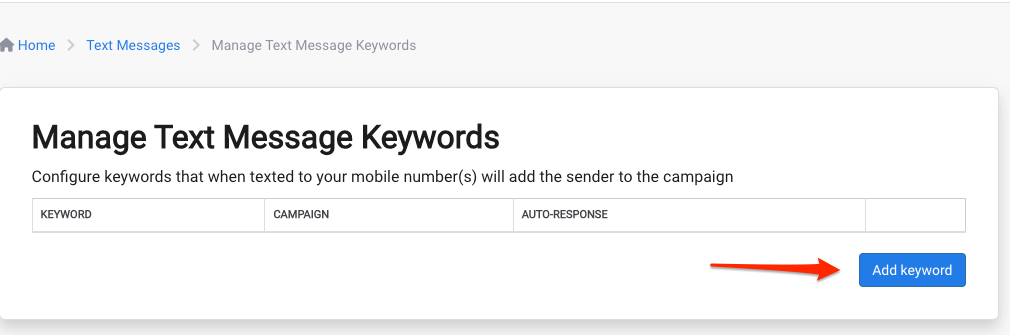
Add to add the new keyword.To find your SMS number(s) to use in marketing like "Text JOIN to xxx-xxx-xxxx" just navigate to your Setup > SMS Marketing. You can use any of your listed numbers.
Click here for more on creating keywords or setting up text message marketing.