Importing contacts
RecommendedYou can use the Bulk Import tool to easily import contacts by bulk from a text or CSV file. DailyStory also enables you to use the Bulk Import tool to re-import the same contact as many times as you need to update the contacts’ information. DailyStory uses the contact’s email address, mobile phone number, or DailyStory Id to determine whether or not the contact already exists in the system. When DailyStory detects that the contact already exists, the system will update the contact’s information with the newly imported details.
There are several ways to bring contacts in DailyStory:
- Integration - integrations will automatically sync contacts from another system, such as a CRM.
- Import from a CSV file - a CSV (comma separated value) file is a standard file format.
- Import from a Google Sheet - browse Google Sheets in your Google Drive and import.
- Import using the API - the DailyStory API can also be used to bring contacts into DailyStory.
- Save your contacts as a CSV file. It's easy to create a CSV file from Excel, Numbers or Google Sheets. We also have a sample CSV file you can use. You can do this using "save as" for Excel spreadsheets or choose the CSV format when exporting your data from other platforms.
The file size must also be 100MB or less.
WarningImportant: When creating a text or CSV file, make sure to include at least one of the primary identifiers such as email address, mobile phone number, or a DailyStory Id.
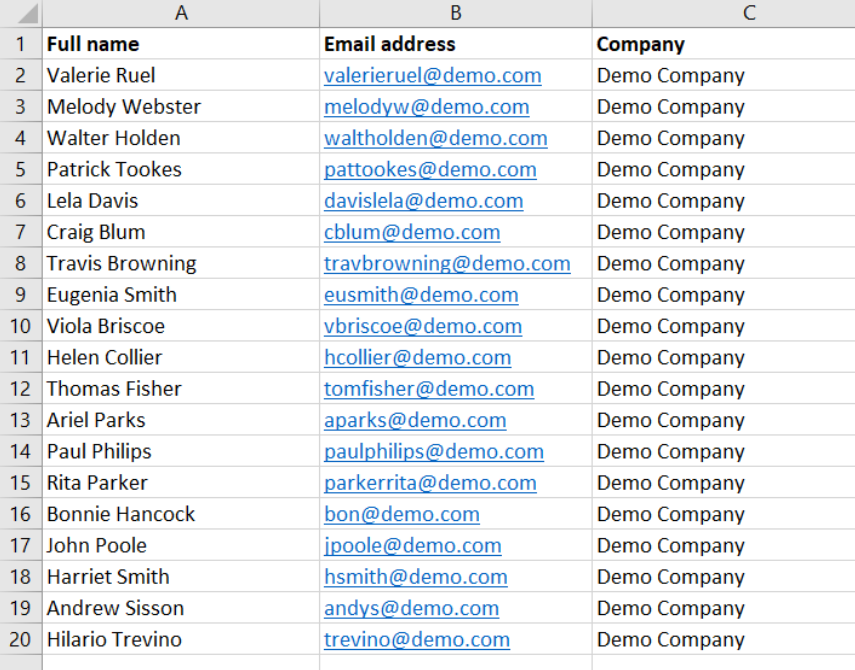
- In your CSV file, check for column headings and be sure each contact information set is entered on a new row, while each information should be separated into cells. See the following example.
RecommendedIncluding column headings will make your mapping process easier when you import your records.
- Select
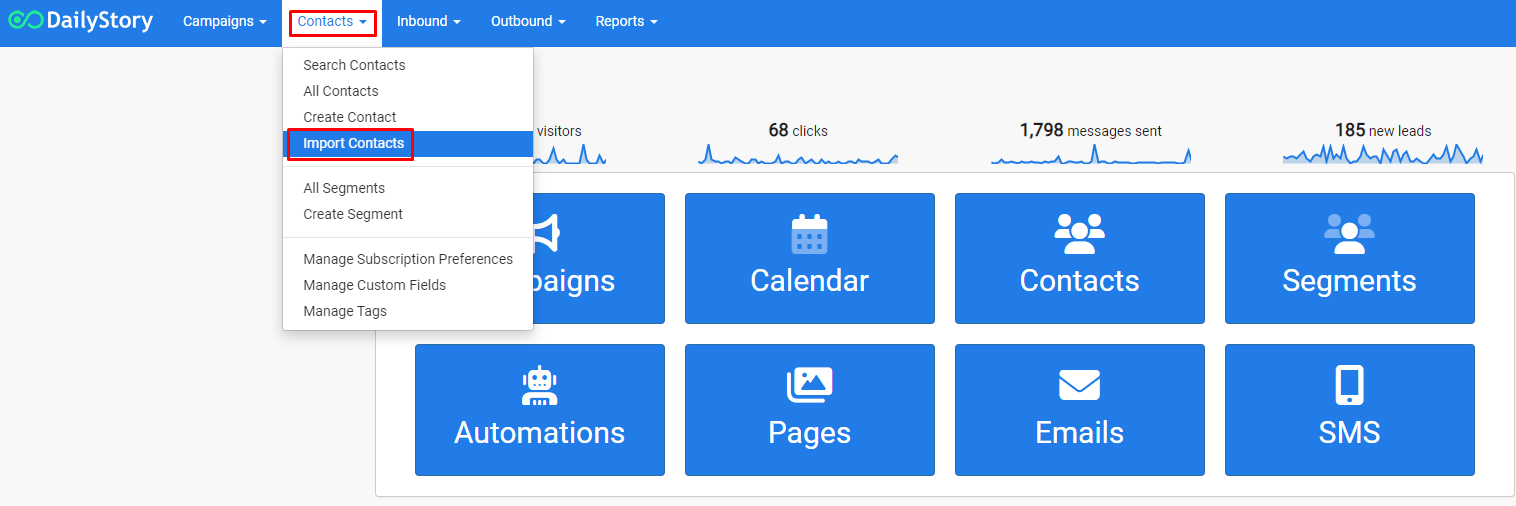
Contacts > Import Contacts from the Contacts drop-down menu on the navigation bar to access the Bulk Import Tool. The page displays the Contact Import tool window.
- Click on the
Select a CSV file button and locate the CSV file on your computer to upload. - Click on
Next to proceed to the next step and start mapping your fields.
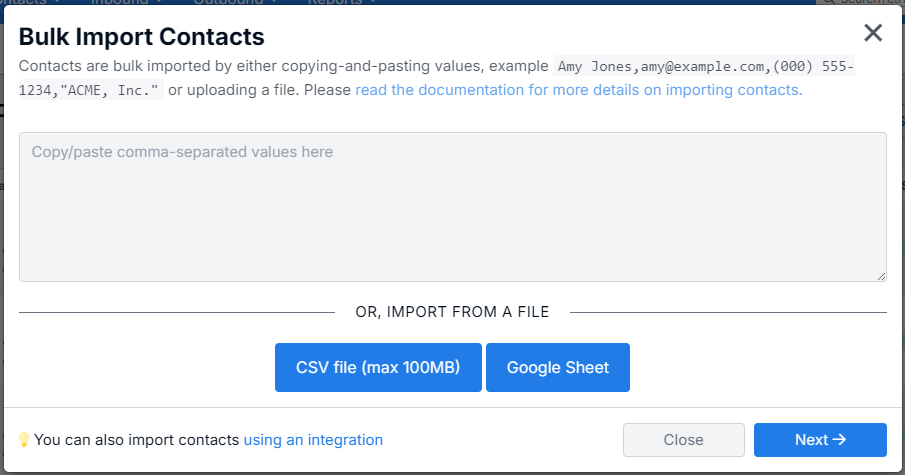
In addition to importing contacts from a .CSV file, you can also import directly from Google Sheets.
Importing from Google Sheets requires enabling the Google Sheets integration:
- Navigate to
Integrations > Google Sheets Sync
Clicking the Google Sheets Sync will navigate you to authorize DailyStory to be granted read access to your Google Drive.
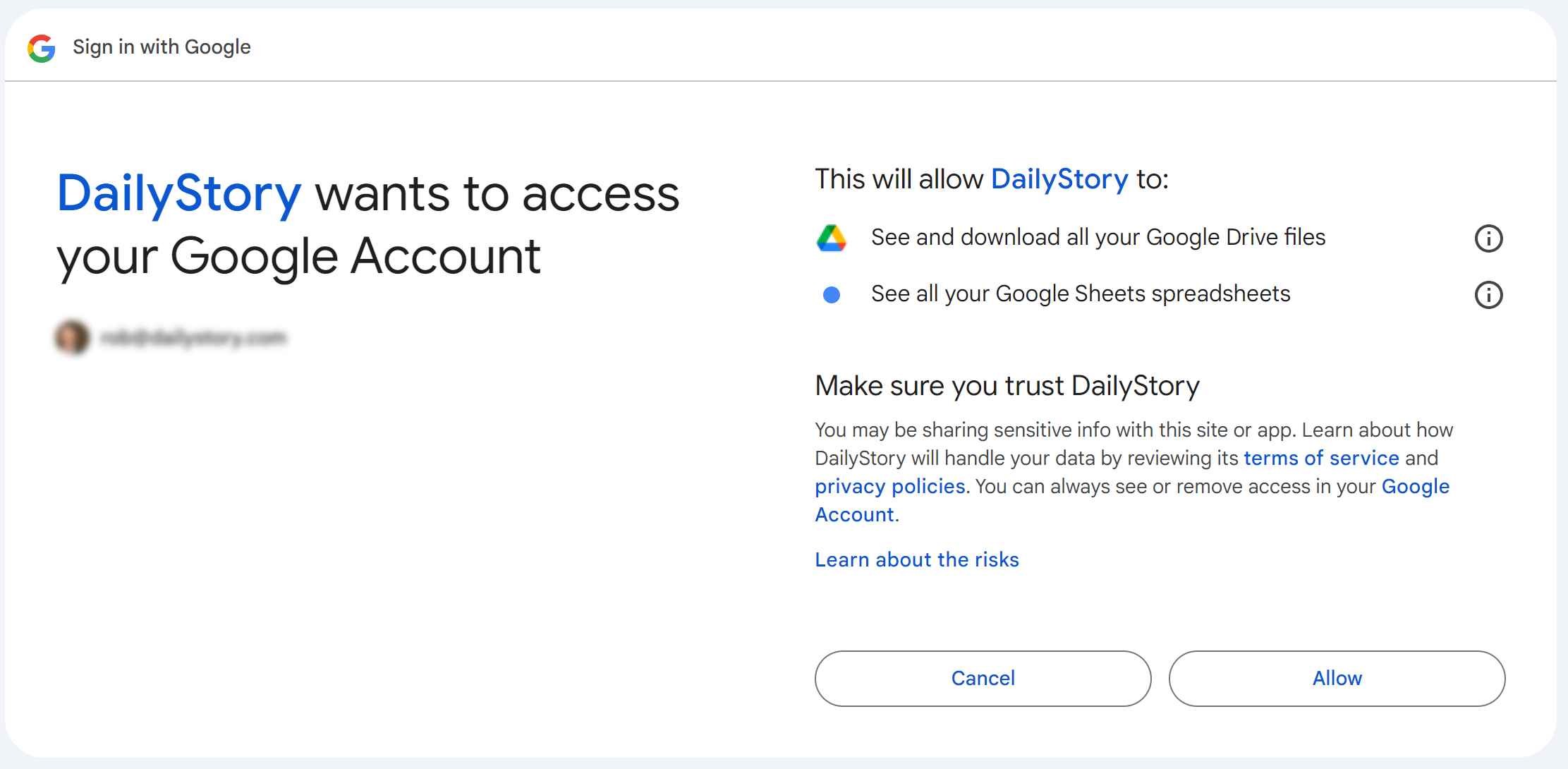
Click Allow.
- Navigate to
Contact > Import Contacts and click Google Sheet button. A list of the 10 most recently updated Google Sheets is shown:
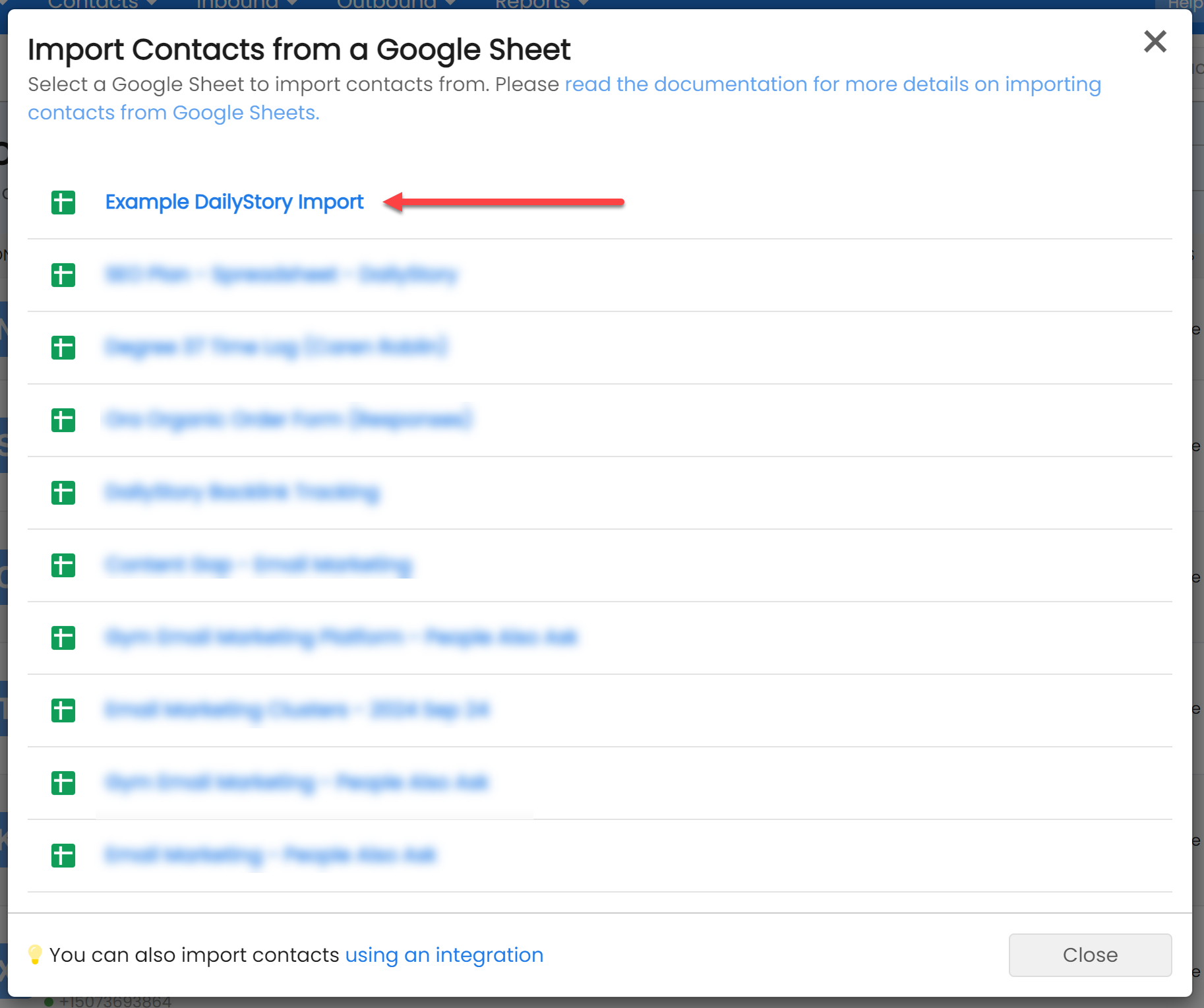
- Select a Google Sheet
After selecting a Google Sheet you are redirected to the import screen detailed below to map the fields from your Google Sheet into DailyStory.
Mapping contact data to DailyStory fields
After your data is loaded, you will see the number of contacts to be imported is displayed and your column headings from your CSV file on the left side under Columns to Import.
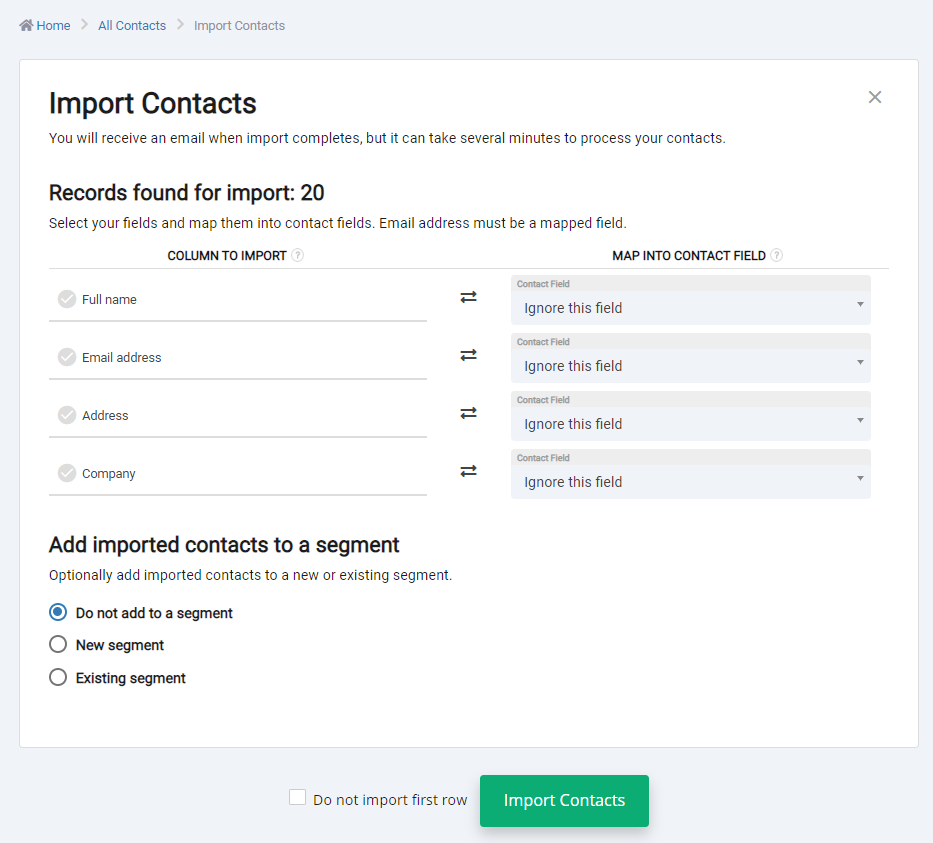
- The COLUMN TO IMPORT column attempts to categorize each contact information type present in your imported data. Meanwhile, the MAP INTO CONTACT FIELD column displays a drop-down list of DailyStory contact fields.
RecommendedIf you have existing custom contact fields in your system, these fields will also be available in the mapping field options. For more information about creating custom contact fields, refer to Custom Contact Fields.
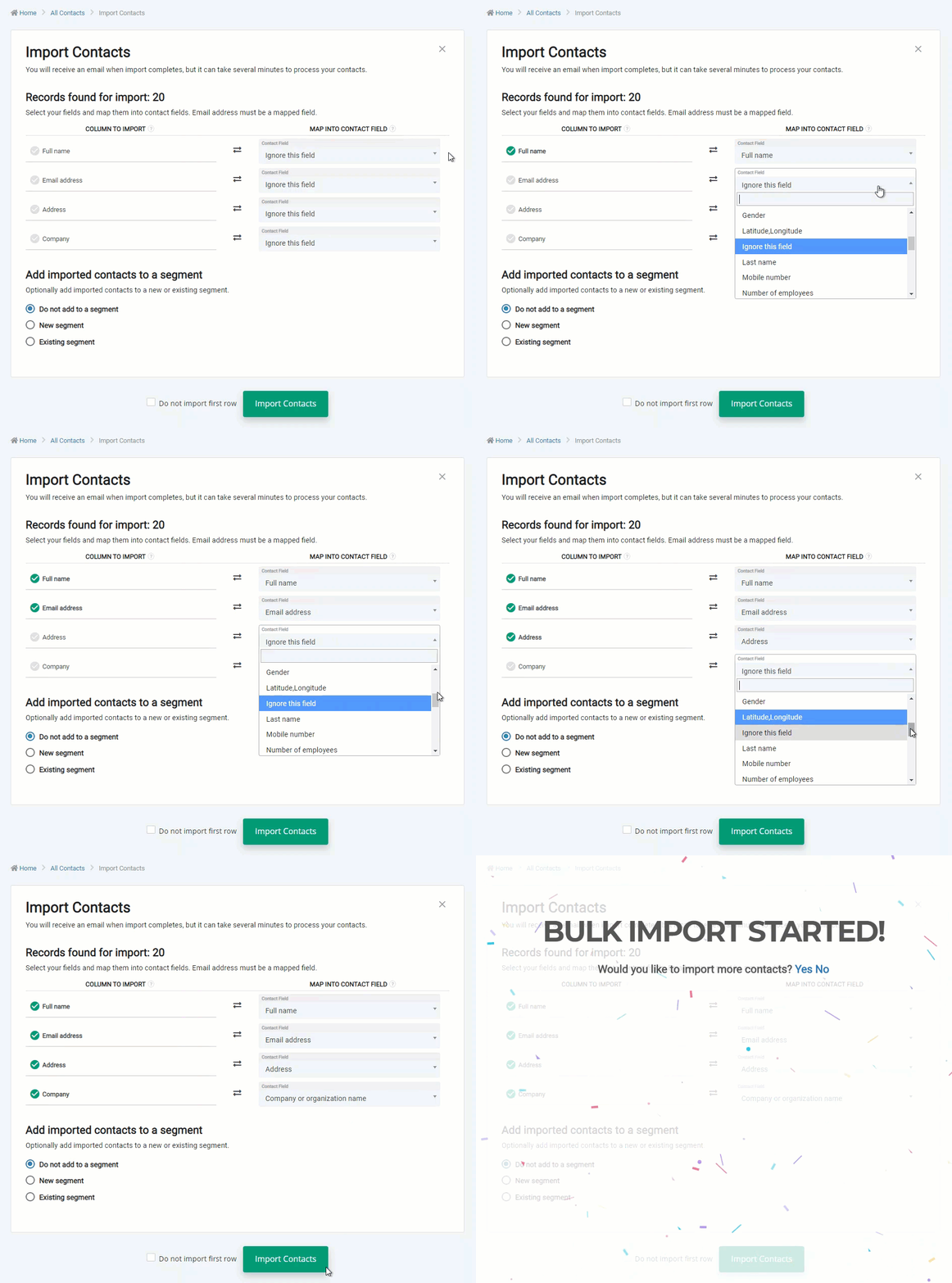
- DailyStory will attempt to map the fields for you, so please double-check it's correct or map your contact data to their corresponding contact field manually. You can also choose not to map a field by leaving the Ignore this field option as its corresponding value.
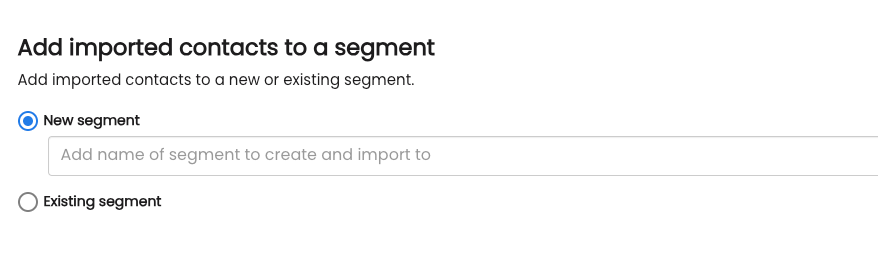
- We recommend creating a
New Segment at this time for easy reference, but you can also choose to add to an existing segment. For more information about managing segments in DailyStory, refer to Segments.
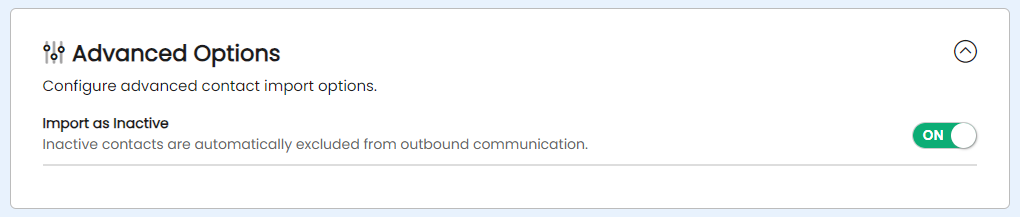
- Advanced Option: Import as inactive. You can bring in contacts as inactive at the onset, so your subscription level is not impacted if you do not intend to market to certain contacts right away.Click on the drop-down arrow in Advanced Options and then turn the selector to
ON. - Select the
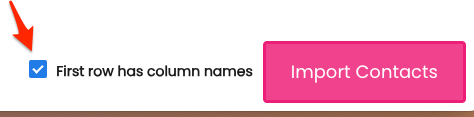
First row has column names check box if you want to exclude the first row containing the labels of your data columns.
- Click on
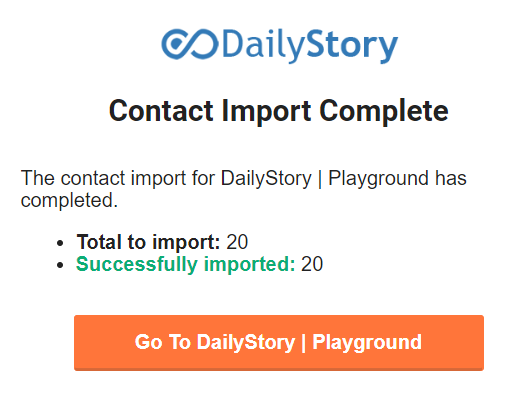
Import Contacts to complete the import. DailyStory adds your contacts to the system and sends you a confirmation email.
Other importing options and features
Below are some additional options and configurations available when importing contacts.
When importing data from a CSV file and mapping data to custom fields, it is important to consider the data format so that the data is imported correctly.
- Dates and time. Dates and times must be in the ISO 8601 standard format. For example, the date August 7, 2020 should be imported as 2020-08-07.
- Numbers. DailyStory supports two types of numbers whole numbers and decimals. Decimals numbers can only be imported into custom fields of type "Double".
- Yes/No & True/False. Fields that support a yes/no or true/false must have data imported as either Yes/True or No/False. Note, casing does not matter.
- String array. String array fields enable a contact to have multiple values for a single field. To import a string array use a semi-colon separated list of words. For example, for a custom field "products": Blue bikes;Red bikes;Green bikes.
You may have contacts that are opted out of channels such as email or SMS, but not both. For example, you are importing a list of contacts for both SMS and email marketing, but some contacts are opted out of SMS and some are opted out of email.
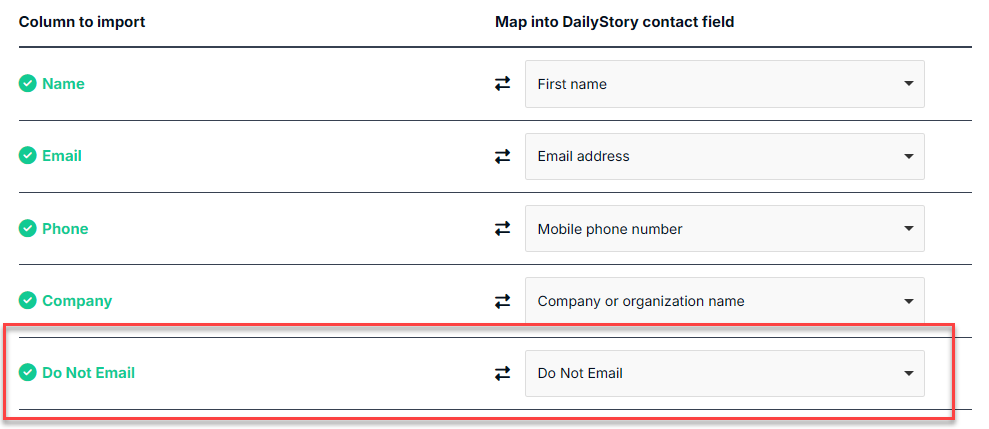
Add a column to your CSV file Do Not Email for contacts that you wish to be opted out of email and Do Not Text for contacts that you wish to be opted out of text messaging. In those columns set each contacts record to the correct state, e.g. True, to opt out of email or SMS or False to stay opted in to email or SMS.
When importing the CSV you will need to map this column to the behavior you want to import with:
You may have contacts that are inactive which you wish to prevent getting "reactivated". These can include contacts that are deceased, people who have completely opted out of any communication, or other options. Furthermore, inactive contacts do not count towards license limits.
To import contacts as inactive, prepare a normal import. At the bottom under Advanced Options, toggle the option to import the records as inactive:
If you want to import contacts with tags add a column to your import CSV and provide a semi-colon-separated list of tags. Next, select Tags as the MAP INTO CONTACT FIELD:

This will create any tags that do not exist and add the specified tags to the contact.
Importing a text file rather than CSV
When using a text file, each contact information set should start with a new row, while each information should be separated by a comma with no space. Contact information that contains spaces or other symbols should be enclosed in double quotation marks. See the following example.
"Valerie Ruel",valerieruel@demo.com,"Demo Companny"
"Melody Webster",melodyw@demo.com,"Demo Company"
"Lela Davis",davislela@demo.com,"Demo Company"
"Craig Blum",cblum@demo.com,"Demo Company"
Copy-paste the data into the Bulk Import tool text box. Select Next, and then proceed to step 2.

Import Log
When importing contacts entries are written to the Audit Log and are also written the the Import Log. The Import Log is accessible in Account Settings logs.
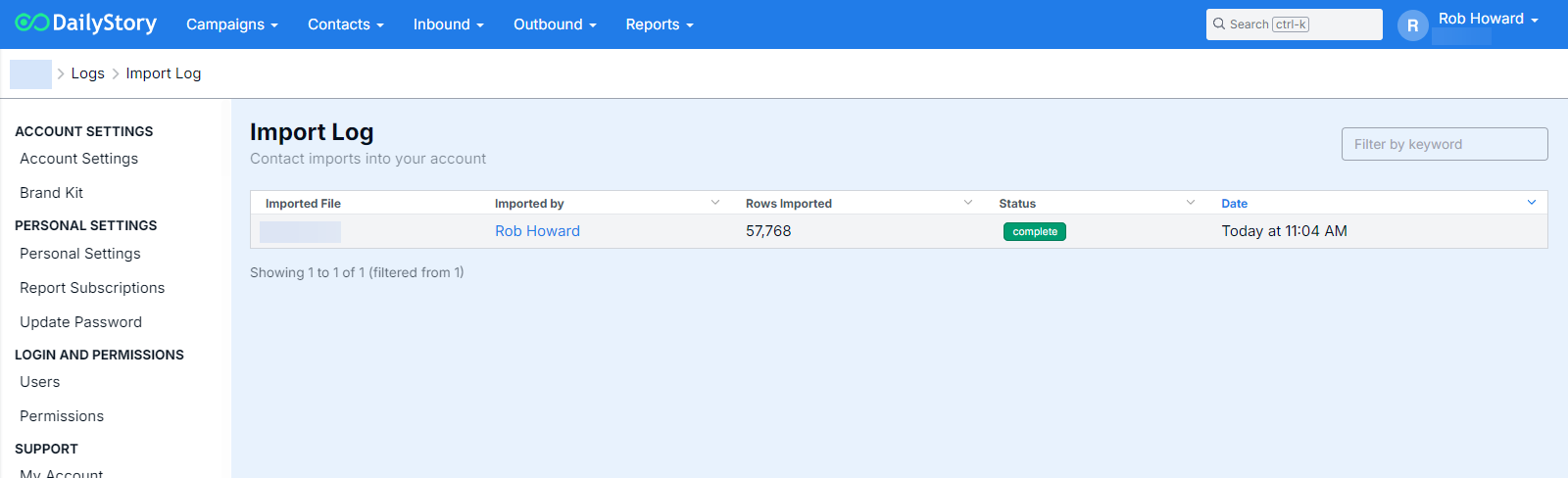
Clicking on the imported file will bring up additional information. Including the ability to download the originally imported file.
Frequently Asked Questions
Below are some frequently asked questions about importing contacts.
Why does the number imported not match the number in my segment?
If you import a list of 300 contacts that already exist for the purpose of creating a segment, the number of contacts in the segment may not always match the number of contacts imported. Only Active contacts are added to the segment. If a contact is marked as Deleted, Inactive, Bounced, etc. then the contact is not added to the segment.
What is the maximum file size for my import file?
The maximum file size for an import is 100MB,
What happens if a contact in the import already exists?
DailyStory will attempt to "match" records on either the DailyStory Unique Id, email address, or mobile number. If a match is not found, a new record is created. If a match is found, the records are merged together and any new data in the import overrides data in the existing record.
If a contact is not found for the DailyStory Unique Id, email address ore mobile phone, a new contact will be created.
Can I create a segment from an import?
Yes, it's easy to build a static segment using import. Simply create a CSV file with a single column containing either the DailyStory Unique Id, email address or mobile phone. Import this file and add the contacts to a segment or create a new segment.
What happens if I create a segment from an import and some records already exist?
When creating a segment from an import file DailyStory will always first create records that it can't match (don't already exist). And then add everyone from the import to the named segment.
What happens when I import a list of existing contacts with additional fields?
If additional fields are mapped and the contact already exists, the mapped field will be updated with the new value. For example, to bulk update the country name of a set of existing contacts a CSV containing email address and country would be imported.
Will a sync service overwrite imported data?
Yes, if you are using one of DailyStory's sync integrations, such as Salesforce, the sync data is always considered the origin data and will overwrite any existing data.