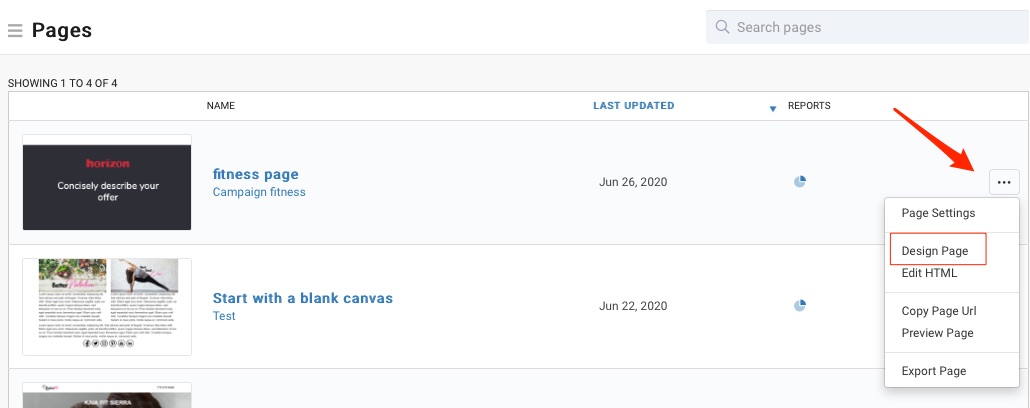
The Page Designer is a drag-and-drop design canvas. There are several ways to access the designer.
Whether you're in the Landing Pages list view or in the Assets tab of a campaign, you can access the Page Designer from the more options menu (3 dots).
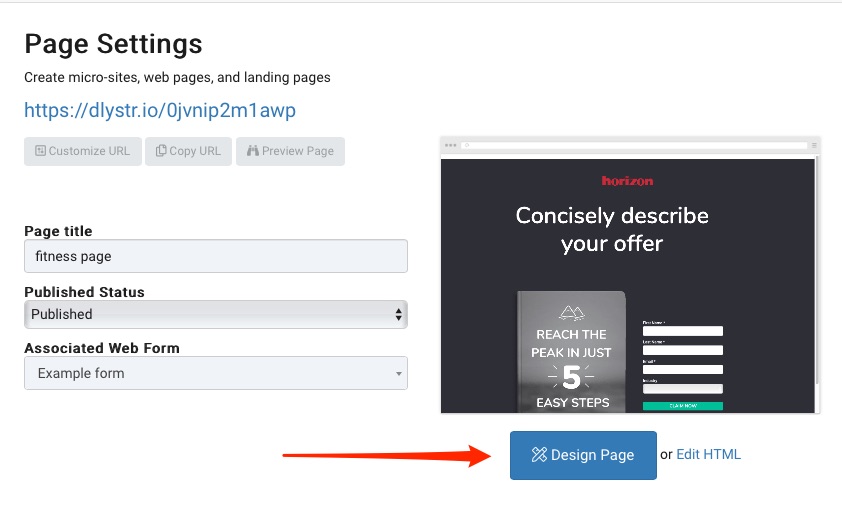
Design Page from the menu.Note: Whenever you are in the Landing Page Settings screen, you can access the designer as well.
To add an element to the designer canvas select a widget from the right menu by clicking and holding the mouse down and drag-and-drop it onto the design surface.
You will see a green bar that indicates where the designer will place your widget.
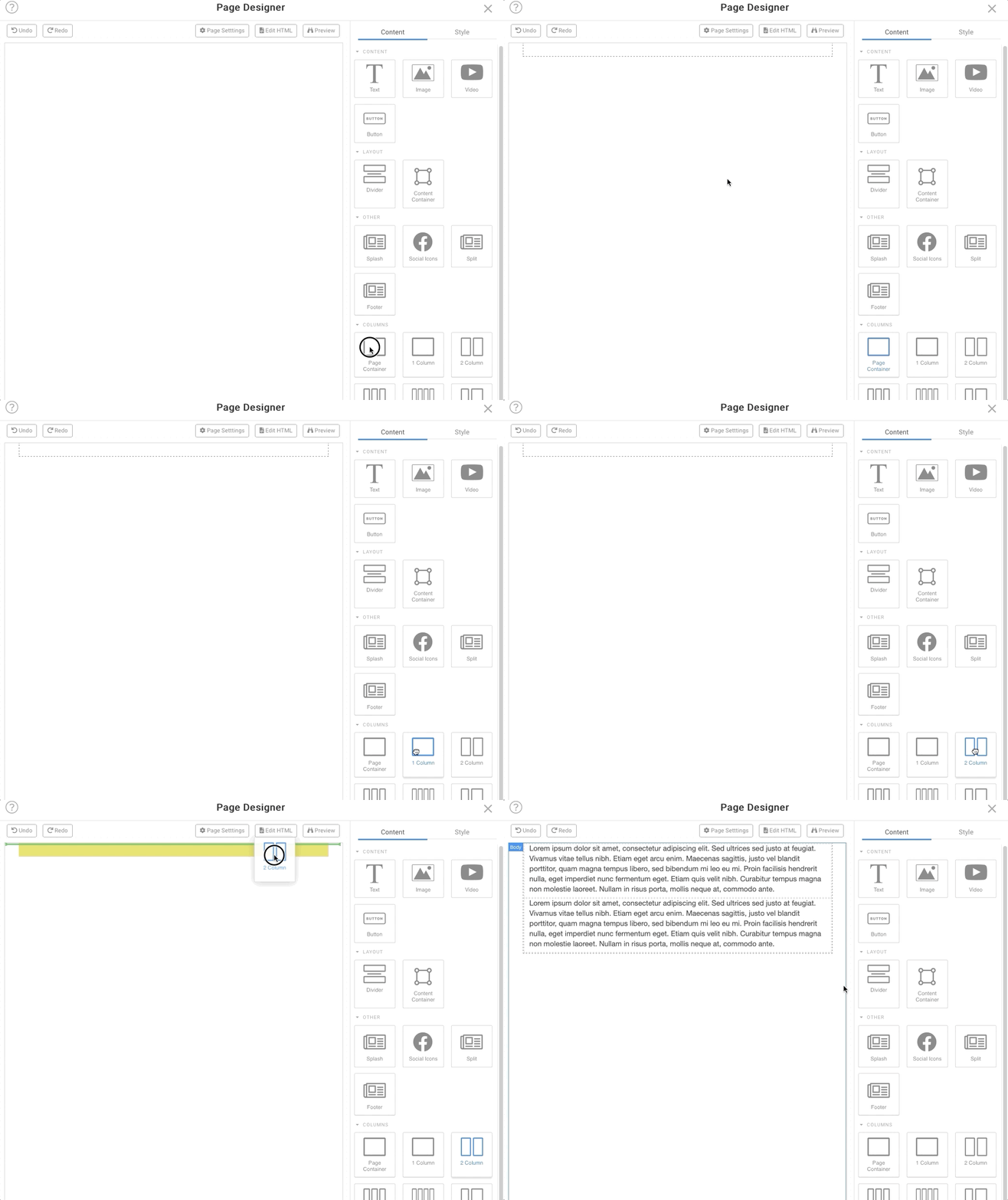
When the widget is added to the designer you can move, delete or edit the widget. Some of the design widgets have special options which will show up in place of the widgets.
RecommendedThe Page Designer generates HTML friendly emails based on the Bootstrap templates - these are optimized all major browsers and are mobile (responsive/adaptive) friendly.
Content Container: allows for additional content and colors within an existing section.
Row Container: must be added first before any rows can be added.
Splash: Allows text and images to be sized.
Web Form: adds the assigned web form to your landing page.