Scheduling an email is the easiest way to send an email to your contacts.
Review how to schedule an email with our video tutorial (below) or keep scrolling for step-by-step instructions!
WarningBe sure you have added contacts to your campaign prior to attempting to schedule an email.
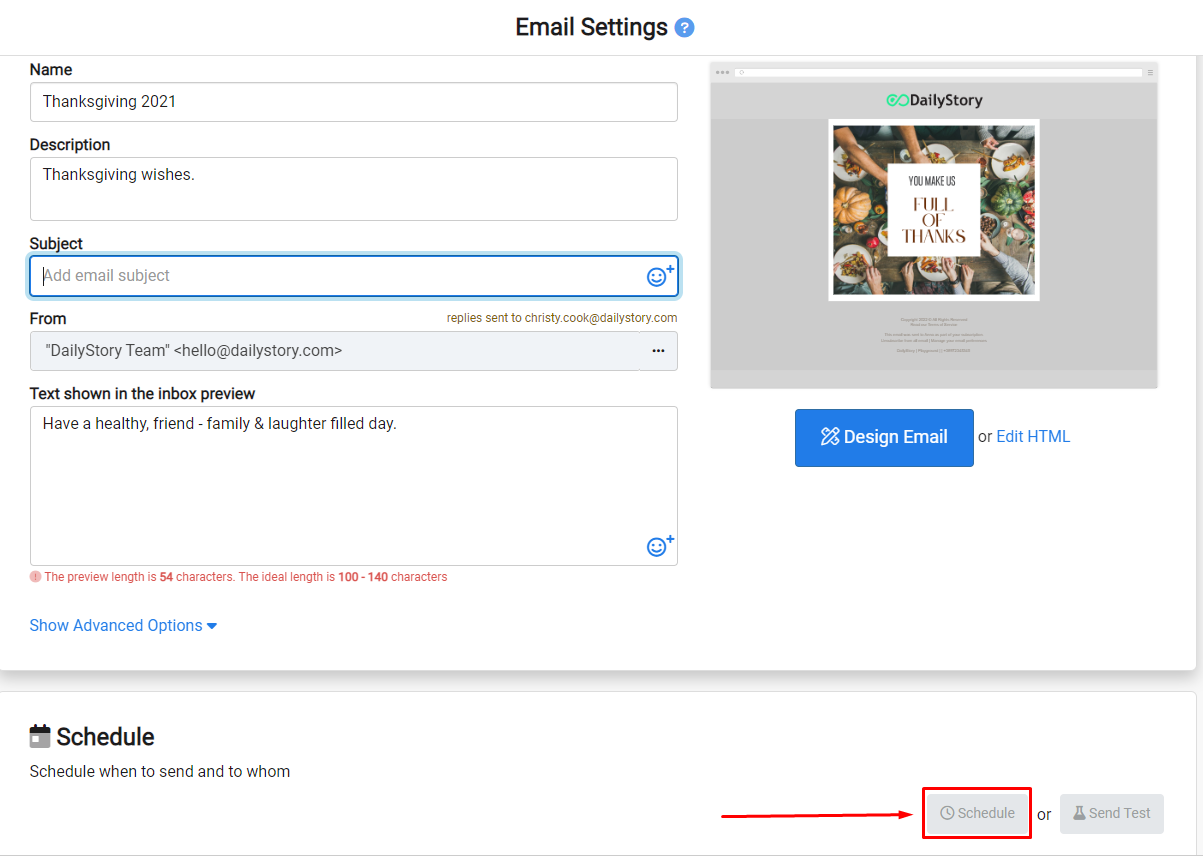
From the Email Settings, click Schedule to open the message scheduler:
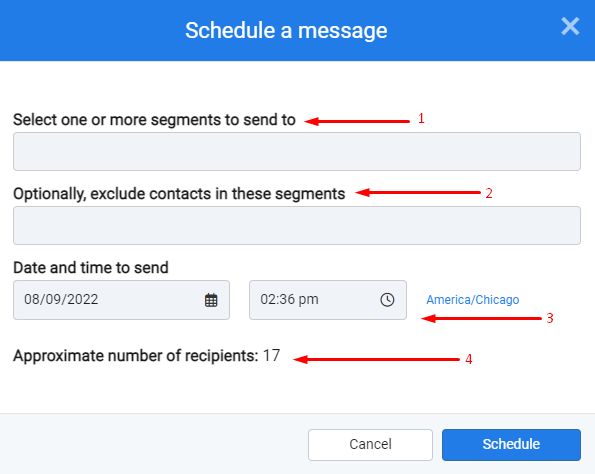
If a contact is opted out, it will not be included in the send-to number, even if it is a lead in the campaign.
Schedule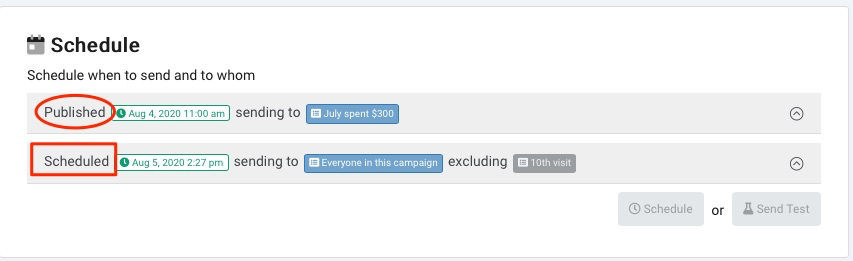
Once you click the schedule button, you will see the asset's Published and Scheduled list. You can still edit or delete a scheduled time that has not been published. You can also see an asset's schedule status in the campaign's Schedule tab or across all campaigns from the top navigation bar Campaigns > Campaign Calendar.
To resend a previously scheduled/sent email, you will need to make a copy and resend it.
RecommendedThe message scheduler is the same for sending emails, text messages, push notifications, social media posts and more.
RecommendedThe scheduling information is removed 90 days after the send date.