Create a QR Code Using the Code Builder
There are two ways to create a QR Code:
- Using the QR Code builder
- From a Tracking Link
RecommendedIf you want to be able to track the number of scans assocated with a URL, stop here and create the QR Code from a tracking link. Once you create a QR Code from the code builder, you can’t associate it back to an existing trackable URL link.
Using the QR Code builder
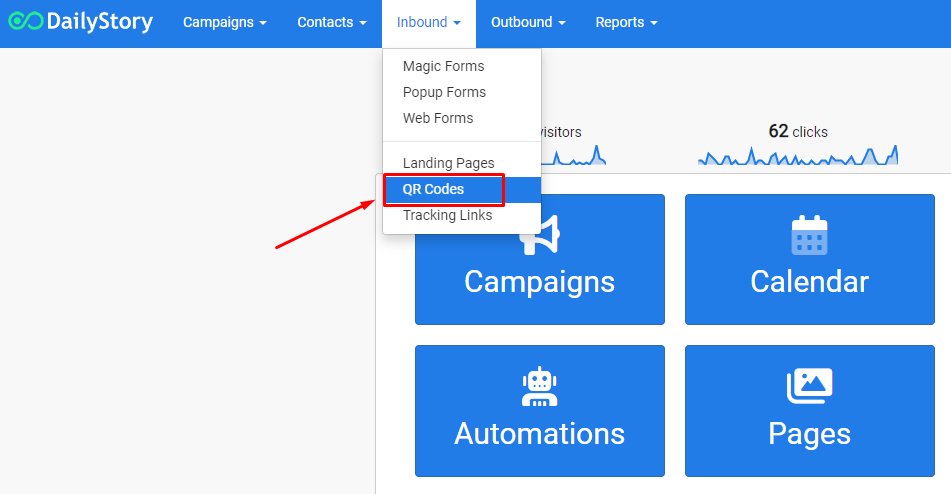
- From the navigation menu, click on
Inbound > QR Codes.
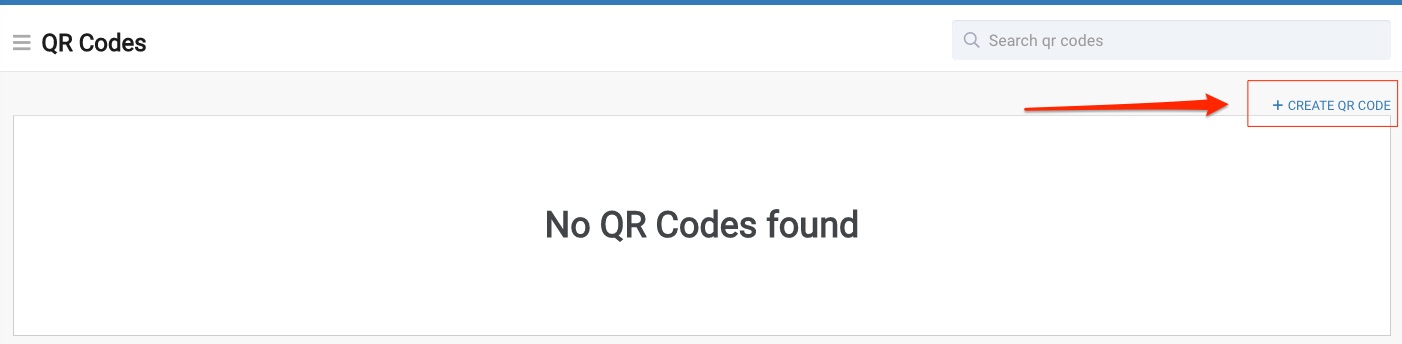
- Click
+ CREATE QR CODE
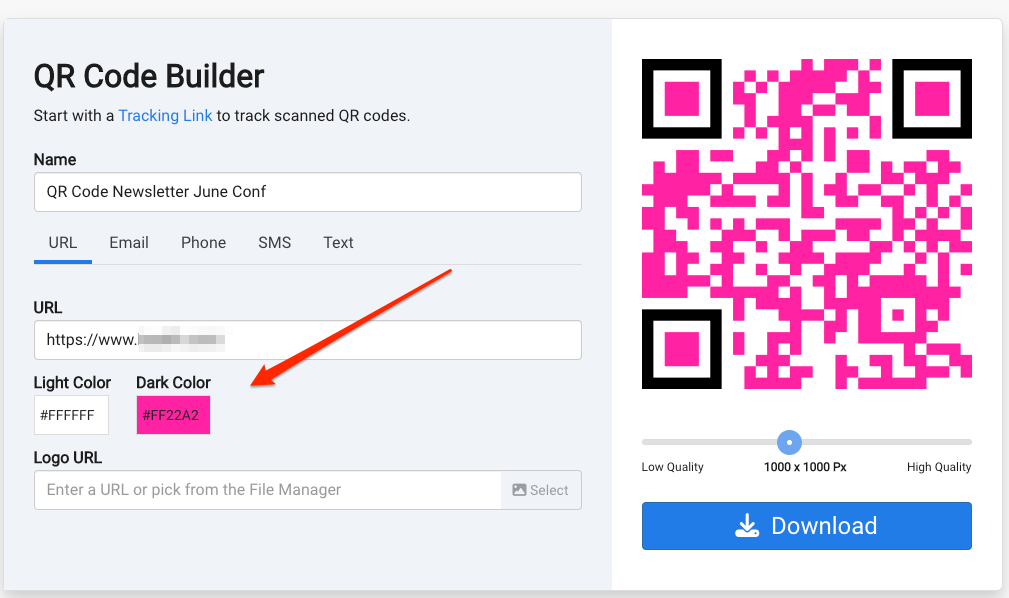
- Assign the QR Code to a campaign.
- Give it a friendly name.
- Choose what type of data you want the QR Code to store and activate.
- URL: opens their default web browser and opens the assigned URL.
- Email: creates a ready to send email with a To, Subject and Body from their email.
- Phone: calls the loaded phone number.
- SMS: creates a ready to send text message to the number you choose from their phone.
- Advanced: text language.
- Optionally, you can choose to add your logo and adjust the QR Code's image resolution quality and even customize the color!
- Click
Save Changes and download your QR Code to start using in your marketing!
QR Code Email Example
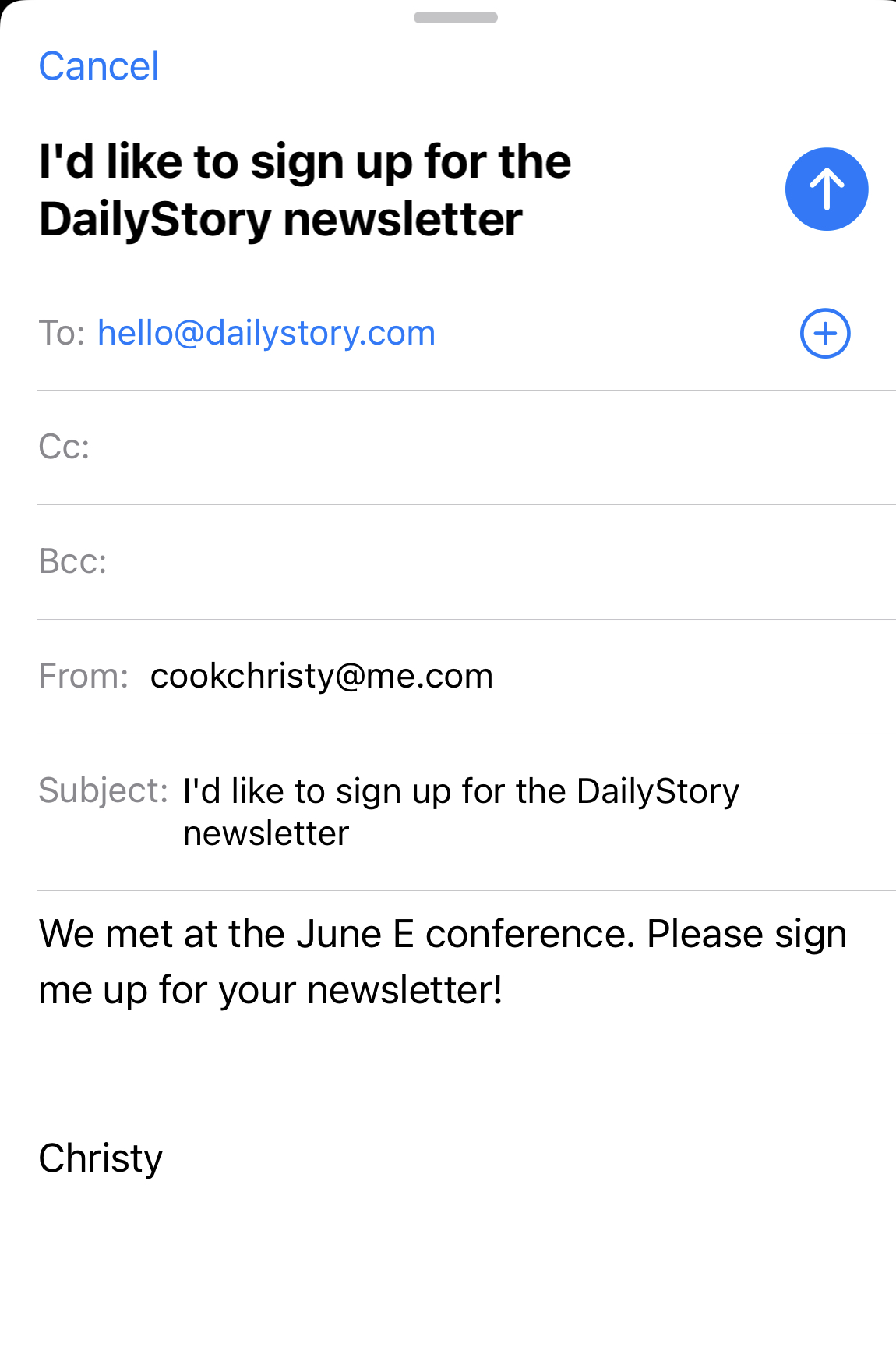
The email is being sent to hello@dailystory.com with a subject and pre-designed text. We have optionally added a logo to our QR Code and left the image resolution at the default setting.
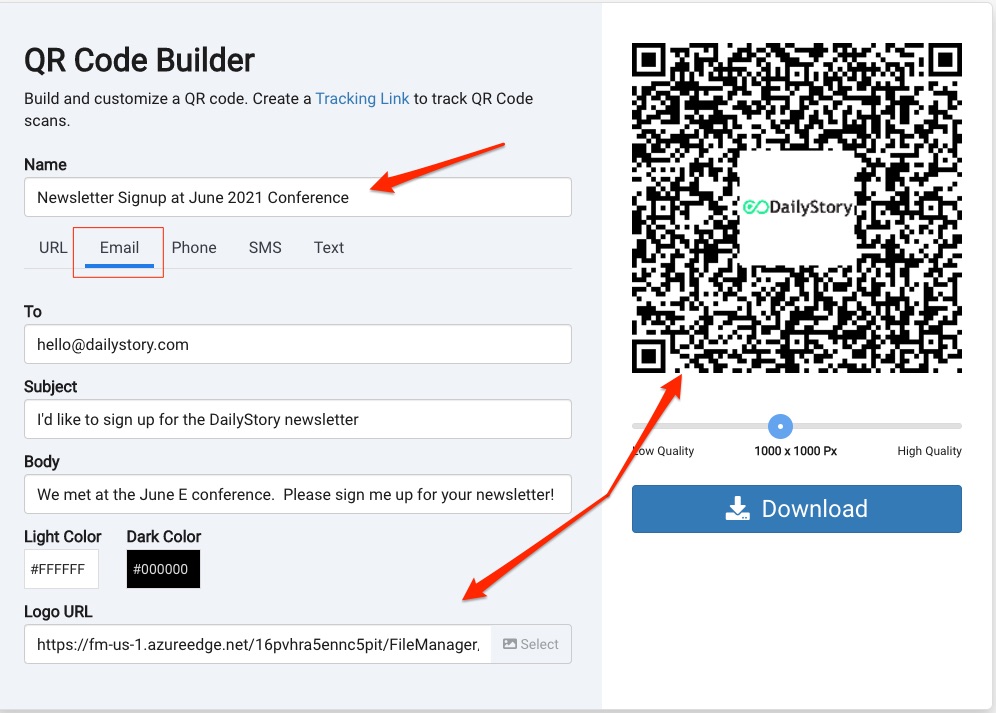
Here is the downloaded image of the QR Code.

Once scanned with a phone's camera or QR reader app, the formatted email pops up and is ready to send. Your customer can still choose to add more text, revise the email addresses, etc.
Resources to help you get started with QR Codes:
Related articles from our blog:
Related Webinars: