Not only can you send text messages from DailyStory, you can receive them too.
When someone replies to your text message several things happen:
Receiving replies costs $0. Only outbound messages incur a charge, so any response you send back to a contact, whether from Conversations or through an automation, is billed like any other text message. See Understanding Text Messaging Costs for details.
RecommendedReview our How To video (below) or keep scrolling for step-by-step instructions:
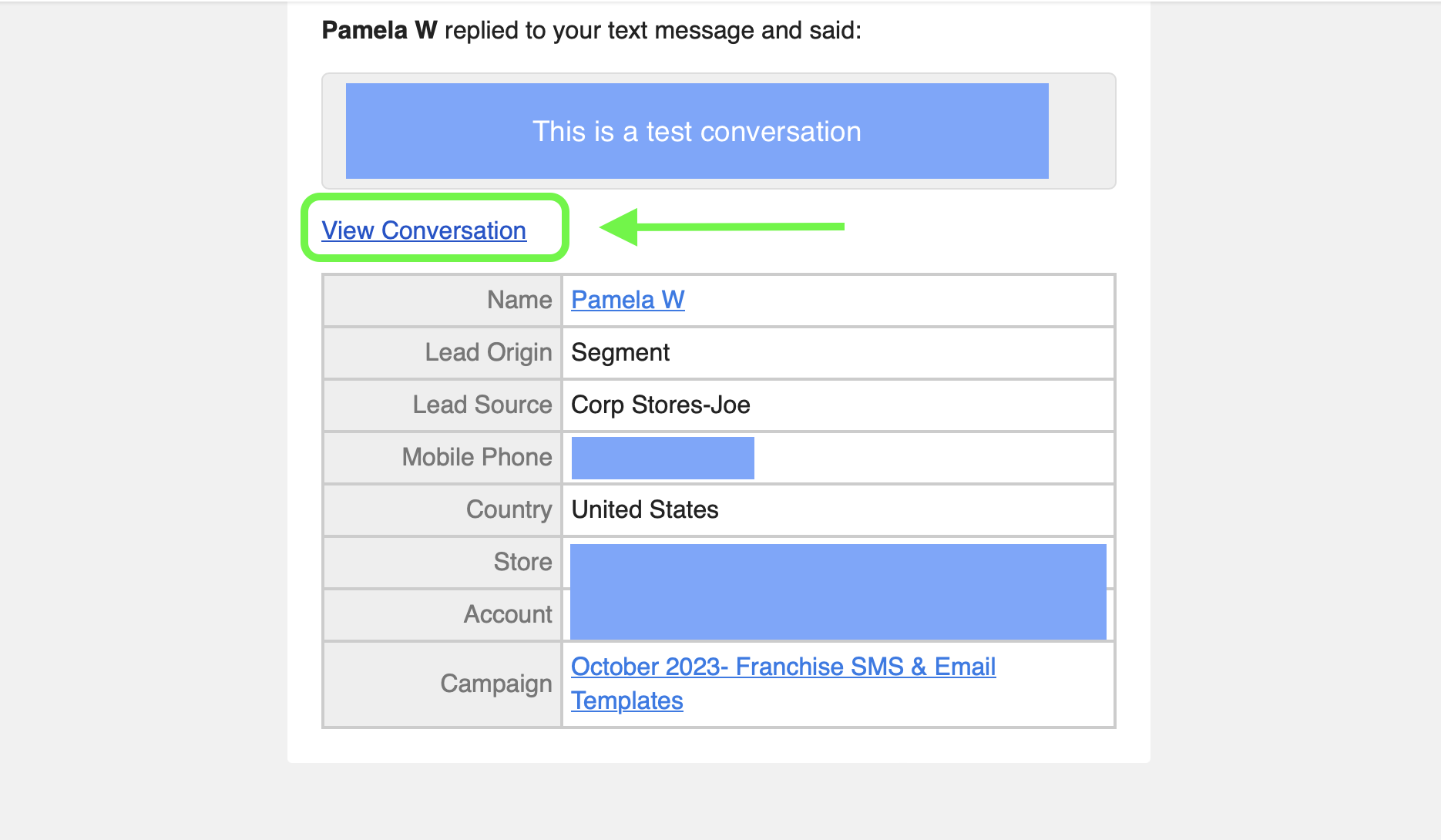
Below is an example of the email notification DailyStory sends. The logo will be the logo of your account.
In order to receive notifications be sure:
You can reply directly to the customer by selecting View Conversation from your email notification:
There are several ways to view and respond to text messages replies.
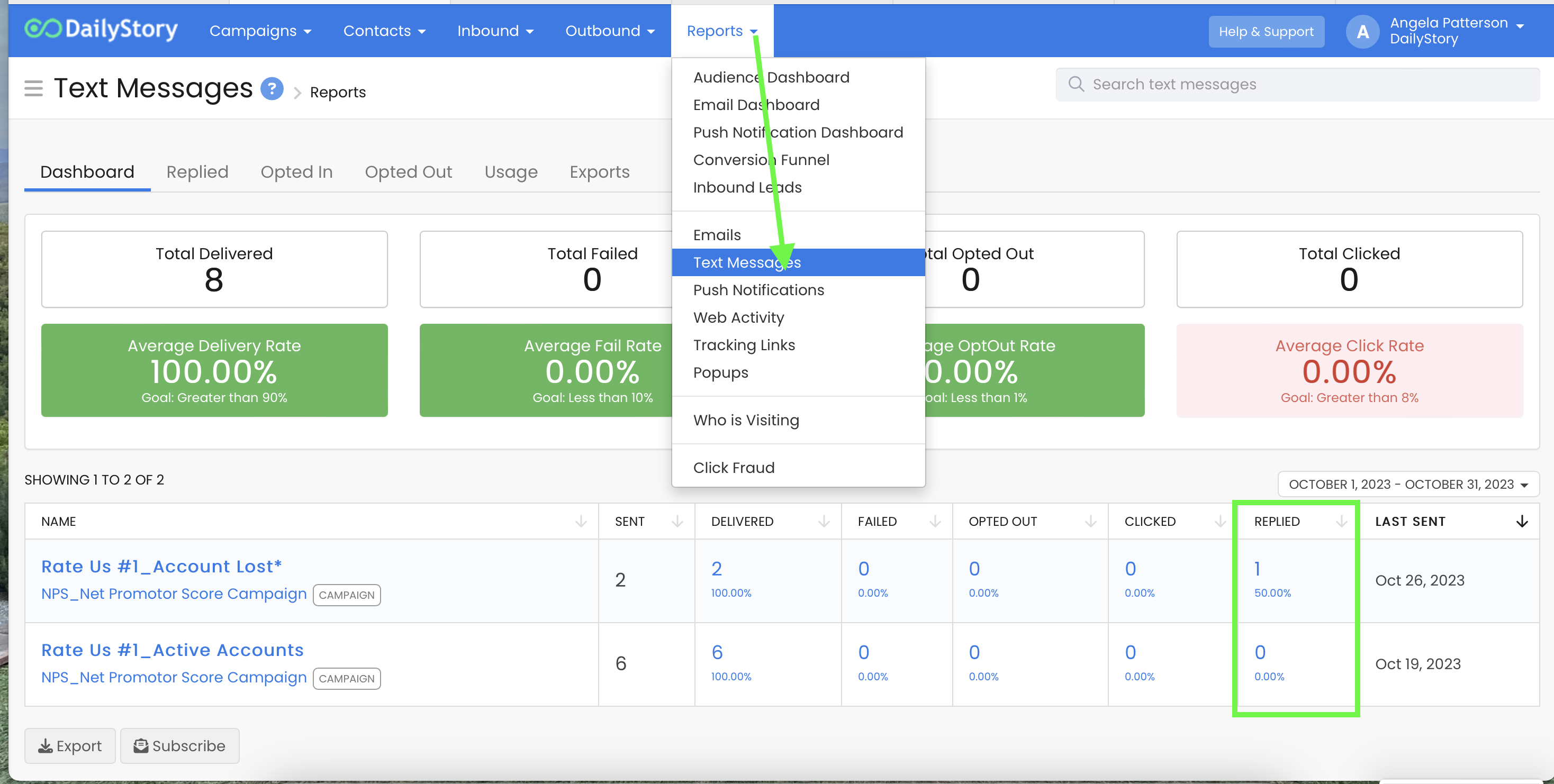
Outbound > ConversationsWhen viewing All Text Messages you can click on a number in the reply column to go directly to the replies report.
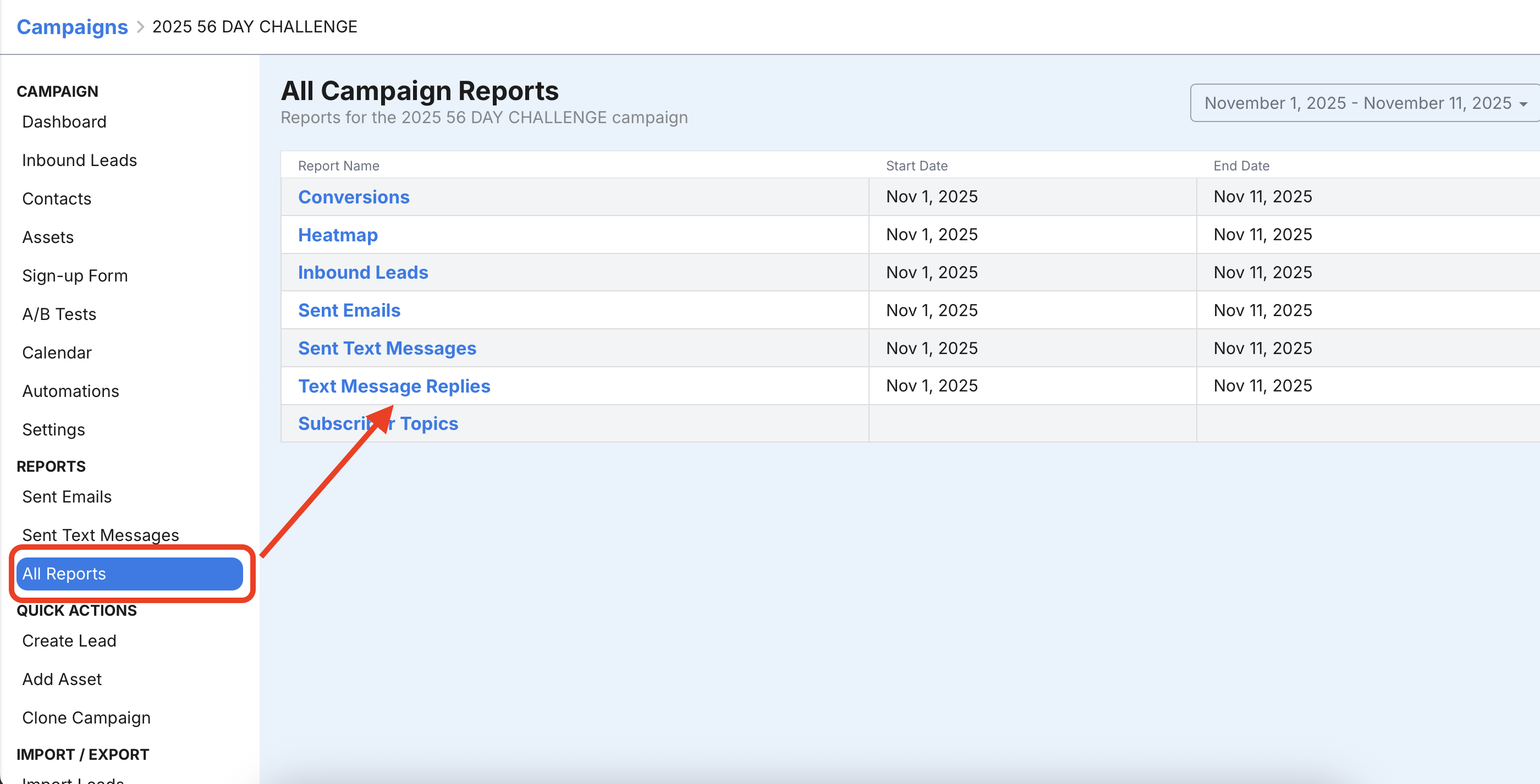
When viewing replies from within a campaign, click on the Reports tab on the left menu and then click on Text Message Reply Summary.
Access the all Text Messages page from the Text Messages button on the main dashboard or from the main menu Outbound > Text Messages. Then click on Conversations.
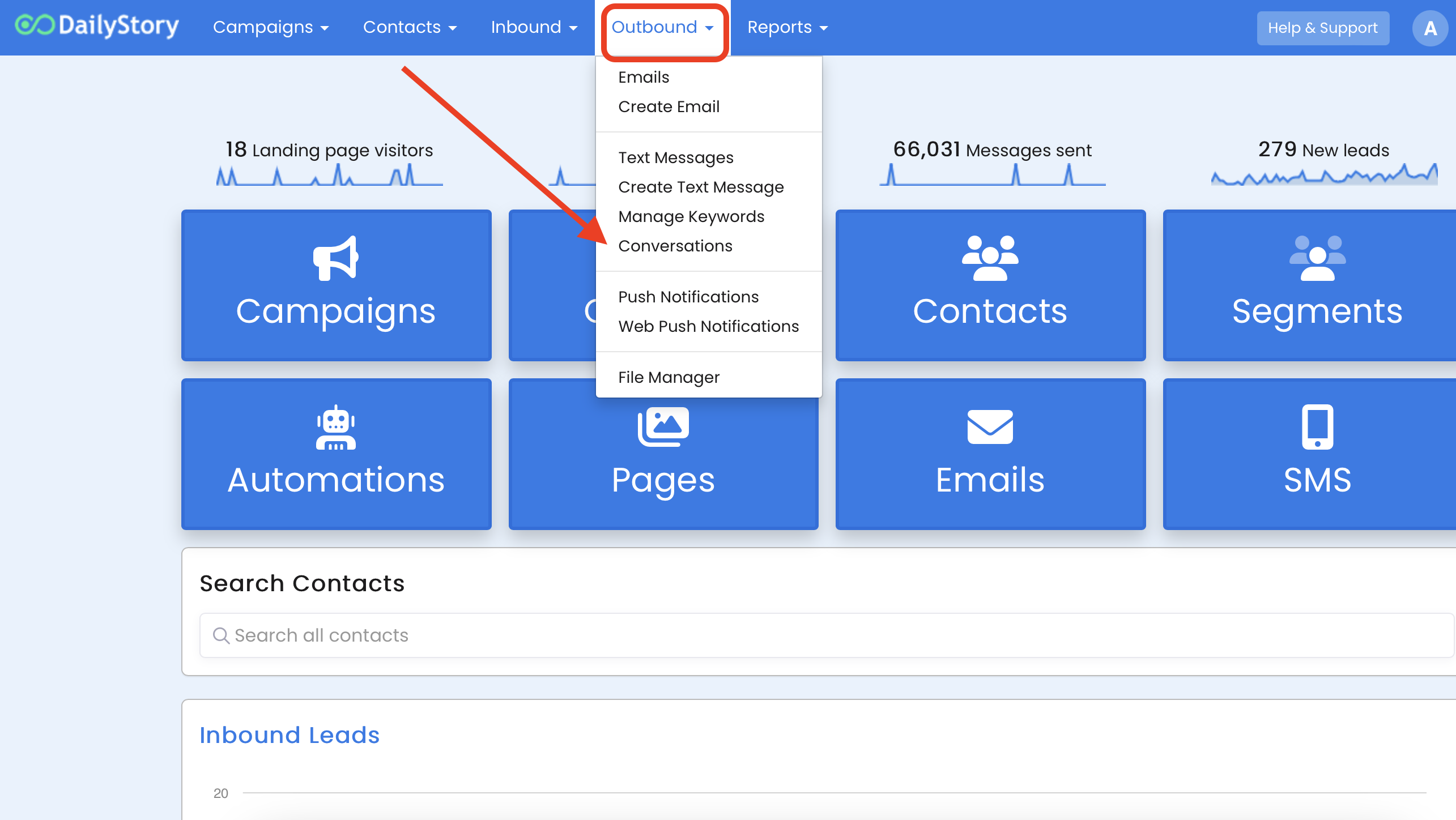
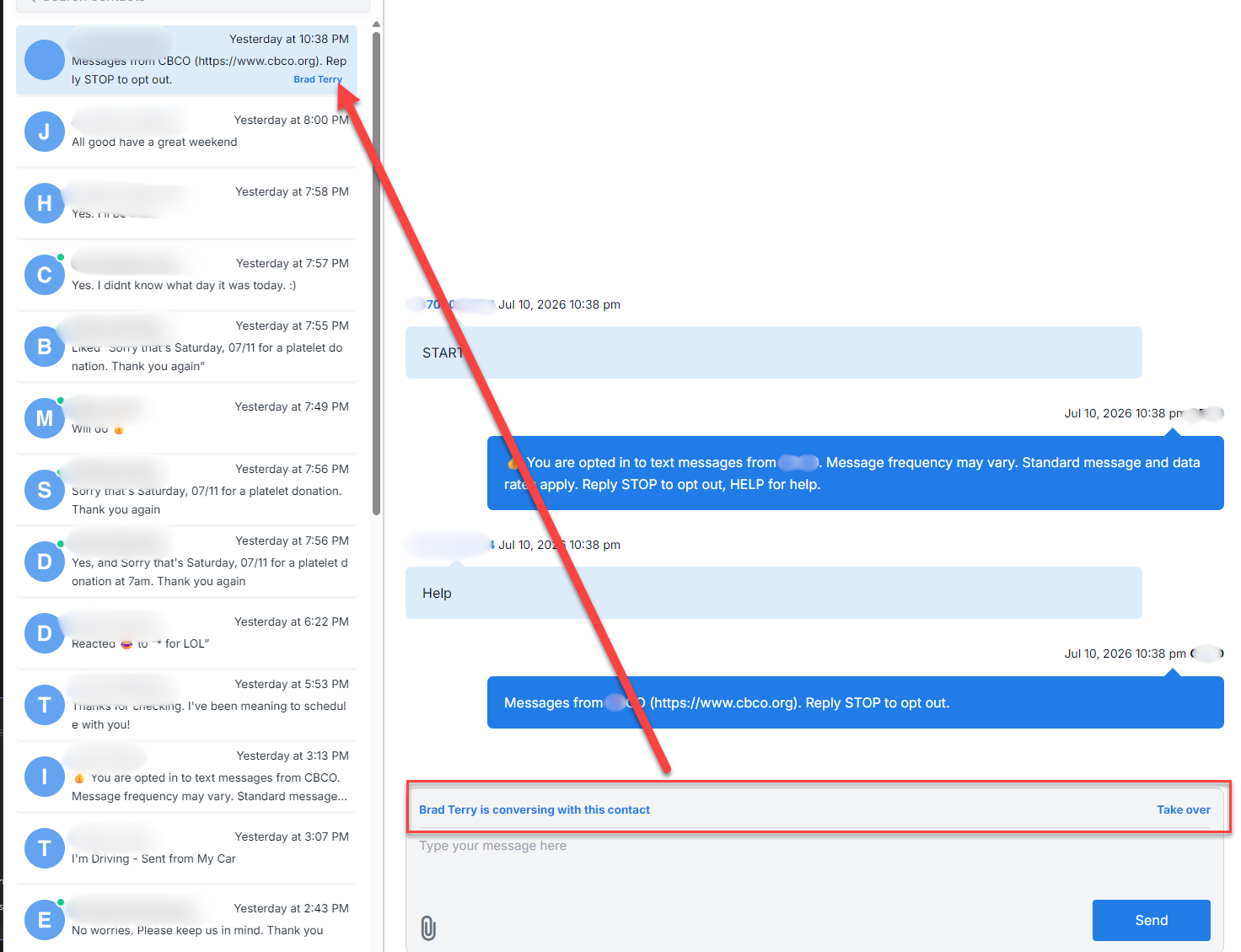
This opens the Text Message Conversations:
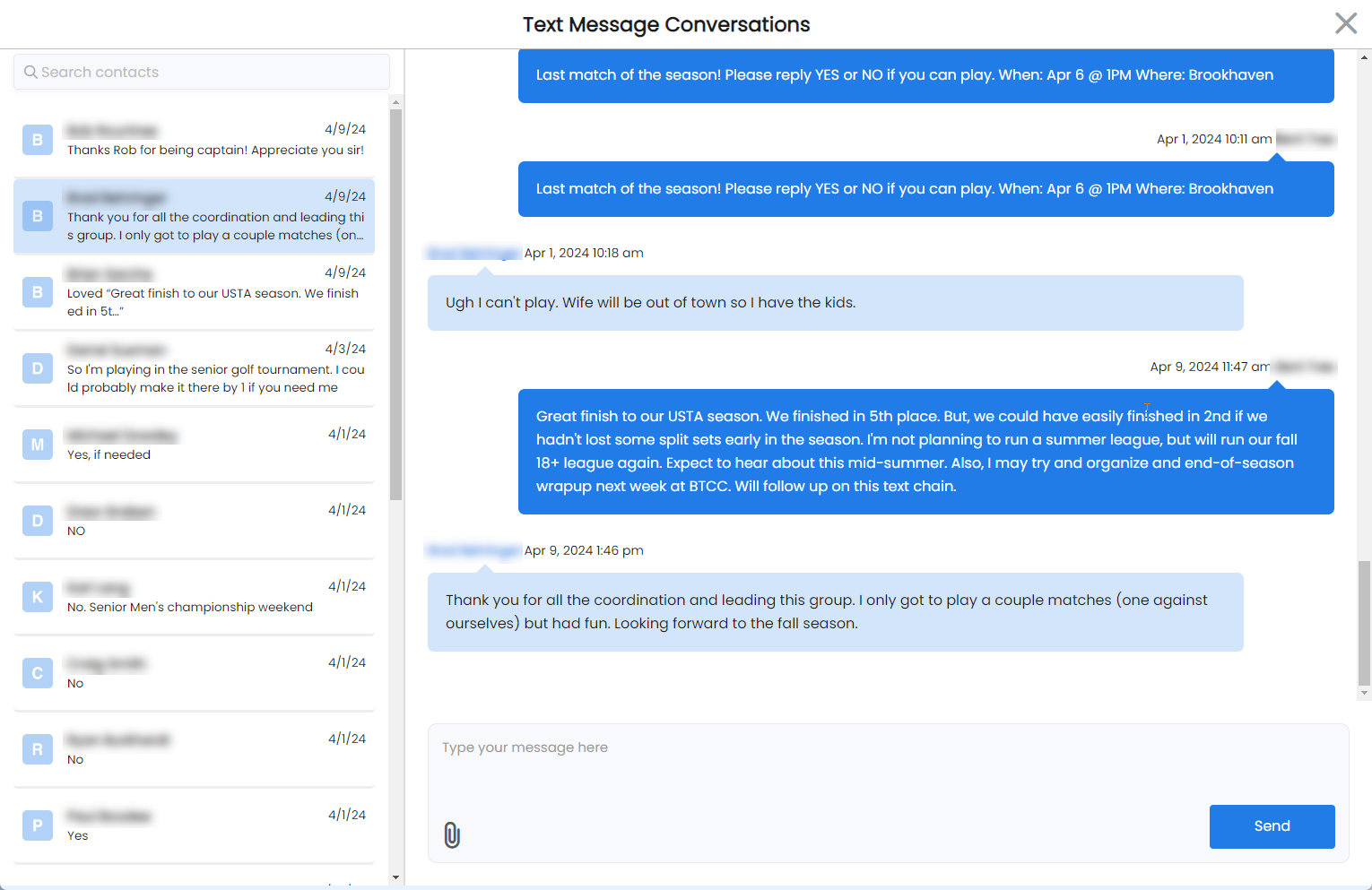
A unique capability of the conversation view is the ability to reply with only an image. Just click the paperclip icon, select and image and click send.
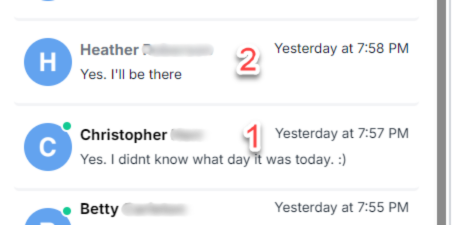
Unread conversations are marked with a green dot next to them in the conversation list. Once you open a conversation, the green dot disappears, indicating it's been read. This makes it easy to scan the list and quickly spot which contacts are waiting on a response.
1. Is an Unread message (look for the green dot)
2. This message has been Read (no green dot)
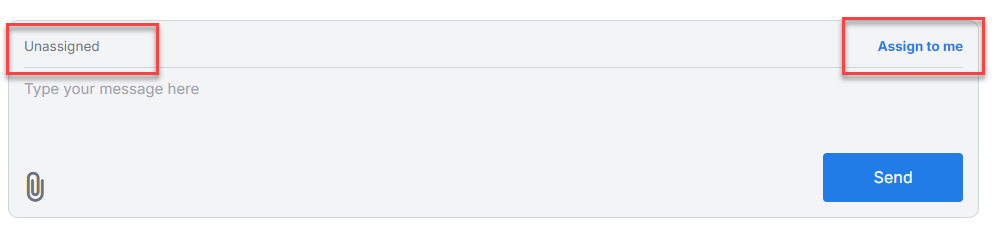
You can assign a specific team member to handle a conversation. Right-click on a conversation in the list to open the context menu, then select the user you'd like to assign. This is useful for routing conversations to the right person on your team and keeping ownership clear when multiple staff members are monitoring Conversations.
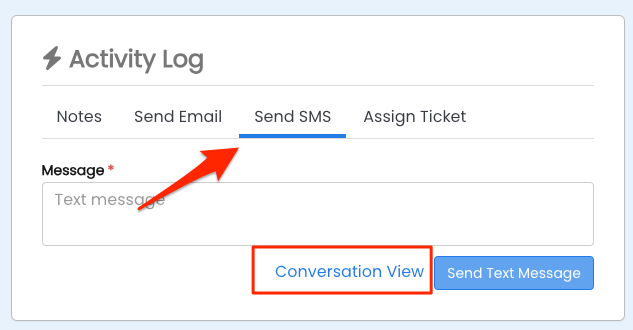
Navigate to a contact's record and from the Activity Log click on Send SMS and then Conversation View. Click on Conversation View and this will navigate to Text Message Conversations.
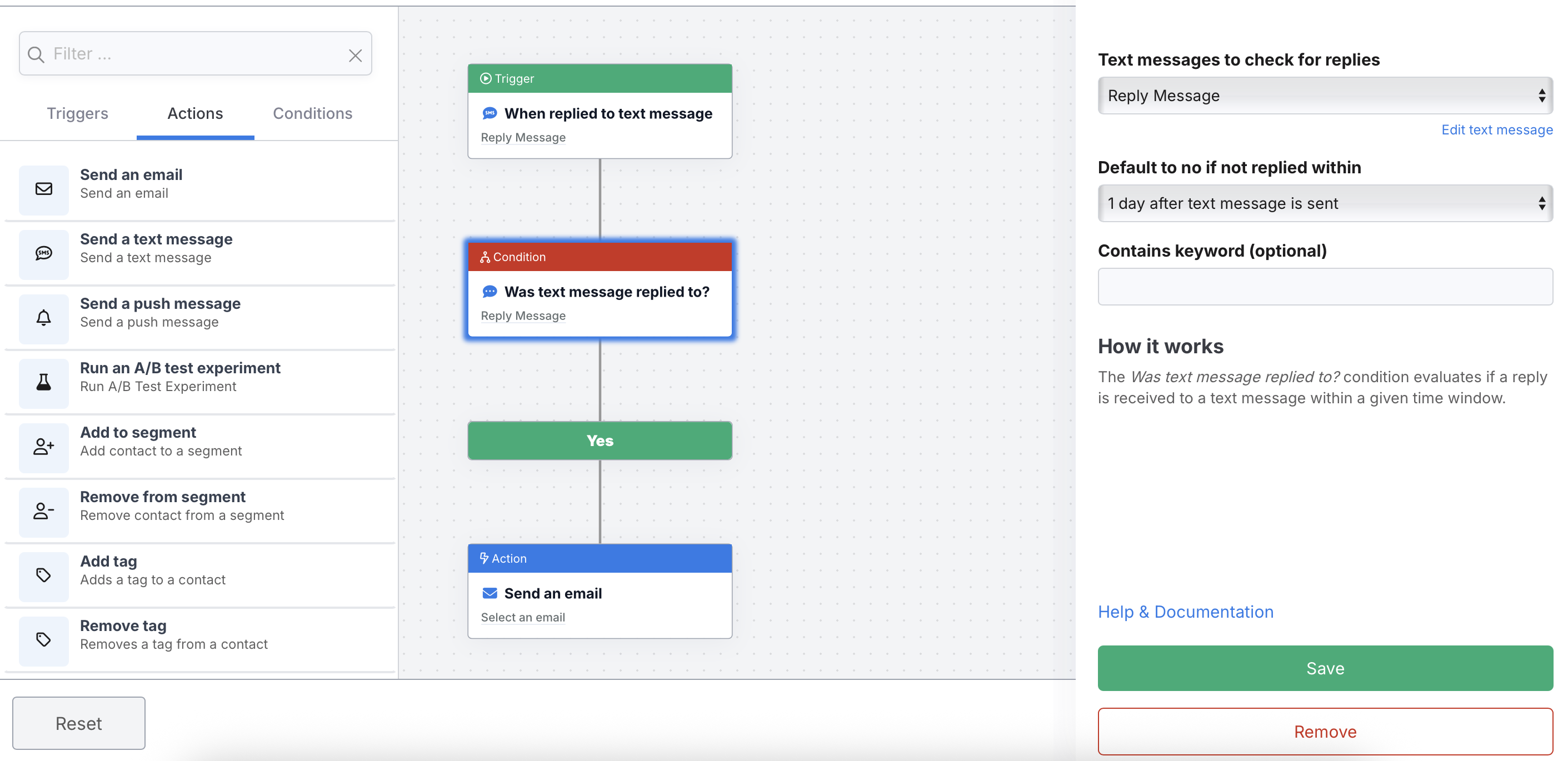
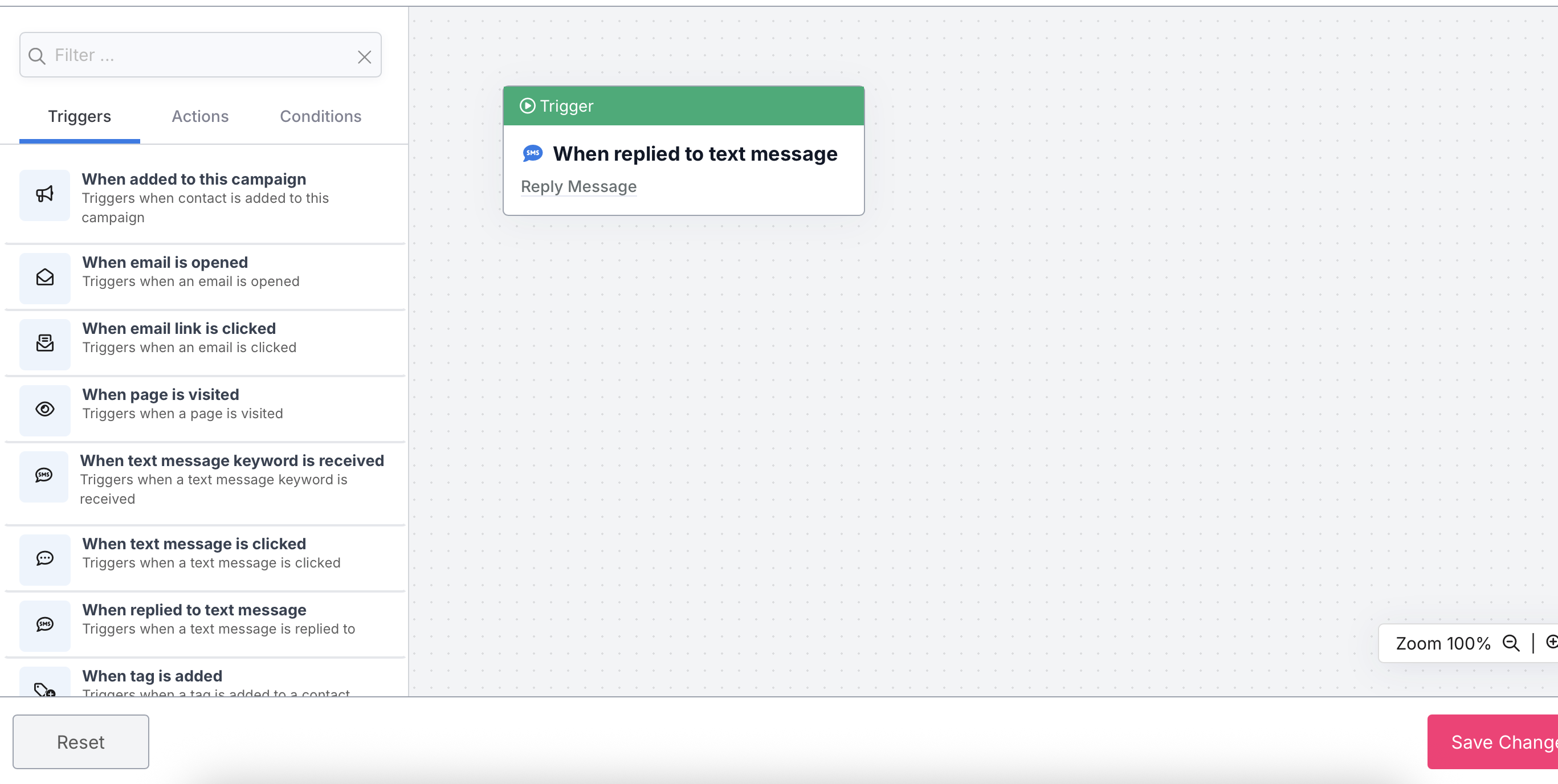
When a text message reply is received if there is a trigger or condition setup for the text message, DailyStory will run that automation.
For example, you could start an automation when a reply is received. This could be as simple as starting a drip campaign or replying back with a specific message. The incoming reply is free, but any message the automation sends back is an outbound message and is charged.
You can also setup a condition to evaluate the text message reply and take specific actions. For example, if you sent a text message with an an offer, e.g. "Reply YES to get this awesome deal" you could run a condition that would automate the series of actions when "YES" was received.