Show your customers you appreciate their referrals with a simple drip campaign. We'll walk you through an easy way to set up an automation so you can 'set it and forget it!'
Please note, in order to utilize this campaign/segment you have to be collecting the data field for whatever you want to celebrate (i.e. first product purchase, becoming a member, etc.).
Contacts > Search Contacts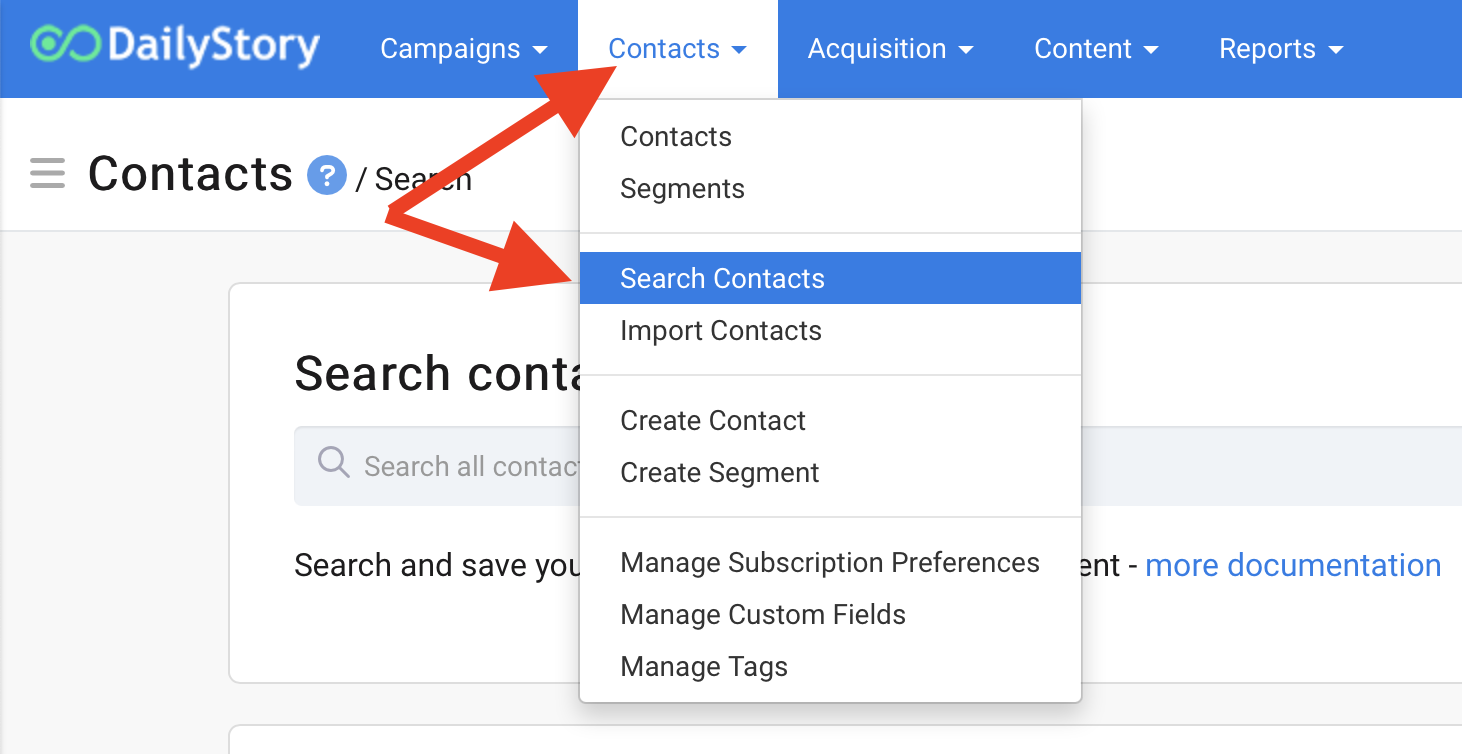
Last Order Date and change it from Range to Period. You can set this to be for the next 14 days, 10 days, 2 days...whatever date range you would like to begin sending texts &/or emails to your customers. For this example, we're going to choose in the past 1 day. Hit the green Search bar to return the results. If the contacts look like what you were expecting, click Create Segment.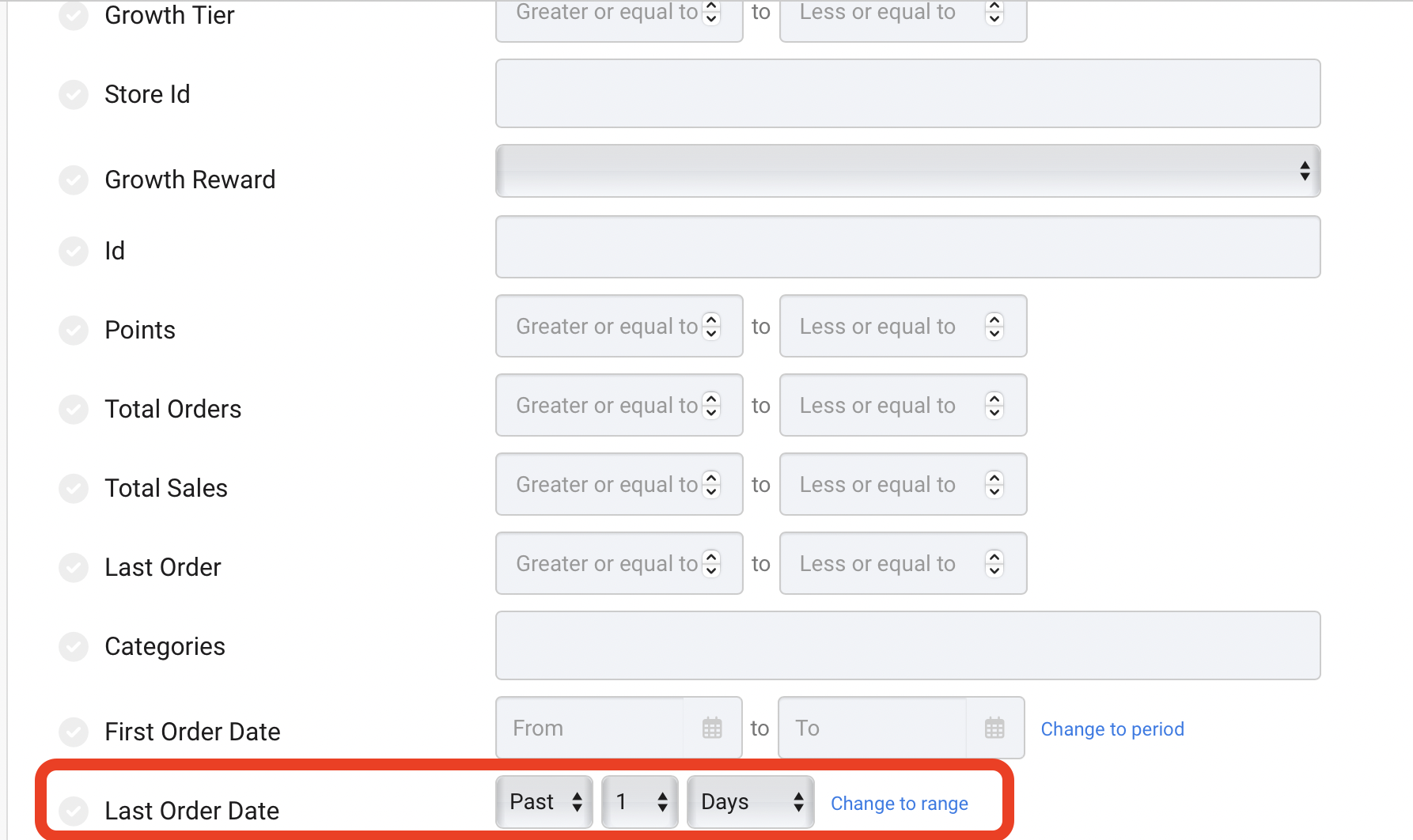
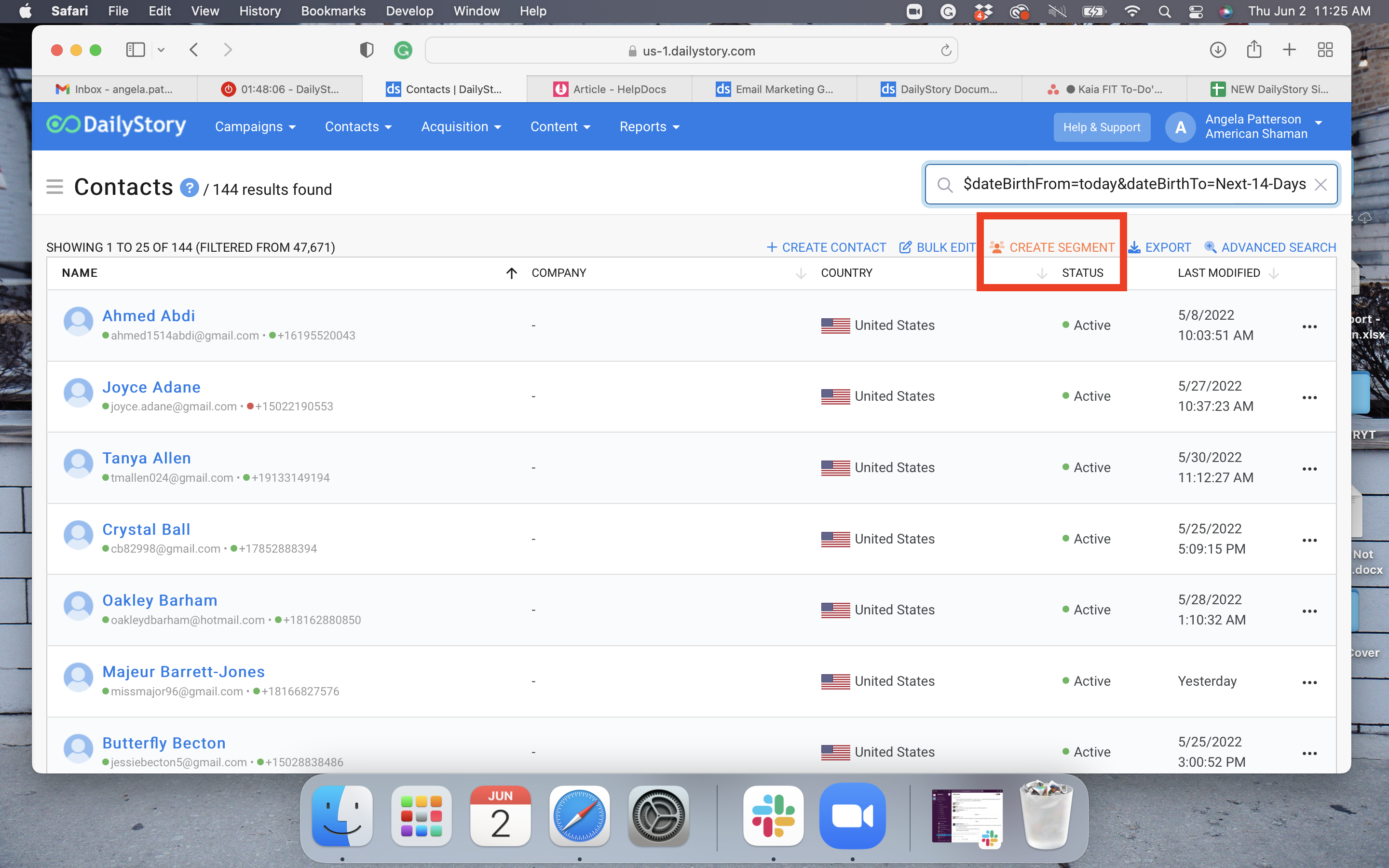
Click here for more help with creating and working with dynamic segments.
Campaigns > Create CampaignCreate Campaign.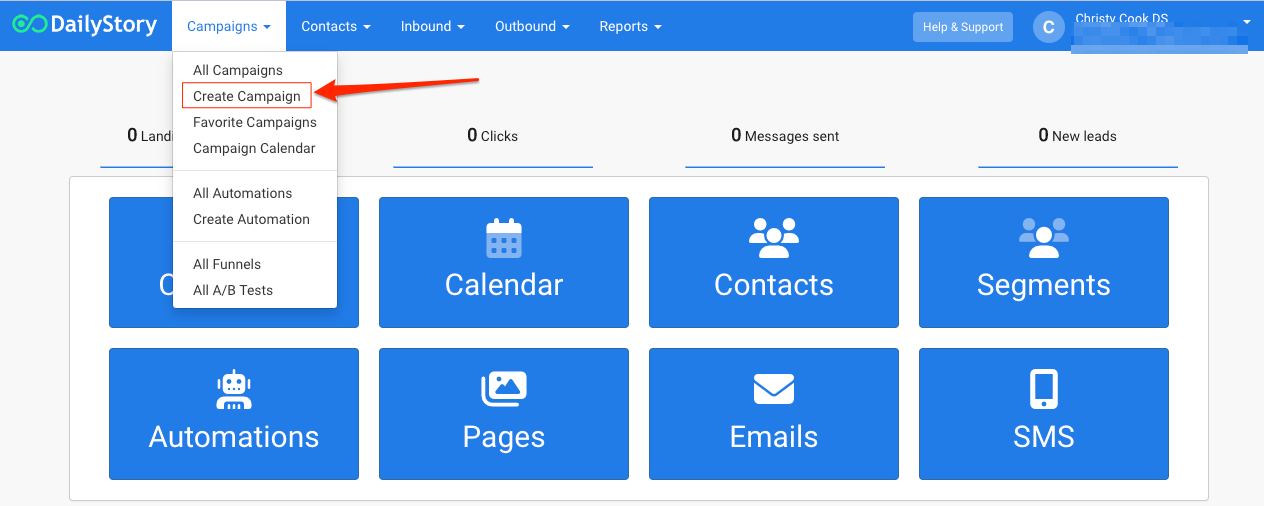
Existing contacts in the following segments. Select the segment you created in Step 1 from the drop-down list.Save & Close.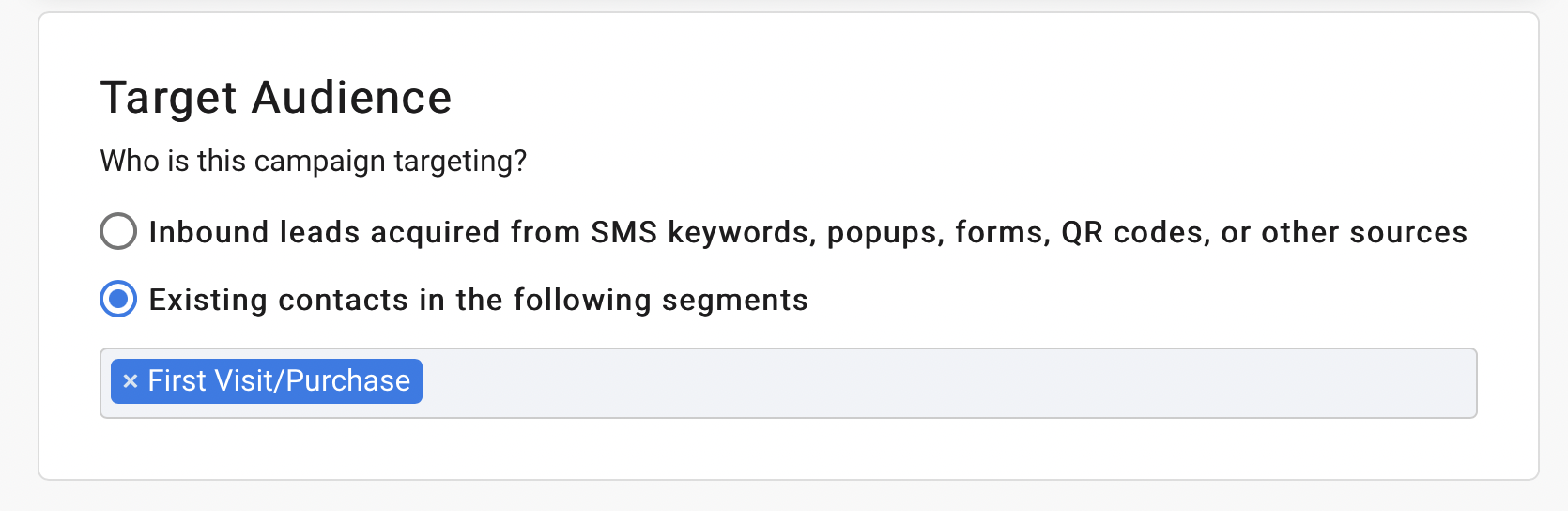
Click here for more help with creating and working with Campaigns.
+ Add Asset.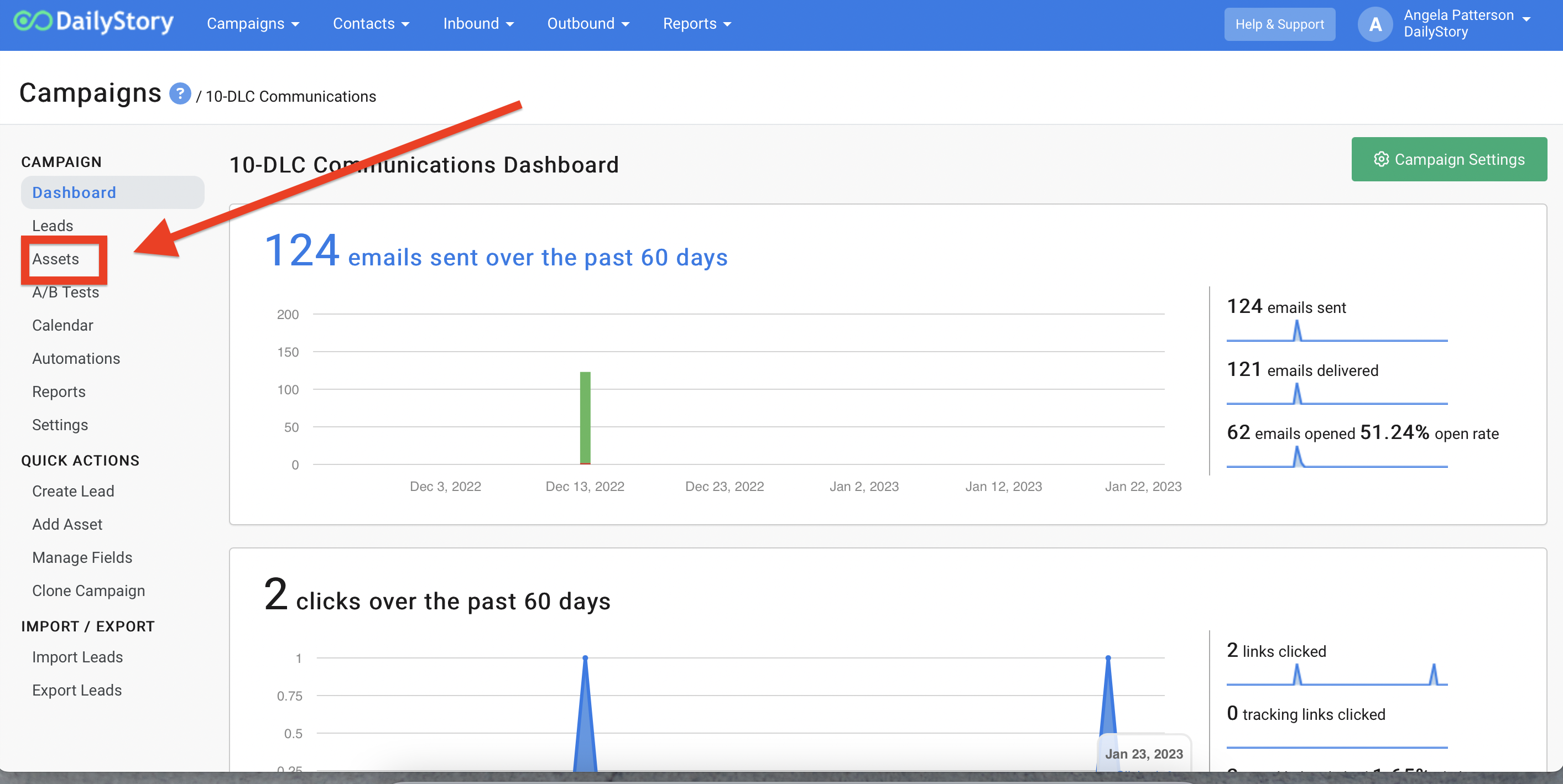
Add an Email or Add a Text Message from the popup menu.Save & Close. You will now find that "asset" under the assets tab in your campaign and can go back and edit it whenever you like.Click here for more help with creating text messages or creating an email with the email designer.
+ Add an Automation.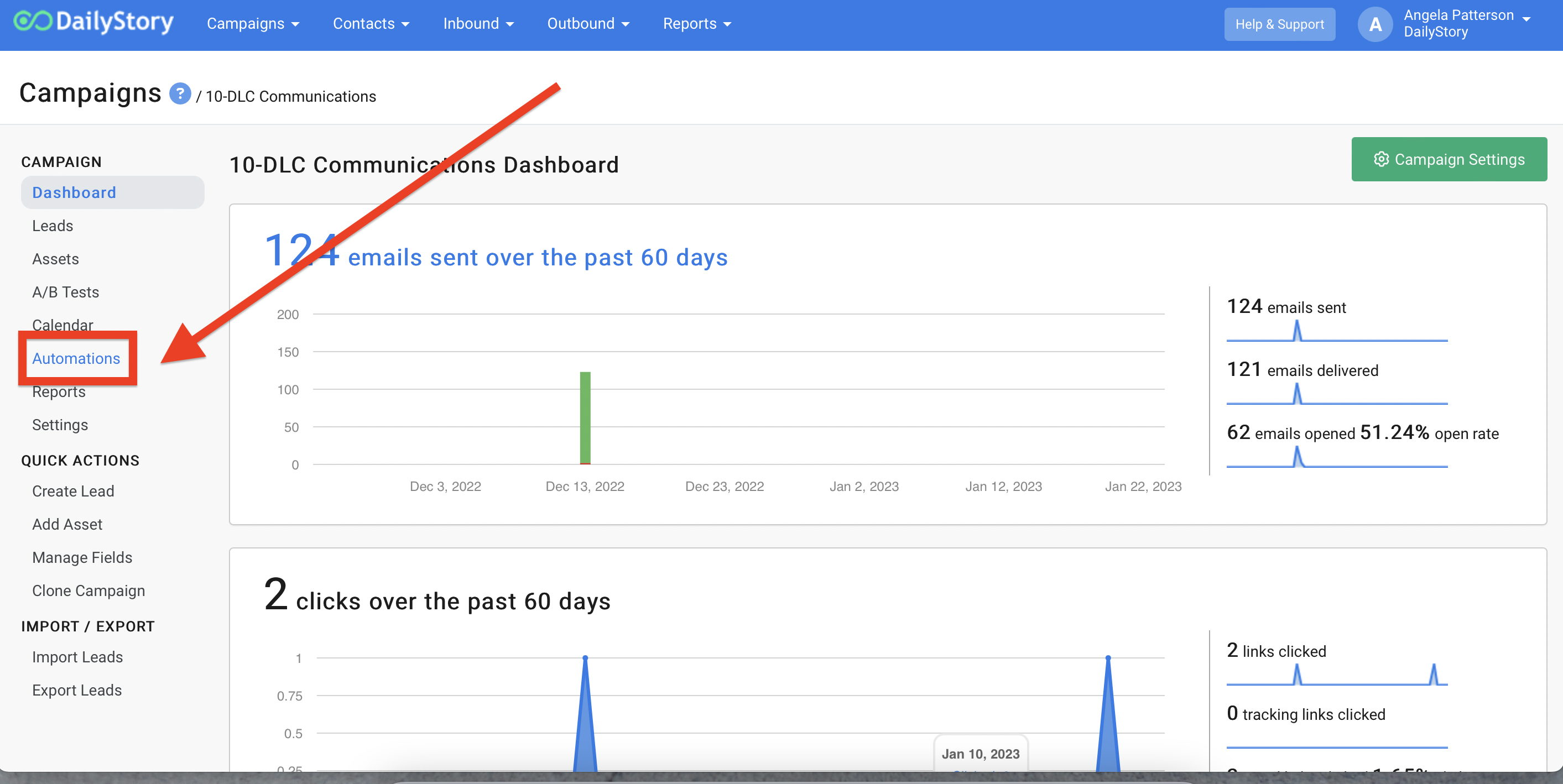
Create a new automation from the automations window.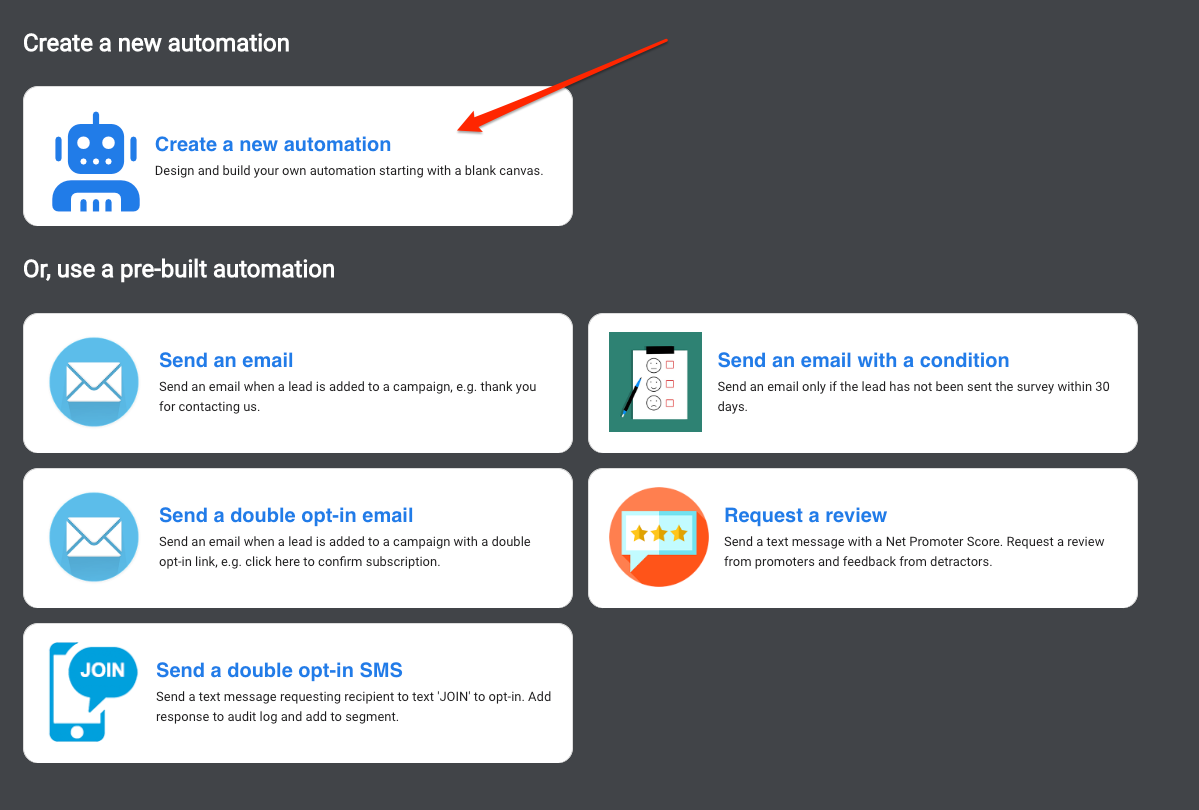
When added to this campaign onto the canvas.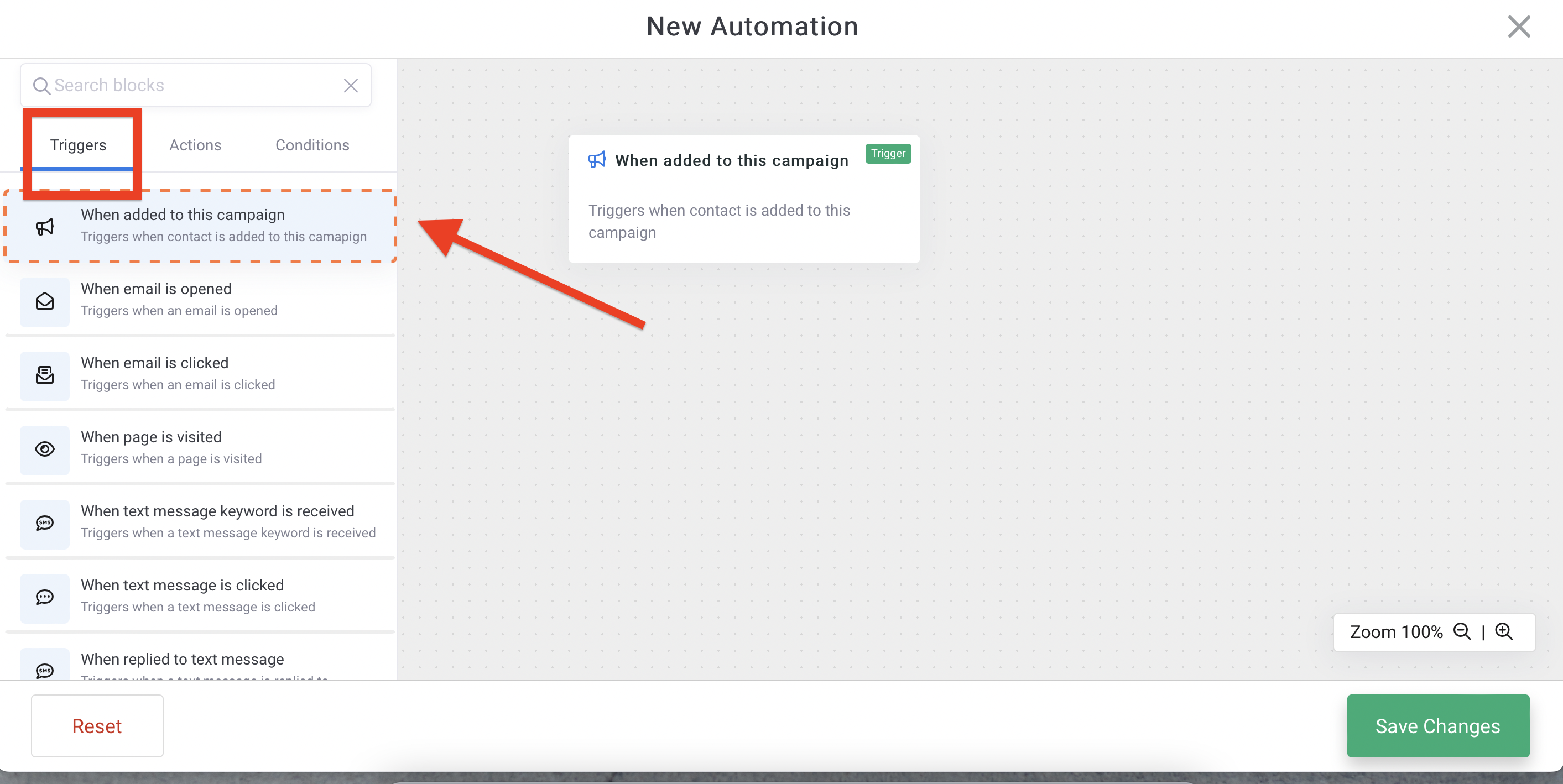
Pause the Automation. You can choose whatever time frame fits your need and preferences. For this example, we'll choose 7 days. This means we want to wait 7 days after they've made their last purchase before we go to the next step of sending them our message. Remember: they get added to the campaign from the segment we attached and they get added to the segment we designed based on their last purchase date of 1 day ago.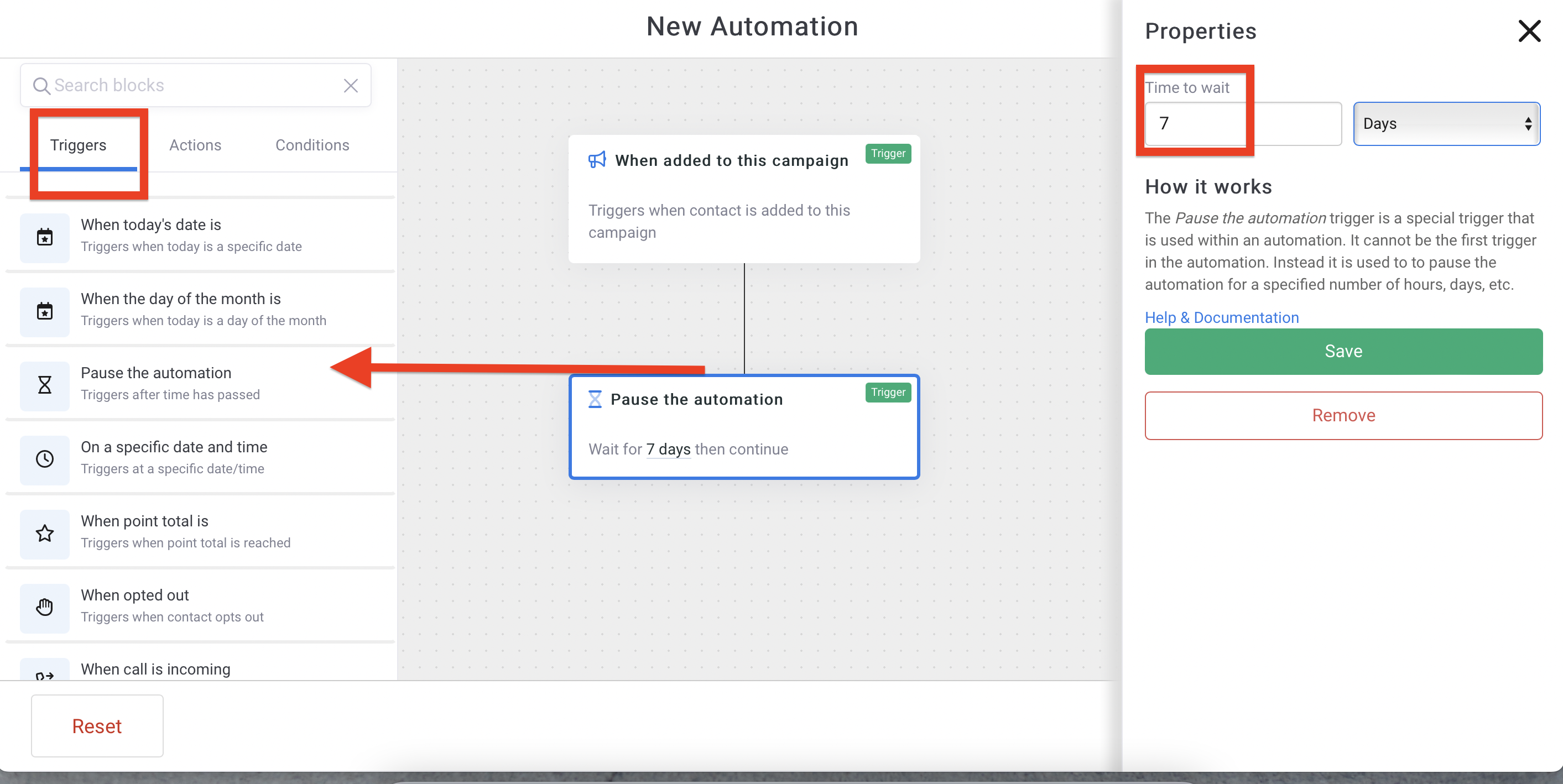
Send a text message or Send an email onto the canvas overlapping the previous step so it will drop into place. Select the text message or email to send and any restrictions on the day and time from the menu to the right.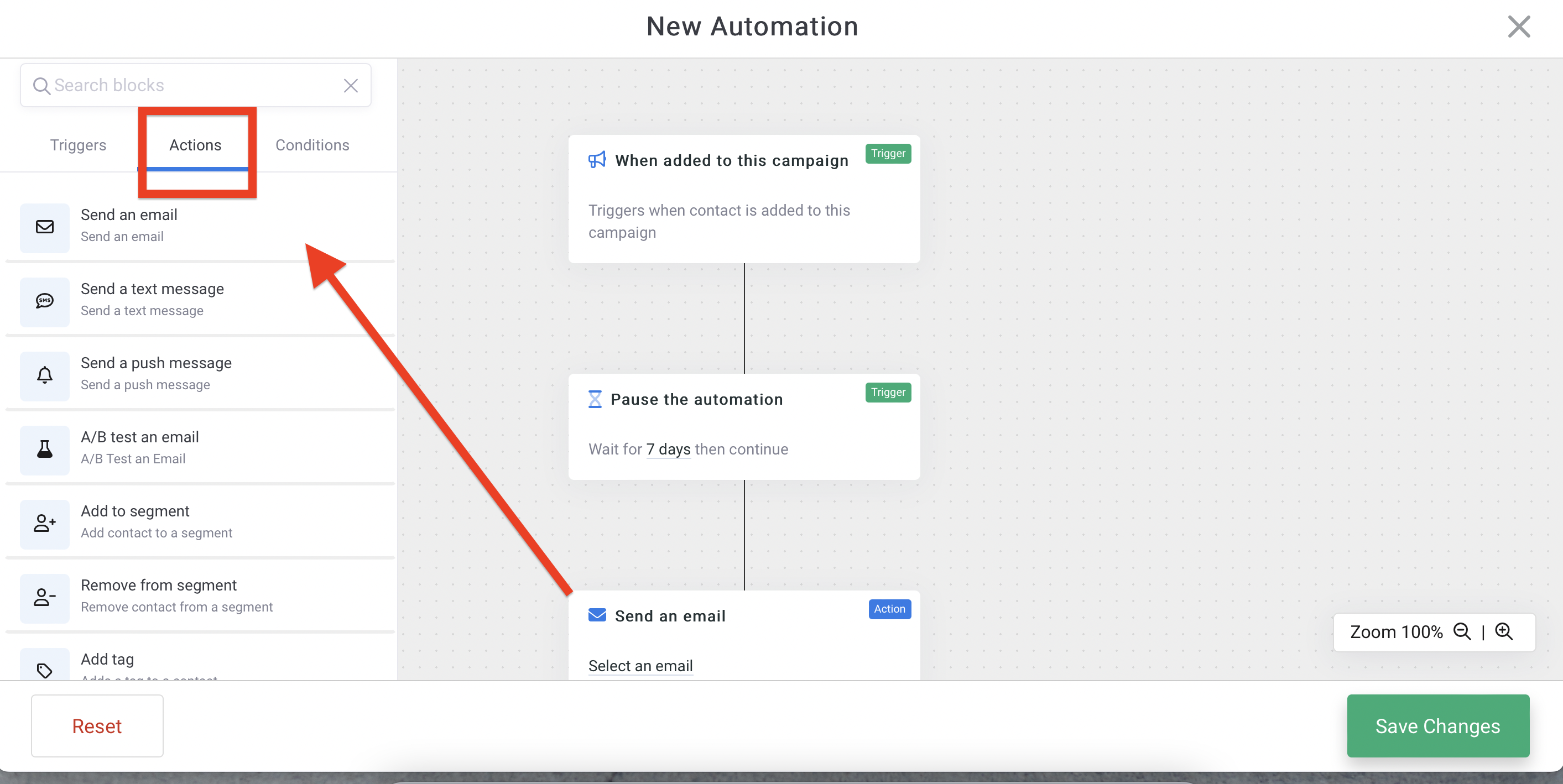
End the automation onto the canvas overlapping the previous step. Select the campaign from the menu on the right.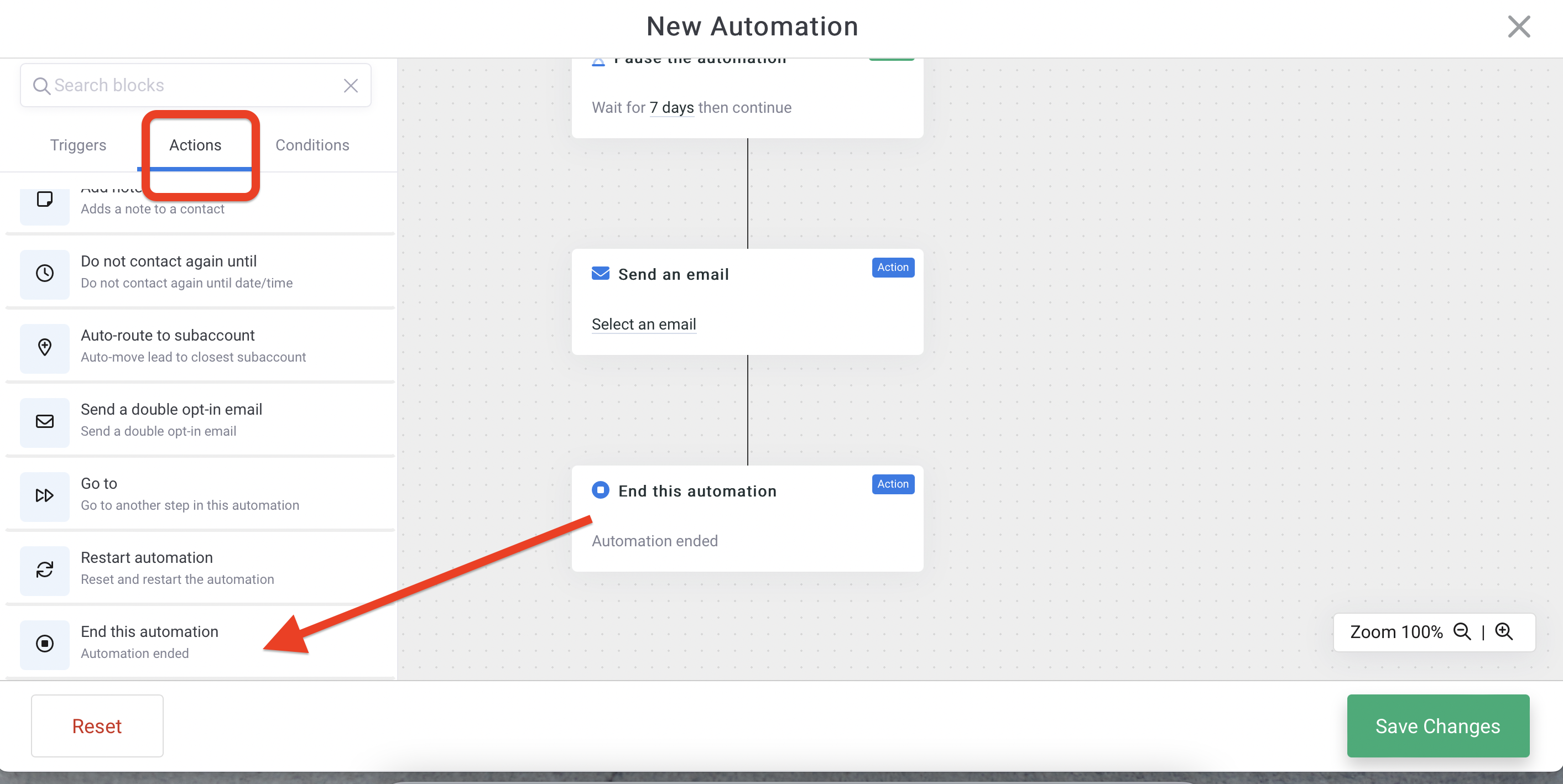 Recommended
We're ending the automation so your customers aren't consistently targeted to refer someone. Customers will get added to this segment after their last order, and fall into the automation.
Save Changes from the bottom right of the screen. Give your automation a Name and optional Description in the popup window and click Save.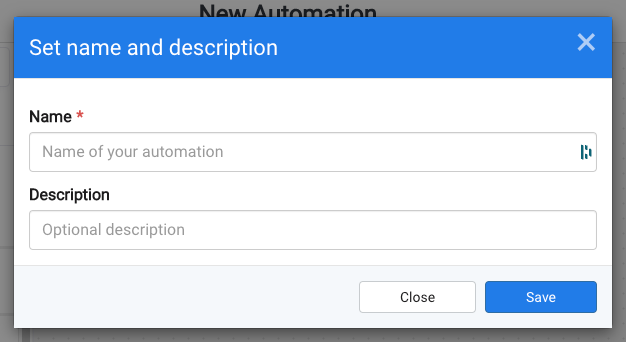
Running if you are ready for messages to begin automatically sending and click on Save & Close.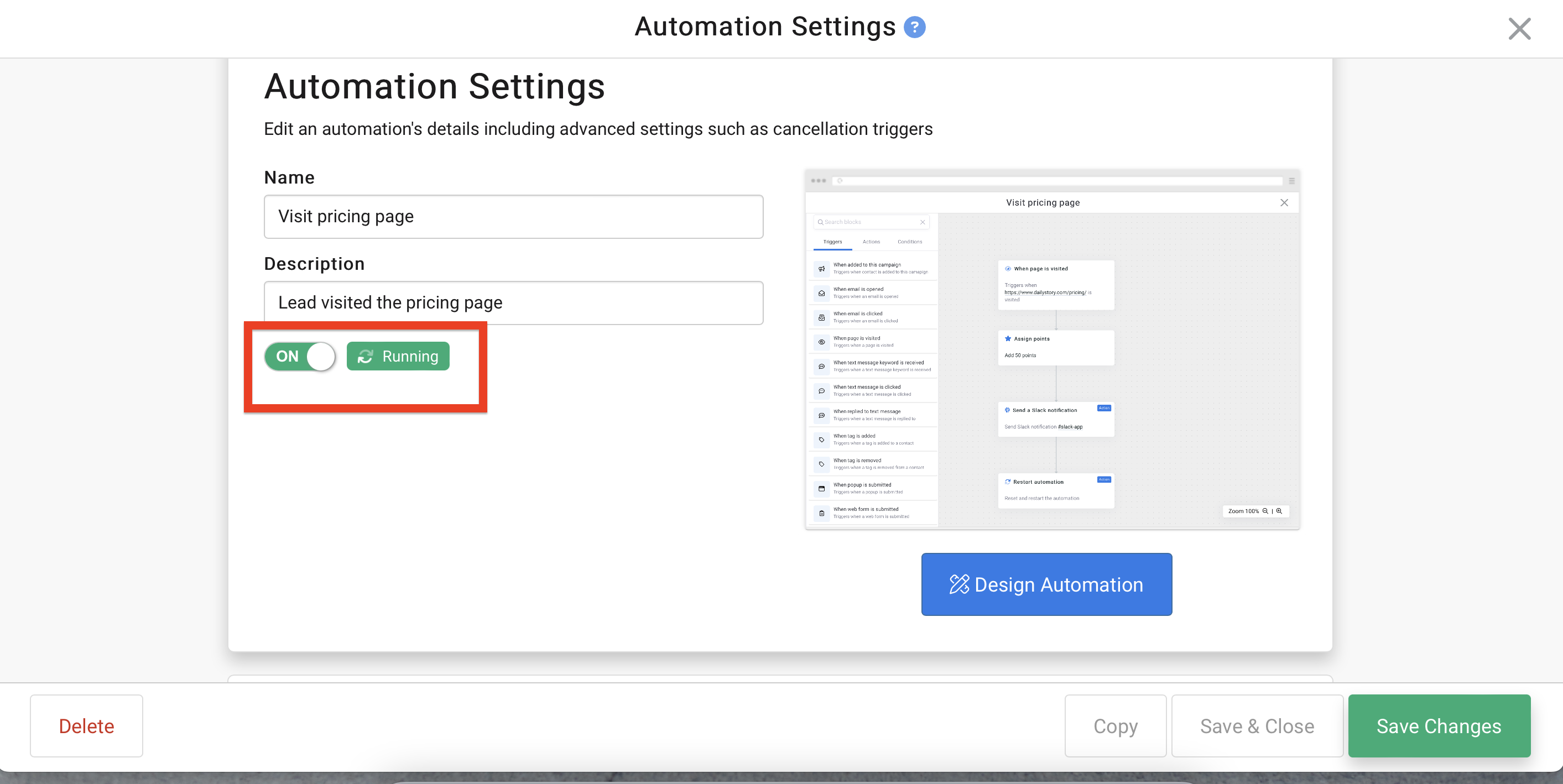
Click here for more help with creating automations.
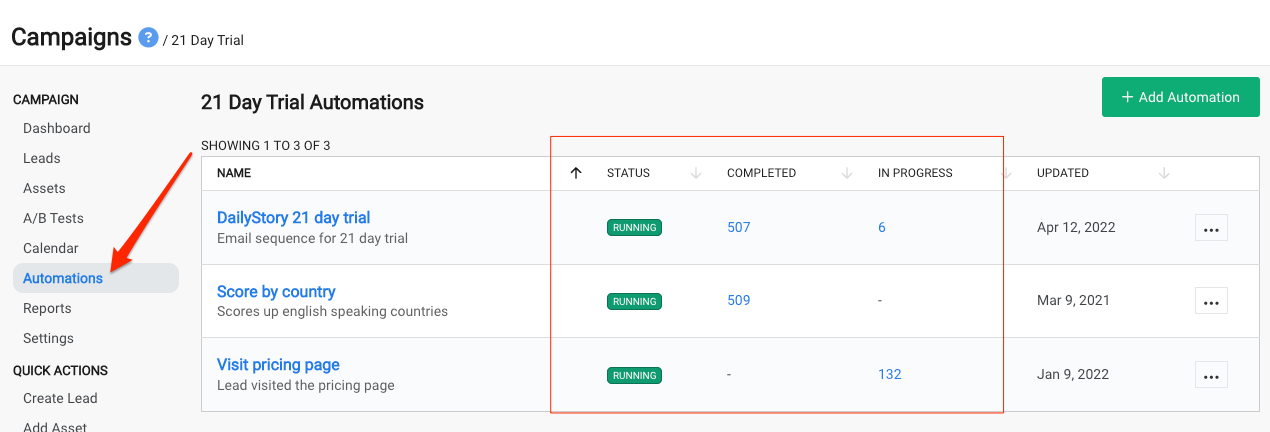
You're all set! You can track the results in your reports as well as see at a glance who has run through your automation(s) and who is in progress.