Save button, click the back arrow <-- to return to the automation settings.ON from the settings screen and click Save & Close, or you can always turn automations off or on from the tab in your campaign.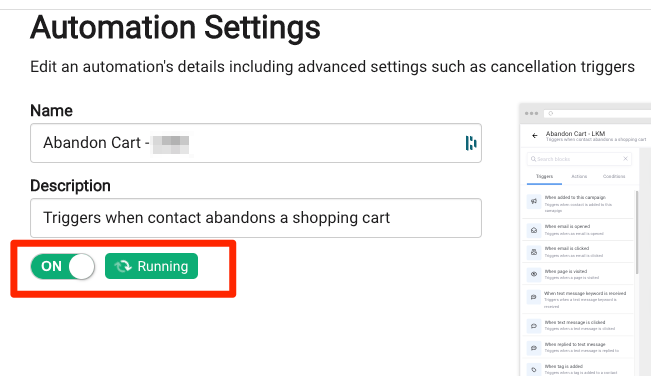
We all want great customer ratings and for them to share the love! Automate the process of asking your customers to give you feedback and ratings.
First, you'll need to decide what experience you would like to have happened prior to asking for a rating (ex: first visit, first purchase, event attendance, etc).
RecommendedIn order to utilize automated purchase or attendance information for your contacts, you need to be integrated with your point-of-sale or CRM system. See our Integrations Guide for help with connecting with other apps.
For our sample campaign, we'll use "First Purchase" as our trigger.
RecommendedYou can opt to add these Rate Us assets and automation to an existing First Purchase campaign OR create a new campaign-related solely to asking for a rating.
Contacts > Search Contacts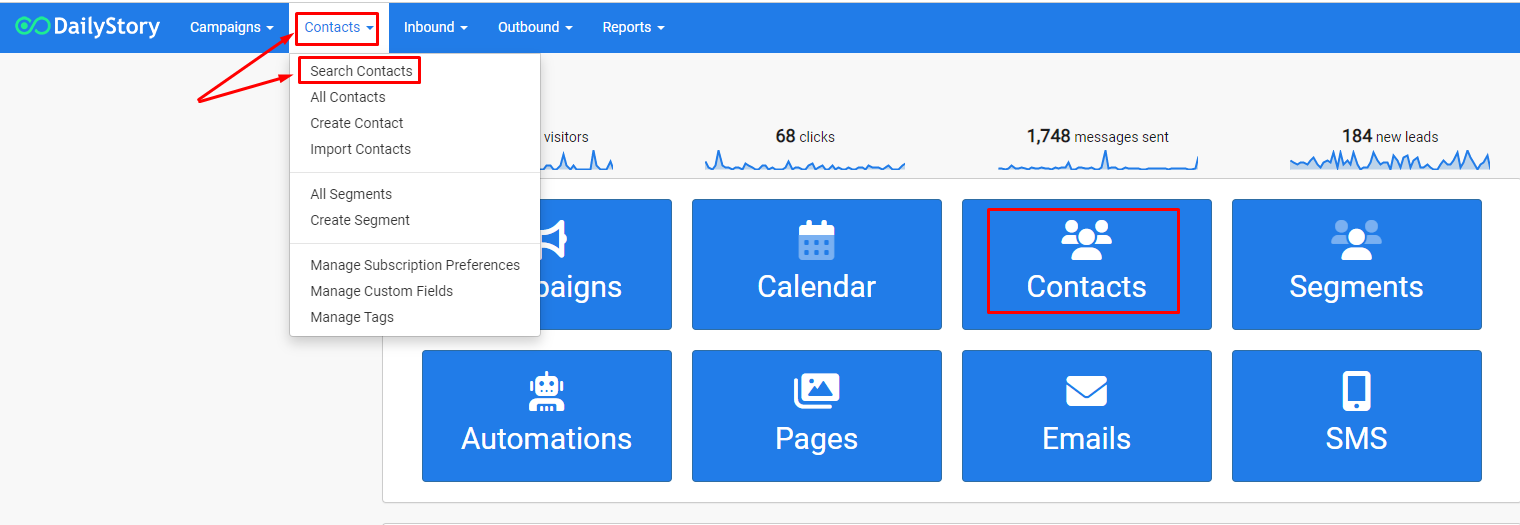
change Range to Period. You can set this to be for the next 14 days, 10 days, 2 days...whatever date range you would like to begin sending texts &/or emails to your customers. Click the green Search button.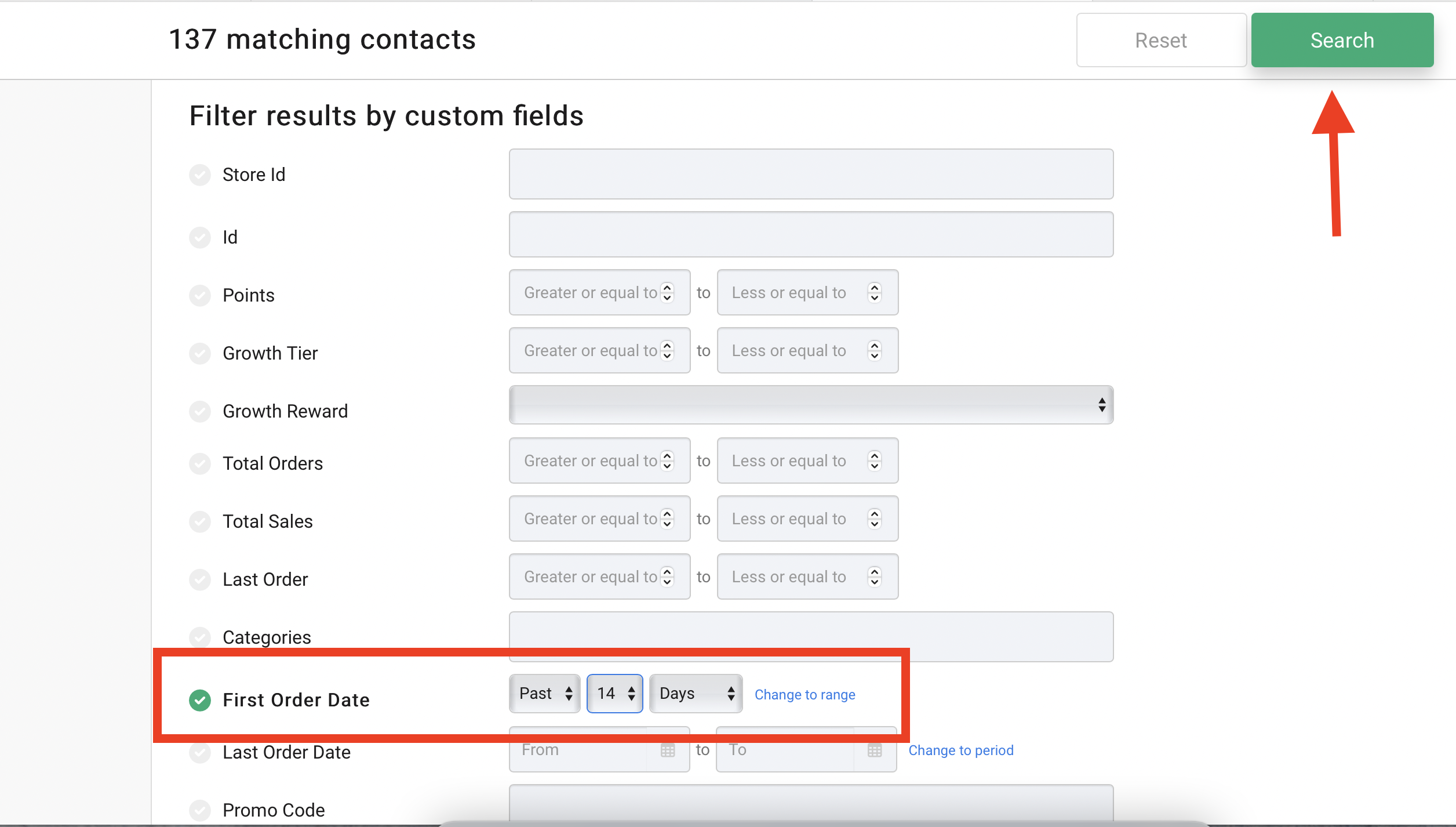
Create Segment link.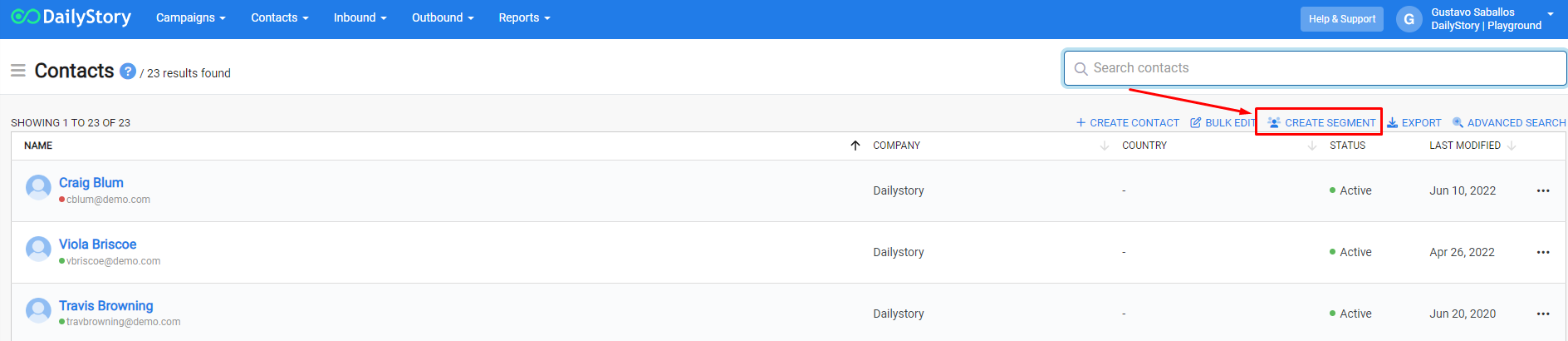
Create Segment.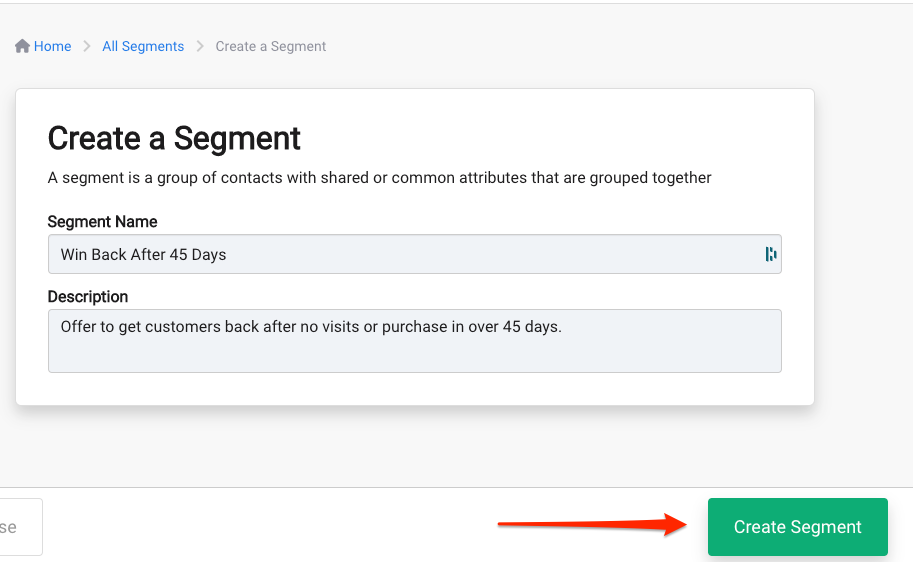
Click here for more help with creating and working with dynamic segments.
Campaigns > Create Campaign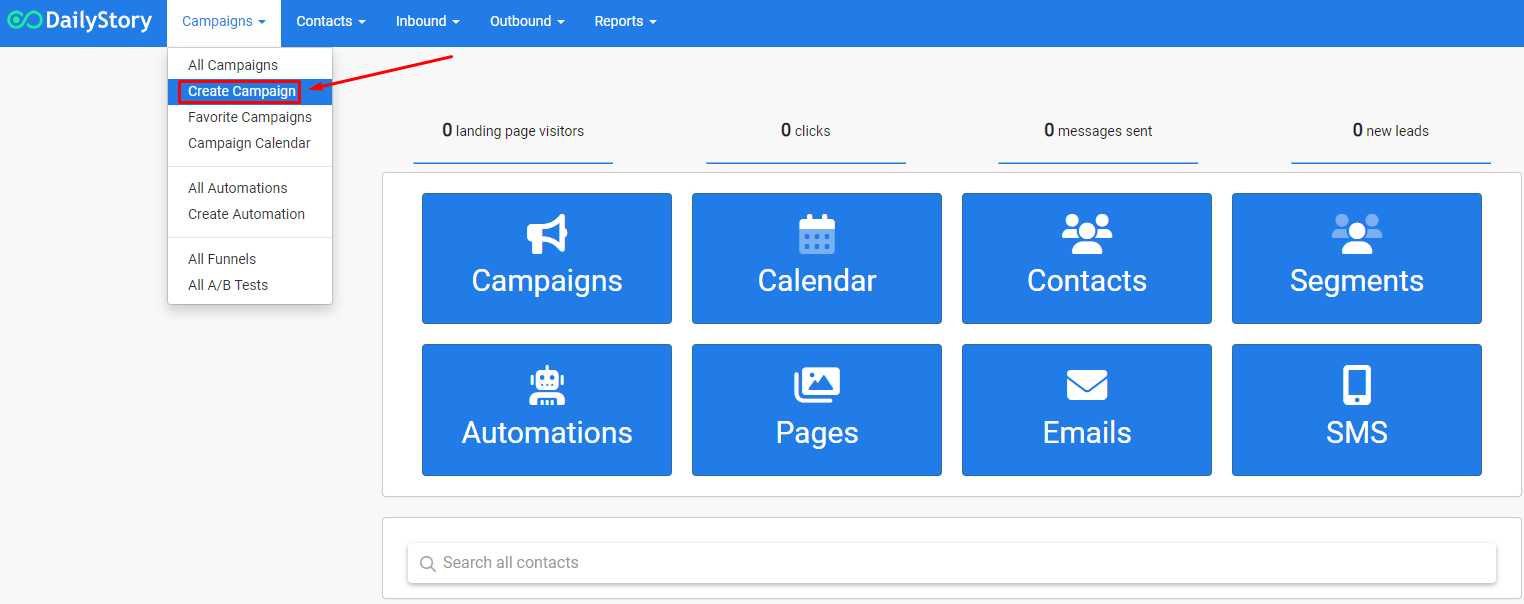
Campaign Settings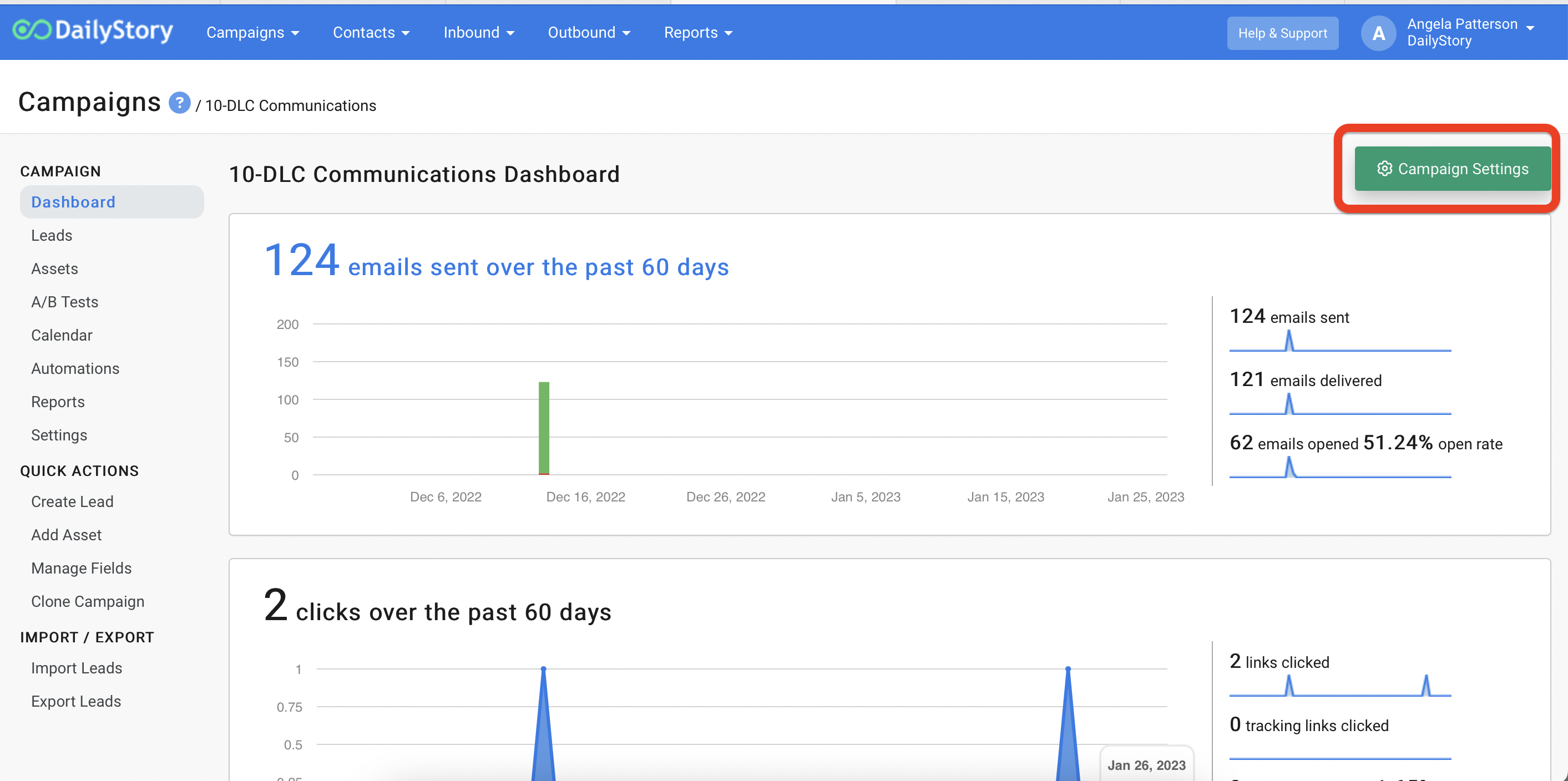
Existing Contacts in the following segments.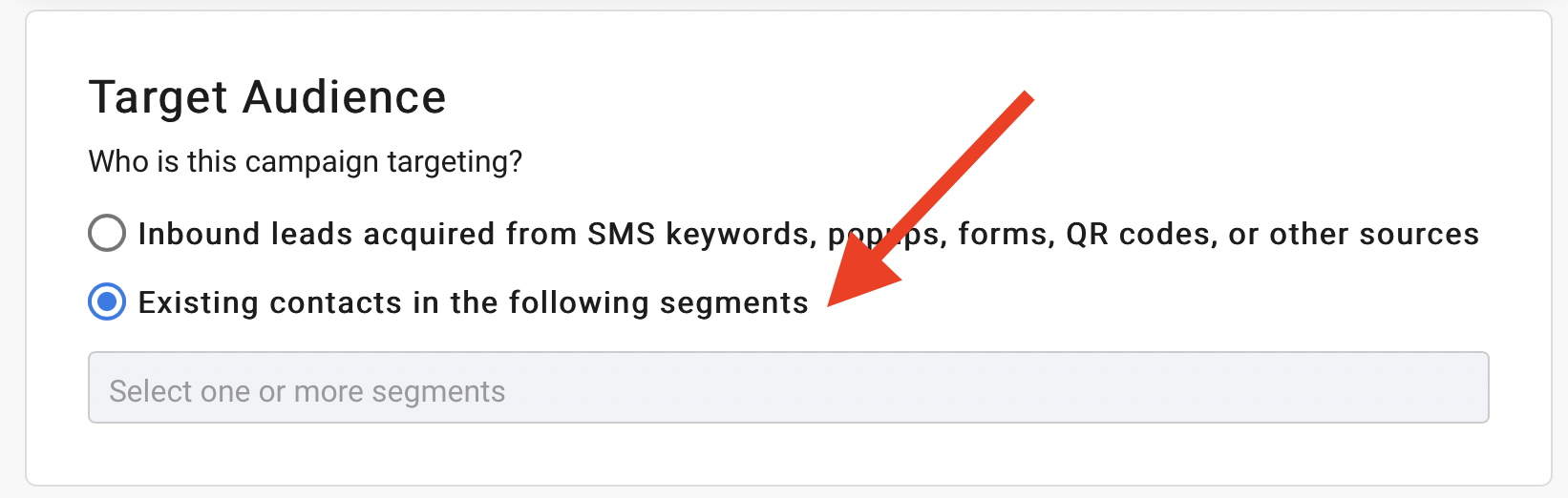
Save & Close.Click here for more help with creating and working with Campaigns.
+ Add Asset.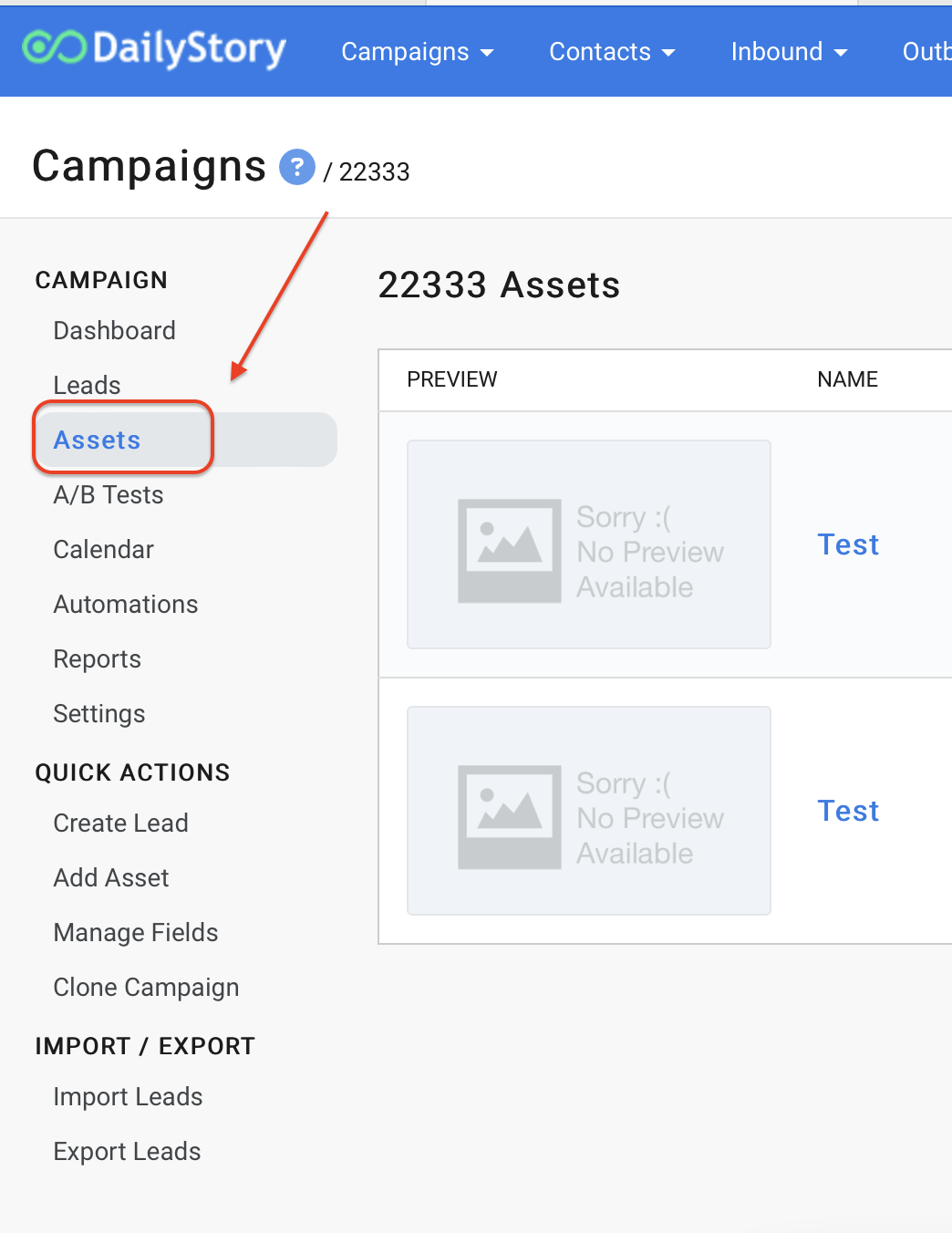
Add a Text Message from the popup window.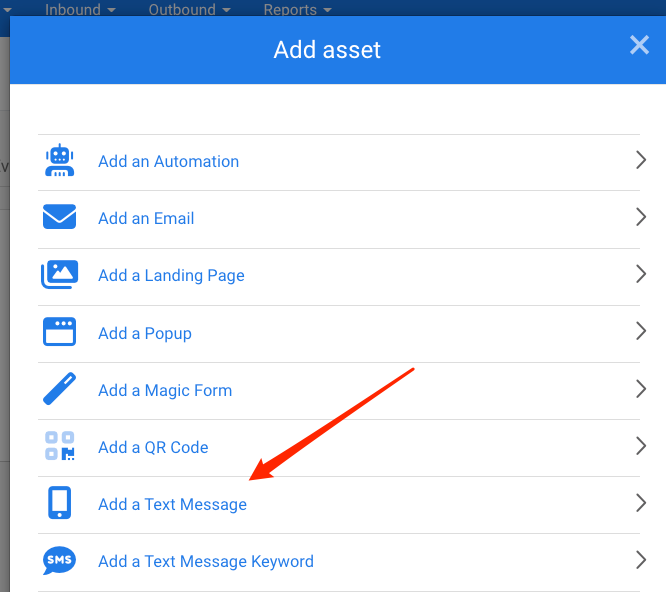
Next -> button. Add any additional text, images, etc. and then click Save & Close.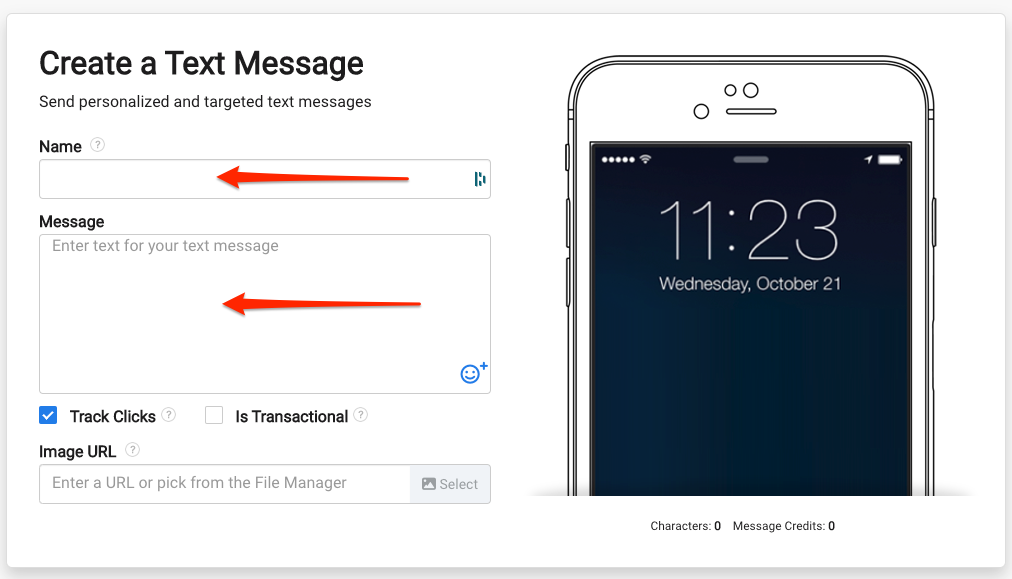
Here are some examples of suggested content:
You can set up an automation step to evaluate a reply, and then send additional messages based on a reply. For example, if a reply of 1, 2, or 3 is received you may want to send a follow-up text to express your apology for unsatisfactory service and include an offer or follow-up call to make it right. See below in automation steps for this option.
Click here for more help with creating text messages.
+ Add Automation.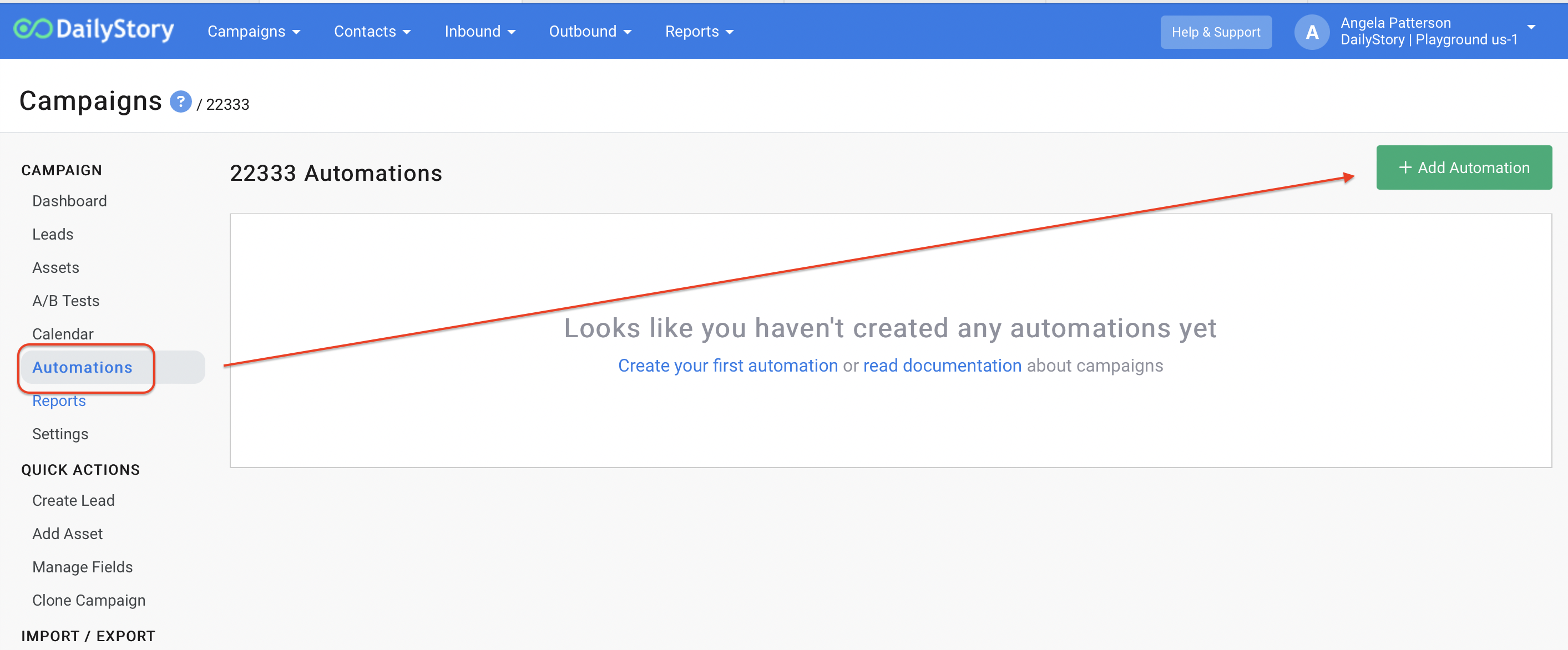
Request a review as a starting point. (Tip: you can edit and revise pre-built automations)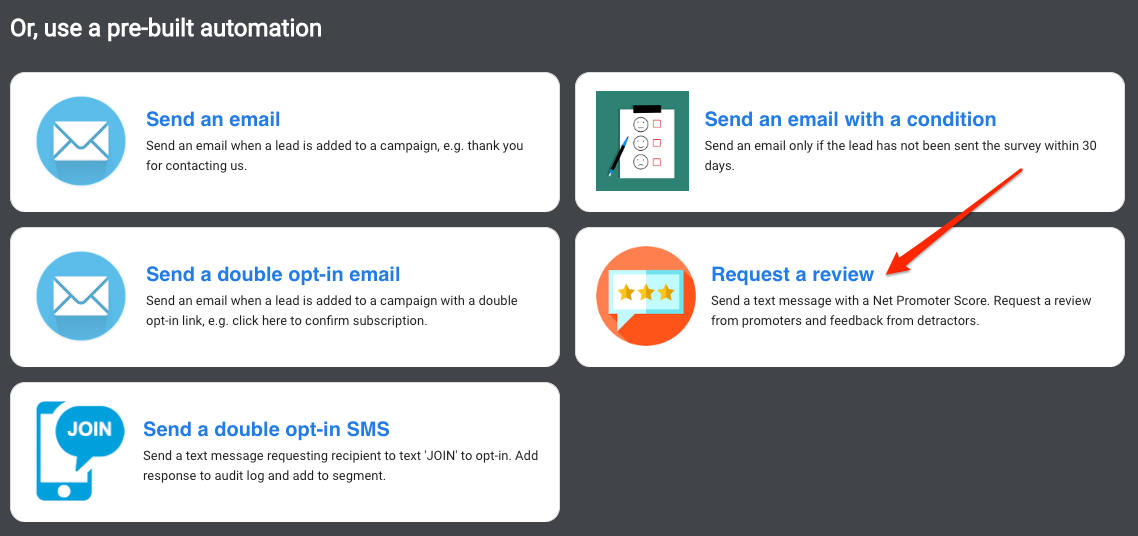
Update.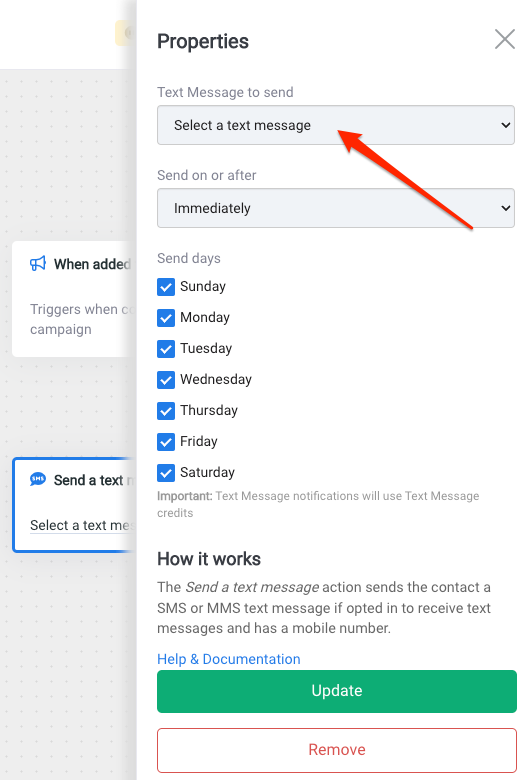
Evaluate a text message reply, be sure to complete the Contains Text field for the reply you are looking for. Separate multiple words or responses by a semicolon. Click Update to save your selections.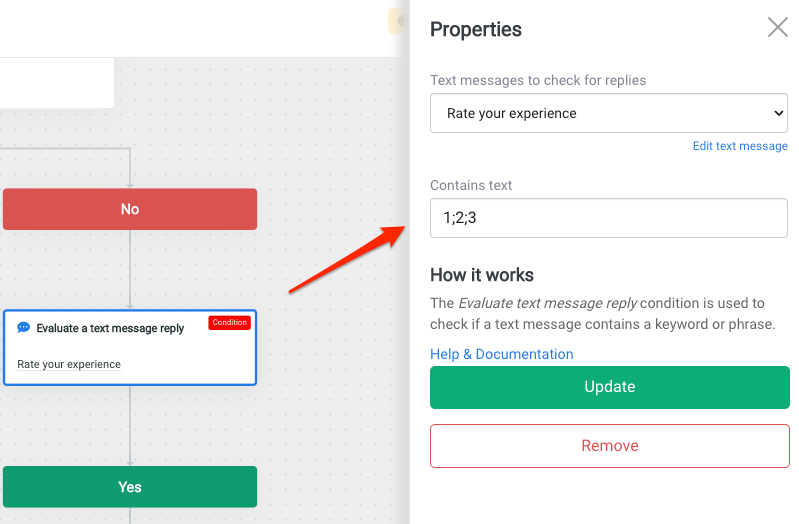
Save button, click the back arrow <-- to return to the automation settings.ON from the settings screen and click Save & Close, or you can always turn automations off or on from the tab in your campaign.Click here for more help with creating automations.
You're all set!
As soon as new customers are added to your Rate Us segment, they will automatically populate as Leads in the campaign and run through the automation to receive your messages.