Popup Free Offer Campaign
In DailyStory, you have lots of options for finding and capturing new leads. In this campaign, we'll walk you through creating a popup offer on your website.
WarningIn order to utilize this campaign, you will need to connect DailyStory with your website. See our article on Integrating With Your Website.
Steps we'll guide you through:
- Creating a campaign
- Creating a pop-up
- Creating a follow-up text or email
- Creating an automation
STEP 1: Create a campaign
- Navigate to
Campaigns > Create Campaign.
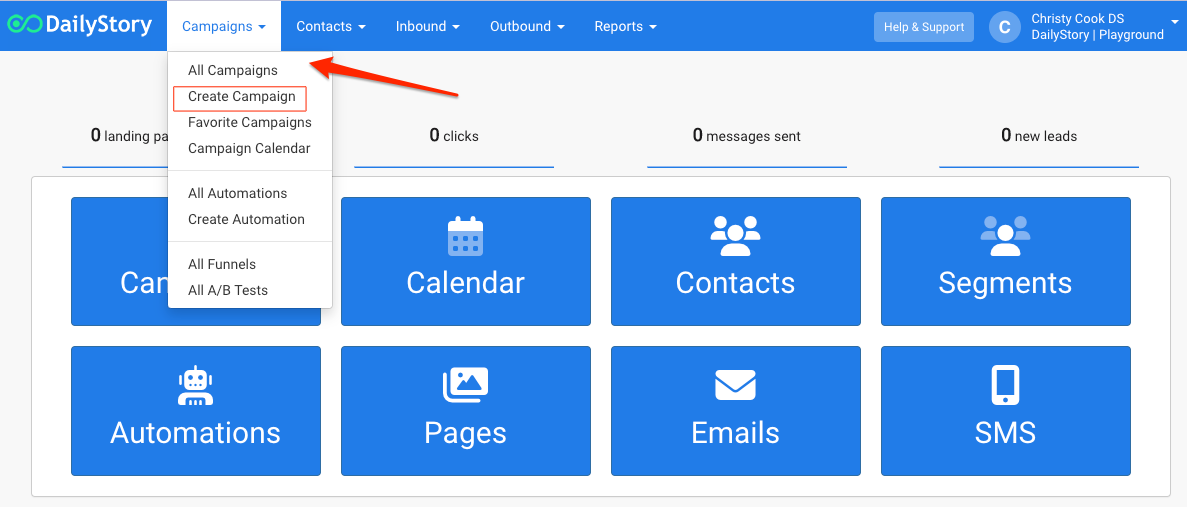
- Name the campaign based on your offer, like Free Meal Plan Pop-Up Offer.
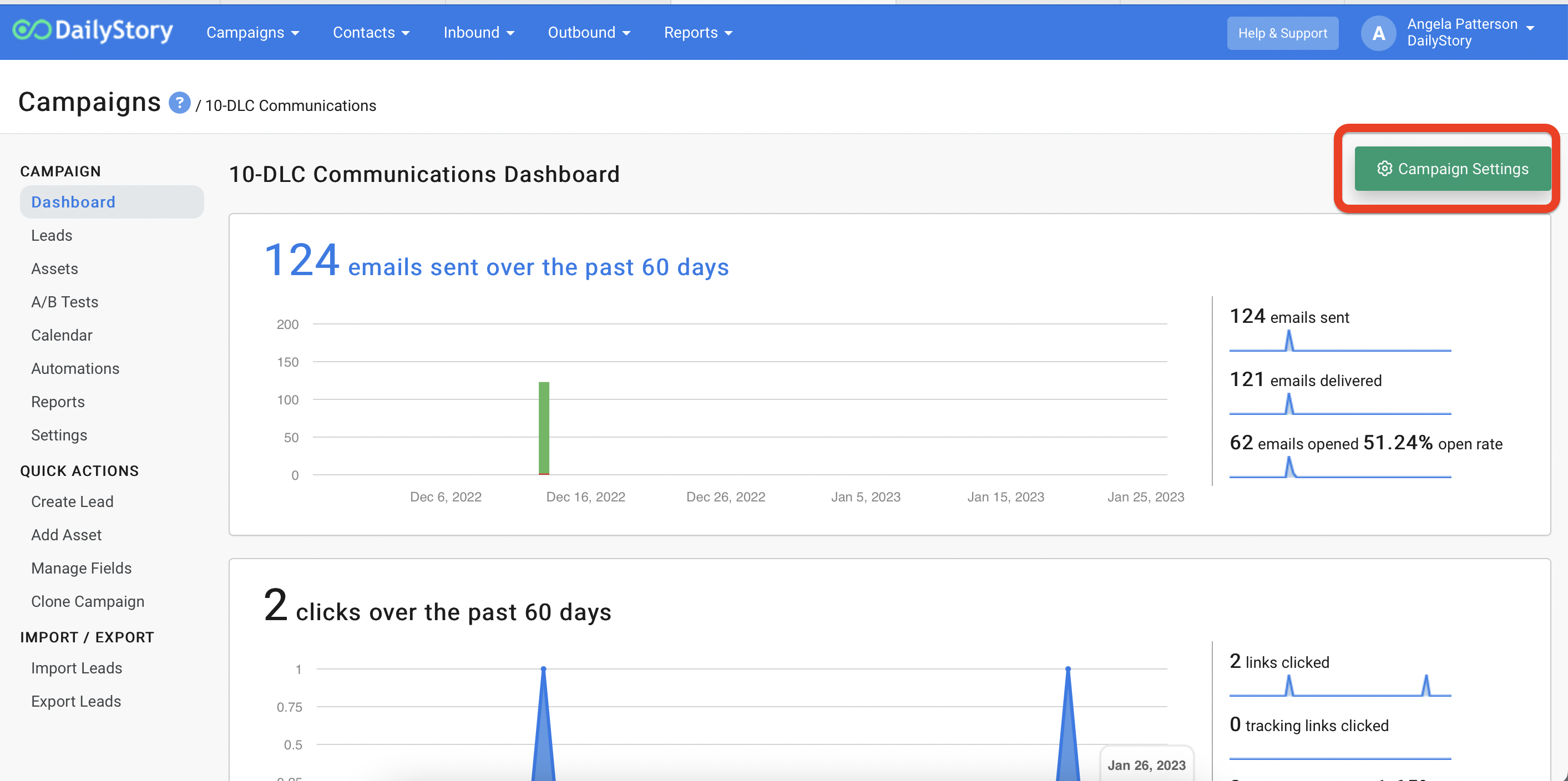
- Go to
Campaign Settings
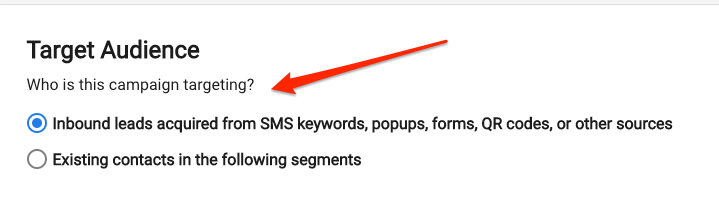
- In the Target Audience section, select
Inbound leads acquired from...
- Click
Create Campaign.
Click here for more help with creating and working with Campaigns.
STEP 2: Create a popup
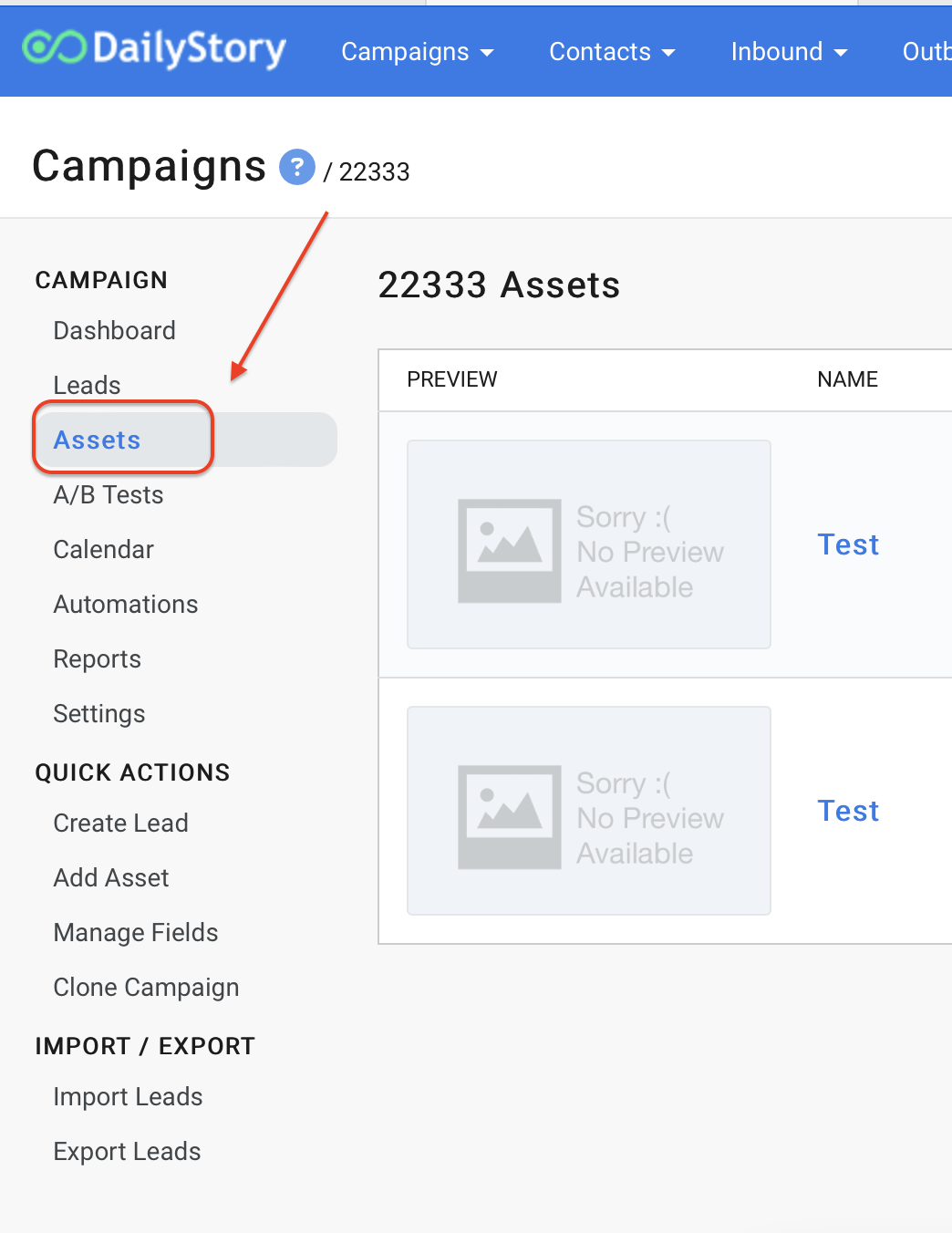
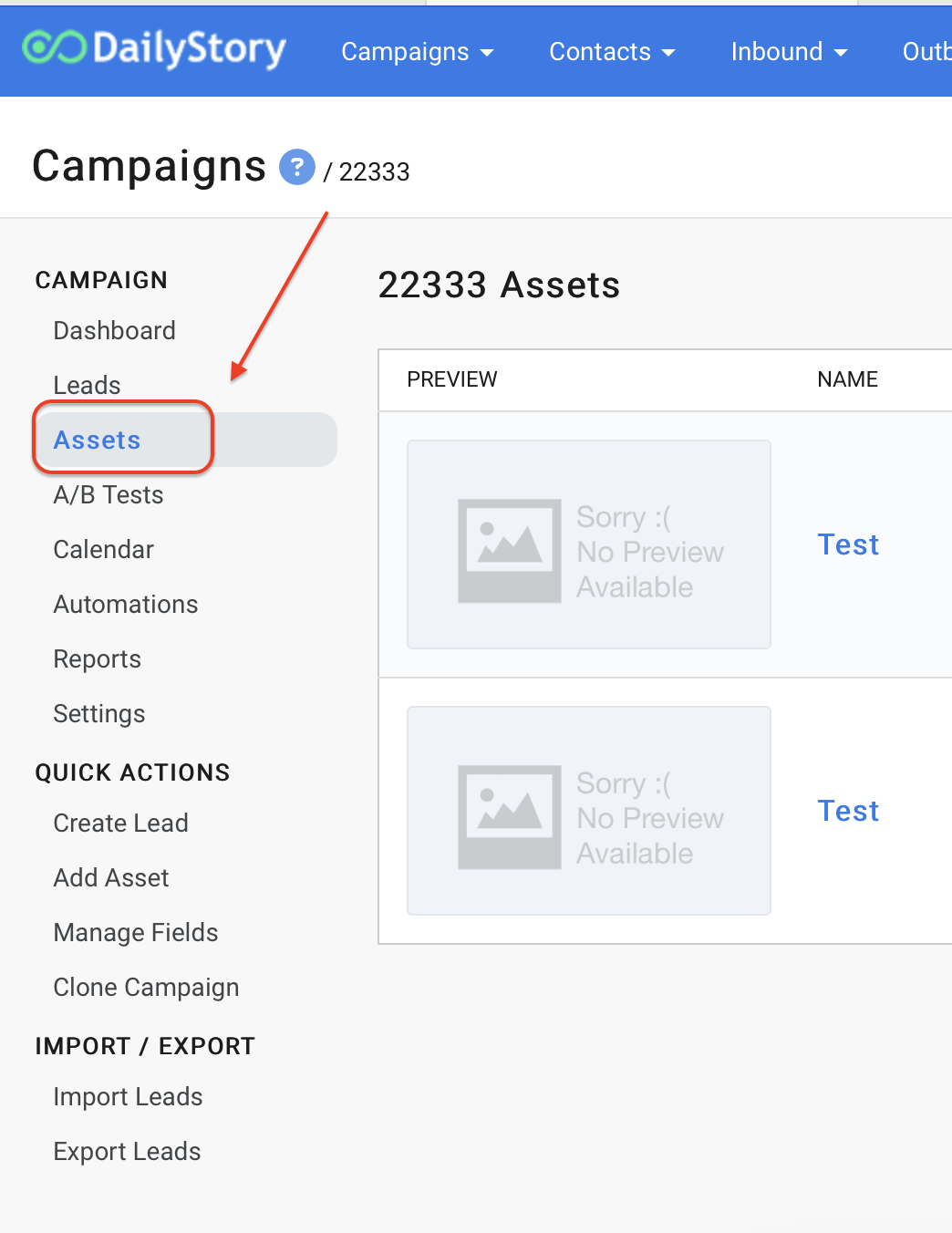
- From within the campaign, select the Assets tab and then click
+ Add Asset.
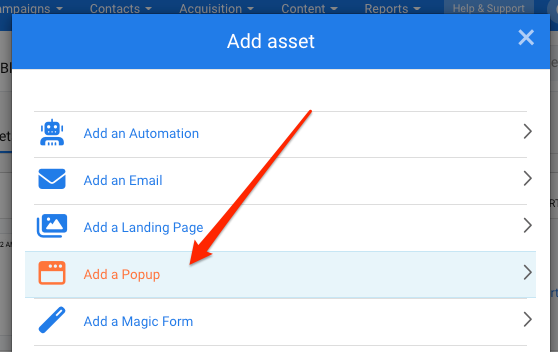
- Select
Add a Popup.
- Enter a name for the popup and begin building your content. A popup should be an enticing offer that incents your visitor to want to give their email or phone number. Remember to save as you go.
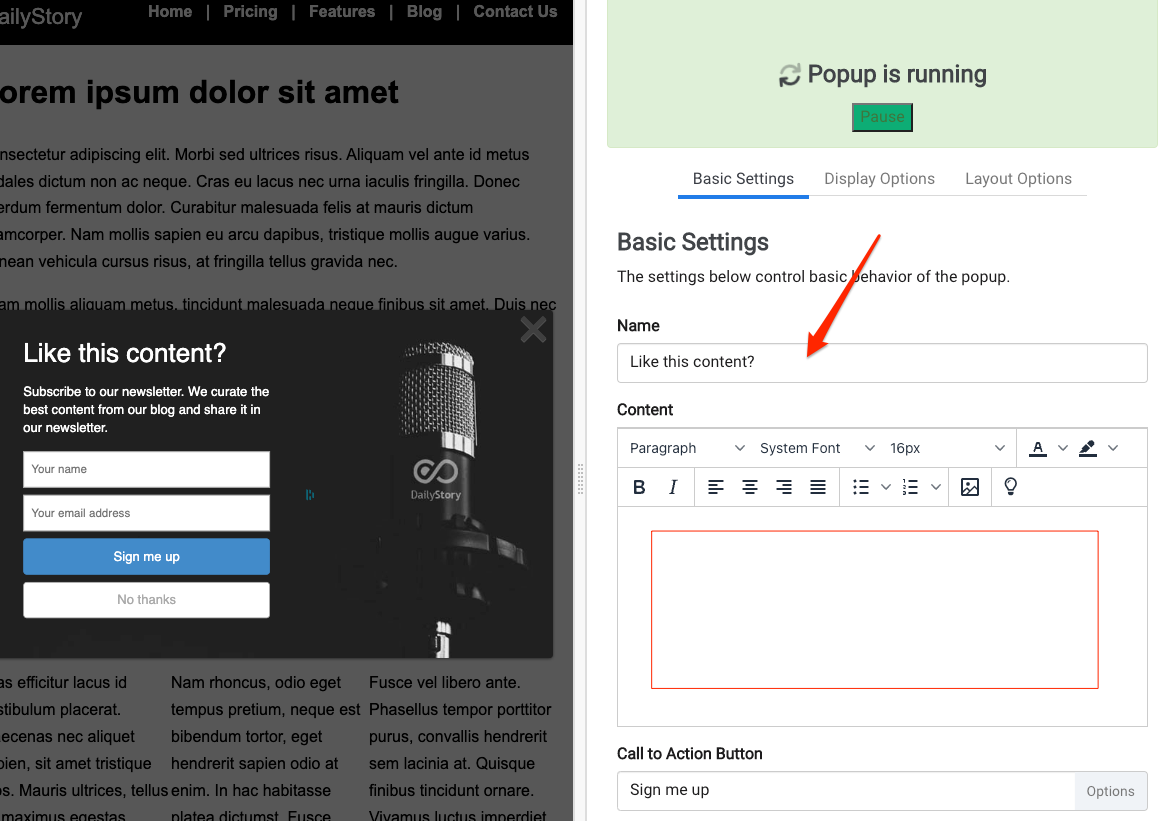 Recommended
You can use the online platform called Canva to create your own beautiful images and then drop your images into your popup content. Be sure to size them at 800x600px!
Click here for more help with creating popups for design help and a walk through for all of your display setting options.
STEP 3: Create an email or text response
- From within the campaign, select the Assets tab and click
+ Add Asset.
- Select
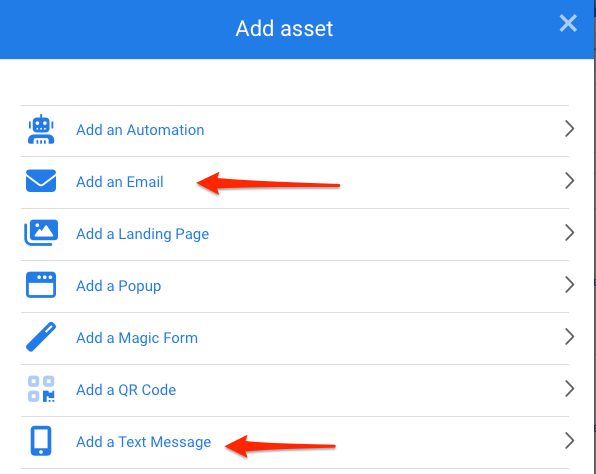
Add an Email or Add a Text Message. We suggest matching your response with what you are asking for or giving away. For example, if you are giving away a guide or report, respond with an email. If you are giving away a discount code and asking for their mobile phone, you might want to respond with a text message.
- If you chose an email, select
+ New Email or start with a Pre-Built template. If you chose a text message, begin naming and crafting your message. Once your content has been created, click Save & Close.
RecommendedThis asset should include the materials or discount codes you promised in the popup. We also suggest a series of follow-ups or 'drip' content that drives them into your store or to make a purchase.
Click here for more help with creating text messages or creating an email with the email designer.
- Follow this same process of adding assets to create as many additional emails or text messages you want to drip out after the initial delivery.
STEP 4: Create an automation
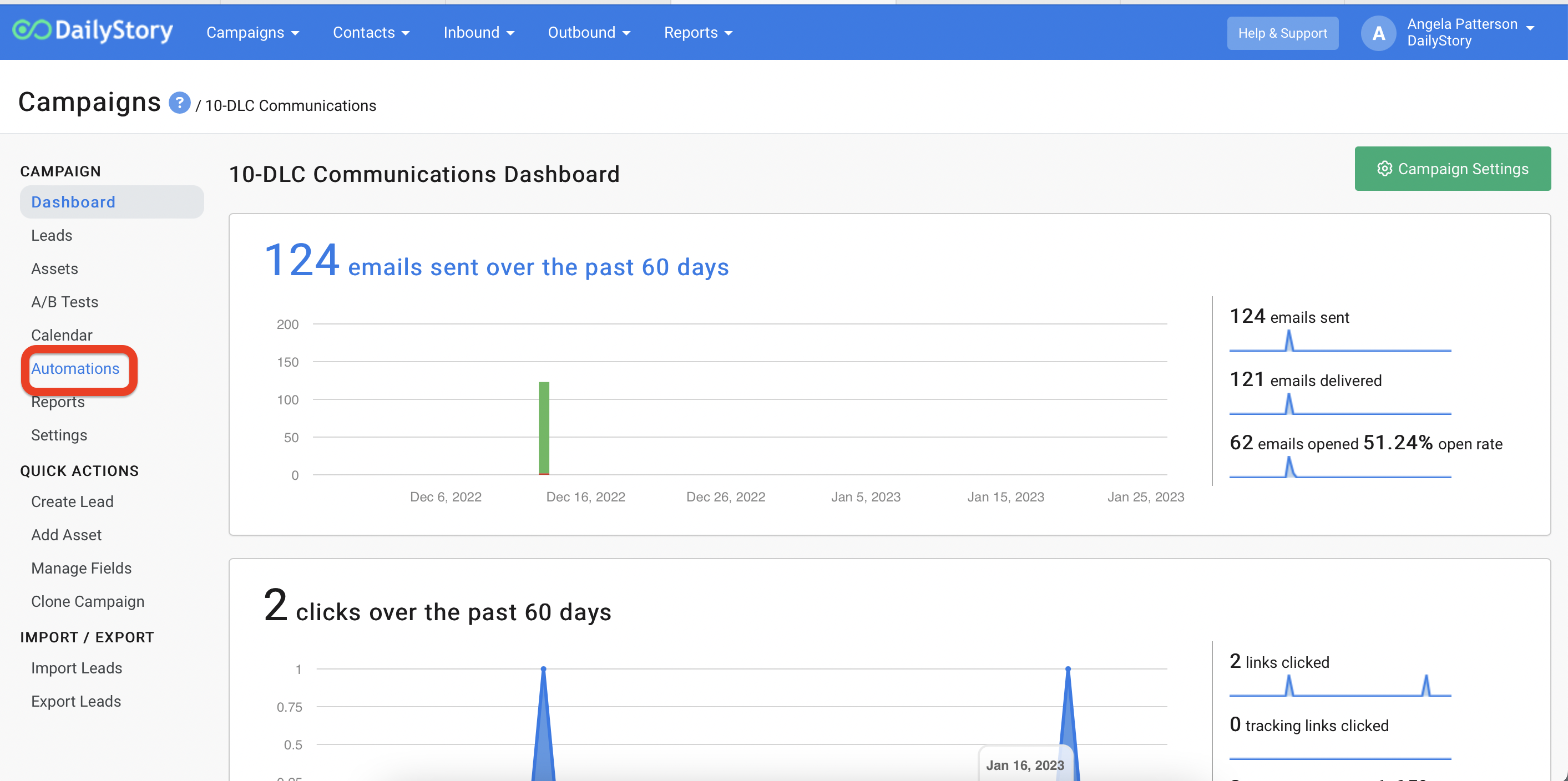
- From within the campaign, select the Automations tab and then click
+ Add Automation.
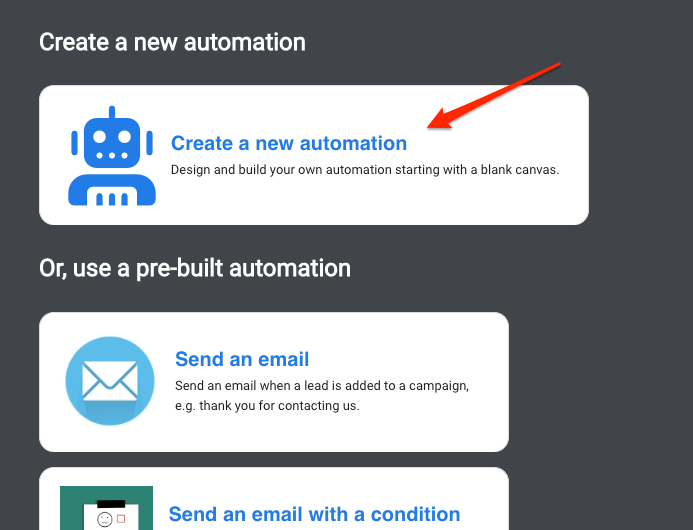
- Click on
Create a new automation.
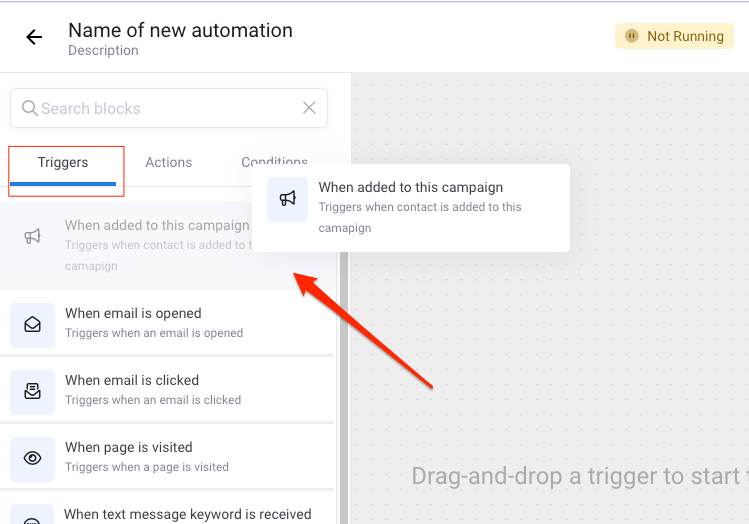
- From the Triggers tab, drag and drop the trigger
When Popup Submitted onto the canvas
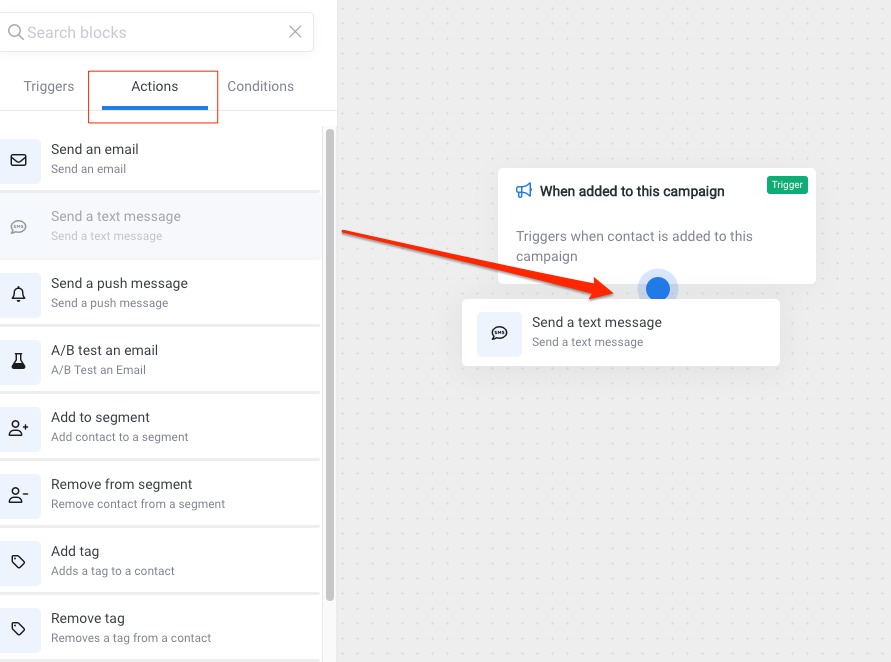
- From the Actions tab, drag and drop the action
Send a text message or Send an email onto the canvas overlapping the previous step so it will drop into place. You will see a blue dot when it’s ready to drop into place.
- From the Properties window for the selected action, choose the text message or email to send and any sending preferences. Once selected, click
Update.
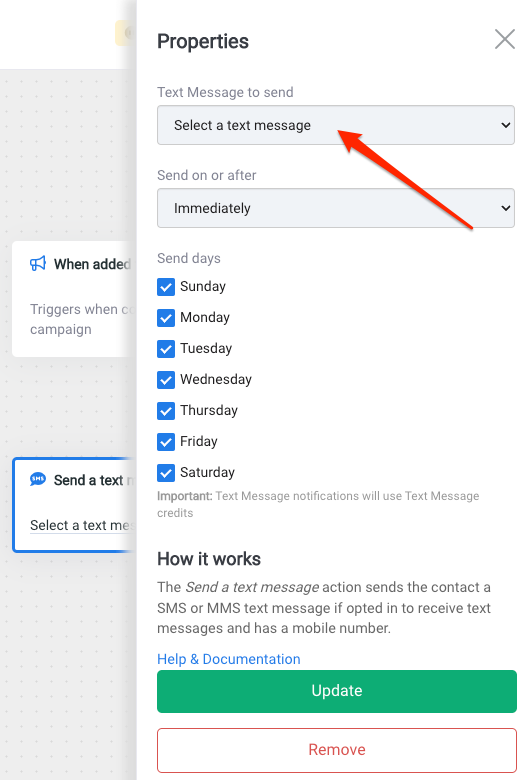
- If you are sending out additional 'drip' messages, you will next choose the Trigger,
Pause Automation and select the time frame you would like to wait before sending the next message. Then repeat steps 4-6 from above until for all messages you want to send. - Click
Save Changes from the top right of the screen. This will prompt you to name your automation and give it an optional description. - Next, click the
<-- back arrow next to the automation name to return to the settings for the automation. - You can slide the automation to
ON from the settings screen and click Save & Close, or you can always turn automations off or on from the tab in your campaign.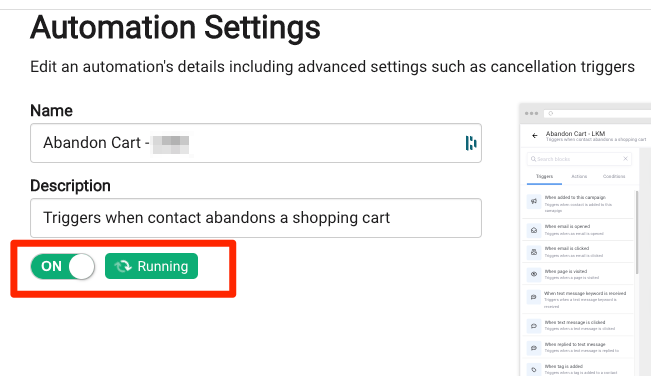
Click here for more help with creating automations.
You're all set!
As new leads fill out your popup, they will automatically populate the leads tab in your campaign, recieve your automated messages and be added to your All Contacts segment.