Get your customers back after they have abandoned their cart. We'll walk you through an easy way to set up an automation so you can 'set it and forget it!'
RecommendedIn order to utilize this campaign and dynamic segment, you need to be integrated with your point-of-sale or ecommerce system. The segment relies on up-to-date online cart records. See our Integrations Guide for help with connecting with other apps.
Contacts > Search Contacts.If you're integrated with Shopify, this segment is auto-generated, so no need to create one!
Period. Choose the period of time you want your search to focus on. We recommend some time in the previous 24 hours. Once selected, click on the green Search button to return your results.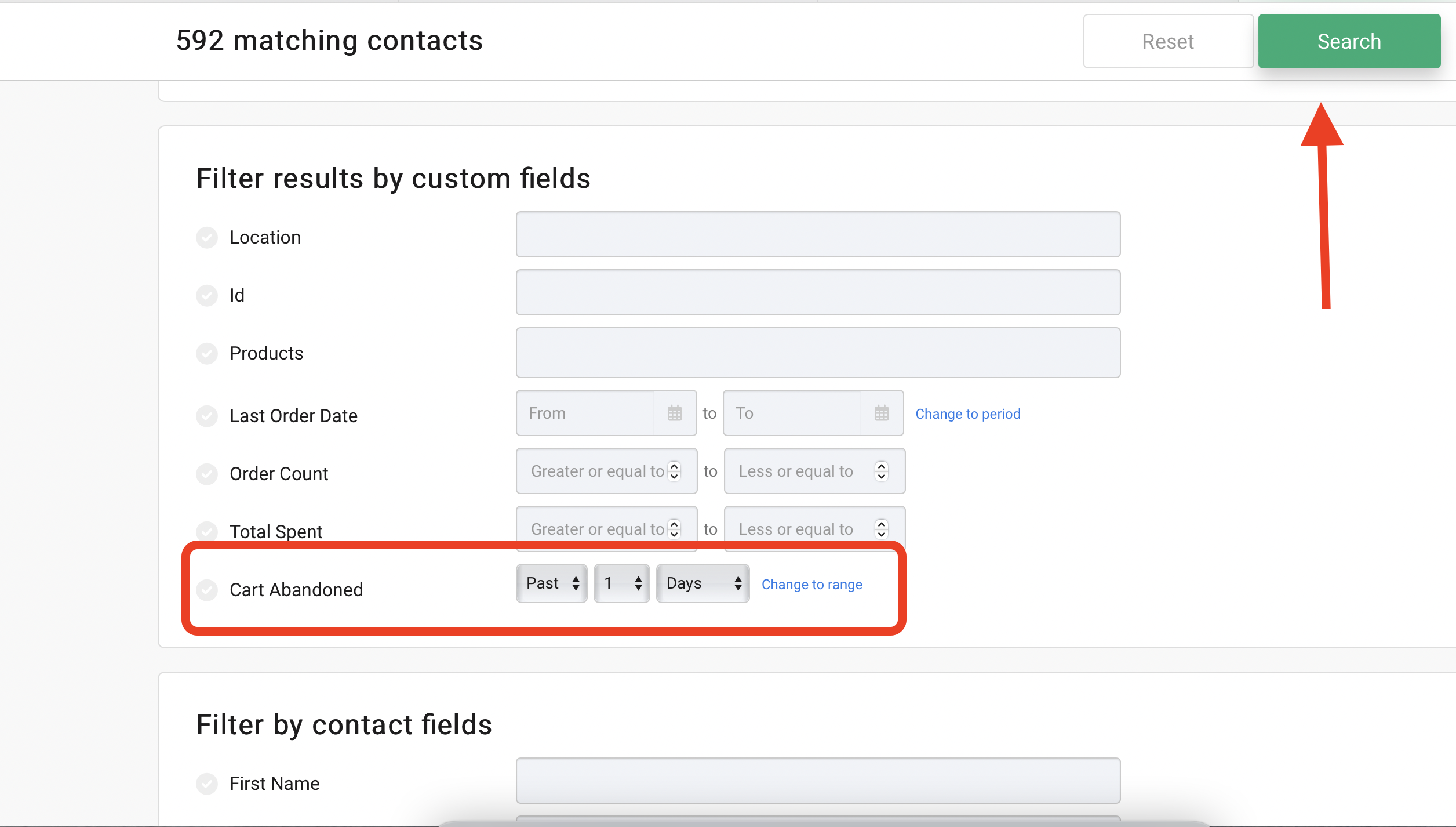
Create Segment . You’ll see it automatically becomes a Dynamic Segment since it was created via search and the system will automatically add the search string needed. Name your segment, something like Abandoned Cart, and give it an optional description.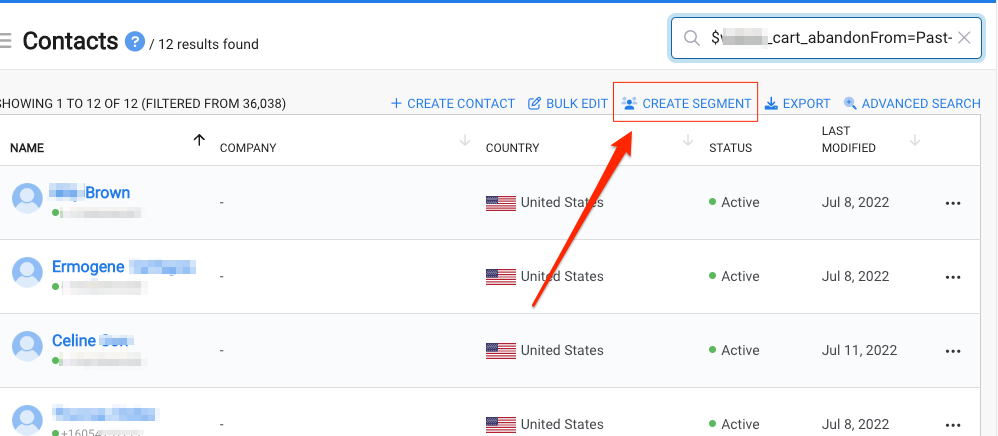
Create Segment.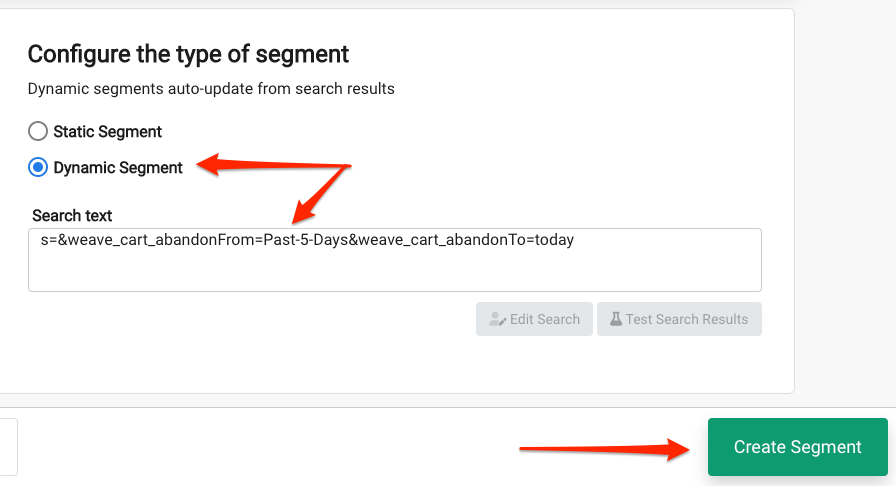
Save & Close to finish creating your new dynamic segment.Click here for more help with creating and working with dynamic segments.
Campaigns > Create Campaign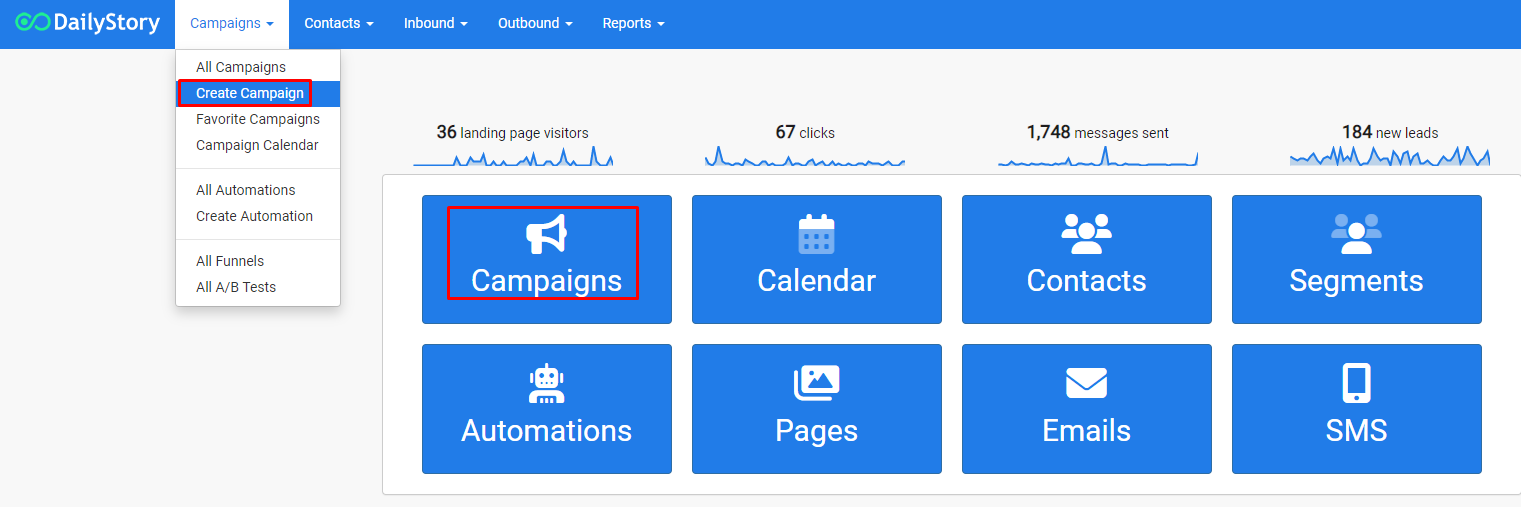
Campaign Settingsto assign contacts.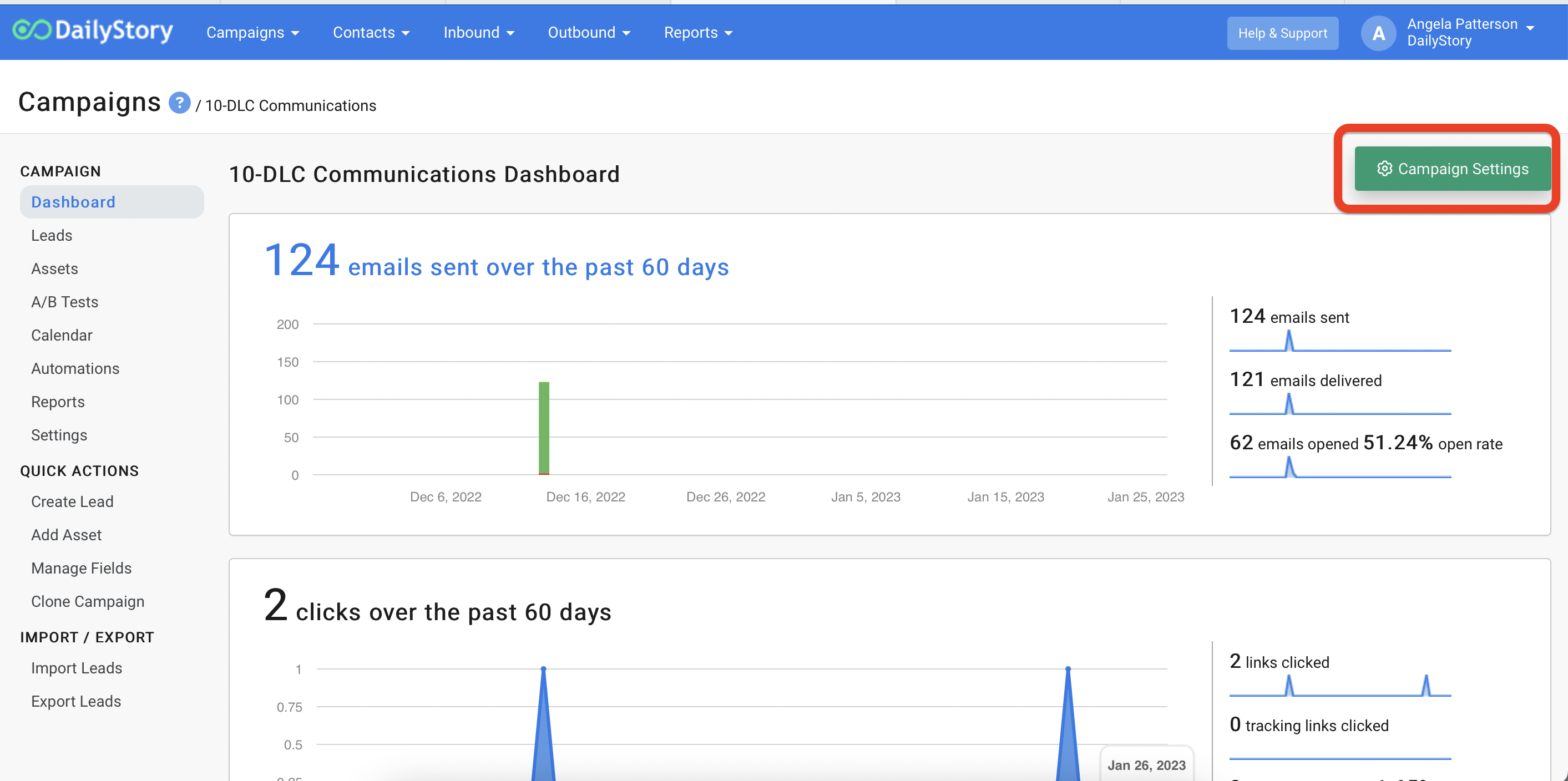
Existing contacts in the following segments for your Target Audience and then select the segment you just created, Abandoned Cart, from the drop-down list.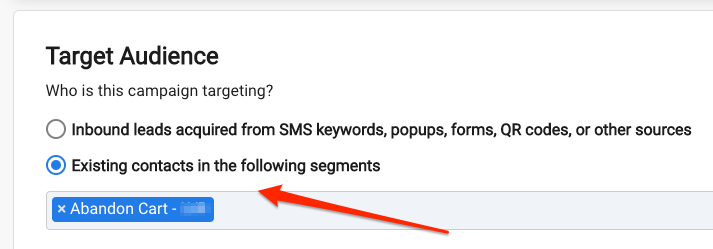
Save & Close to finish creating your campaign.Click here for more help with creating and working with Campaigns.
+ Add Asset.Create an email or Create text message from the pop-up window and complete the next steps of naming and designing your messages. These will be the messages your customers receive after they have abandoned their cart.These drip messages are usually text messages. 1-2 messages are typically recommended where the first message is just a reminder with no offer and the second message has an offer to complete purchase a or so later.
Sample Message #1:
Hello from ____! You left something behind..
You're so close to a new you!
Finish your checkout: {{profile.shopify_abandoned_url}}
Sample Message #2:
Hi again from ____! We hope you love our products and want to show you some love back.
Use this code for 10% off to complete your purchase {{profile.shopify_abandoned_url}}
Save & Close and repeat these steps for as many messages as you would like in your drip automation.Click here for more help with creating text messages or creating an email with the email designer.
+ Add Automation.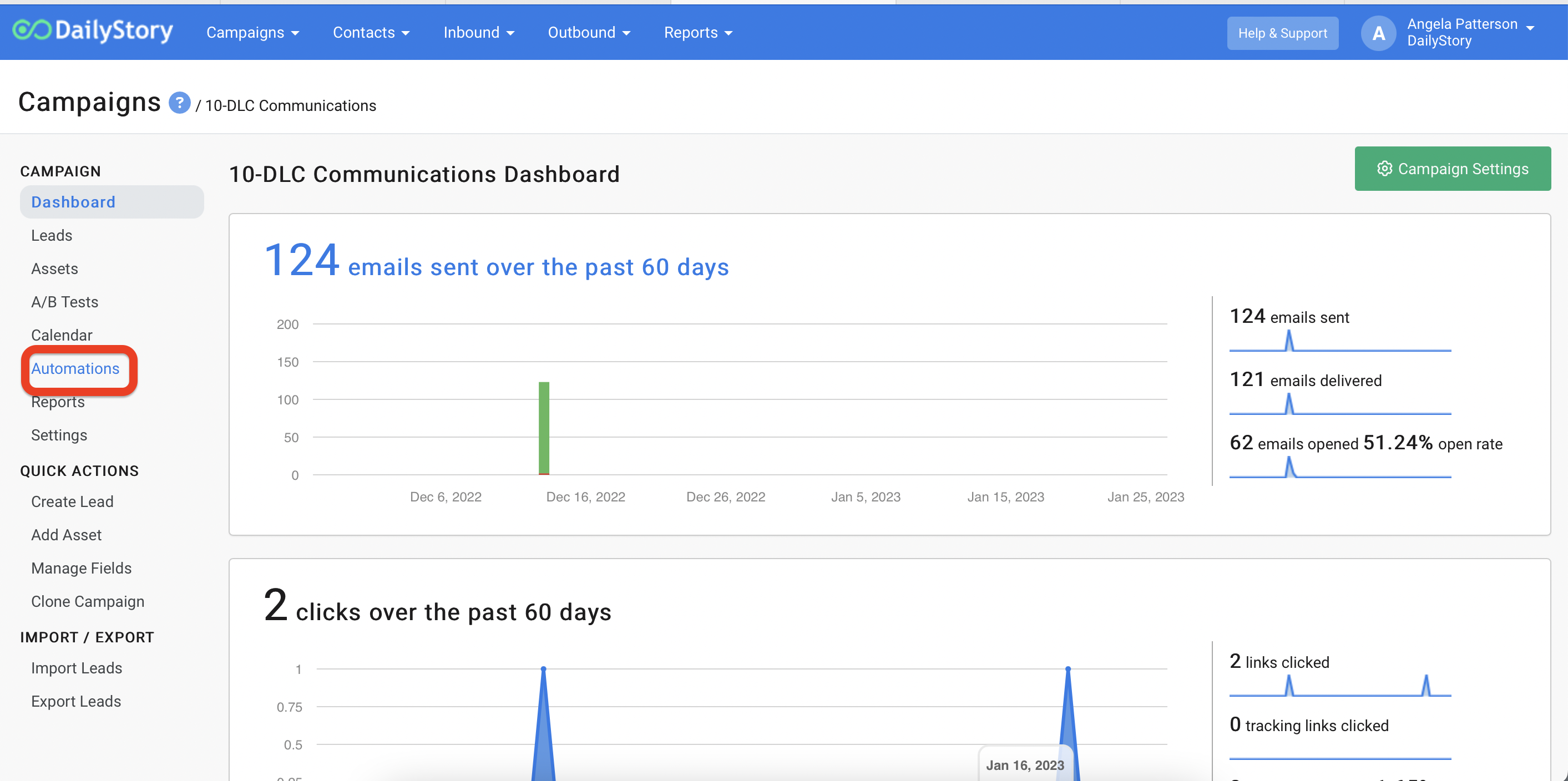
Create a new automation.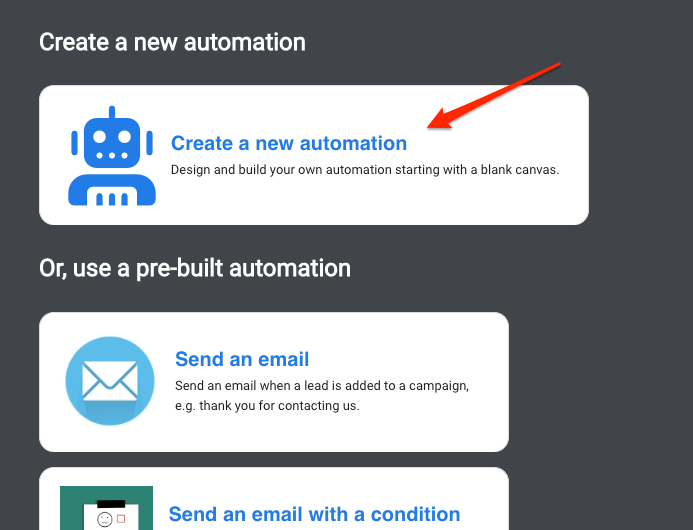
When added to segment onto the canvas.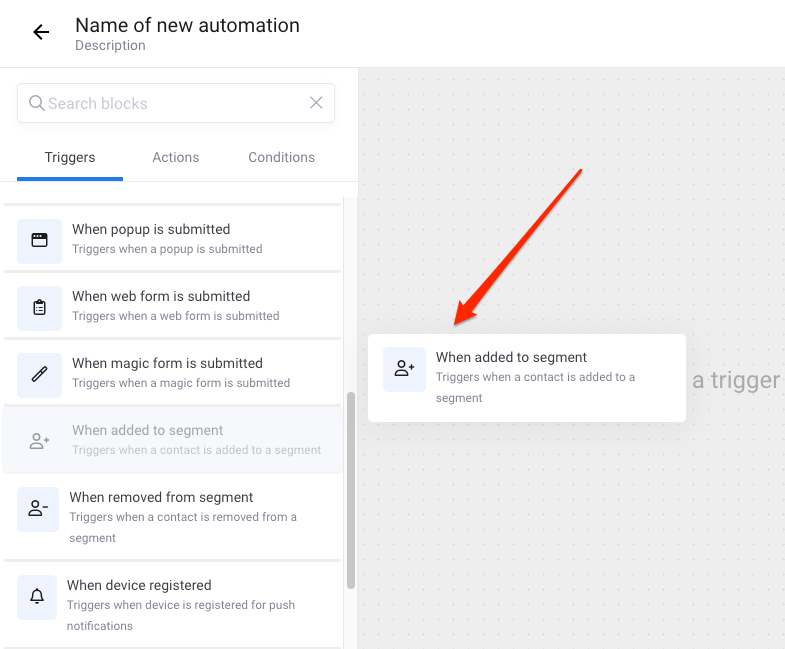
Update.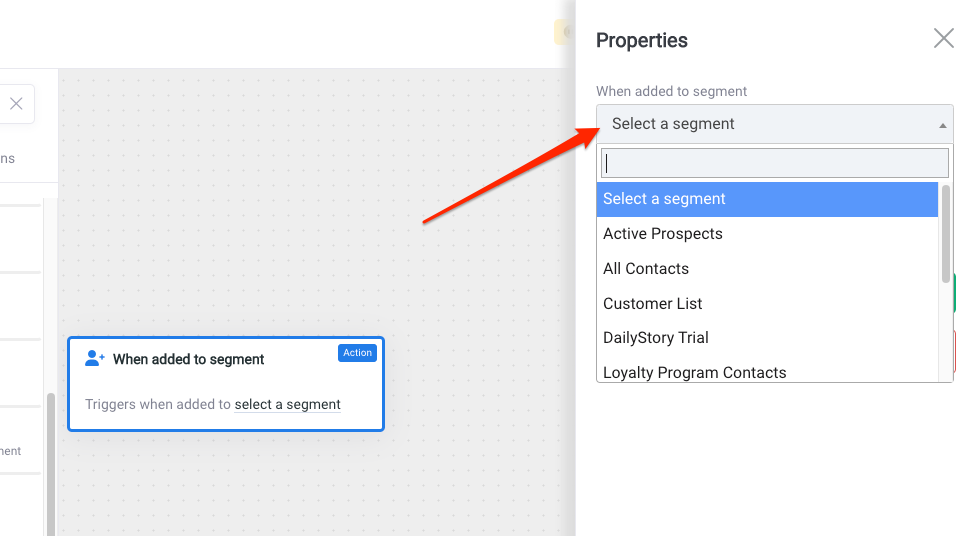
When time has passed onto the canvas overlapping the previous step. You will see a blue drop when it's safe to drop.Update. In this example, it's 1 day. Typically you want this to be sometime in the first 12-24 hours.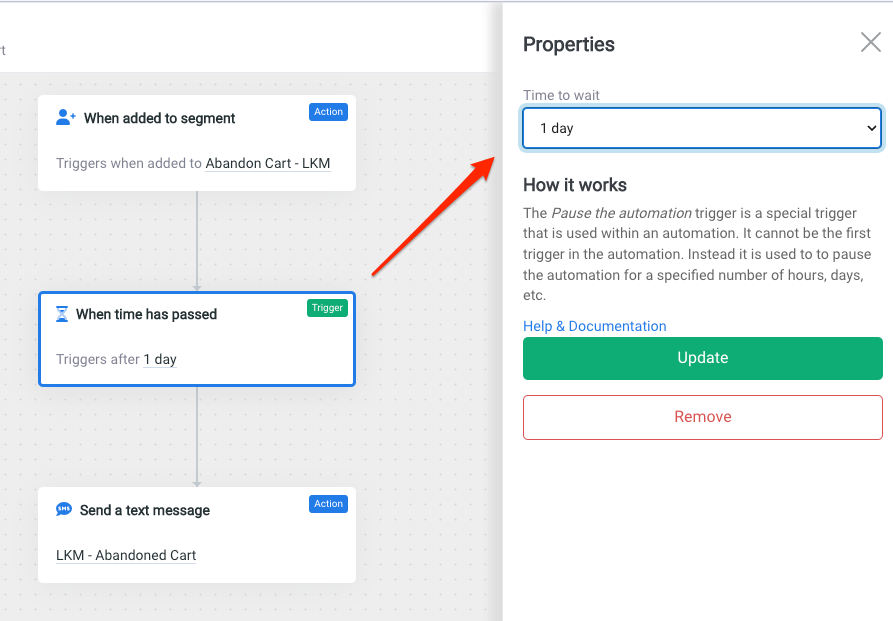
Send a text message or Send an email onto the canvas overlapping the previous step so it will drop into place.Update.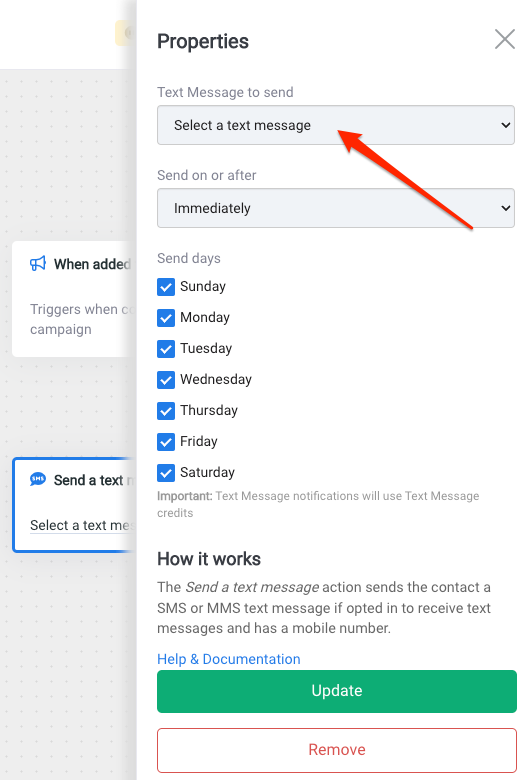
Save and name the automation. You can give it an optional description as well. We recommend you use the description to say what is happening in the automation. For example, Triggers text drips when cart is abandoned.<-- to return to the automation settings.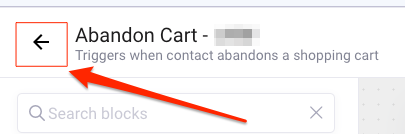
+Add Trigger from the Cancellation Triggers section. Select the Remove contact from automation when cart is purchased. Next, be sure to turn on the automation.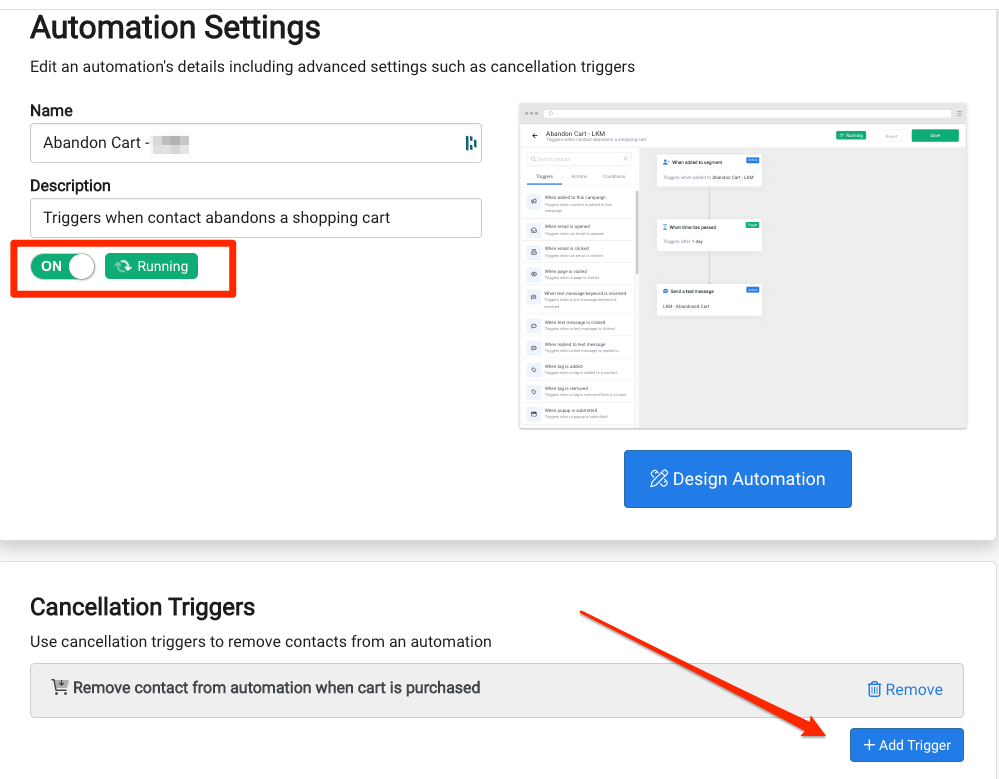
You're all set!
As soon as new customers are added to the segment they will automatically populate as Leads in the campaign and run through the automation to receive your messages.
Click here for more help with creating automations.