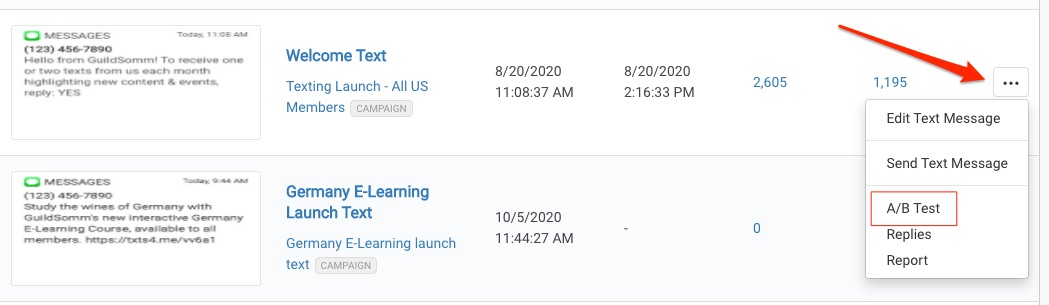
Before you create a new A/B test, be sure you've created the text message you want to test. Next, find the text message you want to test in either its Campaign or in your list of all texts messages from the Text Messages Page. Click on the More Options menu (3 dots) next to the text message you want to test and select A/B Test.
Once you've created a new A/B test, give it a "Name" and optional "Description".
New Variant.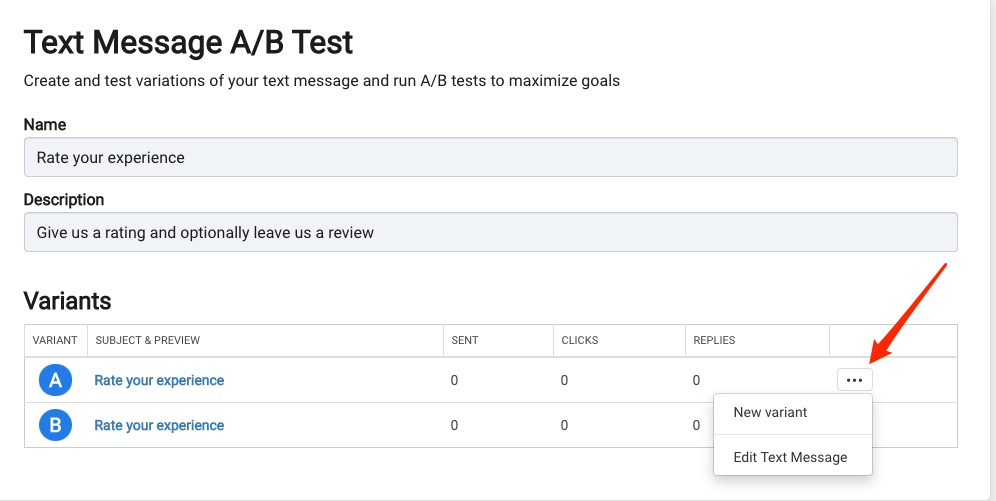
Edit Text Message from the More Options menu to open the text message and make the changes you are testing. Repeat this for each variant you create.Remember decide beforehand a hypothesis you are trying to prove, try to only test one variable at a time for best success.
You can configure how your text message is tested and sent by choosing When scheduled or When used in an automation.
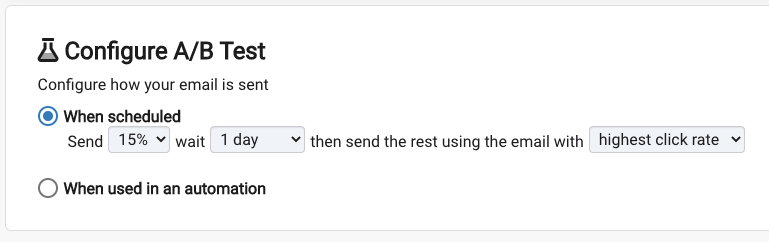
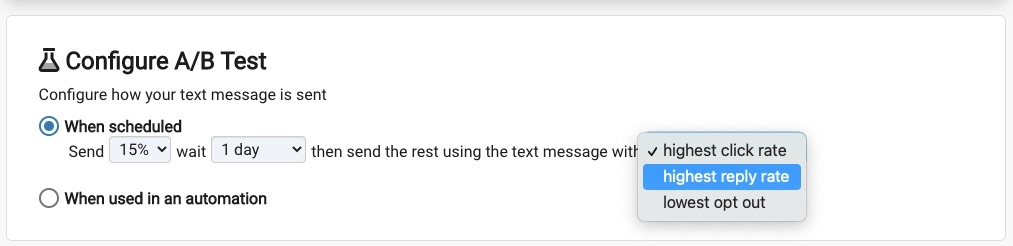 Recommended
To understand more about how automations work, see our guide for Autopilot.
If you chose the When scheduled option in the configuration section, you need to schedule your first text message to be sent. The scheduler is the same email and text message scheduler you're use to and follows all of the same guidelines regarding selecting your segments, etc.
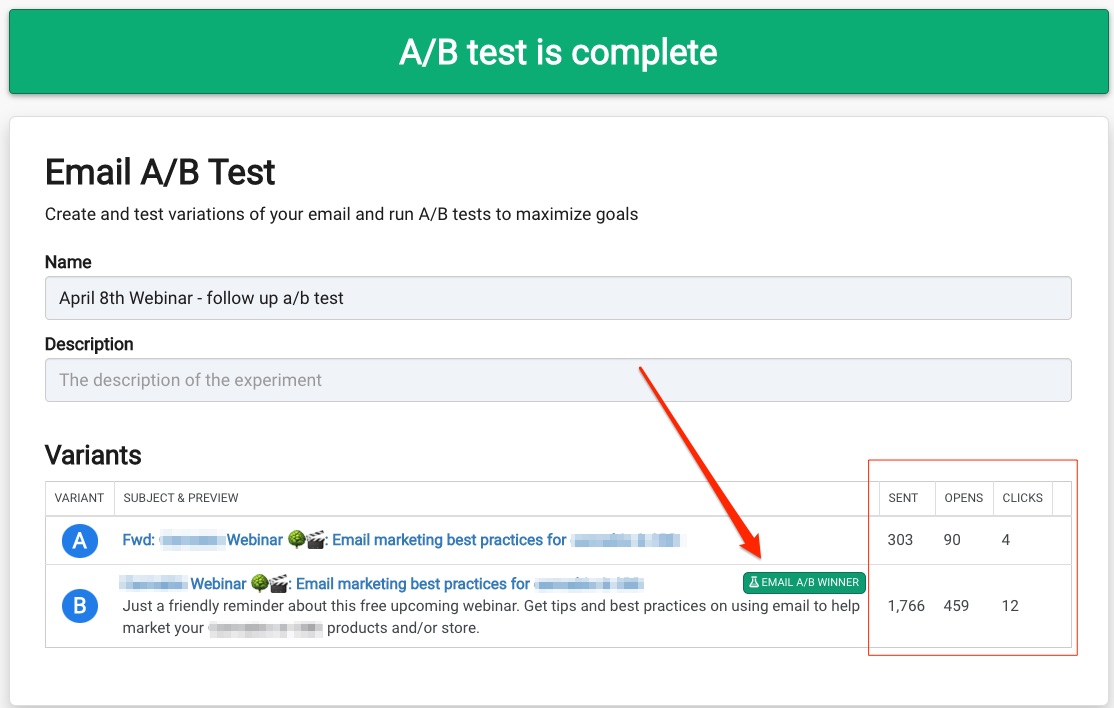
To track your results, navigate to your A/B Tests tab in the associated Campaign or from your all A/B Tests pages found by going to Content>A/B Tests .