Build Emails with Claude
Claude, Anthropic's AI assistant, can design complete marketing emails for you. With the DailyStory email skill, the emails Claude writes come into DailyStory as fully editable designer emails: every heading, paragraph, button, image and column arrives as the same widget you would have dragged in yourself in the Email Designer. The email is ready to review, schedule and send the moment it is imported, and works with your campaigns, automations and reporting like any other DailyStory email.
MCP is recommended
Every DailyStory account can connect Claude through MCP, and we recommend it. Claude creates the email in DailyStory directly, with no file to download or upload and no skill to install, and asks which campaign to add it to. Through MCP, Claude can also copy existing emails and edit them, including emails built by hand in the Email Designer. Build with Claude remains available as a lighter-weight alternative, for example if your account's administrators have turned off AI assistant connections.
How it works
- You install the DailyStory email skill in Claude once. The skill teaches Claude how DailyStory emails are built.
- You ask Claude for an email in plain language. Claude gives you an .html file.
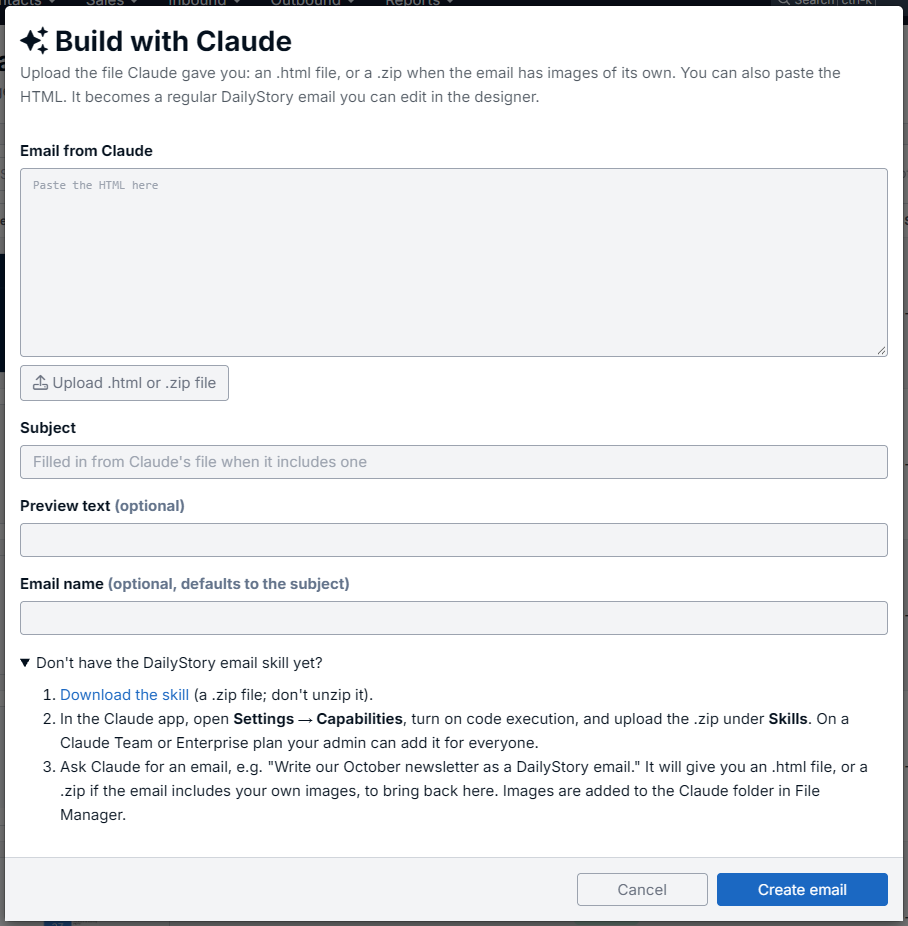
- You bring that file into DailyStory with Build with Claude. DailyStory checks it, creates the email and prepares it for sending.
DailyStory renders the final email itself, so it uses the same mobile-ready, email-client-tested layout as emails built in the designer, including Outlook and Gmail on iOS.
What you need
- A paid Claude plan (Pro, Max, Team or Enterprise) using the Claude desktop app or claude.ai.
- Code execution turned on in Claude. Skills depend on it.
- A DailyStory user with permission to create emails.
Install the DailyStory email skill
- In DailyStory, go to Outbound > Emails, click Create email, then Build with Claude. Expand Don't have the DailyStory email skill yet? and click Download the skill. Keep the .zip file as it is; don't unzip it.
- In Claude, open Settings > Capabilities and make sure code execution is turned on.
- In the Skills section, upload the .zip file. The skill appears as dailystory-email-design.
On a Claude Team or Enterprise plan, your Claude administrator can add the skill for everyone in your organization so each person doesn't have to install it.
The skill is updated as DailyStory adds new capabilities. When this article lists a newer version than the one you installed, download it again and replace the old one in Claude.
Create an email
- Start a new chat in Claude and describe the email you want. Be specific about the audience, the offer and the call to action. For example: "Write our October newsletter as a DailyStory email. Lead with the new fall collection, then a two-column section for the Ridgeline jacket and the guided hike on October 25, then an RSVP button for members weekend."
- Claude will ask for your brand colors, fonts and logo if it doesn't have them. Use the values from your Brand Kit so the email matches the rest of your marketing.
- Review the draft with Claude and ask for changes until you're happy. Claude then gives you an .html file.
- In DailyStory, go to Outbound > Emails, click Create email, then Build with Claude. To add the email to a campaign, start from the campaign's Add an Email button instead.
- Upload the file, or paste its contents into the box. The subject, inbox preview text and email name fill in from the file; change them if you like.
- Click Create email. DailyStory opens the new email's settings so you can set the sender, review it and send a test.
If DailyStory finds a problem with the file, it lists every issue instead of creating the email. Click Copy for Claude, paste the list into your Claude chat, and Claude will send back a corrected file. See Troubleshooting Claude Email Imports.
Edit the email after importing
Open the email in the Email Designer to change anything Claude wrote. Every part of the email is a regular designer widget, so you can restyle it, move it, delete it or add more widgets, including ones the skill doesn't create, such as RSS, events, polls and countdown timers. See What the DailyStory Email Skill Supports for the full list.
Use the designer rather than the HTML editor to make changes. Editing the HTML of a designer email can stop the designer recognizing its widgets.
Personalization and compliance
Claude writes DailyStory personalization tags such as {{@ user.firstname}} and the standard account tags directly into the email; they are filled in for each contact when the email is sent. See Email Merge Tags for what's available.
Every email Claude builds with the skill ends with DailyStory's standard footer, including the unsubscribe and email preferences links and your company's address from the Brand Kit. DailyStory will not import an email whose footer is missing the unsubscribe link. See the CAN-SPAM Compliance Guide for why this matters.
Skill version history
| Version | Released | Changes |
|---|---|---|
| v1 | October 2026 | First release: headers, text, buttons, images, two- and three-column layouts, dividers, spacers, social icons and footer. |