The most likely reason is that none of your chosen sections had anything to report yesterday. The digest is only sent when there is something in it. If you have switched off every section, you are unsubscribed and will not receive it at all.
The Daily Digest is a single email that summarizes what happened in your DailyStory account yesterday. It is designed to be read in under a minute: what needs a response from you first, then how the day performed, with a link into the full report behind every section.
Your digest is personal to you. Everyone on your account chooses their own sections, so a sales manager and a marketing operations lead can each receive a version built around what they act on.
Report Subscriptions are separate scheduled reports you opt into individually. The Daily Digest is one combined email assembled from sections you choose. You can use both.
To manage the separate scheduled reports, see Report Subscriptions.
Two buttons at the top of the page let you see the result before waiting for tomorrow morning. Both save your settings first, and both use yesterday's real data.
If yesterday produced nothing in any of your chosen sections, the preview tells you so rather than showing a blank email — that is exactly what would have happened overnight.
WarningBoth preview buttons save before they run. That matters because once you have saved a layout, it becomes the record of what you want and changes to the recommended defaults no longer reach you. Use Reset to defaults if you want to pick those changes up.
Reset to defaults at the bottom of the page returns every section and setting to the recommended starting point. It only changes what is on screen — nothing is saved until you click Save Changes, so you can look at the result first, or reload the page to undo it.
Every digest follows the same structure, so you learn where to look once.
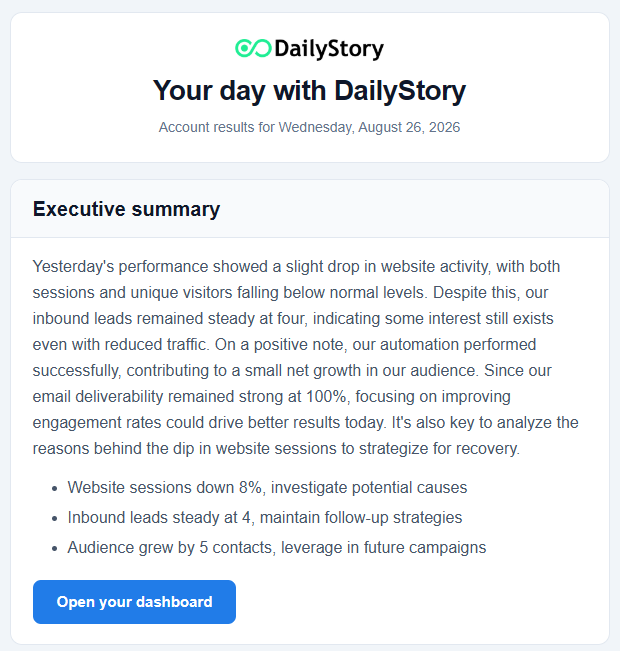
Sections always appear in the same order, from most urgent to most detailed. What needs a response is at the top; compliance and delivery detail sit at the bottom.
RecommendedGreen is a figure moving in the direction you want, red is one moving against you, and gray means no meaningful change. Where a section compares against a normal day, an arrow shows the direction.
| Section | Group | What it shows | On by default |
|---|---|---|---|
| Executive summary | Overview | A short paragraph describing the day, written for you | Yes |
| Needs your attention | Action required | How many inbound text messages are waiting on a reply | Yes |
| Website activity | Traffic | Page views, sessions, unique visitors and inbound leads | Yes |
| Messages scheduled for today | Messages scheduled for today | Emails and text messages queued to send today | Yes |
| Conversions | Money | Campaign conversions and the value they generated | Yes |
| Audience growth | Audience | Contacts added and removed, against your running total | Yes |
| Email deliverability | Delivery, bounce and unsubscribe rates for email you sent | Yes | |
| Sent emails | Individual emails sent, with opens and clicks | No | |
| Text message deliverability | SMS | Delivery, failure, reply and opt-out rates for texts you sent | Yes |
| Sent text messages | SMS | Individual texts sent, with clicks and replies | No |
| Opt-outs, unsubscribes and complaints | Compliance | How many contacts opted out, by channel | Yes |
The two sections that are off by default are the longest ones. They are still available to anyone who wants them — turning them on is one click.
A short paragraph at the top of the email describing the day in plain language, generated from the same figures the rest of the digest reports. It is written fresh each morning and reflects only your own sections.
Setting: Also add a one-line takeaway under each section — puts a single sentence of context under each section title as well as at the top.
Counts the inbound text message replies from contacts who are waiting on a person to answer. This sits second in the digest, immediately after the summary, because it is the only section describing something you need to do rather than something that happened.
The messages themselves are not printed in the email — the executive summary describes what people are asking about, and the link takes you straight to Text Message Conversations where you can read the thread and reply. See also Replies to Text Messages.
Page views, sessions, unique visitors and inbound leads for the day, each shown against what a normal day looks like for you. The inbound lead figure includes a link to the full list of leads created.
Settings: Compare with the previous week's average adds the comparison arrows, using an average day over the seven days before. Include the inbound lead count adds the lead figure.
WarningDailyStory measures with its own website tracking. The two platforms count sessions and visitors differently — a session starts on page load here, but only once the analytics tag fires elsewhere — so the numbers will always differ somewhat. Neither is wrong.
For the full breakdown, see the Web Activity Report.
Emails and text messages queued to send today, with their type, name, scheduled time and status — a chance to catch something that should not go out before it does.
WarningThis section reads your schedule, which is where one-off sends live. A message sent by an automation is triggered per contact and never appears on the schedule, so it will not be counted here.
Total conversions, the value they generated, and how many campaigns contributed — followed by the top five campaigns. If nothing converted, the section is left out rather than showing zeros.
Setting: Only show conversions worth at least filters out low-value conversions.
Conversions come from your conversion funnels. To set one up, see Conversion Funnels.
Contacts added and contacts made inactive or deleted during the day, with a net growth figure, shown against your total active contacts.
Setting: Include the total audience size adds the running total row.
RecommendedAn unsubscribe is a channel preference, not an exit — a contact who unsubscribes from email may still be reachable by text. Unsubscribes are reported in the Opt-outs section and are deliberately not subtracted from audience growth.
Whether what you sent actually arrived. The email section reports delivery, bounce and unsubscribe rates; the text section reports delivery, failure, reply and opt-out rates. Both sit above their matching "Sent" section, because whether a send landed matters more than how each individual message performed.
A rising bounce rate is the number to watch. See the Bounced Email Guide for what to do about it, and the Text Message Replies Report for text detail.
A row per message sent during the day. Both are off by default — the deliverability sections above them already report whether those sends landed, which is usually the part worth a place in a daily email.
Settings: Sent emails offers Order by and Show open and click rates. Sent text messages offers Show click and reply rates.
How many contacts opted out during the day, counted per channel. Because it is per channel, a contact who opted out of both email and text appears on both rows.
To manage preferences on an individual contact, see Managing Contact Opt-in and Opt-out Preferences.
There are three reasons a section you turned on might not appear in a particular morning's email.
Mail clients stop rendering a message once it passes a certain length and hide the rest behind a "message clipped" link. To make sure your digest always arrives complete, DailyStory measures the finished email and, if it would be too long, leaves out the sections at the bottom and replaces them with a short note telling you how many were dropped.
Sections are dropped from the bottom, so the executive summary and anything needing your attention are never at risk. If you see this note regularly, turn off a section you read less often, or lower a row count.
RecommendedThe Daily Digest settings page shows a warning as soon as the sections you have chosen add up to an email long enough to be at risk, so you can adjust it before it affects a send.
Switch off every section on the Daily Digest settings page and click Save Changes. With nothing selected you are unsubscribed and will stop receiving the email. Turning any section back on and saving resumes it.
This affects only your own digest. Other people on your account keep theirs.
The most likely reason is that none of your chosen sections had anything to report yesterday. The digest is only sent when there is something in it. If you have switched off every section, you are unsubscribed and will not receive it at all.
Check that you clicked Save Changes — the preview buttons save, but toggling a section on its own does not. Also note that once you have saved a layout it becomes the record of what you want, so later changes to the recommended defaults do not reach you automatically. Reset to defaults picks those up.
No. Daily Digest settings are personal to each user. Everyone on the account chooses their own sections, and changing yours has no effect on anyone else.
No. The digest is sent each morning and always covers the previous day in your account's time zone.
When a new section is added to DailyStory, it is added to your digest if it is one of the recommended defaults. Sections you have deliberately switched off are never turned back on. You can turn any new section off at any time and it will stay off.
DailyStory measures with its own website tracking, and the two platforms count sessions and visitors differently. A session begins on page load in DailyStory but only once the analytics tag fires in Google Analytics, and the two disagree about what ends a session. Expect the numbers to differ; neither is wrong.
Every digest is sent with both an HTML and a plain-text version. If your mail client prefers plain text, or you read email on a device that does not render HTML, you will see the text version automatically.