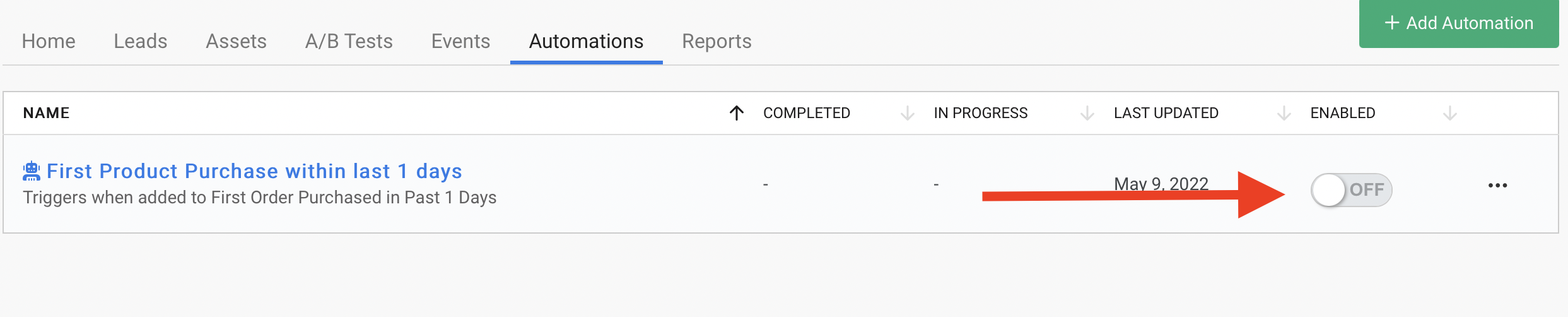
<-- to return to the automation settings.ON from the settings screen and click Save & Close, or you can always turn automations off or on from the tab in your campaign.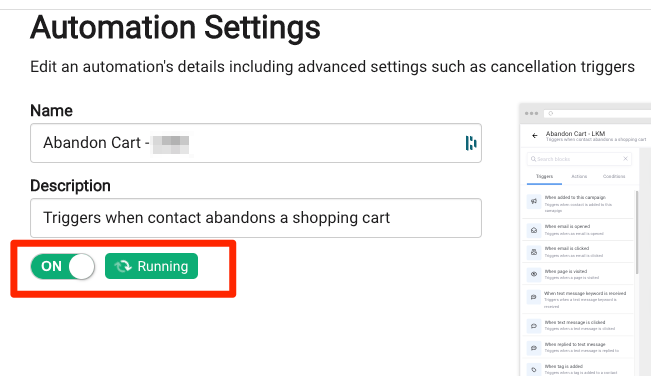
Seeing some of your customers wander off and need to get them back through the door or ordering online again? Our "Win Back" campaigns can help you stay on top of those drifters and automate the "nudge" process to keep them engaged and active. Just follow these simple steps.
RecommendedIn order to utilize this campaign and the suggested dynamic segment, you need to be integrated with your point-of-sale or CRM system. The segment relies on up-to-date purchase or visit records. See our Integrations Guide for help with connecting with other apps.
Normally you would do this through a contact search and then create the segment from that search, but since this is a more advanced search string, we're going to show you how to create it from scratch.
Contacts > Create Segment.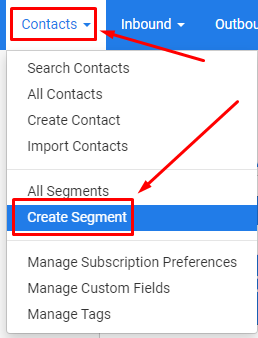
Static Segment from the popup window. Once created, we will actually change it to be dynamic.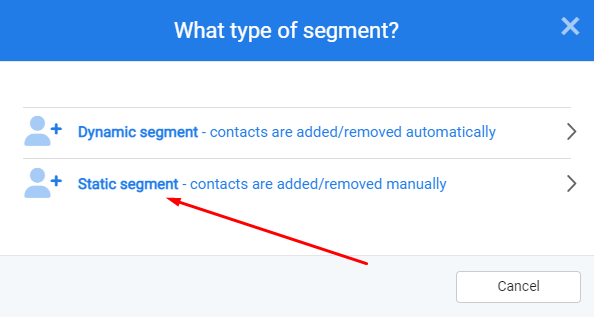
Create Segment.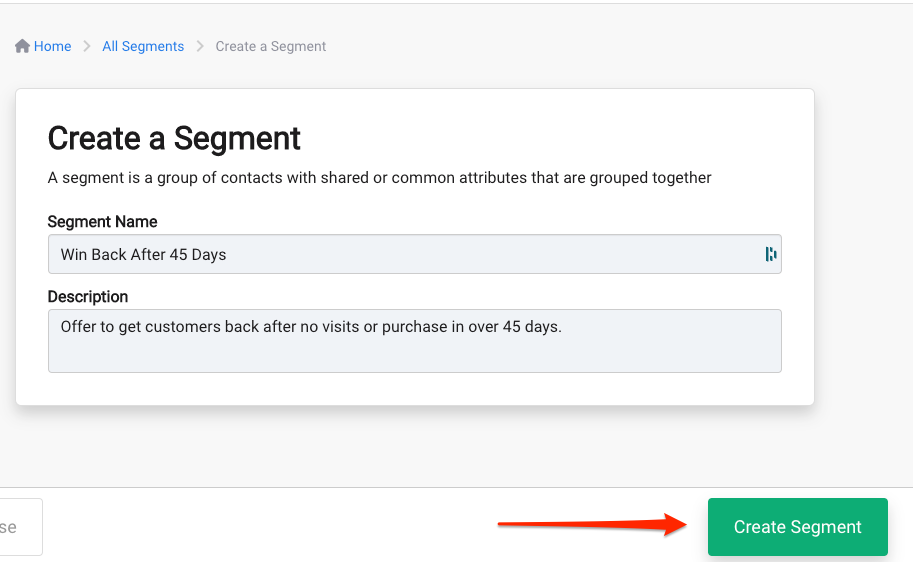
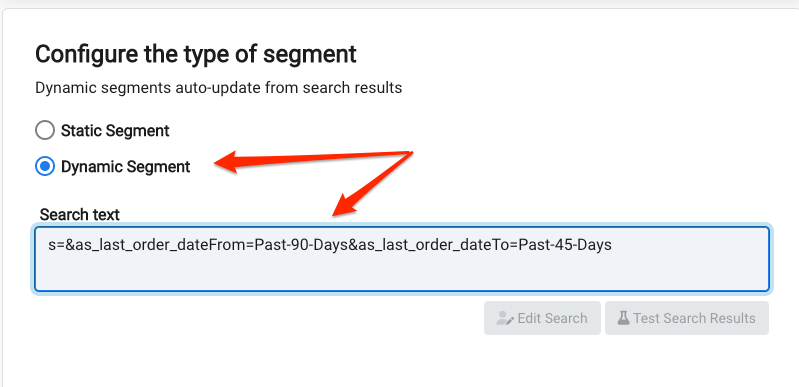
Dynamic Segment and then type in this is exact string: s=&as_last_order_dateFrom=Past-90-Days&as_last_order_dateTo=Past-45-Days. The string is saying over the past 90 days, show me anyone who has not purchased or visited in over 45 days. This keeps the search from looking for customers from years of data and just focuses on those that are recent but at risk.If your point of sale field for orders is not ”Last Order Date” or you need something different like ”Last Visit Date”, make sure that exact field description is inserted here with the same formatting.
Save & Close.Click here for more help with creating and working with dynamic segments or working with custom fields.
RecommendedNormally you will not create dynamic segments this way and you do not need to know how to create this logic. For basic dynamic segments, you will use the contact search tool and create the segment from a search where the logic is automatically inserted for you.
Campaigns > Create CampaignCreate Campaign.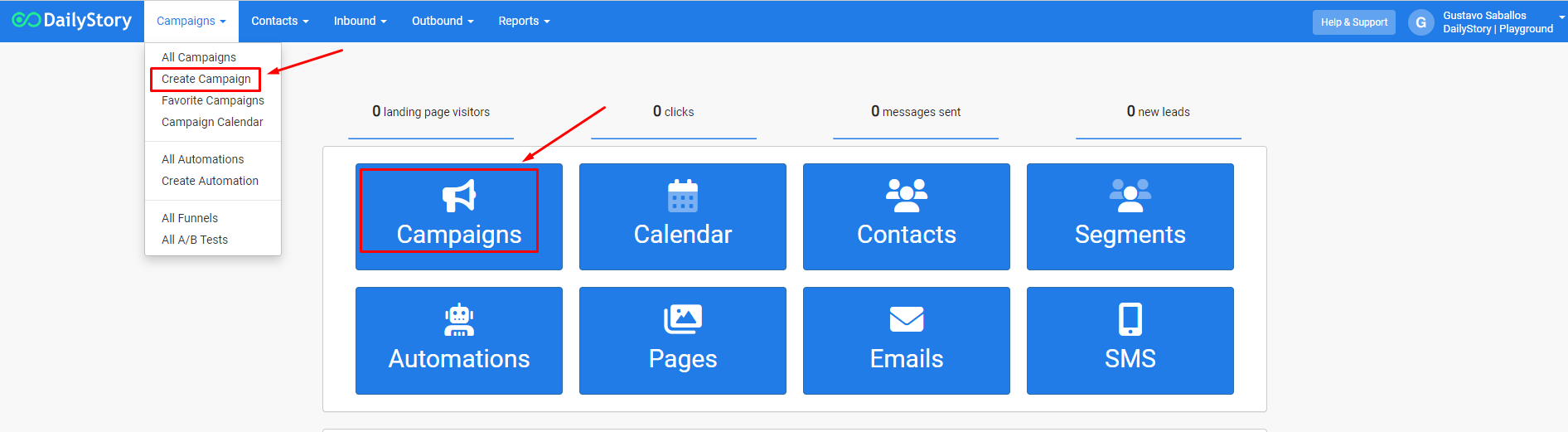
Existing contacts in the following segments as your Target Audience and then select the segment you just created, Win Back After 45 Days, from the drop-down list.Save & Close.Click here for more help with creating and working with Campaigns.
+ Add Asset.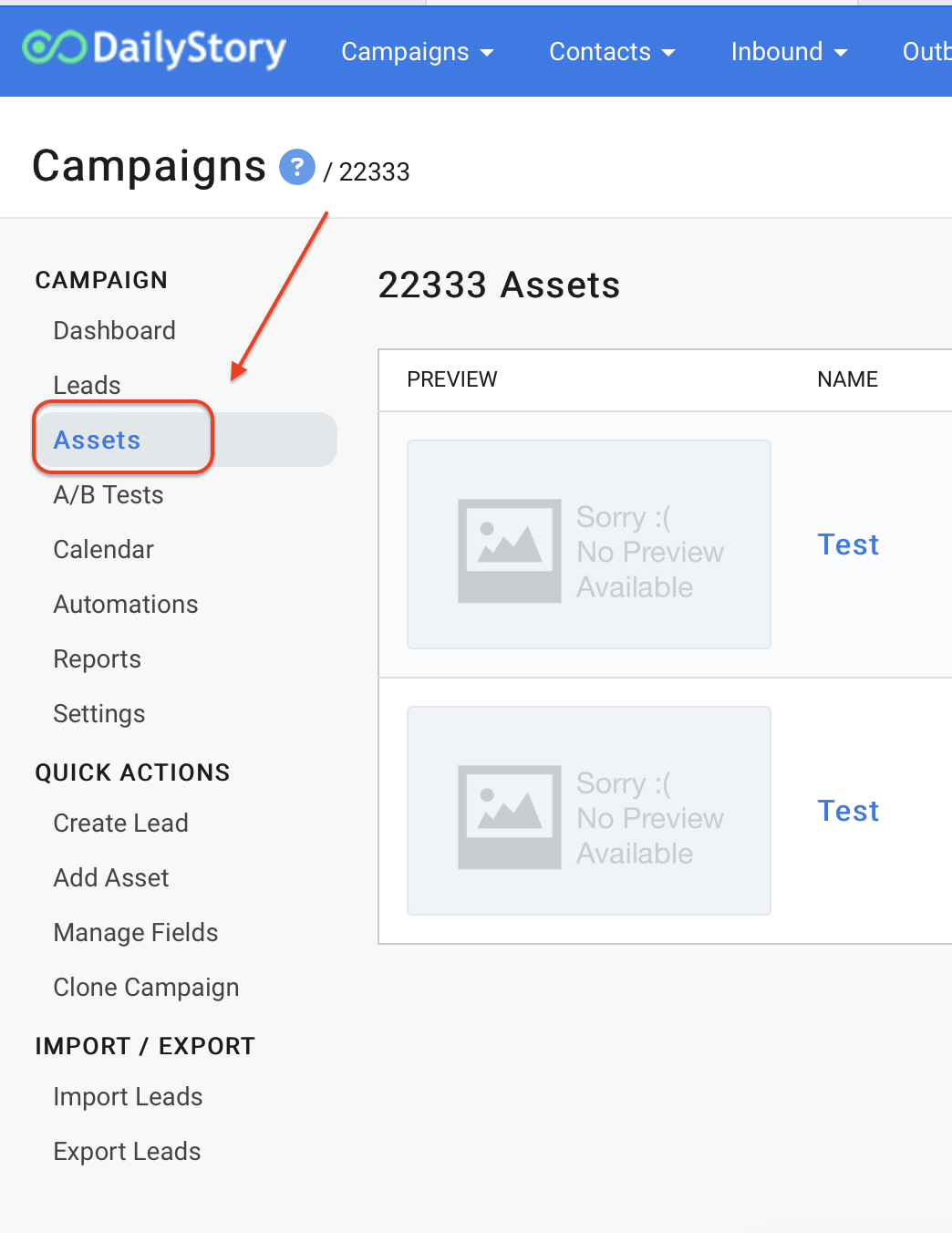
Add an Email or Add a Text Message from the popup window.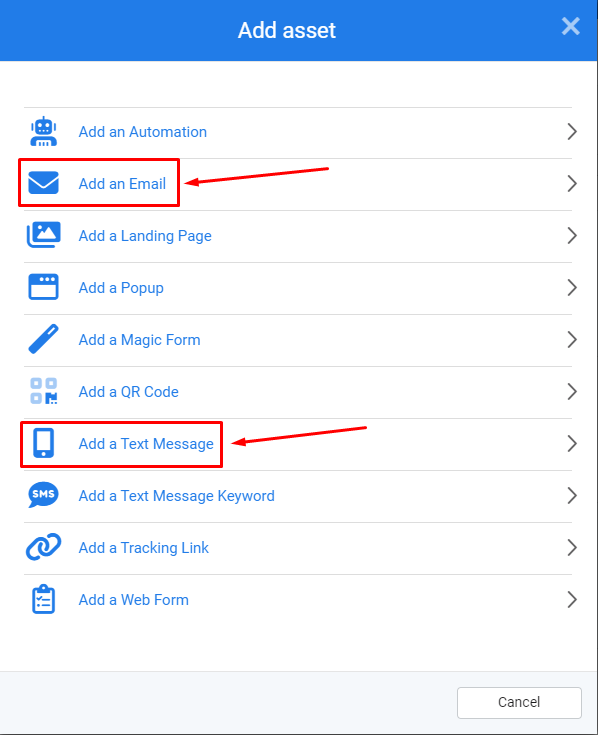
Next -> button. Design your email or text message and click Save & Close. We'd recommend a discount amount or free gift offer to bring them back to the store.Click here for more help with creating text messages or creating an email with the email designer.
+ Add Automation.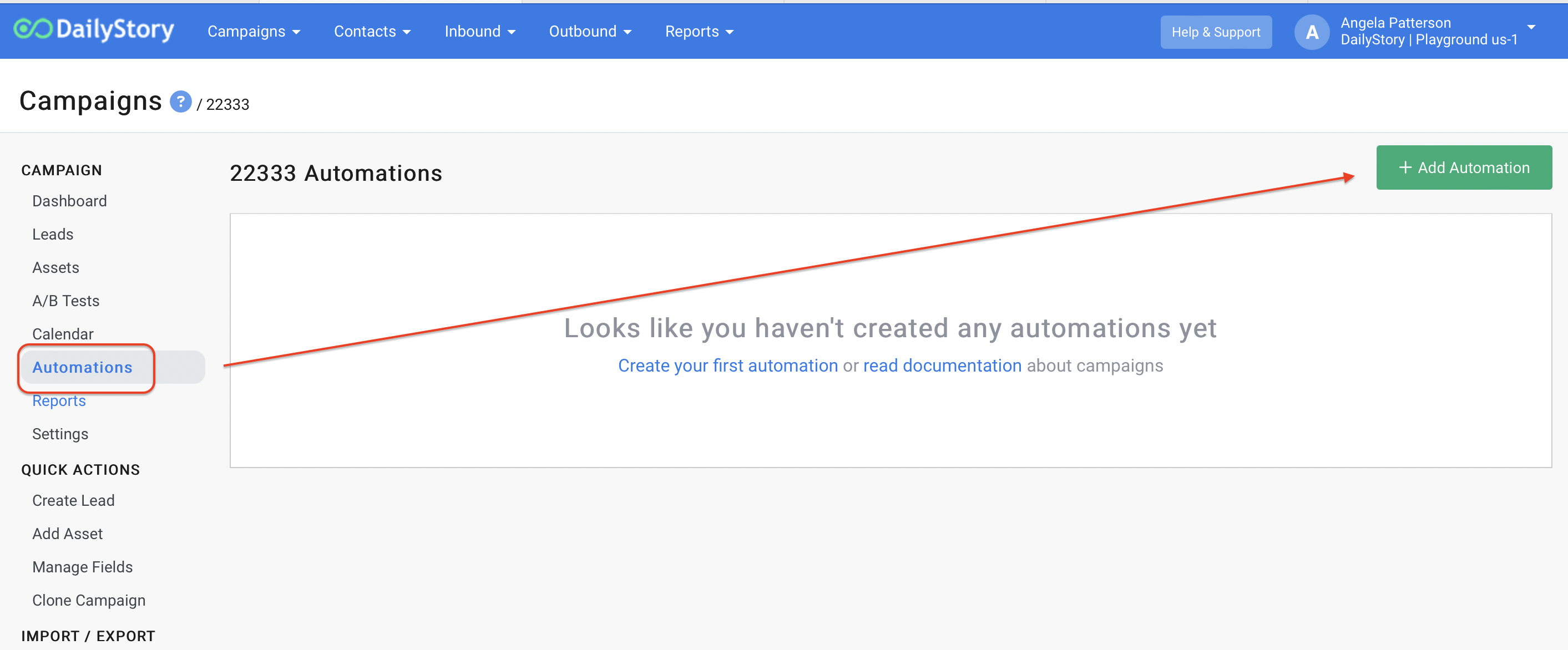
Create a new automation.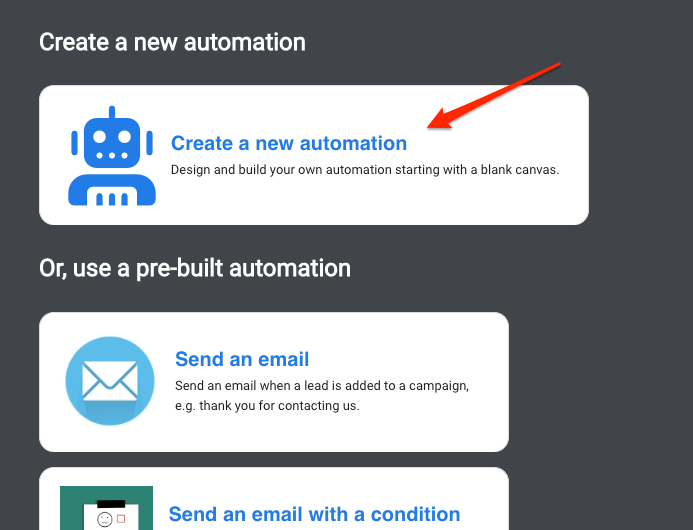
When added to this campaign onto the canvas.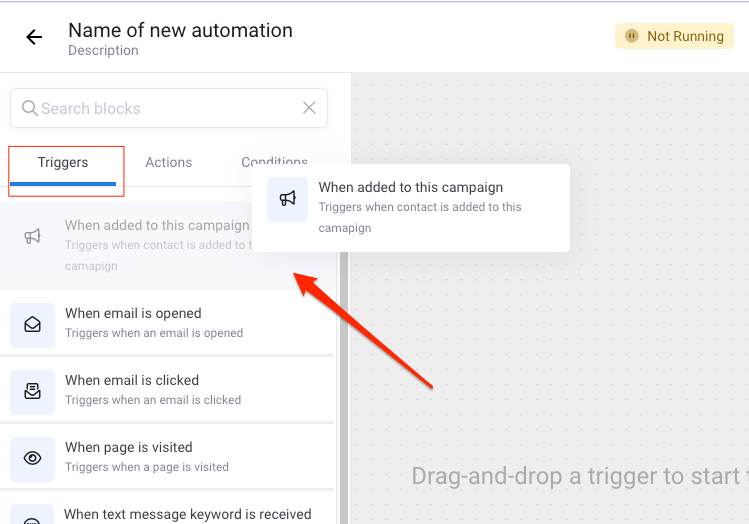
Send a text message or Send an email onto the canvas overlapping the previous step so it will drop into place. You will see a blue dot when it’s ready to drop into place.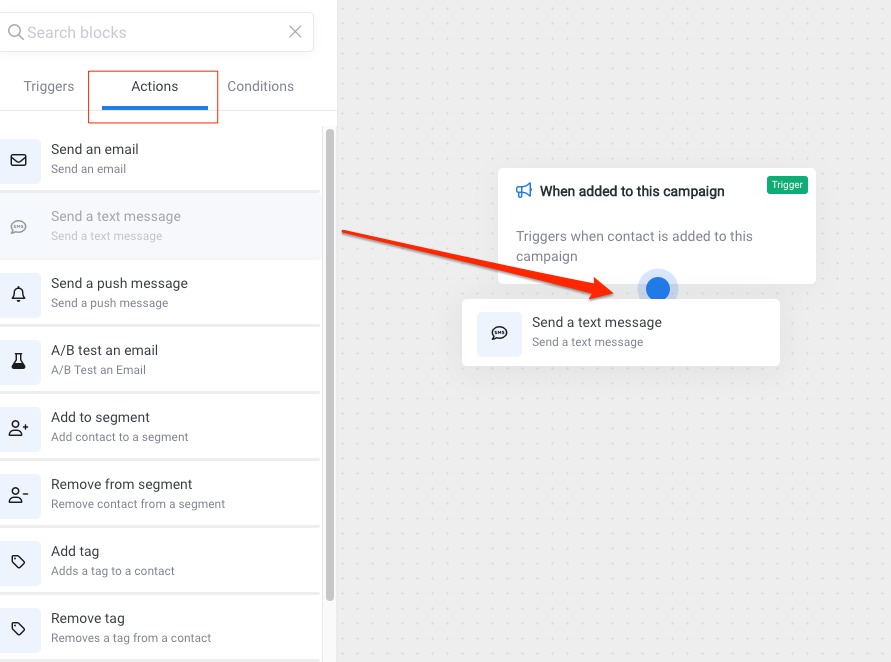
Update.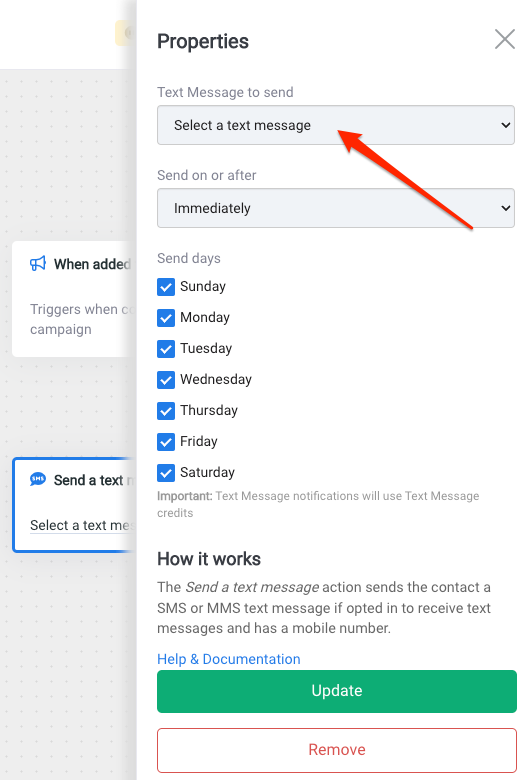
<-- to return to the automation settings.ON from the settings screen and click Save & Close, or you can always turn automations off or on from the tab in your campaign.Click here for more help with creating automations.
You're all set!
As soon as new customers are added to the segment (based on the over 45 days but not longer than 90 days criteria), they will automatically populate as Leads in the campaign and run through the automation to receive your Win Back message.