No. Each Push Notification sent by DailyStory is send individually to each recipient. This is done so each message can be personalized to each recipient.
Use DailyStory Push Notifications to send personalized and targeted messages to an iOS or Android app.
RecommendedNote: to use DailyStory to send app push notifications you need to use the DailyStory REST API to register the device from your mobile app.
Push Notifications are useful for sending specific messages to people directly on their phone through an existing iOS or Android app.
Similar to Email Marketing and Text Message Marketing, you can use push notifications to send targeted and personalized communication to people using your app.
This can include:
DailyStory's Push Notifications support personalization and are sent individually to each contact. This is different from other broadcast Push Notification services which send the same message to all recipients.
Push Notifications are sent to contacts that opted in to receive push notifications on their iOS or Android device. Push Notification messages are only available to iOS and Android App(s). And, your iOS or Android App must also register the device id with DailyStory.
DailyStory Push Notifications require Twilio integration. Twilio Notify Service integration must be configured. DailyStory can manage and configure this service for you, or you can do it yourself.
This guide provides a list of resources to help you get started with Push Notifications.
Outbound > Push Notifications.+ Create. This will open the Push Notification editor.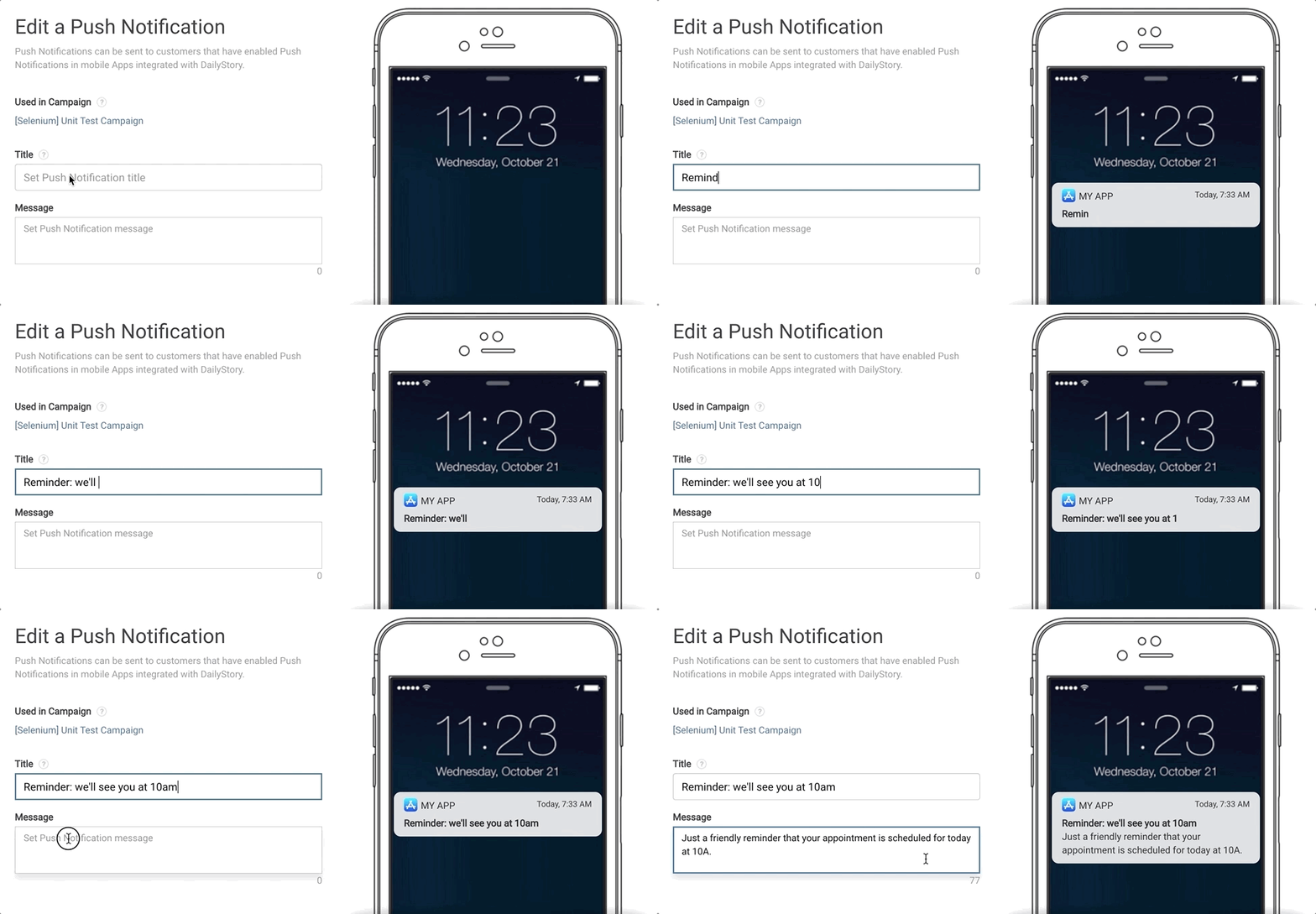 Recommended
Recommended title and message length vary between devices. However, in general, a Push Notification should be as short as possible.
Within the title and message of your Push Notification you can also use Personalization tokens and conditions to target the content to each recipient or fill in your recipient's first name, as an example.
Save & Close.Once the Push Notification is saved, you can also schedule when and to whom the Push Notification is sent to. The Push Notification is also now available to add to a campaign's automation.
Outbound > Push Notifications and click on the Push Notification you want to edit.Save & Close.If you edit the content of a scheduled Push Notification, the scheduled Push Notification will use your new content.
Send Test button in the Push Notification editor.Sending a test Push Notification will only send the Push Notification message to the specified contact.
Similar to other features such as Email and Text Messages, Push Notifications are sent through the scheduler or through an automation.
Schedule buttonSave & Close.Send dates and times are based on the time zone configured for your account.
+ New Automation.Create a new automation.Update button.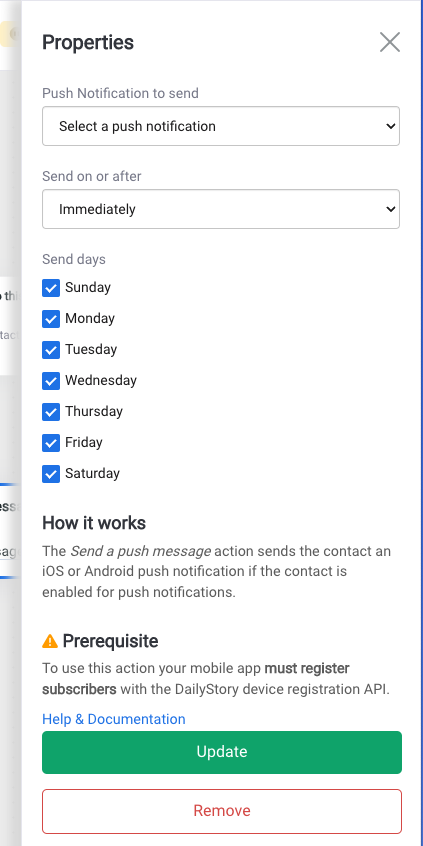
Save and give the automation a name and optional description.<-- to return to the automation settings and enable the automation. Just flip the switch to ON to enable the automation.Below are frequently asked questions about Push Notifications:
No. Each Push Notification sent by DailyStory is send individually to each recipient. This is done so each message can be personalized to each recipient.
Yes! Using DailyStory's Personalization tokens and conditions you can add personalized content to your Push Notifications similar to emails and text messages.
Unlike email and text messages, Push Notifications do not provided delivery information.
There may be several reasons why a recipient did not receive your Push Notification:
Yes! If your App is installed on multiple devices, such as an iPhone and and iPad, each of the device ids are registered with DailyStory. When a Push Message is sent, the message is sent to all the devices registered for the Contact.
Enabling DailyStory to send Push Notifications to your App requires registering the device id. This provides DailyStory with a unique identifier (the device id) that identifies the App and the individual. Secondly, Push Notifications are sent by DailyStory using Twilio. Twilio Notify Service integration must be configured. DailyStory can manage and configure this service for you, or you can do it yourself.
Push Notification messages do not provide delivery information. Unlike email and text messages, if you want to know if your recipient receives your Push Notification additional updates to your App are required to tell DailyStory when a message is received.
A device binding is a unique identifier that uniquely identifies your app and the devices the app is installed on. When an App is installed on the device and the end user agrees to receive notifications, a device binding is created. This device binding, or device id, is then sent to DailyStory. When DailyStory sends a Push Notification the device id is used to identify the recipient.
Yes! Create a new Autopilot automation in a campaign and use the When device is registered trigger. This trigger is called whenever a device is registered. It will first check to see if the contact associated with the device is in the campaign (and add them if not) and then run the next step in the automation.