Below are some frequently asked questions about DailyStory emails.
When a new email is created from a template the from address must be set for the email to be saved. The default sending address is set in the account's Brand Kit:

When a new email is created from a template DailyStory will use the default sending address if it is set. If it is not set, DailyStory will use the name and email address of the current user.
Yes, You can restore deleted emails and other deleted items across the DailyStory platform.
When viewing the all emails use the filters at the top to Show Deleted. The system then shows all emails flagged to be deleted. Select and email to undelete and click Activate Email.
The majority of modern email clients use a web browser as the rendering engine to parse and interpret the HTML in the email. Unfortunately Microsoft Outlook uses Microsoft Word as the rendering engine.
Microsoft Word's support for HTML is limited and some email elements may look slightly different in Outlook vs. Gmail. For example, buttons lose shading and some styling aspects in Outlook.
When someone completes a form on your website you can use DailyStory's double opt-in functionality to confirm their intent to receive your emails. Using automation, send a follow-up email using the Double Opt-in action with an email that contains the *|DOUBLE_OPTIN|* merge tag.
Double-check that you have assigned the segment to the associated campaign. Only the segments assigned in a Campaign's properties will be available to select when scheduling the email.
For testing purposes, you can use recipient addresses ending in @test.com and @example.com. These email addresses do not count toward your license limits and will never be sent.
If you want to test sending emails, such as running a test lead through a workflow, we recommend using a disposable email address such as those obtained from Fake Mail Generator.
The majority of email clients display a small text preview of your email in the inbox. This enables recipients to quickly scan the inbox and decide if they want read, save, or archive the email. You can set this preview text using an email preheader.
This will include a hidden HTML div in the body of your email, but will not be present when viewing the actual email:
Related article:
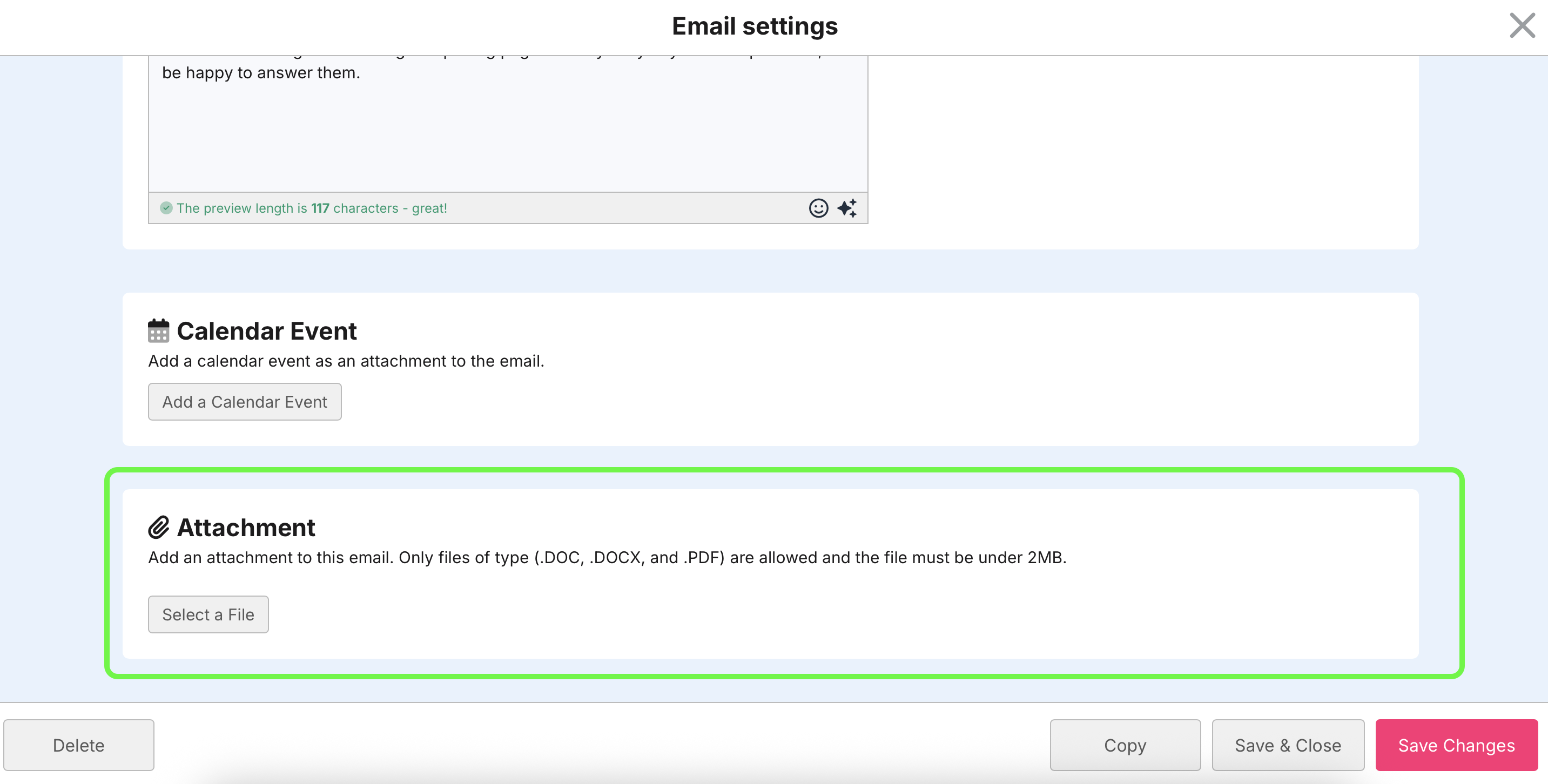
Yes, you can add attachments to emails sent from DailyStory. However, there are a few issues you should be aware of prior to sending:
Instead, you may opt to upload your file, such as a PDF to the File Manager and then linking a button or text in your email to that file's URL assigned by file manager.
To add an attachment directly to the email, look for the Attachment option in your Email Settings page:
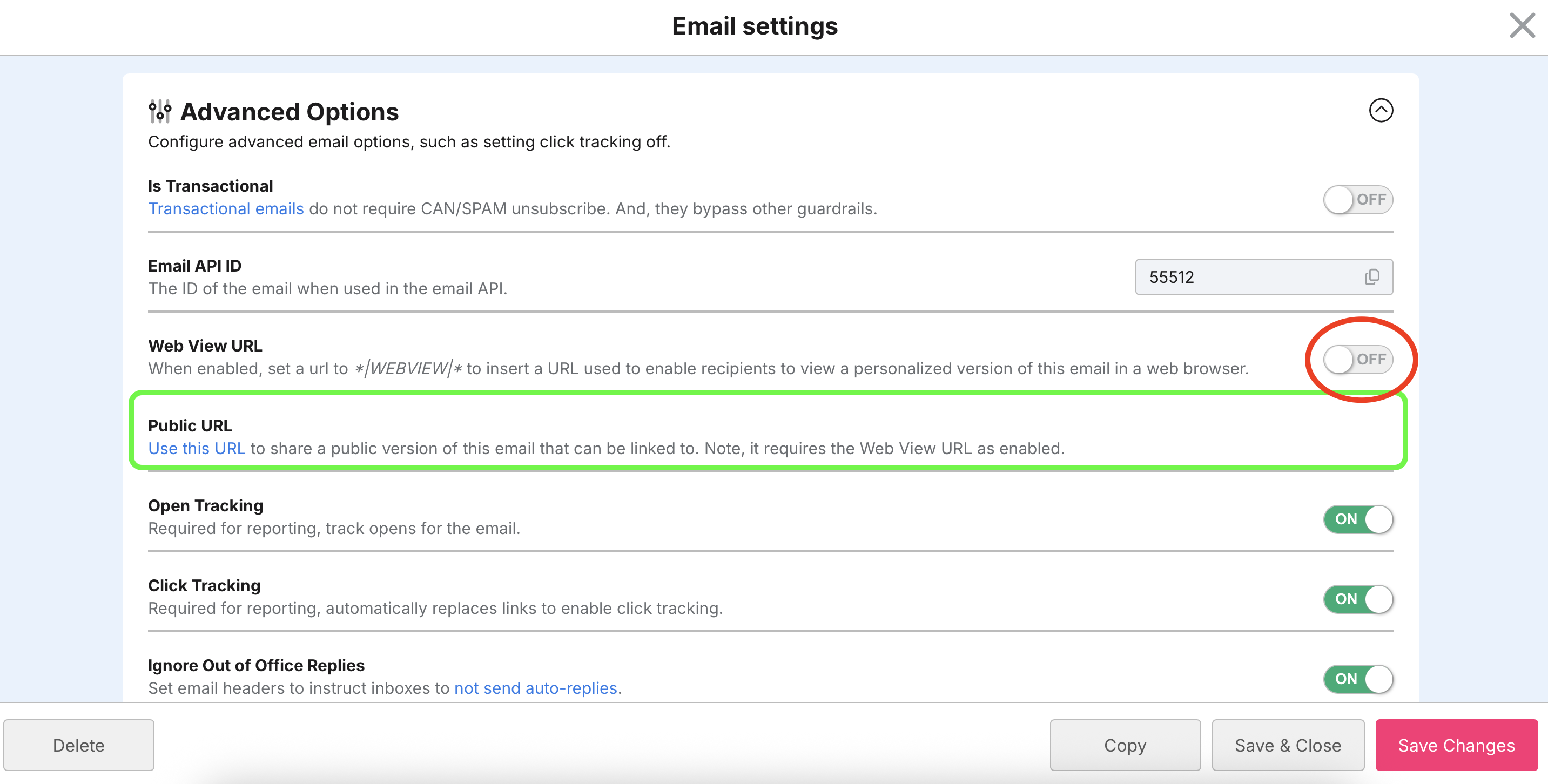
You can share your email via a URL by toggling on Web View URL under Advanced Options in the Email Settings page. This will allow you to utilize a Public URL to share a link to an email, like your monthly newsletter. You can then use this link in other marketing avenues (like text messaging) to share with customers.
Yes. See Email Merge Tags for more details.
A Merge Tag such as *|FNAME|* is used in emails and is replaced with the recipients first name when the email is sent. However, personalization tags and scripts is the recommended way to personalize email content.
Emails can soft bounce or hard bounce. Hard bounces fail permanently and the contact's status is changed to Bounced. A soft bounce indicates that the delivery should be attempted later.
A soft bounce occurs when the recipients email server temporarily is unable to receive the email. Such as when the mailbox is full or when the receiving domain has received too many emails from the sender in a short period of time. DailyStory attempts to prevent temporary email throttling used advanced delivery algorithms, but occasionally this still may occur.
Yes. DailyStory will retry to send a soft bounced email 2 hours later, then 4 hours later, then 8 hours later, and then finally 24 hours later. Afterwards, if the email is still undeliverable the contact's status is set to Bounced.
To move an email to another campaign, it's easiest just to create a copy of the email.
When you create a copy you will be prompted to select the campaign to place the copied email into. You can then delete the email from the campaign you want to move it from.
You can copy an email from the Email Setting screen.
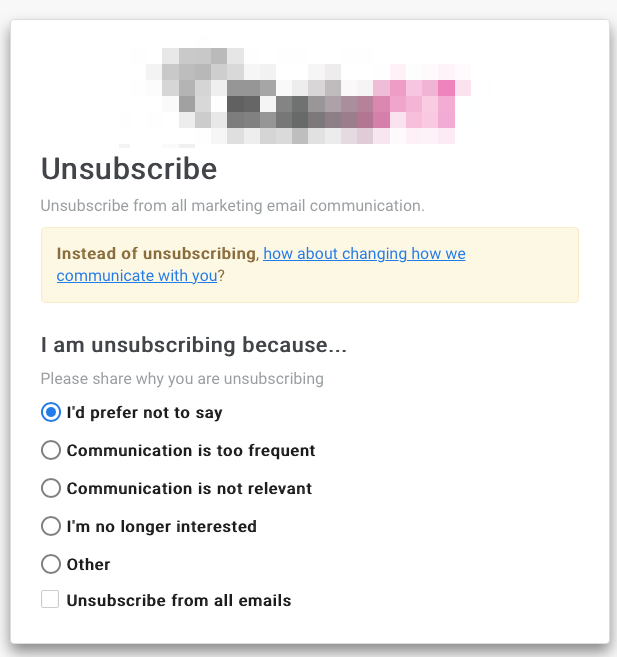
There are two ways in which a contact can unsubscribe from your emails. They click on the "Unsubscribe" link required in the footer of your emails or they can request you manually mark them as unsubscribed. If they use the link in your email, (1) they will be taken to a separate window and asked the reason they are unsubscribing (2) the system will automatically change their contact record to an Unsubscribed status.
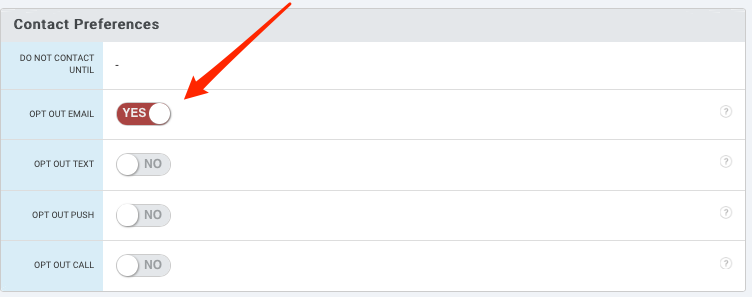
If they ask you to manually change their status, you can make this update on their contact record by click on the toggle button next to Unsubscribe.
Yes, when viewing a contact you can toggle the opt out or opt in status.
Yes, if your data in DailyStory is using a sync service and the sync reports the contact as opted out the contact is opted out in DailyStory. However, if the contact is opted out in DailyStory and sync reports that the contact is opted in, the contact will remain opted out.
Reports > Opt Outs.Contacts > Search Contacts and scroll down to the Filter results by campaign engagement section. Select Yes, the contact has opted out of email from the Has Opted Out of Email line.
DailyStory attempts to deliver all email within 20 minutes of your scheduled send time. However, this can vary depending upon which domains your are sending to and the total number of emails sent.
RecommendedIf you need faster delivery for large sends please contact us.
When reviewing your scheduled emails in the Event Calendar you may see that your email is "queued for delivery".
Emails that are queued for delivery can no longer be edited.
For scheduled emails DailyStory will start queuing depending upon when the email was scheduled.
The queuing process is done to prepare the emails so they can be delivered as closely as possible to their send time. When the email is queued it is sent to our email system and marked delivered. However, it does not mean the email has been sent to the recipient. The actual placement of that email in the recipient's inbox will occur within +/- random 30 minutes of the scheduled send time. This randomization is done to ensure we don’t flood an email provider, such as Gmail, with too many messages simultaneously as this will cause throttling and soft-bouncing emails.
For example, if you are sending 100,000 emails at 9:00 AM. Those emails will start queuing as early as 7:00 AM. Each email will receive a random delivery time from between 9:00 AM and 9:30 AM. At 9:00 AM the emails will start delivering to the recipient's inboxes according to their scheduled delivery time.
The simple answer is no, our system only allows you to send an email one time. We do this for several reasons:
There are a few exceptions, so refer to "How can I resend the same email more than once?" in our Email FAQ.
When sending emails through automation or through the scheduler, DailyStory will ensure that a lead in a campaign will only receive your email once. However, there are a few ways to work around this.
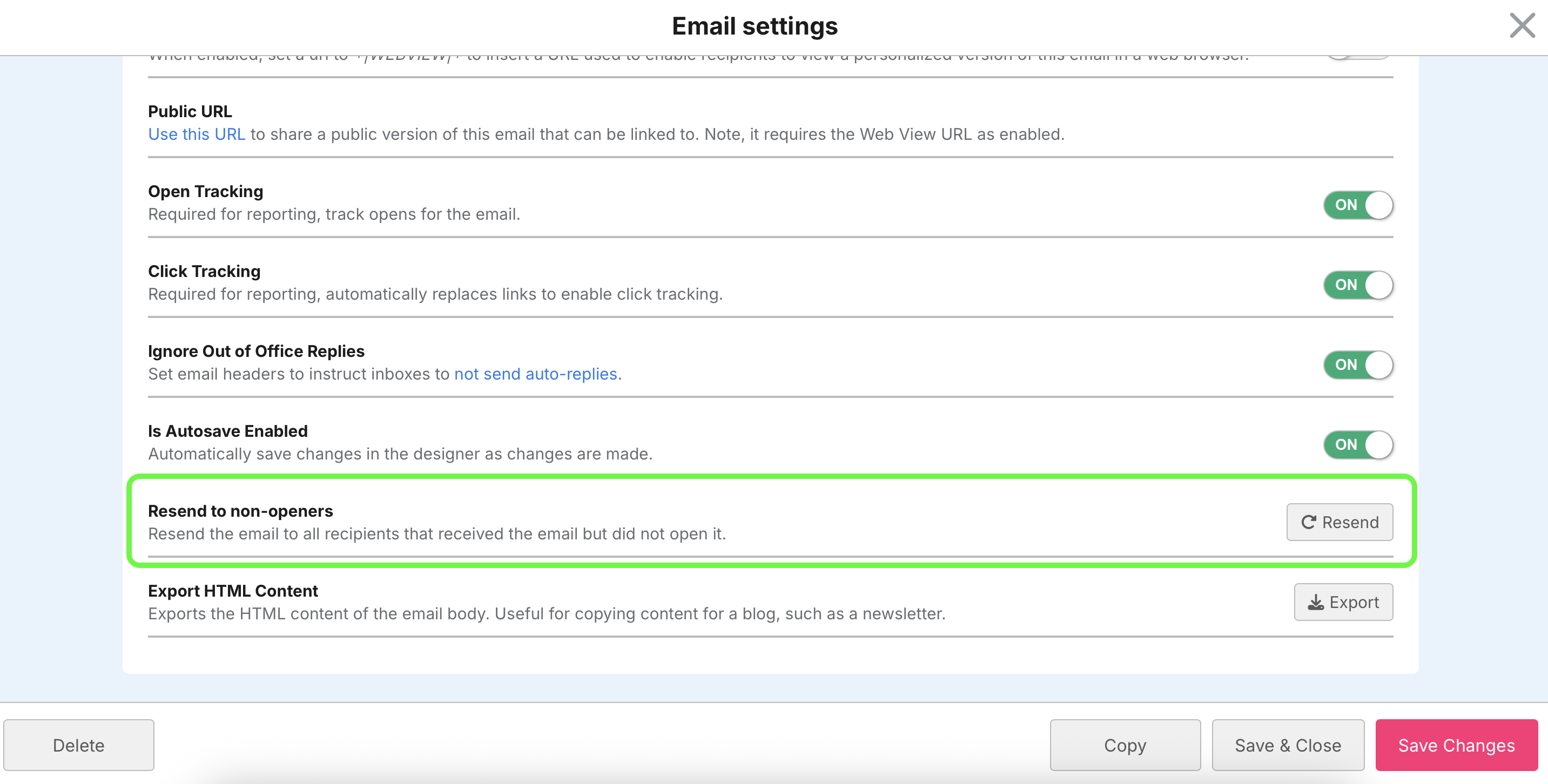
Several things could be causing the discrepancy in the "approximate number" you see in the scheduler and how many you are expecting to send to.
When viewing an email report you may see an email that has 0 opens or 0 clicks. This can be from several reasons:
By default DailyStory email have link tracking enabled. This enables DailyStory to track clicks in your emails. This also enables automations triggered on clicks as well as reporting. If you don't want DailyStory to track link clicks in your email you can disable click tracking (see Advanced Options).
Yes, DailyStory supports Firebase deep links. When a deep link is created, the link parameter will be modified to include the DailyStory campaign token as well as UTM parameters.
When saving a new email you may receive a warning:

This warning means that the from address of the email, e.g. Anna@example.com, isn't configured as one of the domains set for email sending in Mailgun integration.
The email may still be sent, but deliverability will be impacted as recipient mail servers may reject your email due to the from address and sending domains not matching.
You can't insert an mp4 video directly into your email but you can achieve a similar result with one of these options:
When viewing multiple test emails in a single inbox Gmail will use conversation threading to group those messages together. Gmail will show the full content of the first email, but in subsequent emails will display. "Show quoted text".
When sending test emails it's best to delete the test email in your inbox prior to sending another test email.
Unfortunately, Gmail and Outlook.com do not support the SMS protocol used to create SMS links.
Example SMS link: sms://[mobile number];?&body=some text here
In fact, Gmail completely remove the href attribute leaving you with an empty anchor tag. This occurs in both Gmail's mobile application and web client.
Yes, you can register multiple sending domains with DailyStory. This is useful if you want to send transactional email and marketing emails on separate domains.
Yes, you can edit the plain text version of an email. If the plain text is not provided, DailyStory will automatically generate it by remove all the HTML from your email.
Including plain text is recommended and helps with the delivery of your email.
Yes. To preview the plain text of an email use an option to preview the email. Next, add /plaintext to the end of the URL when viewing the preview and the plain text version will be shown.