An automation in DailyStory is started using a trigger. For example, start an automation when someone completes a form on your website.
Triggers are special because they always start an automation. However, triggers can also be used within the automation. For example, using a "Pause the Automation" trigger to add a three-day delay between text message sends in a drip campaign.
Triggers can be found in the first column in the automation designer:
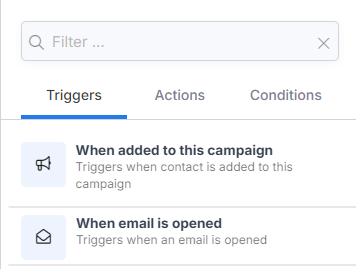
DailyStory offers more than 35 triggers that you can use to start an automation, including for many unique scenarios. And, many of the automations work hand-in-hand with native integrations.
The following is a list and description of each Autopilot Triggers.
The When added to this campaign trigger adds a lead to the automation when they are added to the campaign the automation runs within. This includes when leads are added through segments, manually, through the API, or through acquisition sources, such as pop-ups.
This is the most generic automation. It doesn't have properties.
Examples for how this trigger is used:
This automation only runs on leads added to the campaign after the automation is started. If you want to run the automation on existing leads, please see the When automation is enabled trigger.
The When email is opened trigger adds a lead to the automation when they open a specified email used in the campaign. To use this trigger, you must select an email to check for opens in the properties.
Examples for how this trigger is used:
The When email is clicked trigger adds a lead to the automation when they click a link in a specified email used in the campaign. To use this trigger, you must select an email to check for clicks in the properties.
You can optionally also select a specific URL to check for clicks.
When checking if a specific link is clicked query string parameters added to the URL are ignored.
ImportantThe URL https://dailystory.com and the URL https://dailystory.com?utm_campaign=prospects would evaluate at the same URL.
Examples for how this trigger is used:
The When page is visited trigger adds a lead to the automation when a specific page is visited. To use this trigger, the page must have the DailyStory beacon installed and you must supply the full URL to the page in the properties.
ImportantThis trigger requires that the website is using the DailyStory beacon.
Examples for how this trigger is used:
The URL supports wildcard to match any page in the path. For example, to match any visit to your blog:
https://example.com/blog/*
Wildcard matching also works within the URL:
https://example.com/products/*/widgets
If an asterisks is not present within the URL, the URL match will ignore any query string data. For example:
https://example.com/blog/
Would match a visit to:
https://example.com/blog?utm_campaing=example_campaign
The When text message keyword is received trigger adds a lead to the automation when a keyword, e.g. "DISCOUNT", is received. To use this trigger you must specify one or more keywords using semi-colons to separate them.
Examples for how this trigger is used:
The When text message is clicked trigger adds a lead to the automation when a link in a text message is clicked. To use this trigger you must select a text message to check for clicks in the properties. This requires the text message to use click tracking.
Examples for how this trigger is used:
The When replied to text message trigger adds a lead to the automation when any reply is received to a text message used in the campaign. To use this trigger, you must select a text message to check for replies in the properties.
If you need to check for a specific reply see the Evaluate text message reply condition. You may also want to review how DailyStory handles text message keywords.
Examples for how this trigger is used:
The When tag is added trigger adds a lead to the automation when a tag is added to a contact. To use this trigger, you must select a tag which when added to a contact fires the trigger.
Use this trigger to start a sequence when a contact is given a specific tag.
A new tag can also be created directly from within the properties.
If the tag already exists, a duplicate is not created. When a new tag is created it is also automatically selected.
The When tag is removed trigger adds a lead to the automation when a tag is removed from a contact. To use this trigger, you must select a tag which when removed from a contact fires the trigger.
Use this trigger to start a sequence when a contact is given a specific tag.
If the tag already exists, a duplicate is not created. When a new tag is created it is also automatically selected.
The When loyalty points earned trigger adds a contact to the automation when a contact earns loyalty points.
The When loyalty points redeemed trigger adds a contact to the automation when a contact redeems loyalty points.
The When popup is submitted trigger adds a lead to the automation when a form is submitted from a pop-up. To use this trigger, you must select a popup in the properties.
Examples for how this trigger is used:
The When web form is submitted trigger adds a lead to the automation when a form is submitted from a web form. To use this trigger, you must select a web form in the properties.
Examples for how this trigger is used:
The When magic form is submitted trigger adds a lead to the automation when a form is submitted from a magic form. To use this trigger, you must select a magic form in the properties.
Examples for how this trigger is used:
The When added to segment trigger adds a lead to the automation when a contact is added to a segment. To use this trigger, you must select a segment in the properties.
Examples for how this trigger is used:
The When removed from segment trigger adds a lead to the automation when a contact is removed from a segment. To use this trigger, you must select a segment in the properties.
Examples for how this trigger is used:
The When device is registered trigger adds a lead to the automation when a contact registers a mobile device to receive push notifications.
This requires your mobile app is setup to register with DailyStory for push notifications.
You may want to use this trigger to start a sequence when a contact registers a new device for push notification.
The When automation is enabled trigger starts the automation when the automation is enabled or when new leads are added to the campaign.
WarningWhen the automation is enabled this trigger will run for each lead in the campaign.
You may want to use this trigger to start an automation after you've built the automation. Unlike the When added to this campaign trigger, this automation will run for any lead in the campaign.
The When cart abandoned trigger starts an automation when a shopping cart is abandoned.
This trigger requires that one of the following integrations is enabled:
The When cart ordered trigger starts an automation when a shopping cart order is transacted.
This trigger requires that one of the following integrations is enabled:
The When payment is declined trigger starts an automation when a payment for a customer's order is declined.
This trigger requires that one of the following integrations is enabled:
The When cart is shipped trigger starts an automation when a shopping cart order is shipped or fulfilled.
This trigger requires that one of the following integrations is enabled:
The When today's date is trigger adds a lead to the automation or resumes an automation when today's date condition matches the lead's date. For example, when it is the contact's birth date.
To use this trigger, you must select a date range and date field in the properties. Or you can select "The day of" to trigger when today's date matches the date.
Dates include:
The When the day of the month is trigger is a special trigger that is used within an automation. It cannot be the first trigger in the automation. It continues an automation when today's day of the month matches the specified day of the month. For example, to run an automation on the 15th day of the month. To use this trigger, you must select a day of the month. By default it is set to the 1st.
Examples for how this trigger is used:
The On a specific date and time trigger is a special trigger that is used within an automation. It cannot be the first trigger in the automation. Instead it is used to to pause the automation until a specific date and time.
The trigger can be set for a relative date and time, for example "tomorrow", "next week" or a specific date "July 4, 2025":
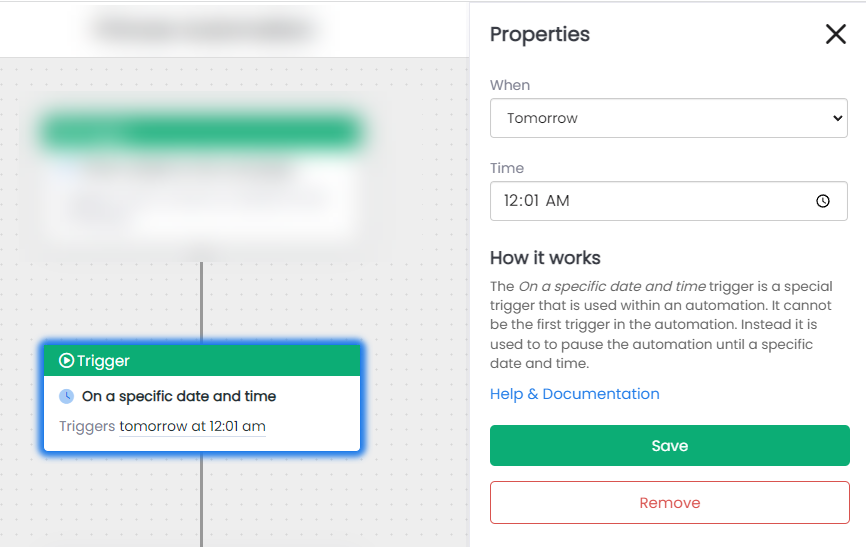
Relative dates, such as "tomorrow" apply to when the automation is run. For example, if Anna runs through the automation on July 23, 2023 when she reaches this trigger "tomorrow" would be July 24, 2023.
Examples for how this trigger is used:
The When point total is trigger adds a lead to the automation when based on points assigned to a lead. Points are assigned through automation actions. To use this trigger, you must specify a point total of 0 or more and whether or not to fire the trigger when the points are greater than or equal to or less than or equal to the lead's points.
WarningImportant: This trigger will run for a maximum of 60 days. It will run every hour for the first 3 days, every 3 hours for the next 7 days, and then run once per day. After 60 days if the trigger does not run, the lead is failed out of the automation.
Examples for how this trigger is used:
The When opted out trigger adds a lead to the automation when a contact opts out of a specific communication type (Email, Text Message or Push Notifications) or any communication.
Use this trigger to send notifications or updates to team members if this opt out wasn't expected.
The When call is incoming trigger adds a lead to the automation when a call is incoming call.
Use this trigger to send notifications or updates to team members about the call.
ImportantThis trigger requires that you register incoming call processing with DailyStory. Using call processing incurs additional phone carrier fees.
The When call is missed trigger adds a lead to the automation when an incoming call is missed (busy or unanswered).
Use this trigger to send notifications or updates to team members about the missed call. Or, automatically text back a reply to the caller.
ImportantThis trigger requires that you register incoming call processing with DailyStory. Using call processing incurs additional phone carrier fees.
The When API is called trigger starts a contact in an automation when a webhook is called (see developer documentation). The contact to add to the automation must be identified by passing either email, DailyStory ID (dsid), or mobile phone number as a query string value.
This trigger is an advanced trigger designed to be used from within other applications that wish to start automations within DailyStory.
The When RSS is updated trigger adds leads to the automation when an RSS source is updated. To use this trigger, you must specify a URL to the RSS feed, number of article updates before triggering and how often to check for updates.
This trigger is an advanced trigger. When triggered it will add all leads in the campaign to the automation if not already added. This trigger is meant to be used for either using a campaign for monitoring a specific RSS source or to enable an RSS driven email sequence, such as an automated newsletter.
In the example above the trigger is configured to monitor CNN's Top Stories RSS feed. It will check the feed daily and will trigger if there is at least 1 new article since the last time it checked.
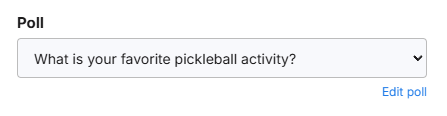
The When vote is received for a poll trigger starts an automation when a poll is voted on. When the trigger is selected an option to select the poll to monitor votes for is shown. A poll must be selected.
The When registered for an event trigger starts an automation when a contact registers for an event.
Outbound marketing used in an automation started by this trigger have access to Event Personalization.
This trigger requires that one of the following integrations is enabled:
The When withdraws from an event trigger starts an automation when a contact withdraws from an event they have previously registered for.
Outbound marketing used in an automation started by this trigger have access to Event Personalization.
The When attended an event trigger starts an automation when a contact attends an event.
Outbound marketing used in an automation started by this trigger have access to Event Personalization.
This trigger requires that one of the following integrations is enabled:
The When an event is scheduled trigger starts an automation when a contact schedules an appointment.
Outbound marketing used in an automation started by this trigger have access to Event Personalization.
This trigger requires that one of the following integrations is enabled:
The When an event is cancelled trigger starts an automation when a contact cancels an appointment.
This trigger requires that one of the following integrations is enabled:
The When a deal reaches a stage trigger starts the automation when a deal moves to a specified stage in the CRM. The automation runs against the deal's primary contact.
Select the stage to watch for in the properties. Leaving the stage set to Any stage starts the automation whenever a deal moves to any stage, including Won, Lost and Closed.
RecommendedNote: creating a deal does not count as reaching a stage. A deal opened at New — including one opened by the Create a deal action — will not start this trigger.
The same choice is available as an exit goal, so a deal reaching a stage can end an automation as well as start one. A nurture sequence can exit the moment the deal is won.
Examples for how this trigger is used:
This trigger requires that the Sales add-on is enabled for your account.
The No start trigger is a special trigger useful for when you when to start an automation by manually adding leads to the automation or only starting the automation from another automation's Start another automation action.
Examples for how this trigger is used: